文章:
- 访问控制
- 如何禁用通过社交媒体登录
- 如何为项目设置在聊天工具中显示的徽标(预览)
- Changing the project (cabinet) name and other public settings
- 将您的优惠添加到 Kwiga 平台
- How to connect an additional project
- How to set a specific language for a page on Kwiga
- 学生收到的通知
- Changing the password and login settings
- Changing personal information
- Sender settings and reply address
- Important settings
- 如何删除用户账户
- 项目(学校)展示页面
- 如何绑定自己的域名或子域名
- 项目中使用变量,可用变量列表
- 连接自定义域名(子域名)以发送电子邮件
- 如何添加公共项目信息和联系方式
- 学生个人资料设置
How to change the password, what are the settings for access to a personal account and their options.
Access Control
In order to get to the access control menu - in the upper right corner click on the name of the project, and in the drop-down menu, select the tab “Settings”, then “Cabinet”, menu item “Personal access” and subparagraph “Access control”

Change password
The first section of the menu allows, if necessary, to set a new password.

When you change your password, you must verify your identity. The confirmation code will sent to your email address.

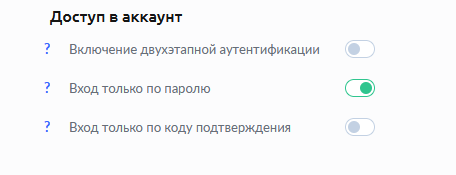
Account Access
Below are the account access settings. Login options can be connected and change at any time, as needed.

Two-Step Verification is the most secure security method account. Every time you log in to your KWIGA account, you will need to enter a password and a confirmation code that will be sent to your email address.
Password-only login - the classic version, is set initially during registration.
Sign in with confirmation code only - disables introductions password. Access to your personal account is provided only through the code confirmation that is sent to your email address when you log in kwiga.com
In order to connect in a convenient way for you - set the green slider next to the desired item.