
How to set up AI that does work in KWIGA on a schedule
Learn how to connect Claude or ChatGPT to KWIGA and set up a task that AI runs on its own on a schedule: summaries, review lists, exports to Google Sheets.
Claude and ChatGPT can connect to your KWIGA project through the MCP server and work with its data: student submissions, course progress, orders and payments. If you give such an AI a scheduled task, it runs it on its own — for example, every morning it sends assistants a list of submissions to review, or once a week it puts together a sales report.
This article covers when you need this, how to connect KWIGA to Claude and ChatGPT, how to schedule a task, where to send the result, and ready-made task texts for common cases.
When you need AI and when an automation is enough
If the task is "when something happens, immediately do the same action", you do not need AI: KWIGA Automation does that instantly and for free. For example, to send a student's quiz answers straight to a Google Sheet, use the Quiz passed event and the Webhook action with the Quiz answers field — see Data export to Google Sheets.
Scheduled AI is useful when you need to:
- collect and summarize — "which students have not logged in for a week and which lesson they stopped at";
- select by meaning — "which submissions have been waiting for review for more than two days";
- write text — "a short weekly sales summary with conclusions";
- combine data from several places — orders, progress and student answers in one report.
Please note: scheduled AI does not react right away — only at the next run, no more often than once an hour in the cloud. For an instant reaction, use automations.
What you need
- A subscription that supports your own MCP server and scheduled tasks (checked on 27.11.2026, the services change their terms):
- Claude — Pro, Max, Ultra, Team or Enterprise;
- ChatGPT — we checked it on Plus; according to OpenAI — Business, Enterprise and Edu, read-only on Pro.
- MCP access in KWIGA. The project owner can always connect; other staff members get access from the owner or a manager: Settings → AI & MCP server → Staff access tab. Without MCP access, a staff member is refused.
- The owner's consent to use AI in the project: Settings → AI & MCP server → AI tab. Without it, AI is refused in this project.
Step 1. Connect KWIGA to AI
The server address and a short guide are in KWIGA: Settings → AI & MCP server → MCP server tab. Click Copy next to Server address.
Claude
- Open Claude (website or desktop app) → Plugins (claude.ai/plugins) → Add → Add custom connector.
- Name — KWIGA, URL — the copied server address.
- Claude opens the KWIGA sign-in window. Sign in and select the projects AI will work with.
ChatGPT
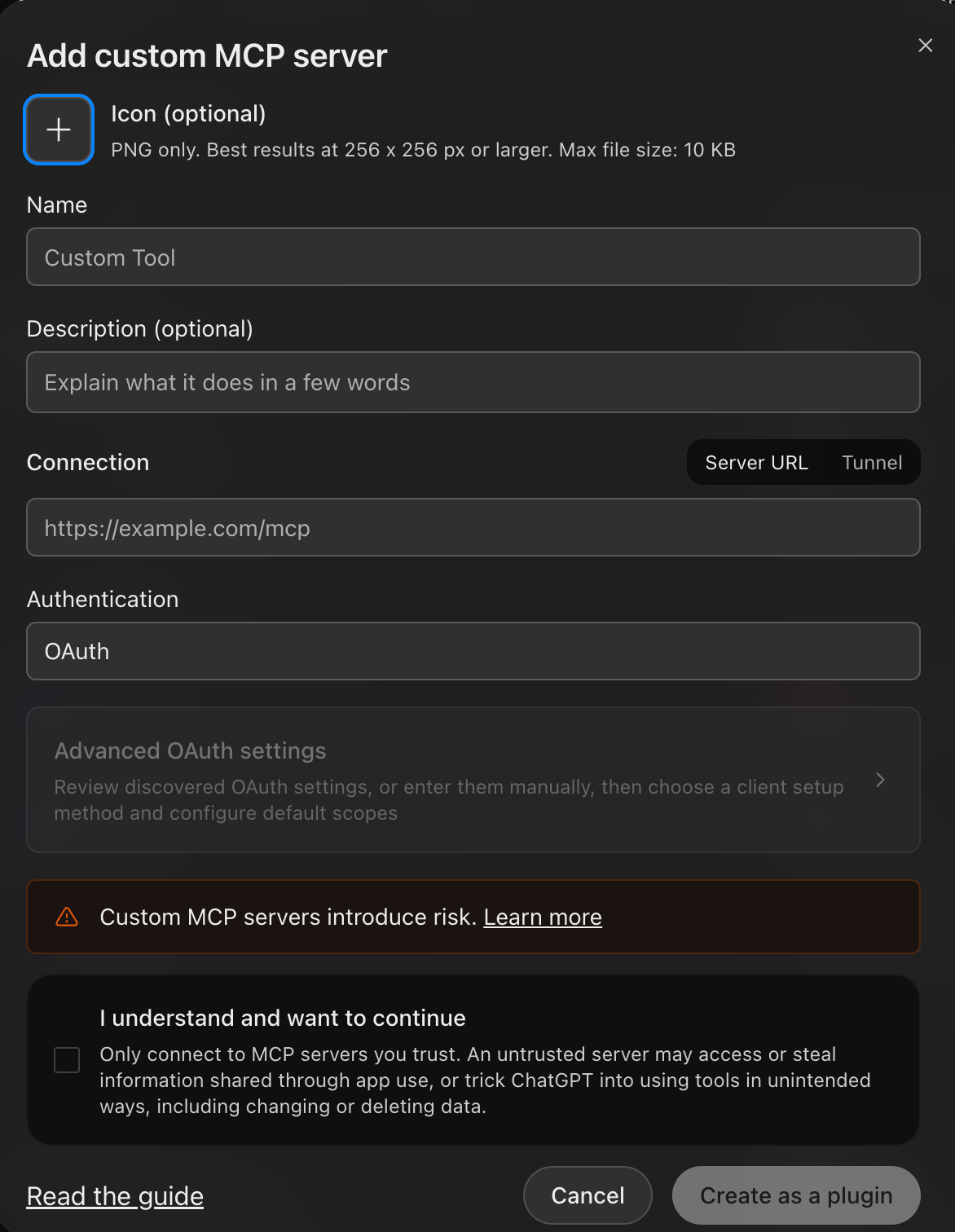
- Open ChatGPT in a browser → Plugins in the left menu → Add → Add custom MCP server. You cannot connect from a phone.
- Name — KWIGA. Under Connection, choose Server URL and paste the copied address. Authentication — OAuth.
- Tick I understand and want to continue and click Create as a plugin.
- ChatGPT opens the KWIGA sign-in window. Sign in and select your projects.
In the plugin settings (Plugins → KWIGA → Settings), you can choose when ChatGPT asks for permission before an action.
We checked the connection on the Plus plan. OpenAI says custom MCP servers are fully supported on Business, Enterprise and Edu, and read-only on Pro; in Business and Enterprise workspaces, an admin adds a custom server. ChatGPT menu names change often.
What you allow when connecting
On the KWIGA sign-in screen, you choose the projects. For each group of capabilities (core, courses and quizzes, CRM and sales), you can keep read-only access — turn off Allow changes. Read access is enough for the tasks in this article.
All connections are listed on the Connected apps page (My connections on the MCP server tab): there you can change projects and permissions or disconnect an app.
Important: AI sees exactly what you see in the project with your role. A staff member who cannot open the payments report will not get payments through AI either.
Step 2. Try the task in a regular chat
Before you schedule it, run the task once in a regular chat: paste its text and check the result. If AI asks for the name of a course, lesson or quiz, add it to the task text. During a scheduled run, there is no one to answer.
Step 3. Schedule the task
Claude: in the cloud
Works even when your computer is off. Runs no more often than once an hour.
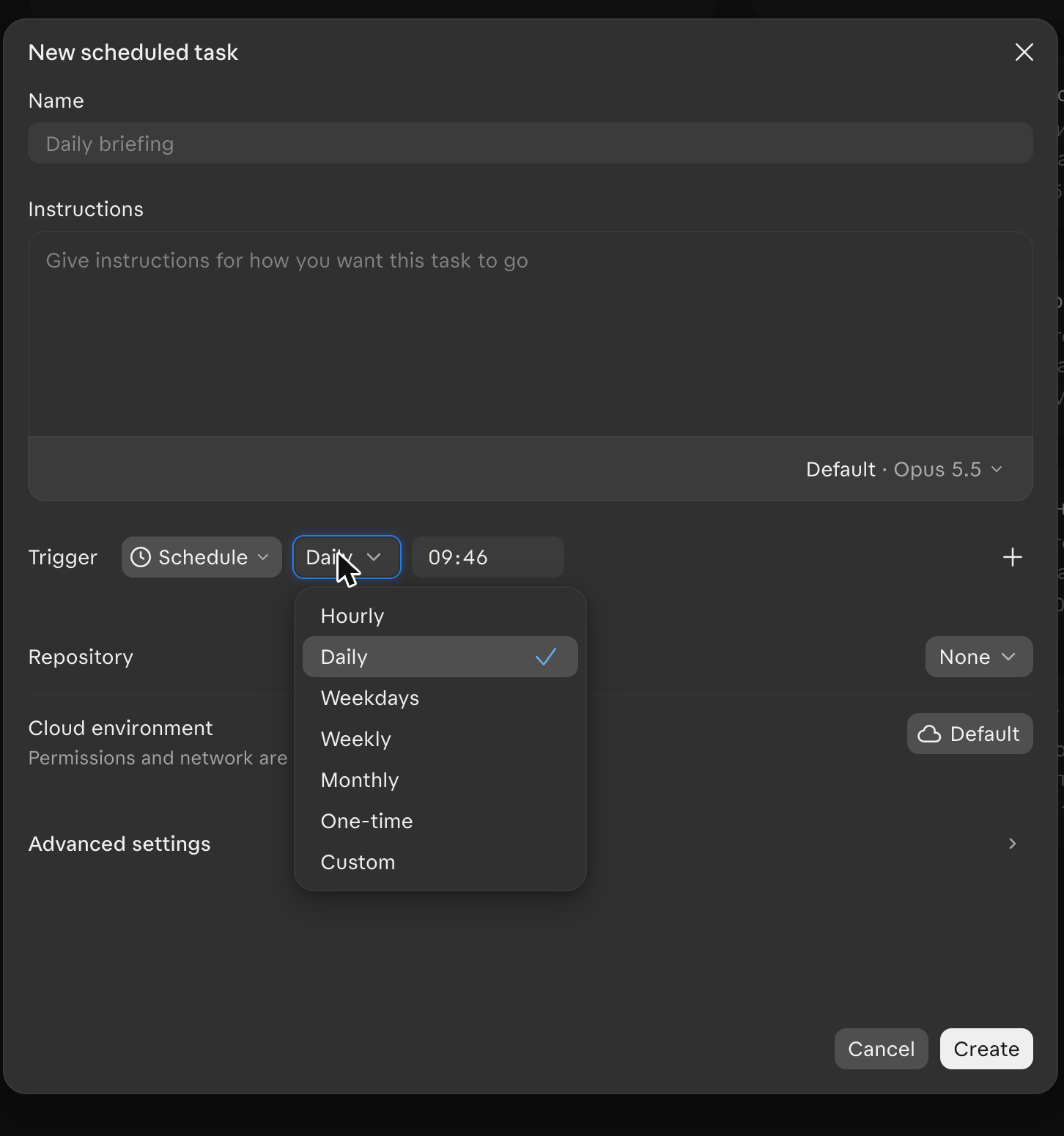
- Open claude.ai → Code → Scheduled → New task → Set up manually.
- Name — for example, "Submissions to review".
- Instructions — the task text (ready-made examples below).
- Trigger — Schedule, frequency — for example, Daily at 9:00 or Hourly.
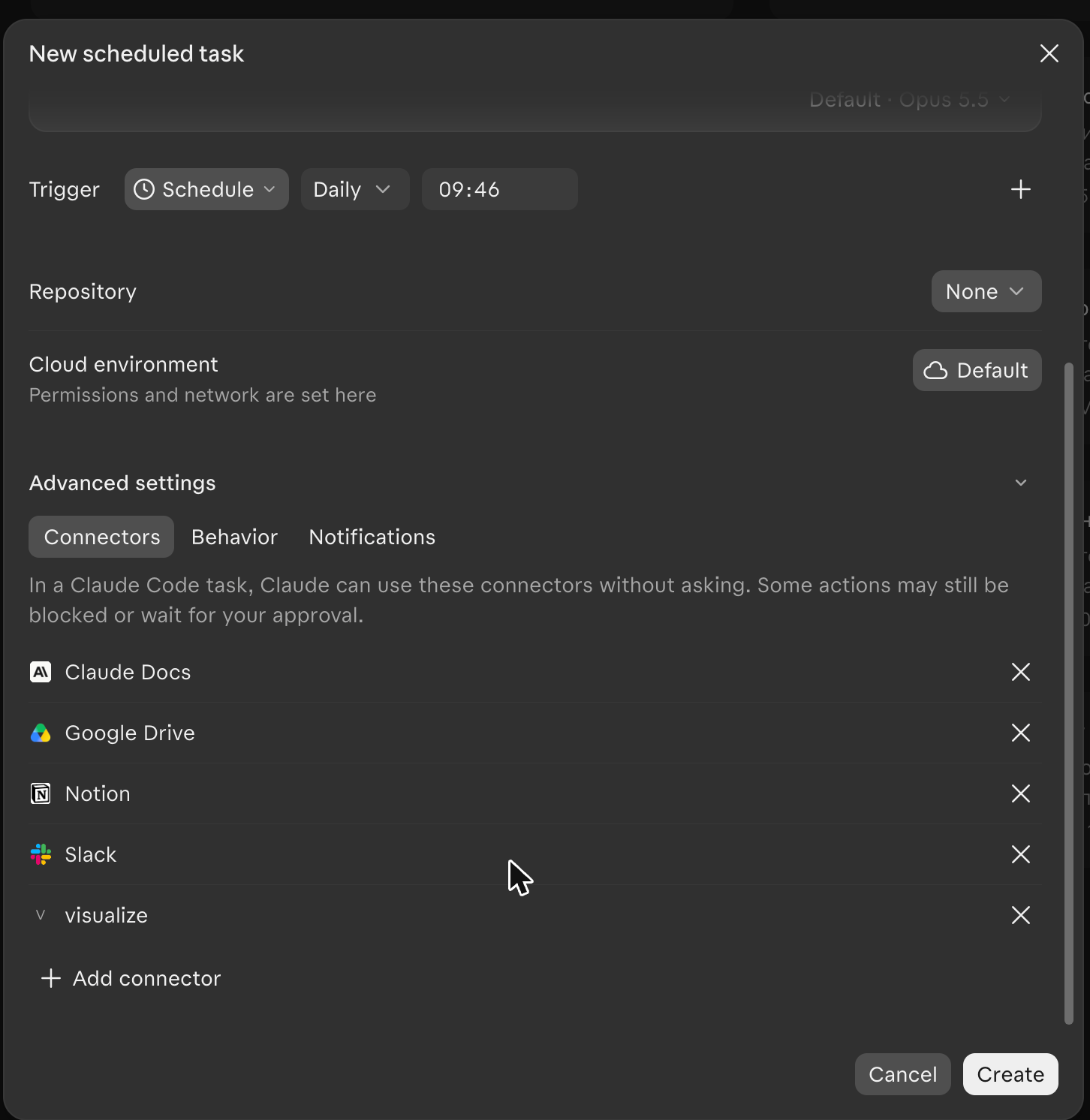
- Advanced settings → Connectors: make sure KWIGA is in the list, as well as the service to send the result to (Slack, Gmail, Google Drive).
- Click Create.
Claude: in the app (Cowork)
Cowork mode in the Claude app also has scheduled tasks: hourly, daily, on weekdays, weekly. If a task does not need a folder on your computer, it runs in the cloud — even when the computer is off. If a folder is selected, the computer must be on with the app open. How to create such a task — see the Claude help center.
More often than once an hour — only tasks in the Code tab of the Claude desktop app: you can set them to run, for example, every 15 minutes, but they work only while the computer is on and the app is open. The easiest way is to ask in the Code tab chat: "Create a scheduled task that runs every 15 minutes with this text: …".
ChatGPT
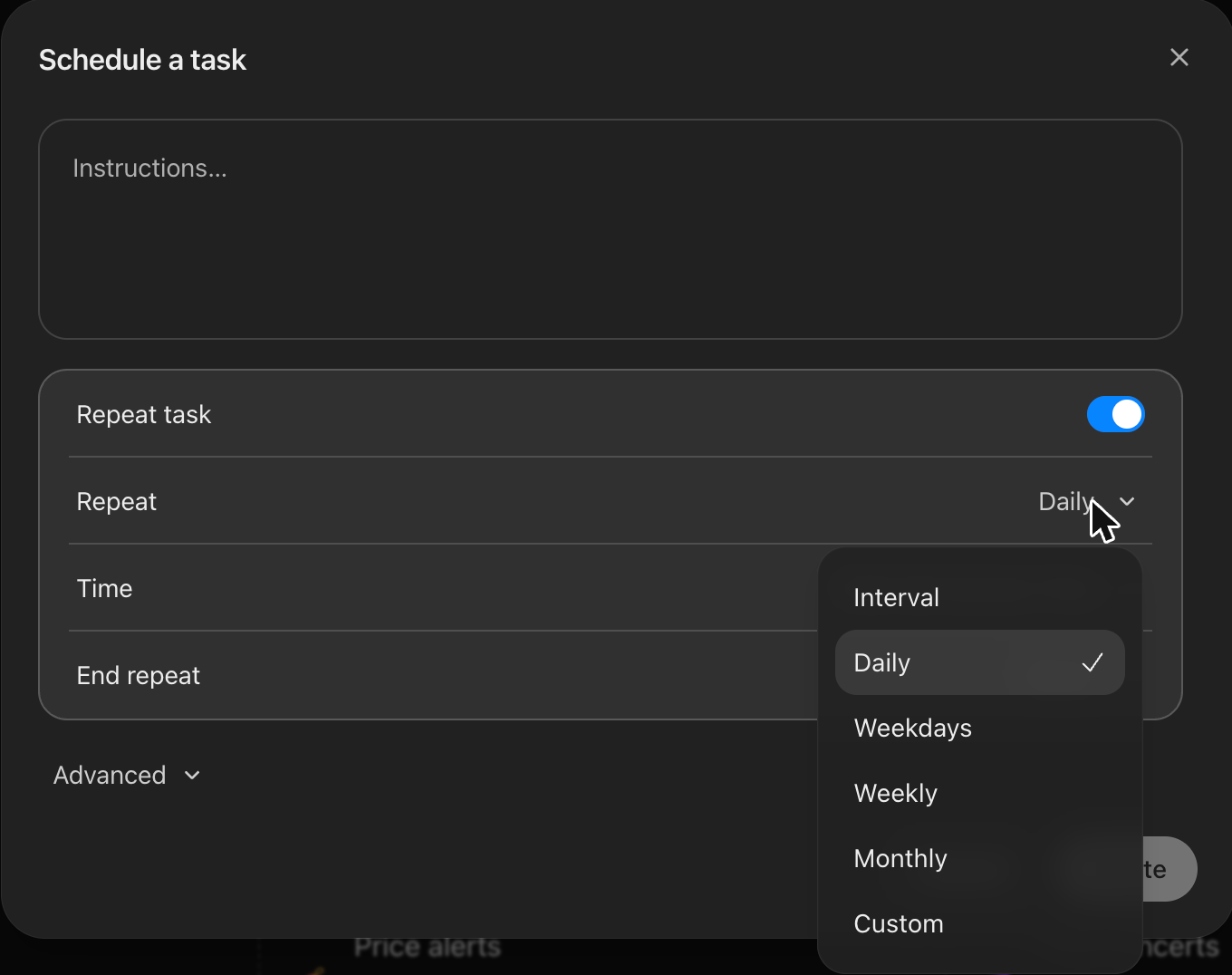
- Open Scheduled → New task.
- Write the task text in Instructions.
- Repeat — for example, Daily or Interval (at least 1 hour).
- Click Create. The result appears in Scheduled; notifications — push or email — are set up in Settings → Notifications.
The task calls the KWIGA plugin on its own — we checked this on the Plus plan. To make sure ChatGPT picks the right plugin, name it in the task text: "using the KWIGA plugin, …". A task may start a few minutes after the scheduled time.
Please note: if a task has to change something, ChatGPT may ask for confirmation — then the task pauses until you answer. The limit of active tasks depends on the plan: from 3 on the free plan to 15 on Pro and Enterprise.
Where to send the result
- A message in the AI chat or an email notification — the simplest option: the result of every run stays in the task history.
- Slack, Gmail, Notion, Google Docs — connect that service's connector in the AI and say in the task where to send the result.
- Google Sheets:
- in ChatGPT, the Google Drive app can create and edit Google Sheets if write actions are enabled for you;
- Claude has a separate Google Sheets connector — according to its description, it can read and update spreadsheets; test it on your sheet. The Google Drive connector only reads and creates files. If the connector does not fit, add the script from Data export to Google Sheets to the sheet and write in the task: "send the rows with a POST request to ". In a Claude cloud task, allow network access to
script.google.comin the cloud environment's network settings.
Ready-made task texts
Copy the text and replace what is in angle brackets.
Submissions to review — every morning
Every morning, collect the student submissions waiting for review in the KWIGA project "<project name>"
(the Practice report, unread submissions). Group them by course and lesson; for each submission —
the student, how many days it has been waiting and a link. Put the ones waiting more than two days first.
Do not change anything in KWIGA.
Students who have been away for a long time — once a week
Once a week, find students in the course "<course name>" with active access whose last activity was
more than 7 days ago and who have not finished the course. For each — name, the lesson they stopped at,
progress percentage and the assistants of their group. Group them by assistant. Do not change anything in KWIGA.
Sales summary — every Monday
Every Monday, collect the payments for the past week in the KWIGA project "<project name>": the total
for each currency separately, the number of payments, the top 5 products by amount and a comparison with
the week before. Write three short conclusions. Do not change anything in KWIGA.
Limitations
- Frequency. No more often than once an hour in both Claude and ChatGPT. If you need an instant reaction to an event, use KWIGA automations.
- Subscription limits. Every run uses your Claude or ChatGPT subscription limits. Choose a reasonable frequency.
- AI can make mistakes. Check important figures against KWIGA reports, especially in the first days.
- Changes need confirmation. If a task changes something in KWIGA, by default the change comes as a link you need to confirm; AI services may also ask for confirmation, and the task will wait. A scheduled task is best kept read-only.
- Student text. AI reads student answers and comments as data and does not follow requests written in them.
Example
An assistant wants to see every morning which submissions are waiting for review.
- The owner turns on MCP for the assistant: Settings → AI & MCP server → Staff access.
- The assistant connects KWIGA to Claude and selects the project; turns Allow changes off.
- Tries the "Submissions to review" text in a regular chat.
- Creates a scheduled task: daily at 9:00, with the KWIGA and Slack connectors; the text says "send the list to me in Slack as a direct message".
- Every morning at 9:00, the list of submissions with links arrives in Slack.
Frequently asked questions
Can quiz responses go directly to Google Sheets without AI?
Yes, you don't need AI for this: KWIGA Automations handle it instantly and for free. Select the "Quiz completion" event and the "Webhook" action with the "Quiz answers" field, then set up your spreadsheet using the "Exporting data to Google Sheets" article.
How often can a scheduled task run?
In Claude's cloud and in ChatGPT – no more than once an hour. Only a task in the «Code» tab of the Claude desktop app can be scheduled more frequently, for example, every 15 minutes, but it only runs while the computer is on and the app is open.
Which Claude or ChatGPT subscription do you need?
You need a subscription that supports connecting your own MCP server and scheduled tasks: for Claude, that's Pro, Max, Ultra, Team, or Enterprise. ChatGPT has been tested on Plus; according to OpenAI, custom MCP servers are fully supported on Business, Enterprise, and Edu, and read-only on Pro. Service terms may change.
Can AI change anything in the project without my confirmation?
Not by default: if a task changes something in KWIGA, you receive a link to confirm the change. On the KWIGA sign-in screen, you can set each group of permissions to read-only by turning off "Allow edits"; scheduled tasks should only read data.
Will an employee be able to see more through AI than in KWIGA?
No. AI can only see what an employee with that role can see in the project: if they can't access the payment report, they won't be able to get payment information through AI either.
Why is AI being denied access to my project?
Without the owner's consent to use AI in the project, AI access is denied. Consent is granted in "Settings" → "AI & MCP Server" → the "AI" tab. Employees also need MCP access, which the owner or manager can enable on the "Employee Access" tab. The project owner can always connect.
Can AI record the result in Google Sheets?
Yes. In ChatGPT, the “Google Drive” app creates and edits Google Sheets if you have write actions enabled; in Claude, the “Google Sheets” connector reportedly does this–test it with your spreadsheet. If the connector doesn’t work for you, add the script from the “Exporting Data to Google Sheets” article to your spreadsheet, include its URL in the task, and enable network access to script.google.com in the Claude cloud task: “Cloud environment” → network settings.
Thanks for your feedback!
Thanks! We'll update the article. Need an answer now? Contact support