
Subscription → Resources: how to read your usage and where extra charges come from
Learn how to read the Resources tab in KWIGA: team, domain and project seats, branding and Whitelabel days, the "included in plan / beyond plan" breakdown, and where the extra charge on your invoice comes from.
The Resources tab of the Subscription section shows what your account uses in the current billing period and how much it will cost: how many people are on the team, how many domains and projects are connected, how many days branding, Whitelabel and the mobile app were on, and how many active participants, emails and gigabytes of storage you had.
It helps you see an extra charge in advance — and understand what it is made of — before the invoice is issued.
How to open the tab
- Click your avatar in the top right corner.
- In the Subscription block, click Used resources.
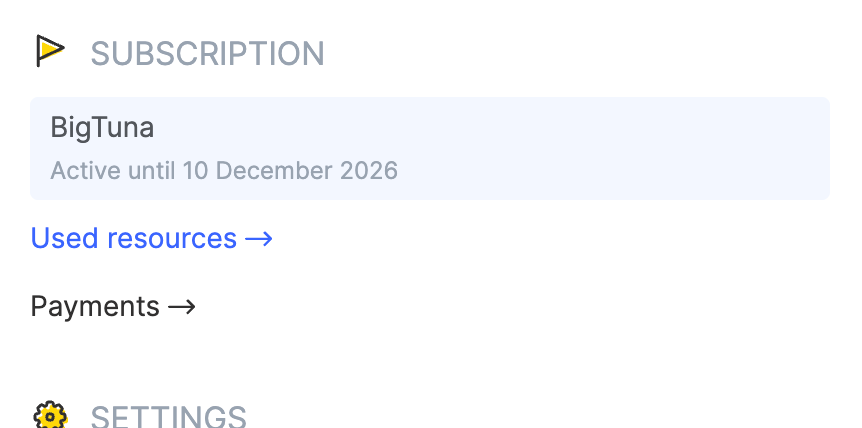
The Subscription page opens on the Resources tab. Next to it are the Plan and Payments and balance tabs.
Period and table
At the top is Resource consumption for the period: the current period is open by default, and you can pick a past one from the list.
The table has four columns:
- Resource — the name. Hover over a name with a dotted underline to see what exactly is counted. For example, Active participants explains who counts as active in the period.
- Quantity — how much of the resource is used. For seats and days there are several numbers here — see below.
- Current amount — what the resource costs as of today. For seats it grows towards the end of the period: while few days have passed, the seats counted by day still fit into the plan, so you may see $0 here even if you have more people than the plan includes right now.
- Amount (at the end of the period) — what it will cost by the end of the period if nothing changes. This is an estimate: if you add a team member or disconnect a domain, the amount changes.
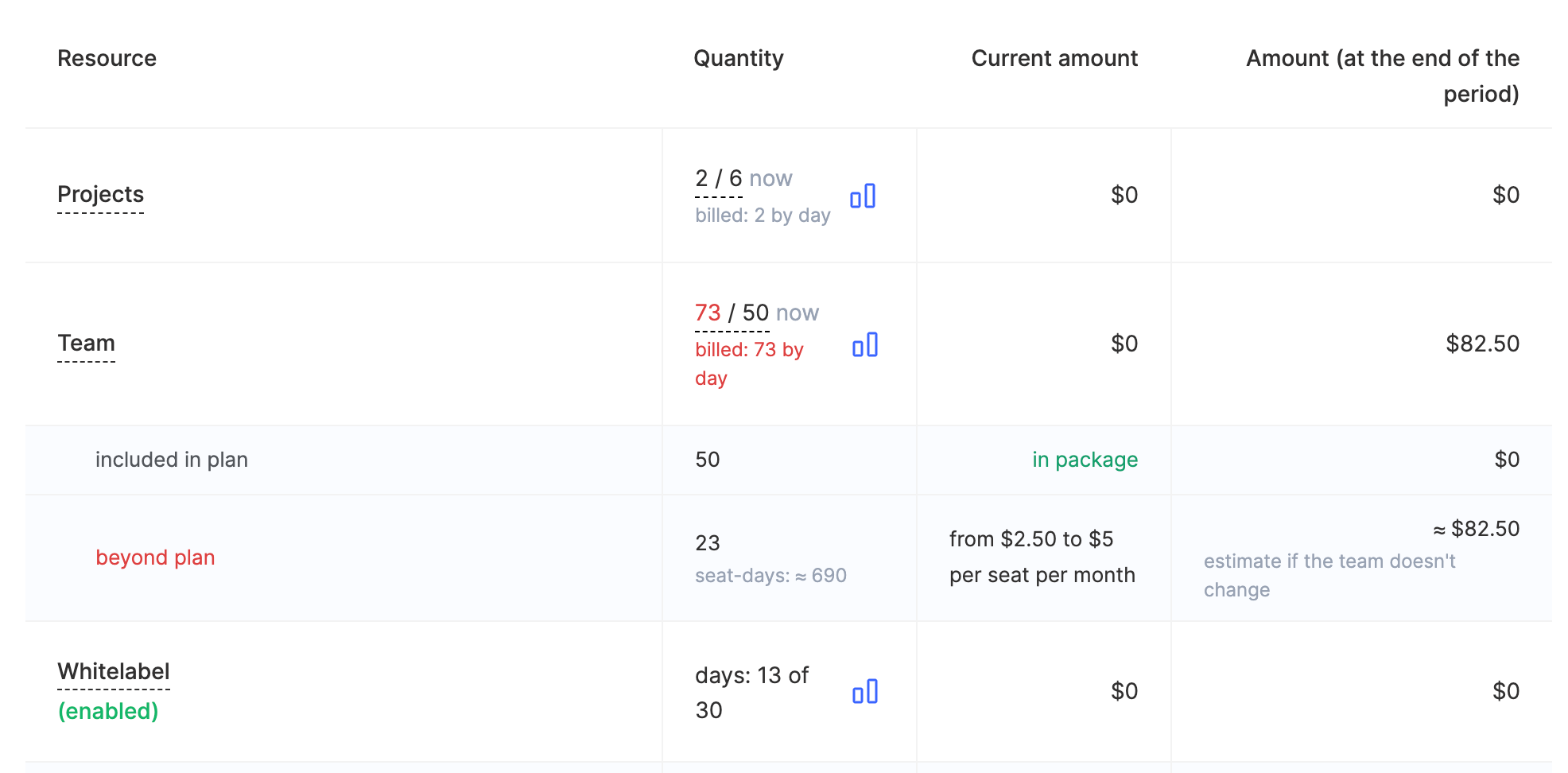
Below the table is the Total row, and under it Project statistics: the same resources for each project of the account separately.
Some rows have a statistics icon — it opens a breakdown of the resource: in which projects and for how many days it was on, and who took the seats.
Please note: money, seats and days are counted across all projects of the account — no matter who opens the tab.
Package seats: team, custom domains, projects
The team, connected domains and projects are "seats". Your plan includes a certain number of seats, and each seat beyond it is charged extra.
In the Quantity column, these rows show two numbers.
The main number is "now / in plan". For example, 61 / 50 now for Team: the team has 61 seats now, and the plan
includes 50.
Below it is "billed: N by day". For example, billed: 58.94 by day. This is the number that goes on the invoice, not
"now".
Why the invoice uses "by day" and not "now"
A seat counts as a fraction of a month — for the time it was taken. A team member who was on the team for 15 days out of 30 counts as 0.5 seats. Someone who joined mid-month or left before its end is charged only for their own days. The same goes for a domain connected or disconnected mid-period, and for a project created or deleted mid-period.
That is why the two numbers almost always differ: "now" is the team as of today, and "by day" is how many seats the whole period will add up to if the team stays the same until its end.
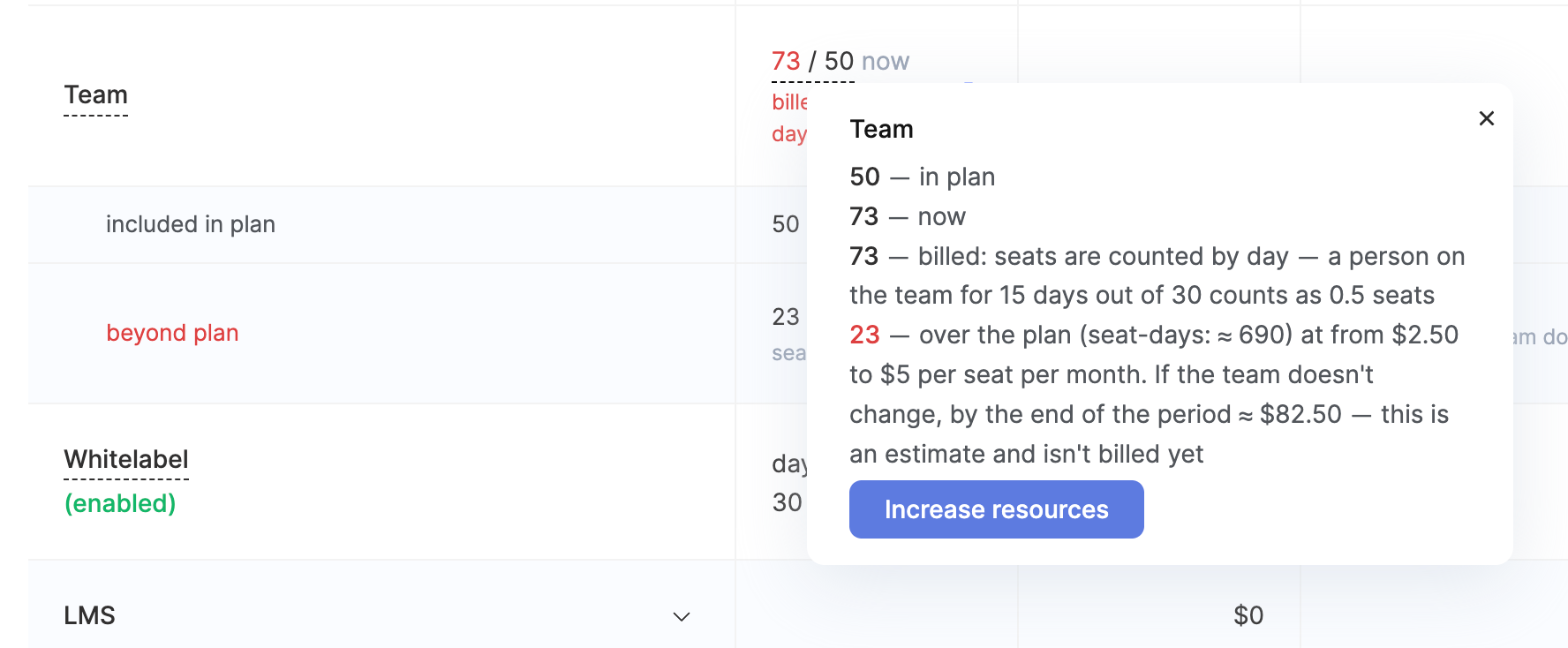
Click the main number to open a tooltip that explains each number:
- 50 — in plan;
- 61 — now;
- 58.94 — billed: seats are counted by day — a person on the team for 15 days out of 30 counts as 0.5 seats;
- 8.94 — over the plan: how many seat-days, at what price, and how much it will be by the end of the period.
What is free
- The account owner — one seat, and it is included in the plan. The "in plan" number for Team already includes the owner.
- The main project — also one seat included in the plan. The "in plan" number for Projects already includes it.
One person in several projects
In the Team row, a person who works in two projects takes two seats — one in each project. If there are fewer people than seats, the tooltip shows it, for example: "now; people: 40 — one person in several projects takes a seat in each".
Please note: the LMS team row works differently — a team member with access to learning in several projects is counted once, and the owner is not charged.
What red and yellow mean
- The "billed" line is red — by day you already have more seats than the plan includes. There will be an extra charge.
- The main number is red — both now and by day you have more seats than the plan includes. There will be an extra charge, and with this team it will continue next period.
- The main number is yellow — you have more seats than the plan includes now, but not yet by day. A note appears under the row: "Currently more than your plan includes. With this team, there will be no extra charge this period — seats are counted by day — but there will be next period."
For example, you added 5 team members two days before the end of the period: "now" went over the plan, but "by day" did not, because two days make less than 0.1 seats per person. There will be no extra charge on this invoice, but there will be on the next one if the team stays the same.
The "was up to N" peak
If during the period you had more seats than now and more than the plan includes, a peak appears under the row, for example: "was up to 63 (November 12) — barely affects the bill: days are counted". It means 63 seats were taken only briefly, and only those days will be billed.
If there is already an extra charge by day, the "barely affects" note is not shown: the peak lasted long enough to affect the invoice.
Branding, Whitelabel and mobile app: days
Disabling Kwiga Branding, Whitelabel and Mobile app are turned on with a switch and charged for the days they were on.
In the Quantity column they show "days: N of M" — for example, days: 13 of 30: the resource was on for 13 of the 30
days in this period. Next to the name there is a note about its current state: "(enabled)", "(active in 2 projects)" and
so on.
There may be a caption under the days:
- projects: N — on Pay as you Go the resource is charged in every project where it is on;
- beyond package: K — the resource is on in more projects than the plan covers, and K projects are charged separately.

Please note:
- Whitelabel already includes disabling Kwiga branding. A day when Whitelabel was on is charged only as Whitelabel — disabling branding on that day is not charged separately.
- Turning a resource on for less than three hours does not count as a day: you can turn it on to see how it looks for free.
- On plans that include the resource, the row shows the real days next to a zero amount — this is not a mistake: the days are counted, but the plan covers them.
Rows with an extra charge: "included in plan" and "beyond plan"
If a resource goes over the plan, two rows appear under it that show what the extra charge is made of:
- included in plan — how much the plan covers. The amount column shows in package and zero.
- beyond plan — how much goes over the plan. Next to it:
- seat-days — for seats: how many days of seats were taken beyond the plan, for example "seat-days: ≈ 268";
- unit price — for example, "per seat per month", "per domain per month", "per project per month", "per GB", "per member". If the account's projects are charged at different prices, you will see "from … to …";
- ≈ amount by the end of the period, marked estimate if the team doesn't change.
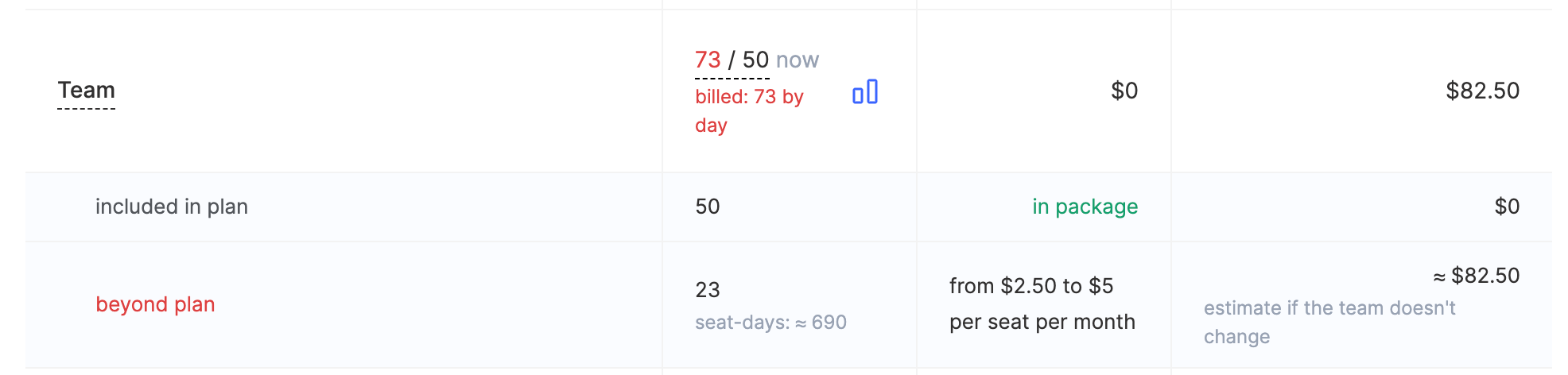
Important: the "beyond plan" amount is an estimate. It is recalculated whenever something changes: a team member joins or leaves, a domain is connected or disconnected, a project is created or deleted. The invoice gets what it adds up to at the end of the period.
The overage banner and what to do
If a plan limit is exceeded in the current period, a red banner appears above the table. It has one line per exceeded resource — how much is included, how much is used and what each unit beyond the package costs. For example: "Team seats included in the plan, including the owner: 50. Currently used: 61, billed by day: 58.94 — a team member who joins or leaves mid-period counts as a fraction of a month."

What you can do:
- Buy additional resources — extend your package by the seats, emails or gigabytes you need. The link in the banner opens the plan change.
- Change your plan — switch to a plan that includes more. The link in the banner opens the Plan tab.
- Change nothing — then the extra charge for the overage comes on the invoice for this period.
You can also click the number in the resource row and then click Increase resources in the tooltip.
Please note: the banner shows the state as of today. Past periods do not have it — their numbers already come from the issued invoice.
Past periods
If you pick a past period, the table shows the usage from its invoice. There is no "now", peak or days there — only the final numbers. If the period's usage was recalculated at current prices, there is a note at the top: "Consumption for this period has been recalculated at current prices and may differ from the invoice issued for the period."
Trial period and new plans
- During the trial, resources show a limit: "used / included". There is no extra charge during the trial, but you cannot create more than the limit — the number turns red when you reach it.
- On plans with hard limits, the LMS team, projects and domains have no extra charge beyond the package: the row shows "used / included", and to add more you need to increase resources or change your plan.
Example
A school on a plan with 50 team seats had 48 people on the team, including the owner, on November 1. On November 16, 13 more assistants joined for a new cohort.
What you see on the Resources tab on November 20:
- Team shows
61 / 50 nowin red: you have more seats than the plan includes right now. - Below it is
billed: 54.5 by day, also in red: by the end of the 30-day period the 13 assistants will have worked 15 days each — that is 6.5 seats, and together with the 48 it makes 54.5 seats. - Under the row are included in plan: 50 — in package and beyond plan: 4.5 (seat-days: ≈ 135) with the price per seat per month and the estimated amount by the end of the period.
- Above the table is a red banner suggesting that you buy more seats or change your plan.
If you need the assistants going forward, buying more seats pays off: next period they will be on the team all 30 days, and the extra charge for 13 seats beyond the plan will be in full.
Thanks for your feedback!
Thanks! We'll update the article. Need an answer now? Contact support