
Messenger campaigns: how to send a message to bot subscribers
Learn how to send a campaign to your bot subscribers in Telegram, WhatsApp, Facebook Messenger and Viber in KWIGA: audience, text with variables, buttons, a test, scheduled sending and statistics.
A messenger campaign is one message that a bot sends to many subscribers at once: a webinar announcement, the start of a new cohort, a reminder, a set of materials.
Campaigns are created in the Chatbots and messengers section, on the Campaigns tab. You can send them through Telegram, WhatsApp, Facebook Messenger and Viber bots connected to KWIGA.
Please note: campaigns are not available in Instagram: Instagram does not let bots message subscribers first. To learn how to connect a bot, see How to connect a bot to KWIGA.
Campaigns list
Open Marketing → Chatbots and messengers and go to the Campaigns tab.
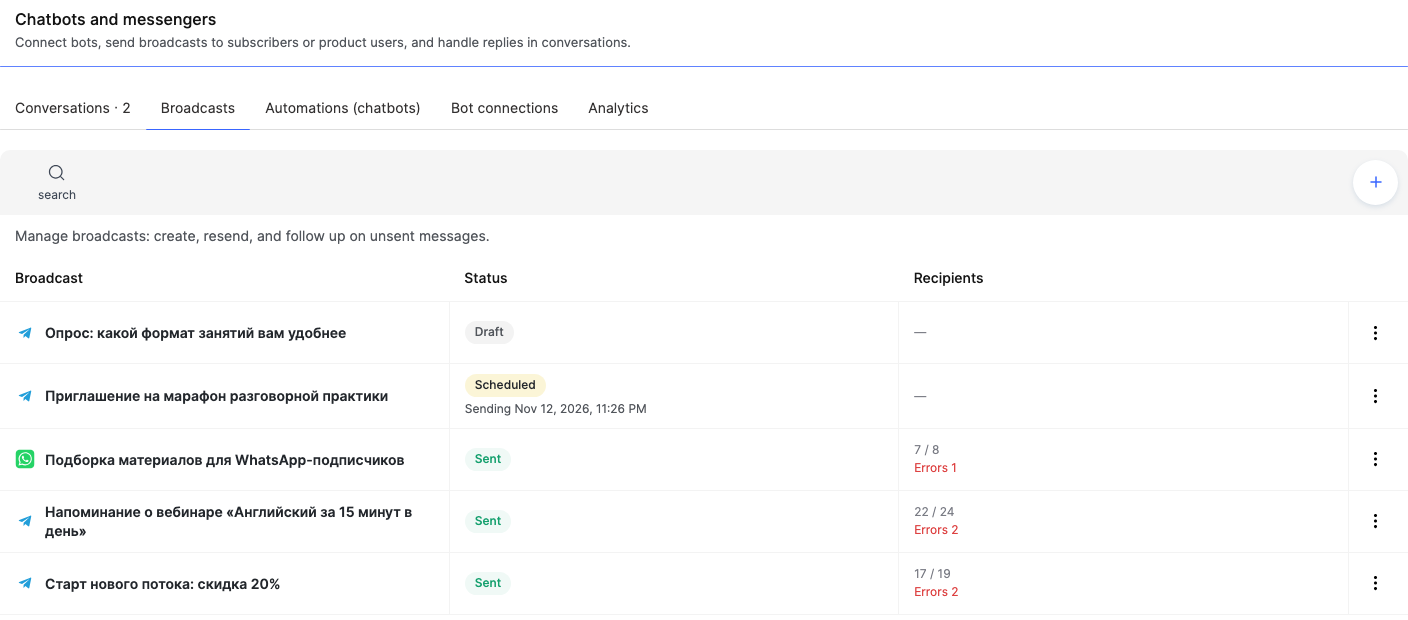
For each campaign you see:
- Campaign — the name and the icon of the messenger it is sent through.
- Status — Draft, Scheduled (with the sending date), Sending, Sent or Cancelled.
- Recipients — how many messages were delivered out of how many. For example, "22 / 24" with "Errors 2" below: the message did not reach two subscribers.
Click a campaign to open it: a draft opens for editing, a sent campaign opens with its statistics. Other actions are in the ⋮ menu of the campaign row.
How to create a campaign
Click + on the Campaigns tab. A form with five blocks opens on the right:
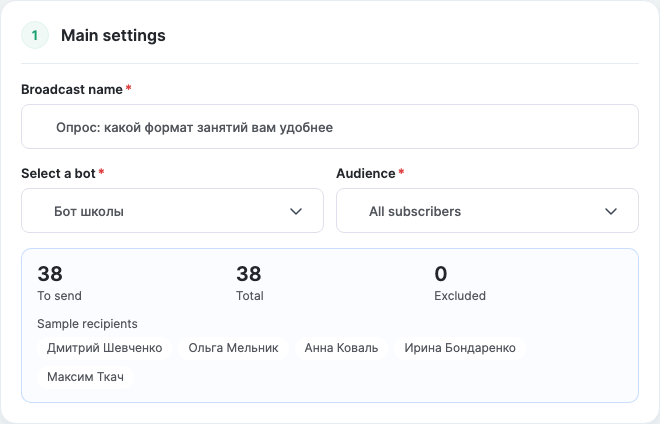
- Main settings — Campaign name (only you see it, subscribers don't receive it; for example, "Investment webinar announcement"), the bot in the Select a bot field, and the Audience.
- Message and materials — the text, a file and buttons.
- Send later — if the campaign should not go out right away.
- Repeat — if the campaign should go out regularly.
- Advanced — whom not to send it to.
At the bottom of the form there are the Check audience and Send a test to myself buttons. When everything is ready, click Create campaign.
Audience
- All subscribers — everyone subscribed to the selected bot.
- Selected subscribers — pick specific people from the bot's subscriber list. For example, those who asked about a course in conversations.
- Product users — subscribers who have access to the selected course, webinar or private group.
- Product type — users of all products of one type: all courses, all webinars or all private groups.
- Webinar registrations — those who registered for the selected webinar. For example, to remind them that the webinar is about to start.
- Static contact list and Contact segment — the lists and segments you already use for email campaigns.
- By contact filters — the same filters as on the Contacts screen. The audience is recalculated before every send.
Audiences based on products, webinars, lists and filters are built from CRM contacts, so they only include subscribers linked to a contact. To learn how to link a subscriber to a contact, see Conversations.
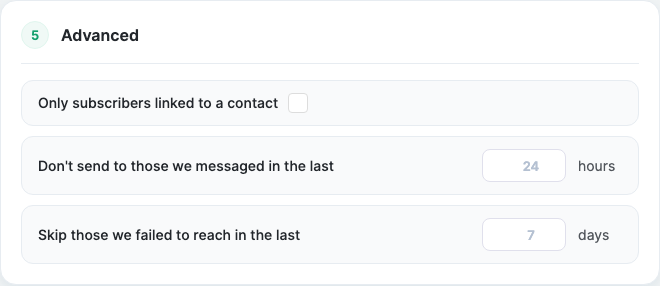
In the Advanced block you can turn on Only subscribers linked to a contact — then even with the All subscribers audience the campaign only goes to people you already know from your CRM.
Before launching, click Check audience: below the audience you will see how many recipients are To send, the Total and how many are Excluded (and how many Unsubscribed from campaign, if any), plus a sample of recipients.
Two more settings of the Advanced block help you avoid bothering subscribers:
- Don't send to those we messaged in the last N hours — for example, 24, so as not to reach people who already got another campaign yesterday.
- Skip those we failed to reach in the last N days — people who recently had a delivery error (most often they blocked the bot).
Text, variables, file and buttons
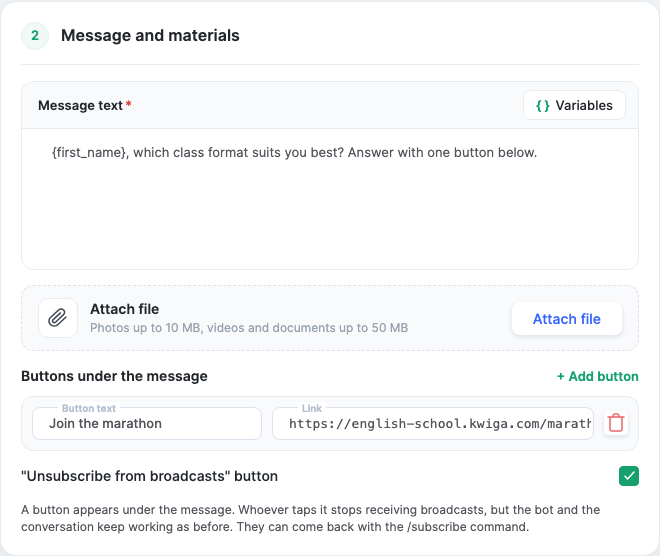
Message text is what the subscriber receives. With the Variables button you can insert:
- {name} — the subscriber's first and last name, {first_name} — the first name only. If there is no name, the @username is used.
- Contact data — CRM contact fields. They are filled in only if the subscriber is linked to a contact; otherwise they stay empty.
For example: "{first_name}, the webinar starts tomorrow at 7 pm — see you there!"
Attach file — jpg, png and webp photos up to 10 MB, mp4 videos and documents up to 50 MB. The file is saved to the project's Storage.
Buttons under the message — click Add button, enter the text and a link starting with http:// or https://. Button clicks are counted in the campaign statistics.
"Unsubscribe from campaigns" button — a button appears under the message. Whoever clicks it stops receiving campaigns, but the bot and the conversation keep working as before. The subscriber can come back to campaigns with the /subscribe command.
Campaigns in WhatsApp
WhatsApp allows regular messages only within 24 hours after the subscriber's last message. Everyone else can only receive a template approved by Meta.
That is why a campaign for a WhatsApp bot has a WhatsApp template field: within the reply window the recipient gets the campaign text, outside it — this template. You can use {name} and {first_name} in the template variable values too.
Please note: if your WhatsApp Business account has no approved templates, create a template in your Meta account and wait for approval.
Important: in Facebook Messenger you can message a subscriber only within 24 hours after their last message. Subscribers who wrote to the bot earlier will not receive the campaign.
Test before sending
Click Send a test to myself and choose a bot subscriber — for example, yourself. The message goes to one person, so you see it the way a recipient does. The test does not count in the campaign or its statistics, and button clicks are not counted.
Send now, later or regularly
- Right away — click Run.
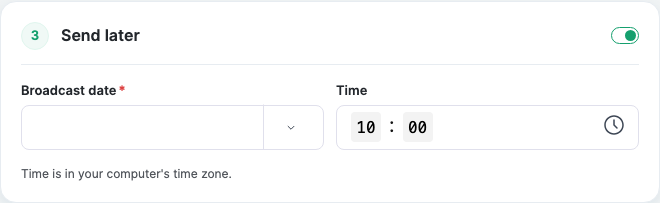
- Send later — turn on the switch in the Send later block and set the Campaign date and Time. The time is in your computer's time zone. Until the campaign goes out, you can edit it or click Cancel sending.
- Repeat — turn on the switch in the Repeat block and choose How often: Every day or On days of the week, then the Send time and Time zone (the project's one by default). The Start and End dates are optional: without them the campaign repeats indefinitely.
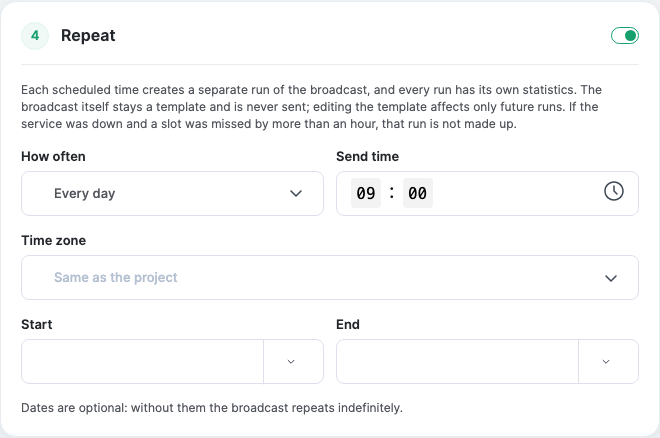
Each time a recurring campaign fires, a separate run with its own statistics is created; the runs are collected on the Runs tab. The campaign itself stays a template: if you change the text, only future runs change. You can Pause and Resume the schedule.
Please note: if the service was unavailable for more than an hour at sending time, the missed run is not sent afterwards.
To stop a campaign that is already being sent, click Stop: the remaining messages will not go out, but some may have already reached recipients.
Campaign results
Click a sent campaign in the list — its card opens.
The Content and recipients tab shows the text and the list of recipients with each one's status: Pending, Sending, Sent, Skipped or Stopped. You can filter the list by status and search for a person.
The Metrics and clicks tab shows:
- Delivery statistics — Total, Sent, Pending, Error and Skipped.
- Deliverability — the share of messages that got through. For example, "17 / 19 · 89%".
- Clicked the buttons — how many people clicked each button.
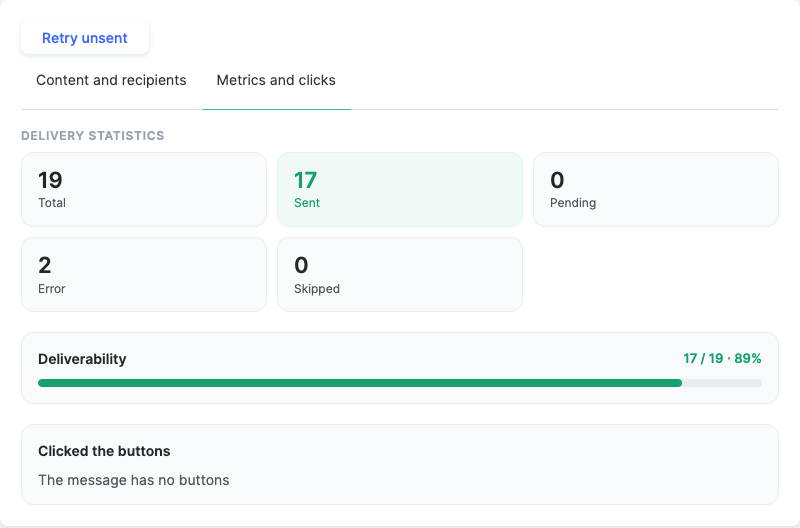
If some messages were not sent (for example, the bot was temporarily unavailable), click Retry unsent above the card tabs — KWIGA sends the campaign only to those it did not reach. People who already received the message will not get it twice.
To send a similar campaign, click Duplicate in the top right corner of the card: the copy keeps the bot, audience and text.
For a summary of all campaigns over a period, see the Analytics tab — read more in Chatbot analytics.
Who can create campaigns
Access to campaigns is set up in the employee's access group: Settings → access group → "Chatbots and messengers" tab. If a menu item is grey and does not open, it is not an error: the employee has no permission for that block.
Campaign permissions are split into viewing, creating, launching, editing and deleting. For example, a marketer can create and edit, while launching stays with the manager.
Example: a reminder for webinar participants
- Create a campaign "Webinar reminder".
- Choose a Telegram bot and the Webinar registrations audience, then the webinar.
- Text: "{first_name}, we start in an hour! The link to join is in the button below." Add a "Join the webinar" button with the webinar link.
- Turn on Don't send to those we messaged in the last 2 hours, so the reminder from an automation is not duplicated.
- Click Send a test to myself, then turn on Send later and set the time an hour before the start.
After the webinar, open the campaign, go to the Metrics and clicks tab and see how many people clicked the button.
Frequently asked questions
What will WhatsApp subscribers receive if they messaged the bot more than 24 hours ago?
Outside the 24-hour window, the recipient will get a Meta-approved WhatsApp template; inside the window, they will get the campaign text. Specify the template in the "WhatsApp template" field.
Why are some subscribers not included in the audience by product or filters?
These audiences are built from CRM contacts, so they only include subscribers linked to a contact. You can check the recipients with the "Check audience" button.
What will be substituted for the variable if the subscriber has no name or isn't linked to a contact?
If there is no name, @username will be used instead of {name} or {first_name}. CRM contact data is only filled in for a subscriber linked to a contact; otherwise, it will be left blank.
Can I resend the message only to those who didn't receive it?
Yes. Click "Resend unsent" – the campaign will go only to those who didn't receive the message; recipients who already got it won't receive it again.
What happens if the service is unavailable during a recurring campaign?
If the service was unavailable for more than an hour at the scheduled send time, the missed run won't be sent retroactively.
Can I edit or cancel a campaign after scheduling it?
Yes, until the campaign is sent, you can edit it or cancel it with the "Cancel sending" button.
What happens if you stop a campaign that's already being sent?
The remaining messages won't be sent, but some may have already reached recipients.
Thanks for your feedback!
Thanks! We'll update the article. Need an answer now? Contact support