
Articles:
This article provides a detailed overview of the Gift Shop: display configuration, creation and management of gifts, the process of students redeeming points, and confirmation of gift issuance by an administrator.
In this article:
The Gift Shop is a convenient gamification tool on the Kwiga platform that allows you to create rewards to motivate your students. With this functionality, you can encourage student activity by giving them the opportunity to exchange, for example, accumulated points for various gifts.
Gifts are automatically displayed in the student’s profile in a dedicated “Gift Shop” section. You can change the name of this section in the student profile settings to match the specifics of your project.
Gift Shop display settings
On the “Gift Shop” tab, you can manage the visibility of this section:
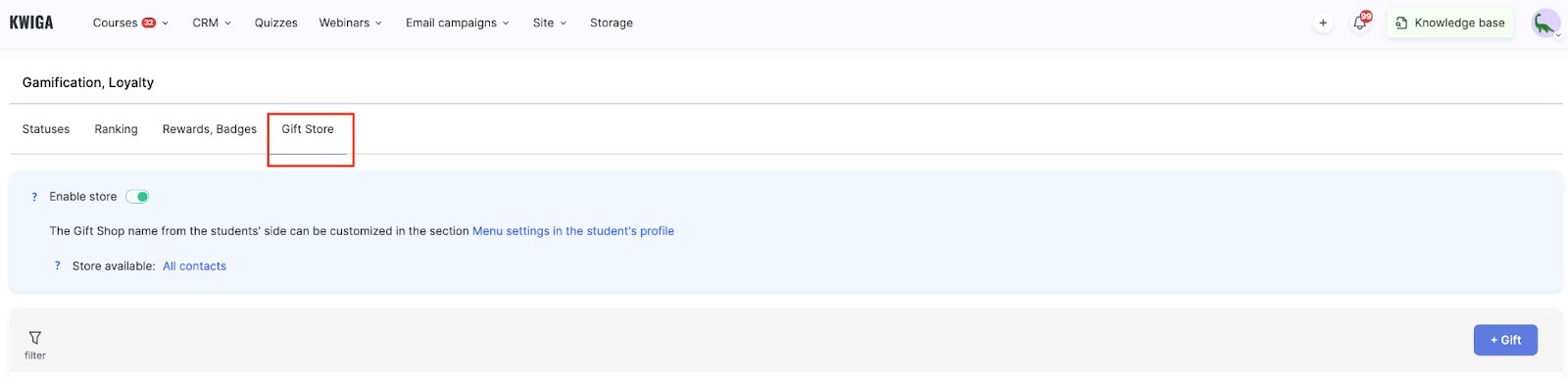
Enable Gift Shop — the toggle allows you to show or hide the shop from students.
Title personalization — change the default name “Gift Shop” to any other via the student profile settings.
Availability for students — the shop can be available to all contacts or only to selected groups.
Creating a gift
To create a new gift, click the + Gift button.
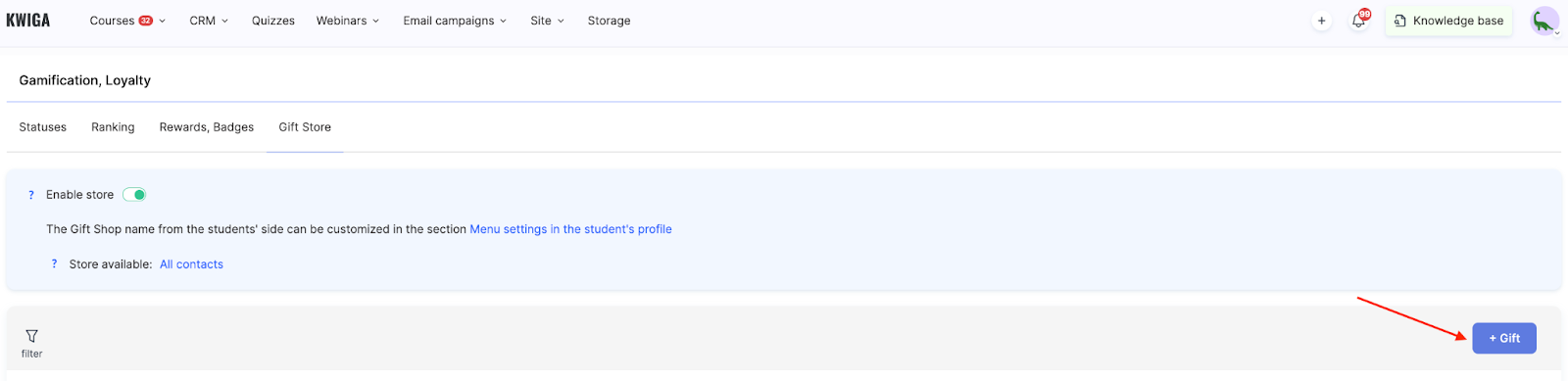
A creation form with detailed settings will open.
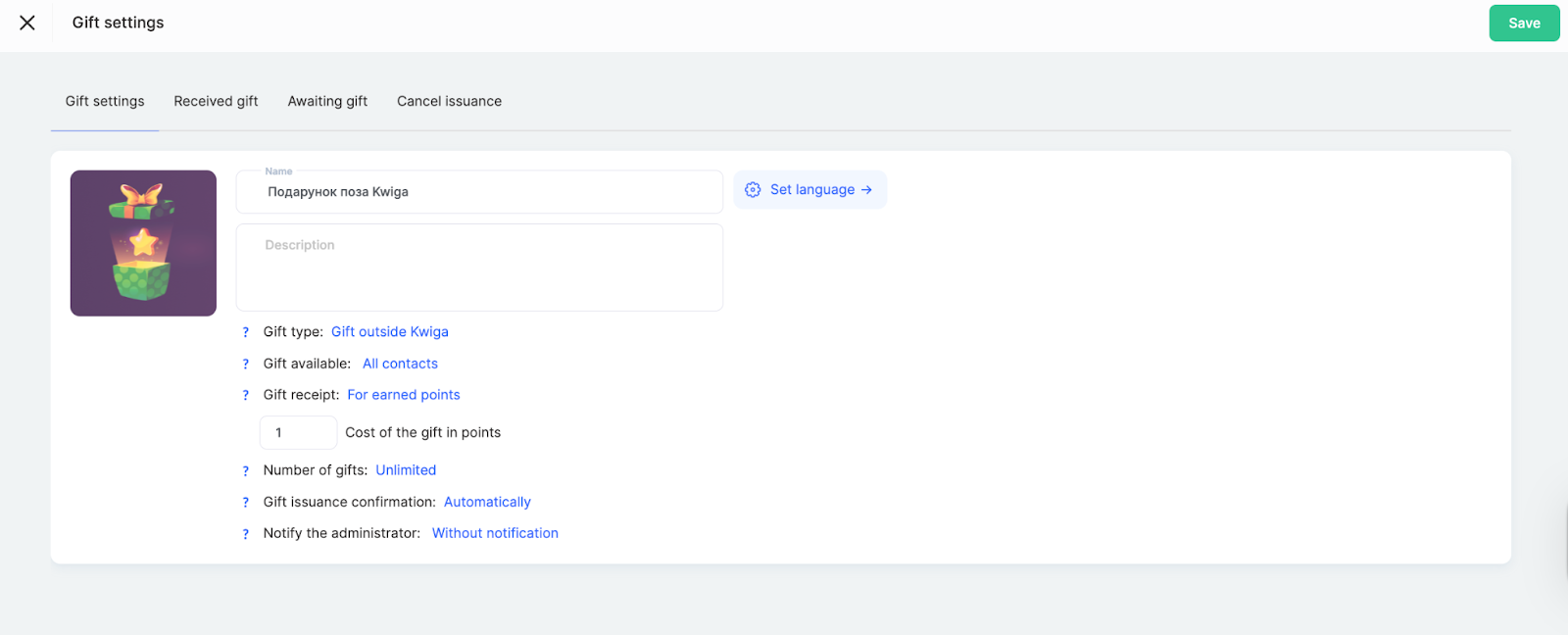
Gift icon
Upload an image that will be displayed in the shop. To add or change the icon, hover over the icon area and click the “Edit” button that appears on hover. Then select an image from your computer or storage. It is recommended to use bright, high-quality images to make the gift more appealing.
Name
Enter a short and clear gift name. This is the first thing students will see in the shop. Avoid overly long wording.
Description
Add detailed information about the gift: what exactly the student will receive, terms of use, any time limits (if applicable), and the method of delivery. For courses, for example, specify the program content; for physical goods, describe the characteristics, etc.
Use the “Set language →” link to work with a multilingual audience and add language versions of names and descriptions.

Gift type
Select a gift category from the available options.
-
Gift outside Kwiga means that you add an image and description of the gift and then deliver it to the participant by any available method outside the platform.
-
Product on Kwiga is any of your products on the platform that you want to gift to a participant. You can add more than one product to a single gift.
Gift availability
Define who can see and redeem this gift.
-
All contacts makes the gift available to all contacts without restrictions.
-
Specific list allows you to limit access to a defined group of contacts. You can make the gift available to a static list at the current moment or to a segmented list that is dynamically filled with contacts based on specified conditions.
Gift redemption
Define how the reward can be obtained.
-
For earned points allows a student to exchange accumulated points for a gift. In the “Gift cost in points” field, specify how many points the gift costs (for example, 10 points). When setting the cost, consider how easy it is for students to earn points on your platform, the real value of the gift, and the desired speed of reaching the reward.
-
Fulfillment of specific conditions allows you to set various conditions upon reaching which a student can receive the gift.
Number of gifts
Specify the available quantity of gifts.
-
Unlimited means the gift is always available for exchange, which is suitable for digital products or “outside Kwiga” gifts with manual delivery.
-
You can also limit the number of gifts to encourage faster point accumulation, which is suitable for special promotions and seasonal offers.
Gift delivery confirmation
-
Automatic mode means no additional actions are required — the gift is issued instantly after points are exchanged, without administrator involvement. This is suitable for digital products.
-
By administrator mode creates a delivery request: from the participant’s side, the gift will have the status “Pending delivery” until the administrator changes it to “Delivered.” This option is suitable for physical goods that require shipping, services with a specific time, or rewards that require coordination with the student.
Administrator notifications
When a gift is received, issued automatically, or requires manual confirmation, the selected administrators will receive a notification.
After filling in all fields, click the “Save” button in the top right corner.
Managing Gifts
After creating gifts, you will see them listed on the “Gift Shop” tab. This view makes it easy to track which gifts are the most popular, how many are left, and how many students have received them. This helps you understand which rewards motivate your students most effectively.
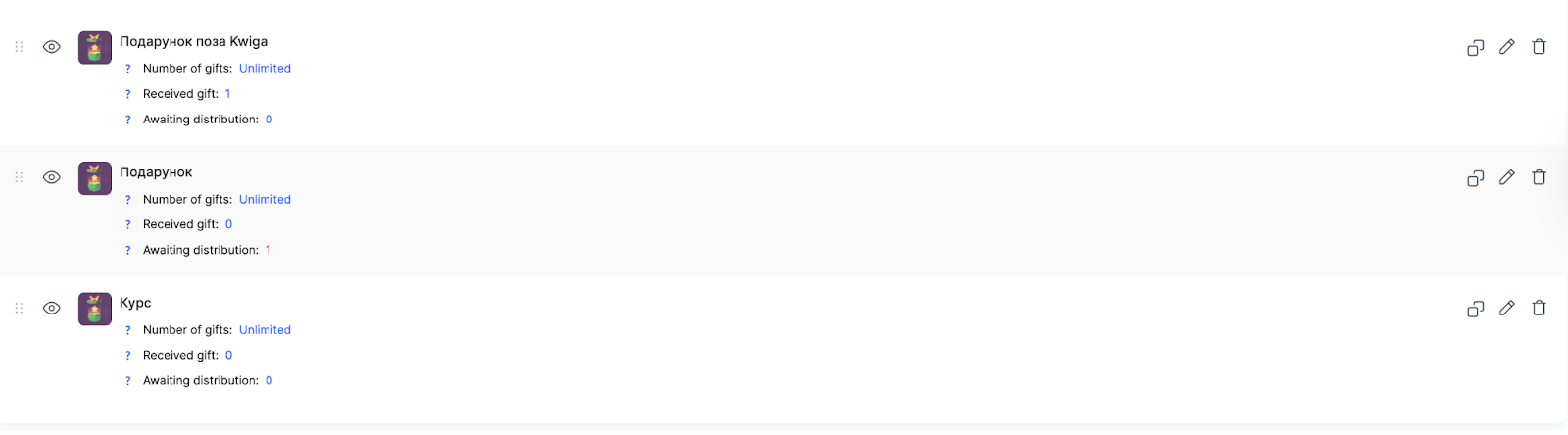
Icon and name
Each gift is displayed with an icon and a name, providing clear visual identification of the reward in the list.
Gift quantity
Shows the available number of gifts.
If an unlimited quantity is set, the expert sees the status “Unlimited,” meaning the gift is always available for exchange.
If a limited quantity is set, the system displays the number of remaining gifts and the total number originally available in a fraction format. For example: 4/10. This means that 10 gifts were available in total, 6 have already been issued (or are pending delivery), and 4 remain available for exchange.
Once no gifts remain available (the counter reaches 0/10), the gift may either continue to be displayed to students without the option to select it, or disappear from the list altogether—this behavior depends on the settings of the specific gift.
Received gifts
Displays the number of contacts who have already received the reward. This includes both automatic delivery (when the gift is issued immediately after points are exchanged) and manual delivery (when an administrator has confirmed the issuance).
Pending gift delivery
Shows the number of contacts waiting to receive the gift. This field is relevant only for gifts that require manual confirmation by an administrator. When a student exchanges points for such a gift, they are added to this counter and remain there until the administrator confirms delivery. This indicates that the reward requires additional action on your part—for example, arranging delivery of a physical item or scheduling an individual consultation.
Gift actions
For each gift, the following actions are available: managing visibility for students, duplicating, editing, and deleting. The eye icon allows you to show or hide the gift in students’ profiles.
Student View
After the shop is activated, students see the available gifts with their icons, names, descriptions, and point cost. If a limit is set, information about the limited quantity is also displayed.
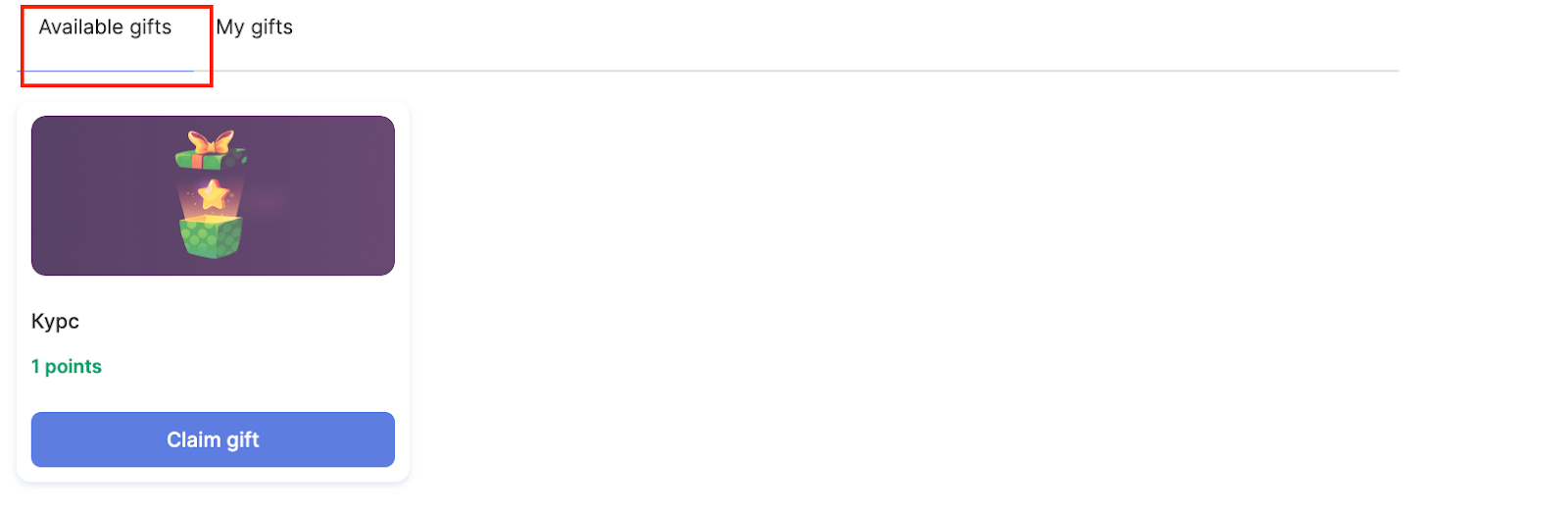
The exchange process works as follows: the student reviews the detailed description, clicks “Get gift,” confirms the exchange, and then receives a confirmation and instructions related to the gift.
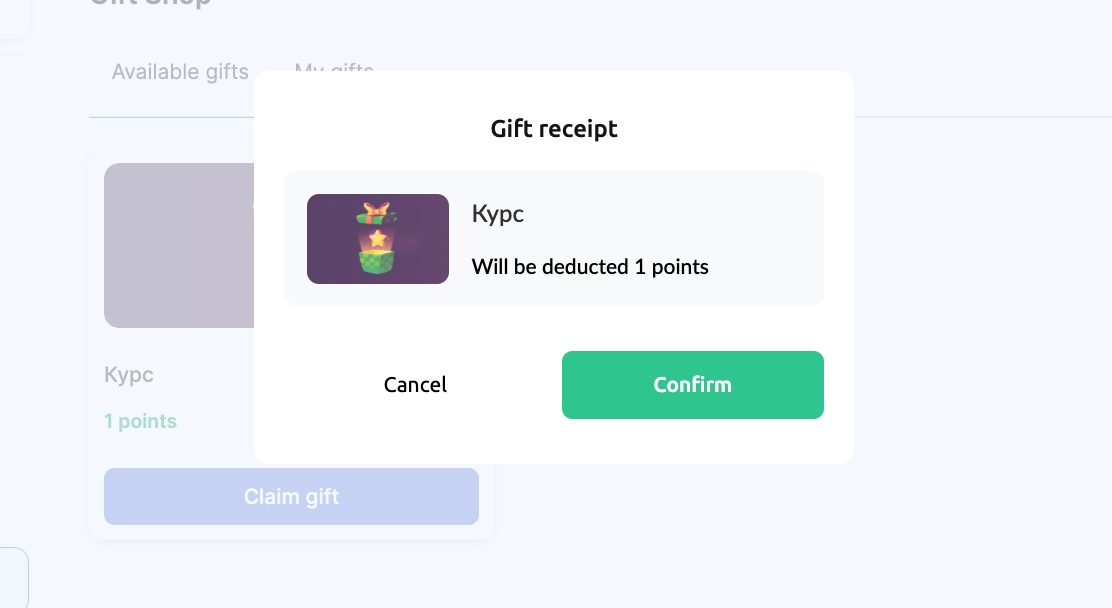
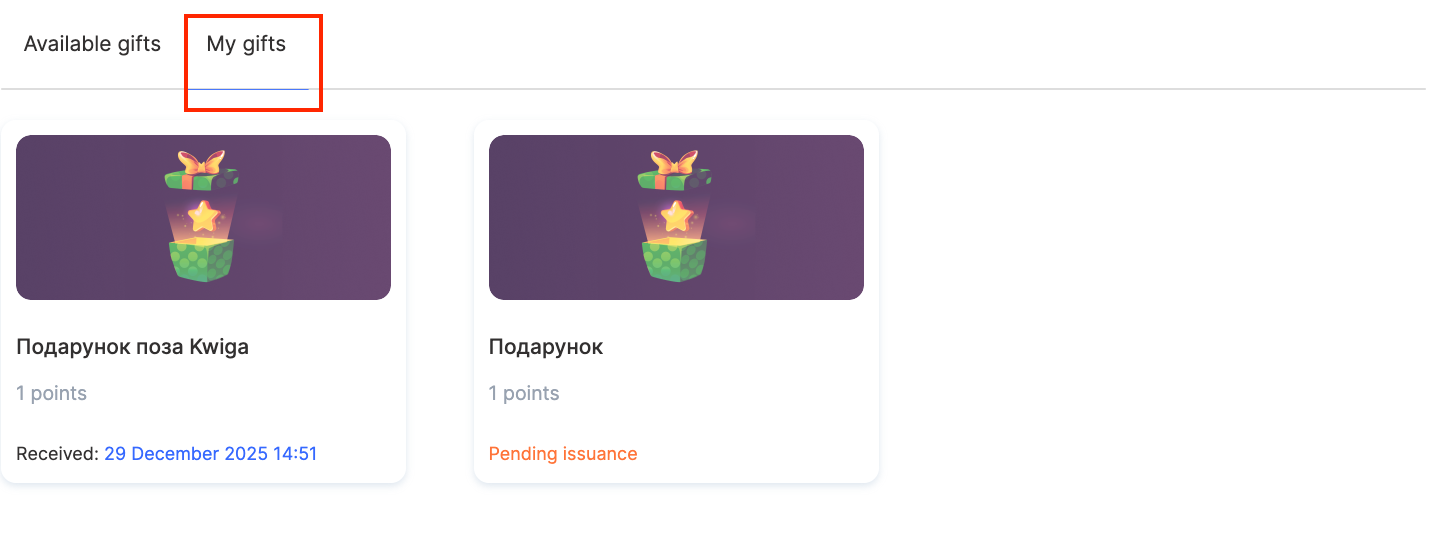
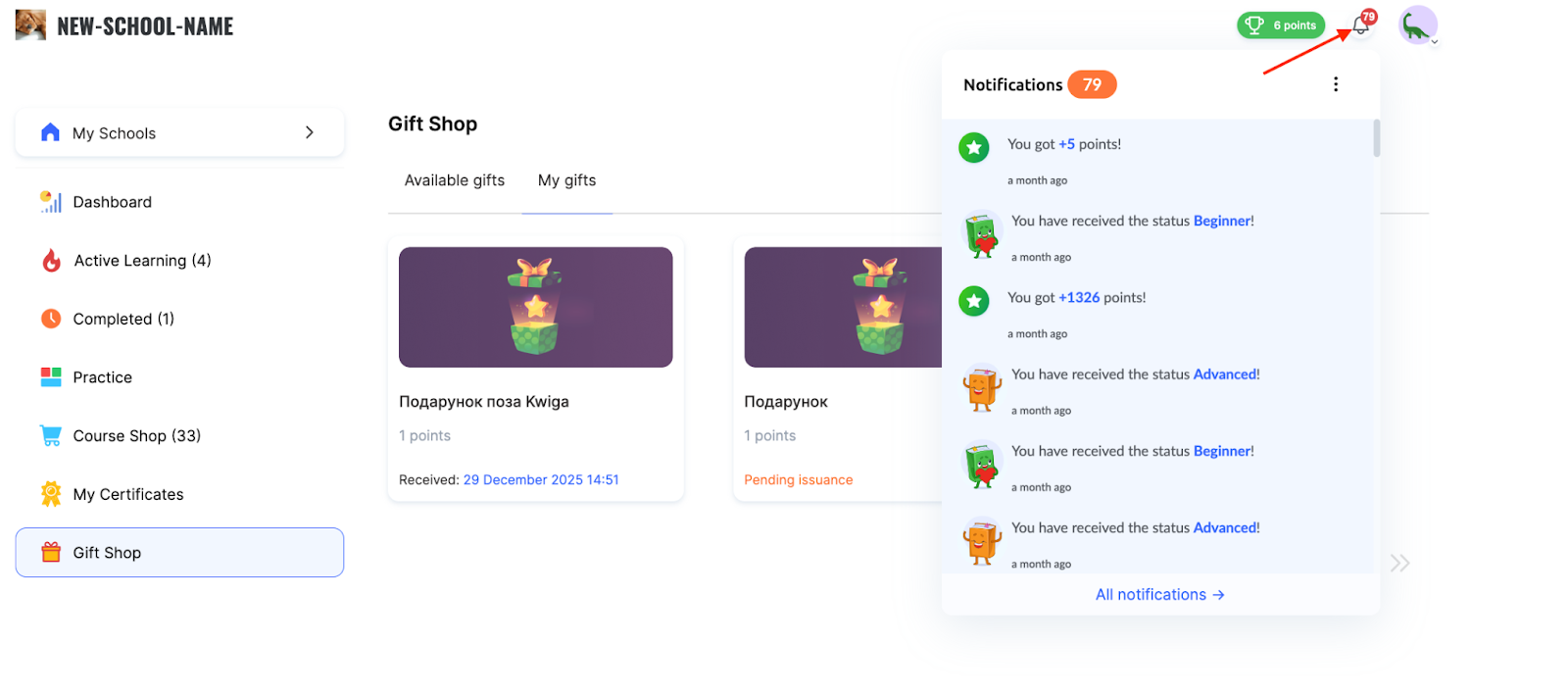
In automatic mode, access is granted instantly. If gift delivery confirmation is set to “By administrator,” the gift appears on the “My Gifts” tab with the status “Pending delivery.”
How an administrator confirms gift delivery
To confirm gift delivery, the administrator needs to go to “Gamification, Loyalty → Gift Shop” and click the number next to the “Pending delivery” field.

On the “Pending gifts” tab, you can add a comment visible only to the administrator and click “Issue” or “Cancel issuance.”
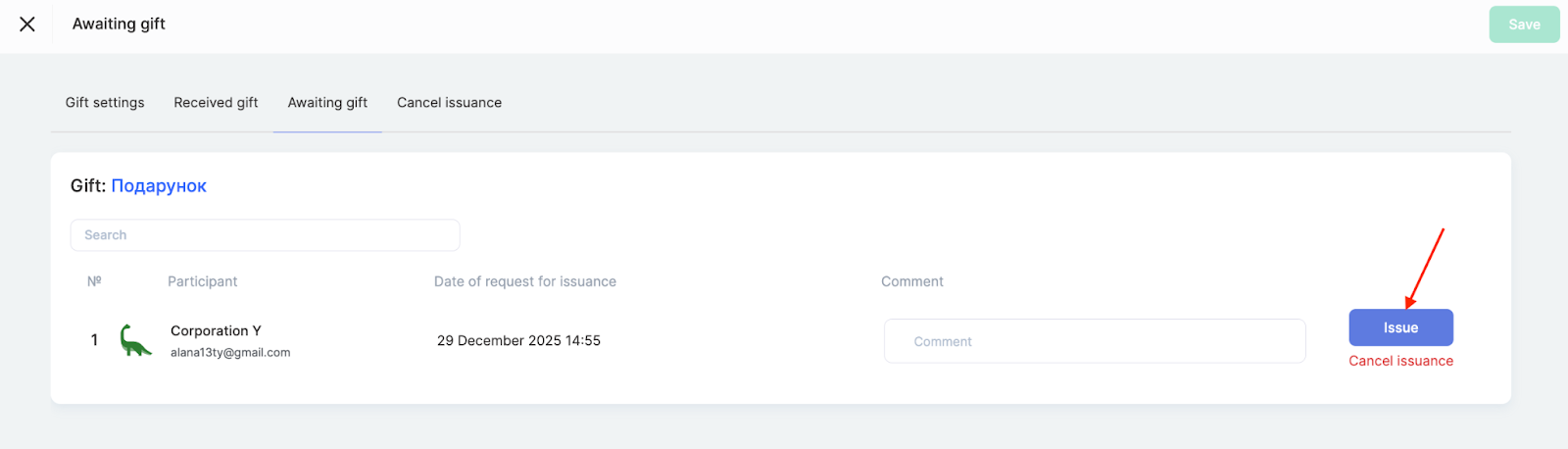
All delivered gifts will be displayed as a list on the “Received gifts” tab, while canceled ones will appear on the “Delivery canceled” tab.
After delivery is confirmed, the gift becomes available in the student’s profile in the “Gift Shop” section under the “My Gifts” tab.
When the gift is received, the participant will see a congratulatory message and receive a notification in the form of a bell icon in their profile.
Thanks to flexible settings, you can create various types of rewards and control their quantity and delivery method according to the needs of your project.
Read more about other gamification features on the platform in a separate article.
Didn't find the answer? Contact the support service via online chat or Telegram