
Articles:
- Import customer base
- Bulk actions in the database
- Adding Custom Fields in CRM
- Kwiga CRM basic version
- Login Log
- How to change the payment schedule for a student
- How to mark a partial payment as paid
- How to mark a subscription as paid (via the platform)
- How to Filter Contacts Who Filled Out the Form but Didn’t Pay
- How to Email a Participant
- How to Collect Additional Information During Registration or Purchase on the Platform
- Adding Contacts from Google Forms and Google Sheets to the Kwiga CRM
How to record a payment in the CRM if the client made the payment outside the platform.
You can mark as paid either one installment in a split payment or several installments. Entering and marking one of the payment installments on the platform will allow the student to make payments for the following installments through the platform in the future, keep access to the product according to the schedule, and automatically revoke access if the next payment is not made.
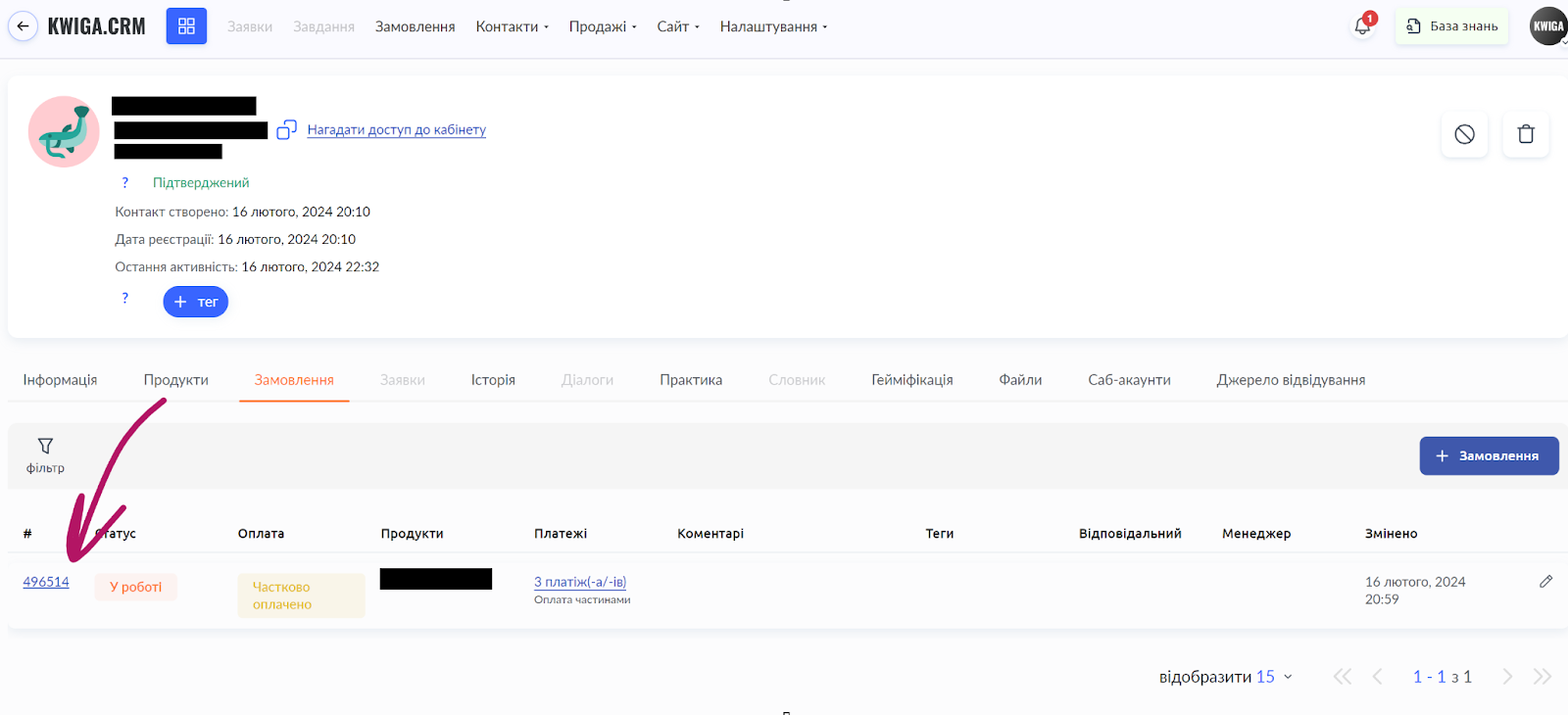
To mark a payment as paid, you need to go to Contacts and find the required client (student), open the contact card, and go to the Orders tab. Click on the order number.
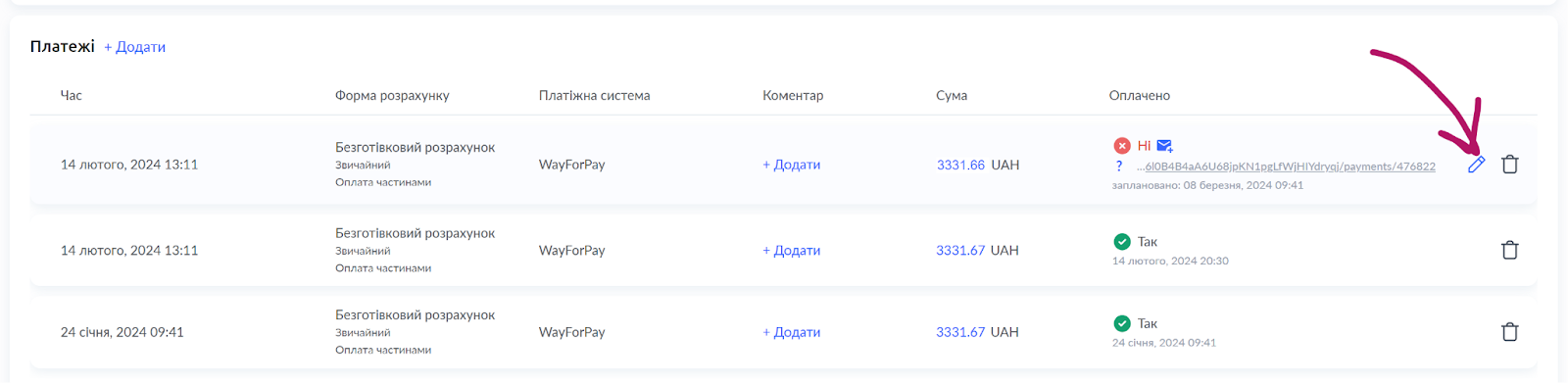
Scroll down the page that opens, where you will see the Payments block. Next to the payments marked as unpaid, you will see a pencil icon – click it to edit this payment.
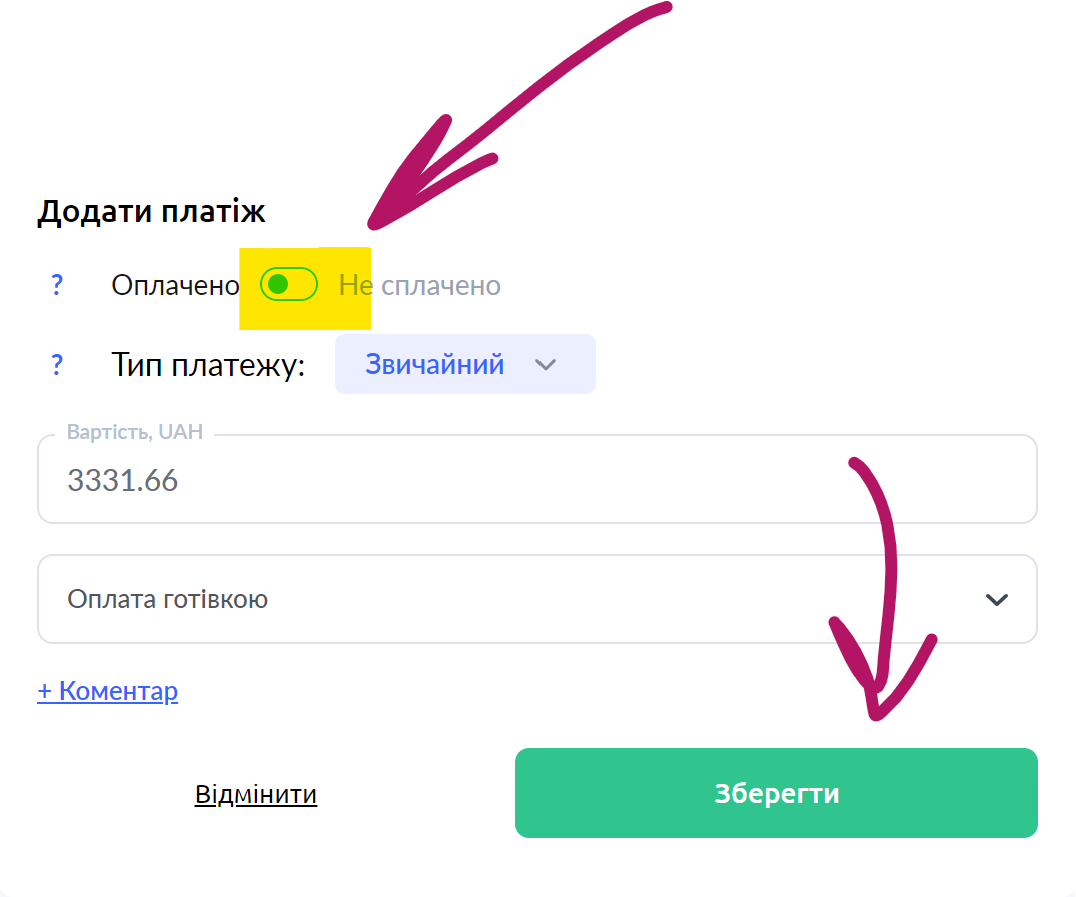
In the window that opens, mark the payment as paid (using the toggle) and save the changes. You can leave a comment for yourself or your colleagues; it will not be visible to the student.
Didn't find the answer? Contact the support service via online chat or Telegram