
Articles:
- How to Create an Email Marketing Campaign
- How to segment an audience and launch a mailing list by segment
- How to find a system (service) email and edit it
- How to add emails from the file to campaign
- How to schedule an email for the first day of the course
- Mailing with a link to the Zoom lesson
- How to add a video to an email
- Transactional Emails: How to Track if a Message Was Delivered
- How to set up a chain of emails
- How to set up reminder emails about the end of product access
This article explains how to automate reminders about the expiration of course access. A step-by-step guide—from creating a segment to launching a mailing campaign that will automatically send emails to students at the right time.
In this article:
Automatic access-expiration reminders are useful not only for selling subscription renewals. These emails help you:
-
encourage course completion — students have time to finish the course and receive a certificate before access expires;
-
remind about bonuses — if you offer extra materials or rewards for completing tasks before a certain deadline;
-
motivate action — people may simply forget the expiration date and miss opportunities;
-
offer an extension — timely reminders give students time to plan payment and make a decision.
By setting up these mailings once, you automate communication with students at a critical stage.
Step 1. Create a Segment-Based List
Go to CRM → Contact Lists
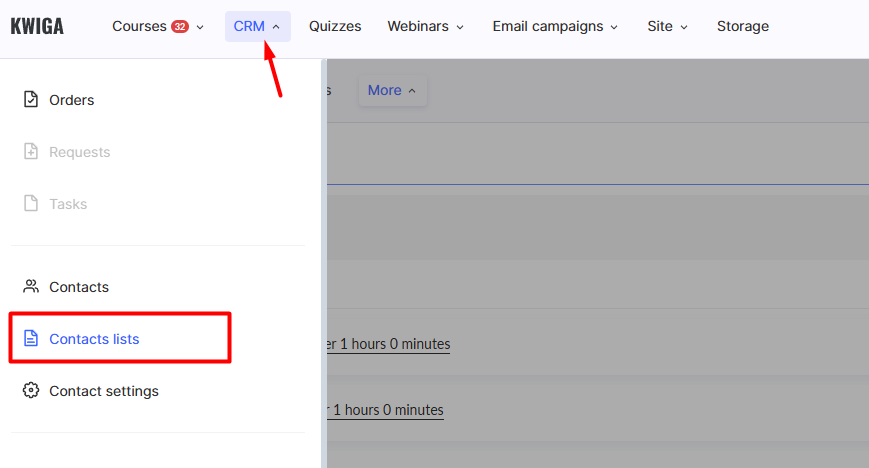
and click the + button.

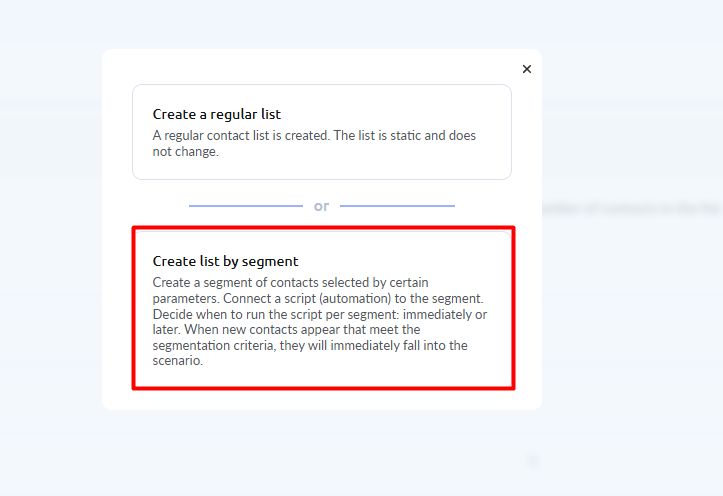
Then select Create a list by segment.
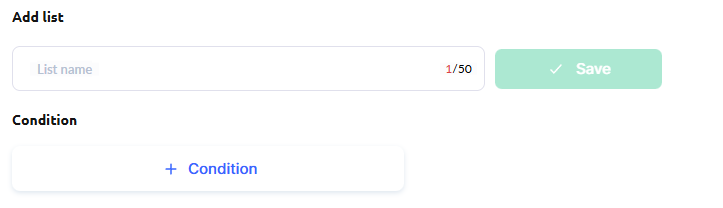
Add a list name and define the condition.
Condition — Days left on product, then select the product name, specify the number of days, and save the condition.
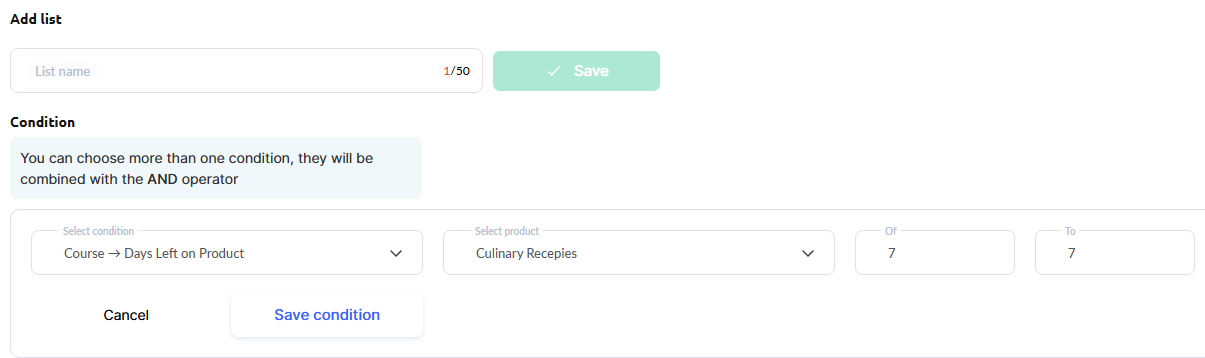
The list will automatically populate with students who have the specified number of days remaining before their access expires. Save the list and move on to the next step.
Please note: lists are filled gradually. Contacts are usually added almost immediately, but updates may take up to 20 minutes.
Step 2. Create an Email Template
Create a new email template in Mailings → Ready Templates.
There are two options:
create a new template using the +Email button and configure it;
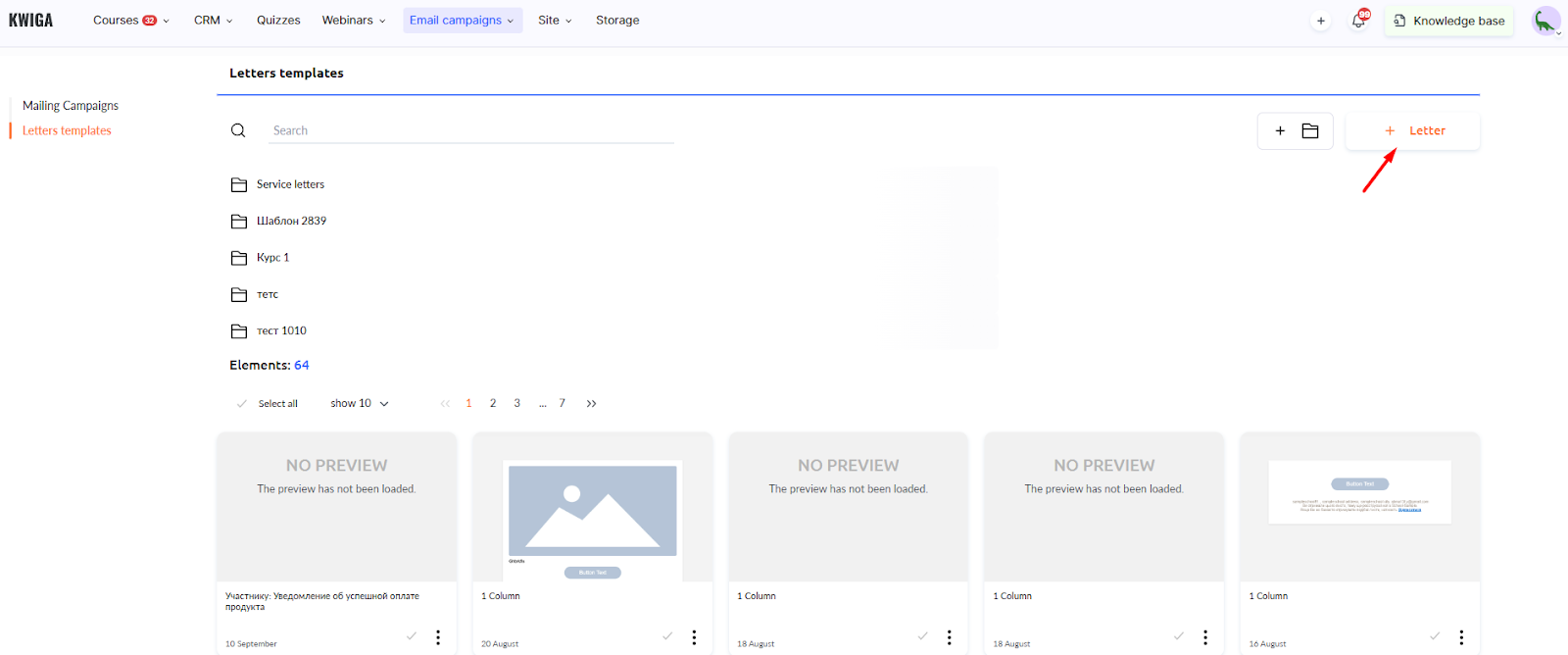
copy an existing template, such as a service template, and edit the copy.
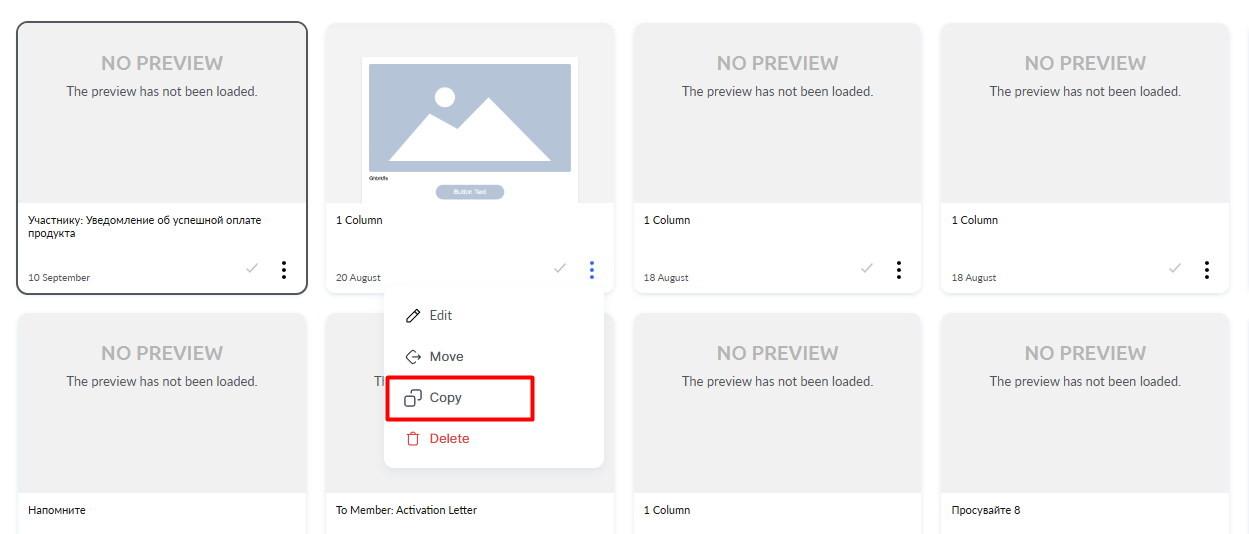
Note: to see the copied service template, you need to exit the Service Emails folder.
In the email, clearly state the subject about access expiration, greet the student by name, and specify how many days remain.
Depending on your goal, emphasize different aspects: remind students about earning a certificate, completing tasks to receive bonuses, or offer a subscription extension. Add a clear button or link for the desired action. Don’t forget to include support or sales contact details in case of questions.
Save the finished template.
Step 3. Schedule the Mailing
Go to Email Campaigns → Email Mailing and click +Letter.
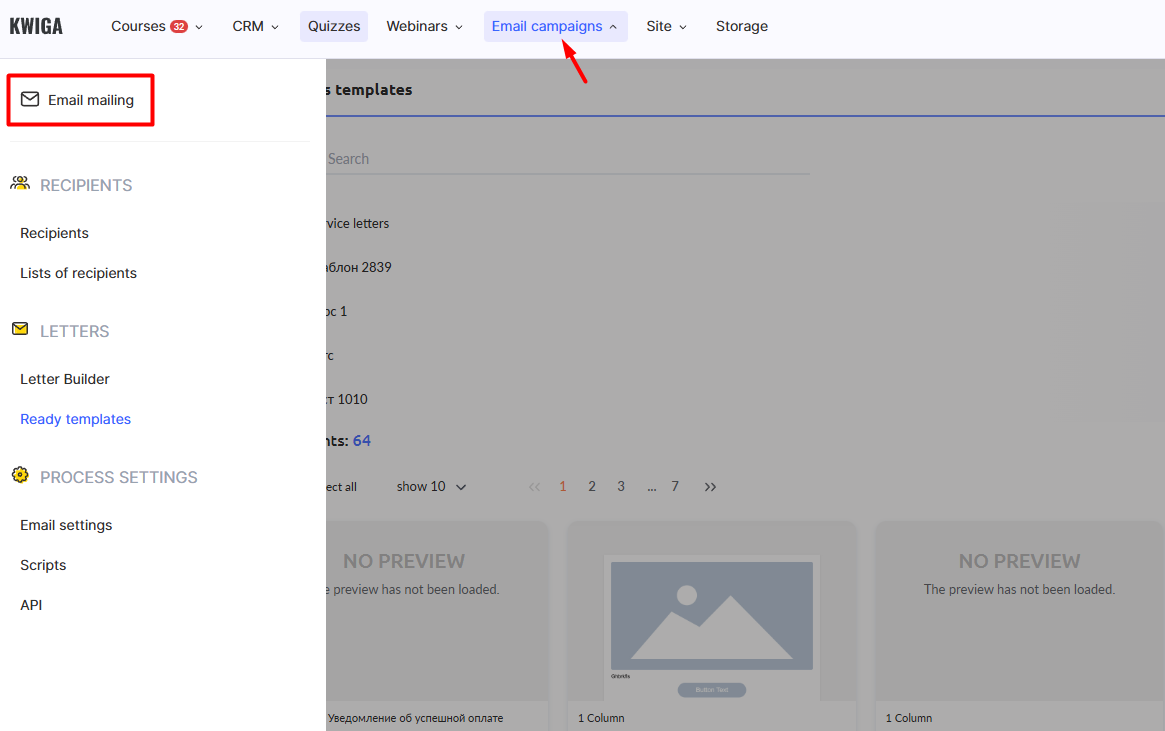
For more details on campaign setup and using the email builder, see the separate article.
Select the created segment list as recipients and choose the prepared email template. Schedule and launch the mailing.
Important: mailings based on segment lists run continuously. Every student who enters the list (once they reach the specified number of remaining days) will automatically receive the email. You can stop such a mailing manually.
With reminders in place, your students won’t miss important dates, and you’ll automatically remind them of opportunities they can still take advantage of.
Didn't find the answer? Contact the support service via online chat or Telegram