
Lesson text translation for students with DeepL
Learn how to connect DeepL in KWIGA and turn on the translator so students can translate lesson text into their language right on the page.
The translator helps students who learn in a language that is not their own: a student selects text in a lesson and instantly sees a translation into their interface language — no copying into a separate translator. It is useful for schools with international students and for language courses, where a student needs to check a phrase quickly.
The translation is done by DeepL with your school's key: the DeepL account is yours, and you pay DeepL directly for the translated characters — the free DeepL API plan works too.
Connect DeepL
- Create an account on the DeepL website and open Account → API Keys. Copy the whole DeepL API key — Free or Pro.
- In your KWIGA account, open Integrations, the Translators section.
- On the DeepL card, click Configure, then Add account.
- Fill in the fields:
- Account alias — a name to recognise the connection by. For example, "School DeepL".
- API key — the key you copied in DeepL.
- Click Save. KWIGA checks the key: if DeepL rejects it, you will see "DeepL did not accept this key" — copy the whole key again.
Please note: the key is stored encrypted and is shown masked in your account.
Turn on the translator in a course
The translator is turned on for each course separately — it is off by default.
- Open the course and go to its settings, the Education tab.
- Turn on Translator for students.
If DeepL is not connected yet, follow the Open integrations → link under the switch.

How a student translates
- On the lesson page, the student selects text. The selection extends to whole words by itself.
- The student clicks Translate to English. The button speaks the student's interface language: with a Russian interface it says «Перевести на русский», and the translation is into Russian.
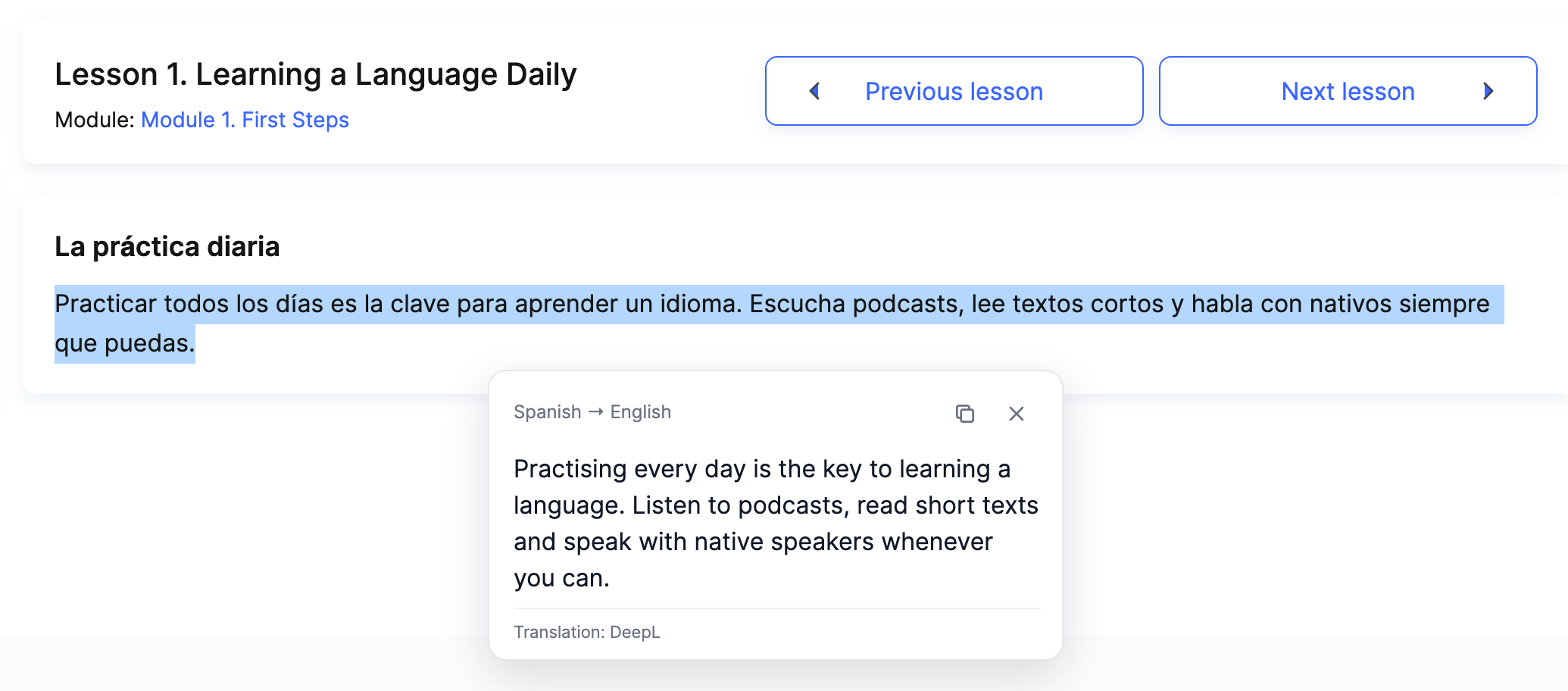
- A window with the translation opens. At the top is the language pair, for example "Spanish → English", at the bottom the "Translation: DeepL" caption. The Copy translation button copies the text.
If the selected text is already in the student's language, the window says: "This text is already in English."
Please note: only the lesson text is translated. Videos, assignments and comments are not.
Limits and messages for students
To keep the school's key from being overspent, translation has daily limits — per student and for the whole school. When a limit is reached, the student sees one of these messages:
- "You have reached the daily translation limit. Try again tomorrow." — the student translated a lot in one day.
- "The school's daily translation limit has been reached. Try again tomorrow." — the school used up its daily limit.
- "The school's translation limit has been reached. Please contact the course author." — your school's DeepL plan has run out of characters. Top up or change the plan in your DeepL account.
- "Translation into this language is unavailable." — DeepL does not translate into the student's interface language.
Important: DeepL characters are spent even when the text is already in the student's language — DeepL detects the language of the text first.
Example
A school runs a Spanish course for English-speaking students. The owner connects DeepL under Integrations → Translators, then turns on Translator for students on the Education tab of the Spanish course. A student opens a lesson, selects an unfamiliar Spanish phrase, clicks Translate to English and sees the translation without leaving the page.
Frequently asked questions
Do I need to pay to translate the lesson text?
Translation uses your school's DeepL API key: you pay DeepL directly for the characters translated. The free DeepL API plan works too.
Will the translator be enabled for all courses at once?
No. The translator is enabled separately for each course and is off by default: open the course settings, go to the "Learning" tab, and enable "Translator for students".
What language is the text being translated into?
To the language of the student's interface. If the interface is in Russian, the button says "Translate to Russian"; if it's in English, it says "Translate to English", and the text will be translated into English.
If the selected text is already in the student's language, the window will say: "This text is already in Russian".
Can I translate videos, assignments, or comments?
No. The translator only translates the lesson text.
Why isn't DeepL accepting the key?
If you see the message "DeepL did not accept this key" when saving, the key was not copied in full. In DeepL, open "Account → API Keys" and copy the entire DeepL API key again.
The student sees "The school's transfer limit has been reached" – what should I do?
This means your school's DeepL plan has run out of characters. Top up or change your plan in your DeepL account.
If the message is about the student's or school's daily limit, you can try translating again tomorrow.
Are DeepL characters used if the text is already in the student's language?
Yes. DeepL first detects the language of the text, so characters are used in this case too.
Thanks for your feedback!
Thanks! We'll update the article. Need an answer now? Contact support