
Articles:
- Homework
- Tests and grading
- Multiple open-ended questions in one assignment
- Fill in the blanks: insert the missing word
- Matching
- How to set up a test so that the student can view their answers
- Enter the word
- List and multi-list
- Form a sentence from words
- Fill in the table (option to fill in the blanks)
- How to Organize Technical Support for Course Participants
- How to Create an MMPI Psychological Questionnaire
- General Information about Quizzes: Creating and Organizing Practical Tasks, Surveys
- Creating and Configuring Style Templates for Quizzes
- Quiz Result Recalculation
- Quiz Randomizer: Creating Dynamic Tests
- How to Export Quiz Responses to a Separate File
- Quizzes, Practices: Question Types
- Practice settings (opening, closing)
- Quiz Setup
Types of questions that can be used on the Kwiga platform to create practical tasks or surveys.
In this article:
Quizzes are an effective tool for testing knowledge or collecting information. To make them more engaging and interactive, you can use various types of questions organized into convenient categories on the Kwiga platform.
How to Add a Question to a Quiz
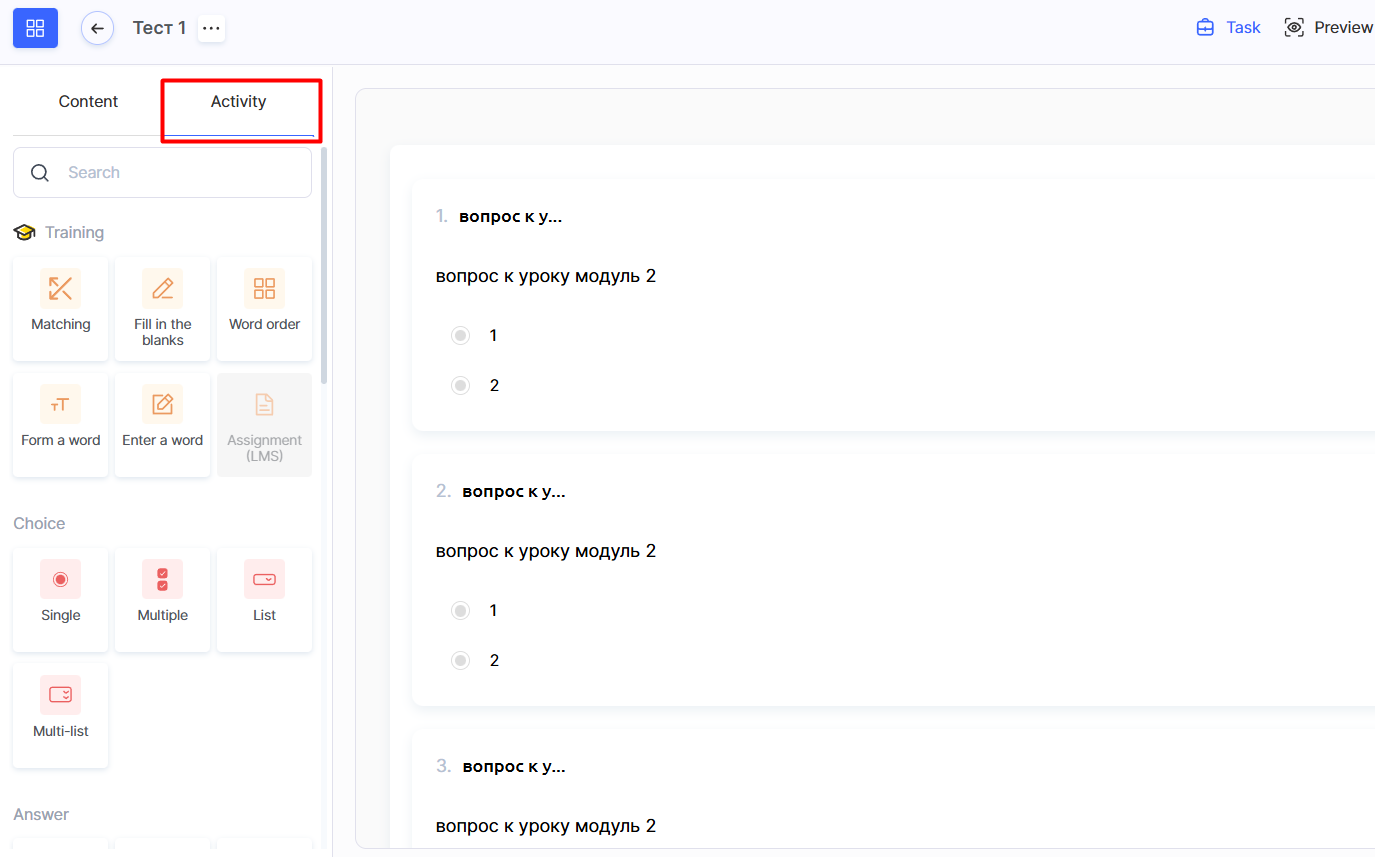
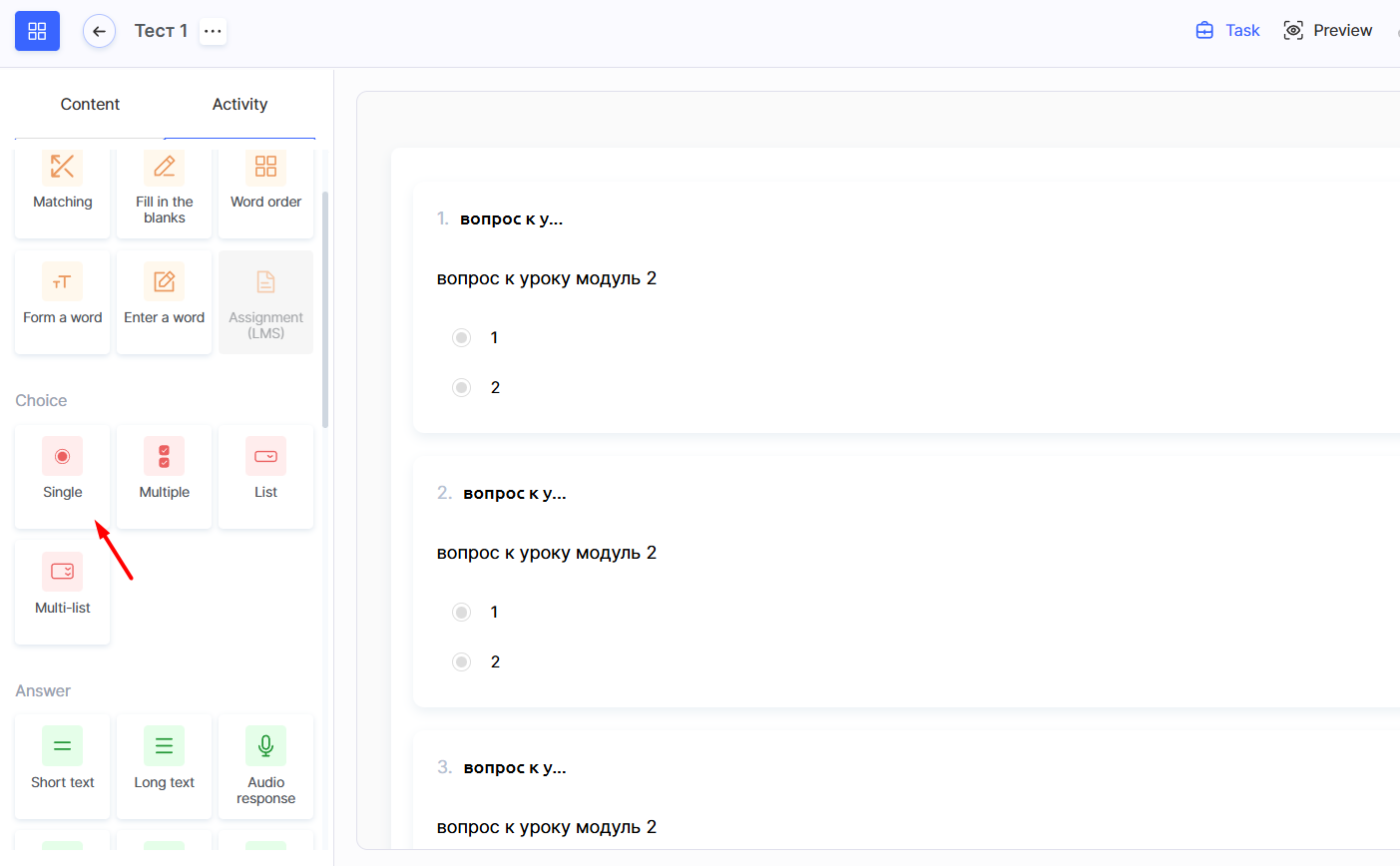
The left panel contains all available question types, organized into categories for quick search and easy use.
To add a question to your quiz:
-
In the left panel, go to the Activity tab.
-
Select the desired question type from the available categories.
-
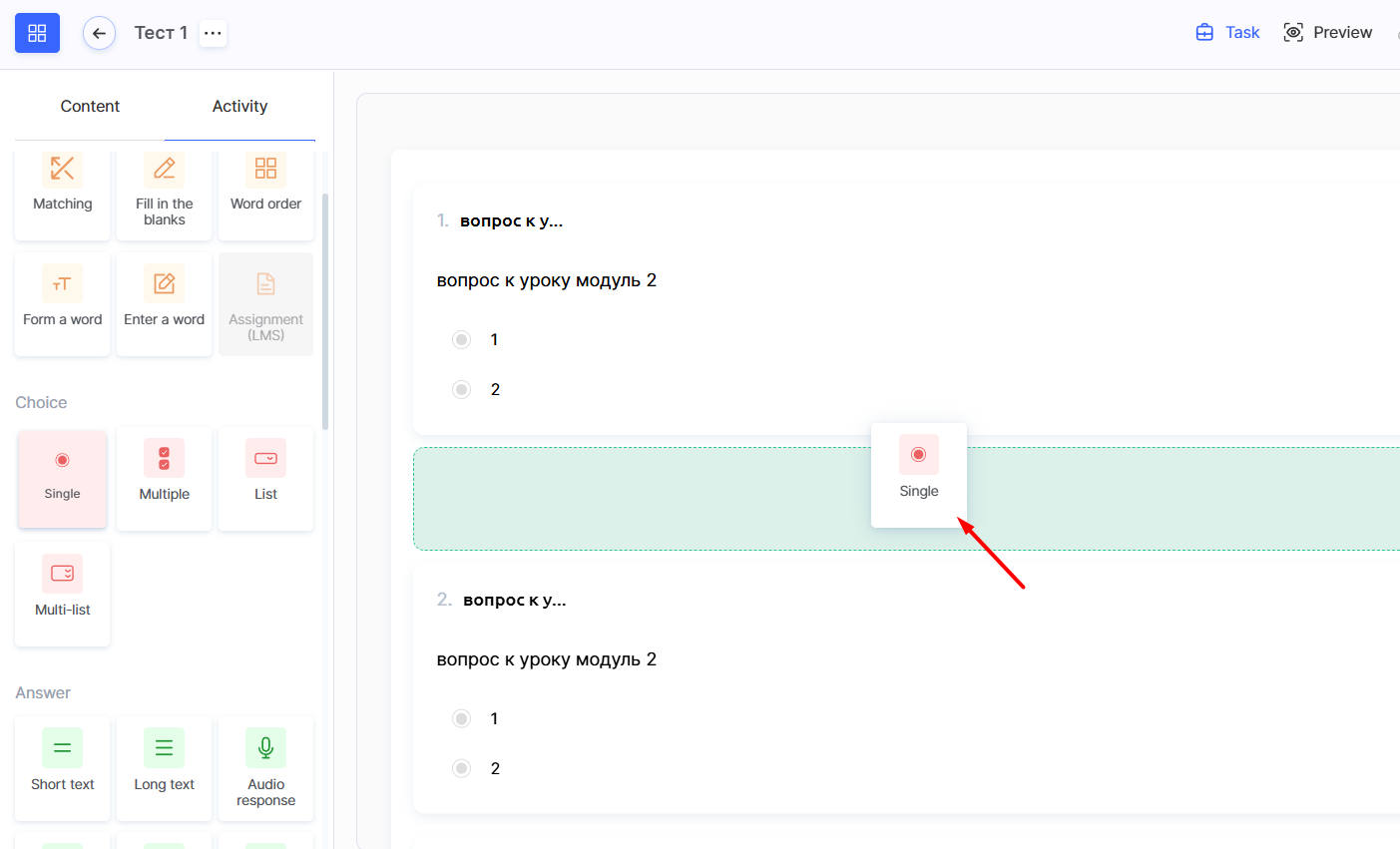
Click on the selected type or drag it into the central part of the screen.
-
Fill in and configure the selected activity — for example, add questions and answer options.

Categories and Question Types
All available question types on the Kwiga platform are organized into categories for convenient search and use.
Training
Interactive question types for assessing students’ understanding of knowledge and practical skills.

Matching
Learners need to match the provided elements.
Fill in the Blanks
A task where learners insert missing words or values into a text. You can also add extra answer options to make the task more difficult.
Word Order
Creating a complete sentence from separate words.
Build a Word
Students put together a word from the provided letters.
Write in a Word
A task where students enter a specific word or phrase into the answer field.
Assignment (LMS)
Used to check theoretical material in text or multimedia format, or for creative tasks.
Important: an LMS assignment can contain only one question — you cannot add more. Answers may be text, audio, or video. There is also an option to allow the student to send the answer to the curator as a comment after the assignment is checked.
Choice
Classic answer-option formats for quick knowledge testing.
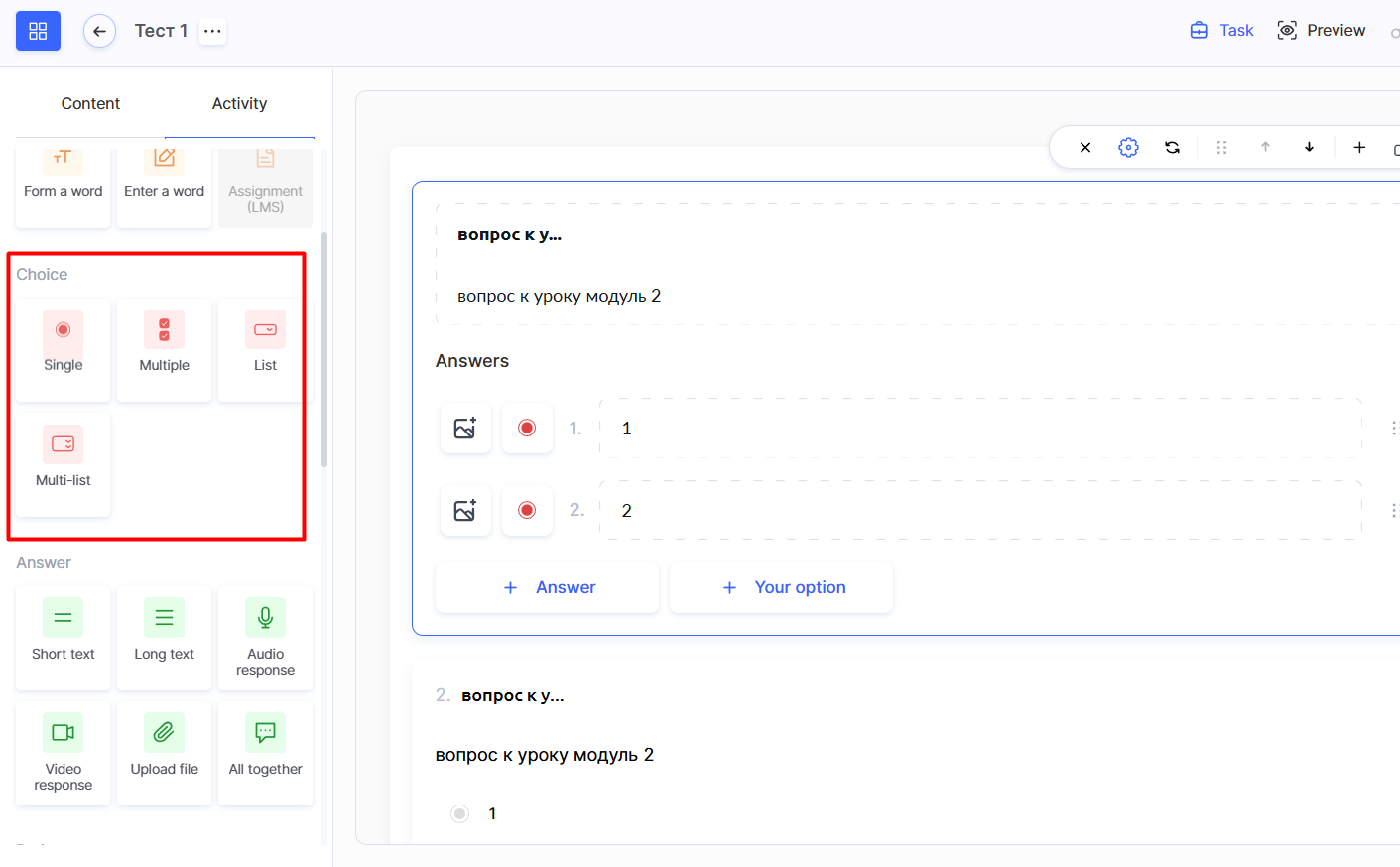
Single Choice
The student selects one correct answer. You can enable a feature that allows them to enter their own answer as well.
Multiple Choice
The student can select several correct options.
Dropdown List
The student chooses one option from a dropdown list.
Multi-List
Allows selecting multiple correct options from a list.
Answer
Formats for receiving extended answers in text, audio, video, or file uploads.
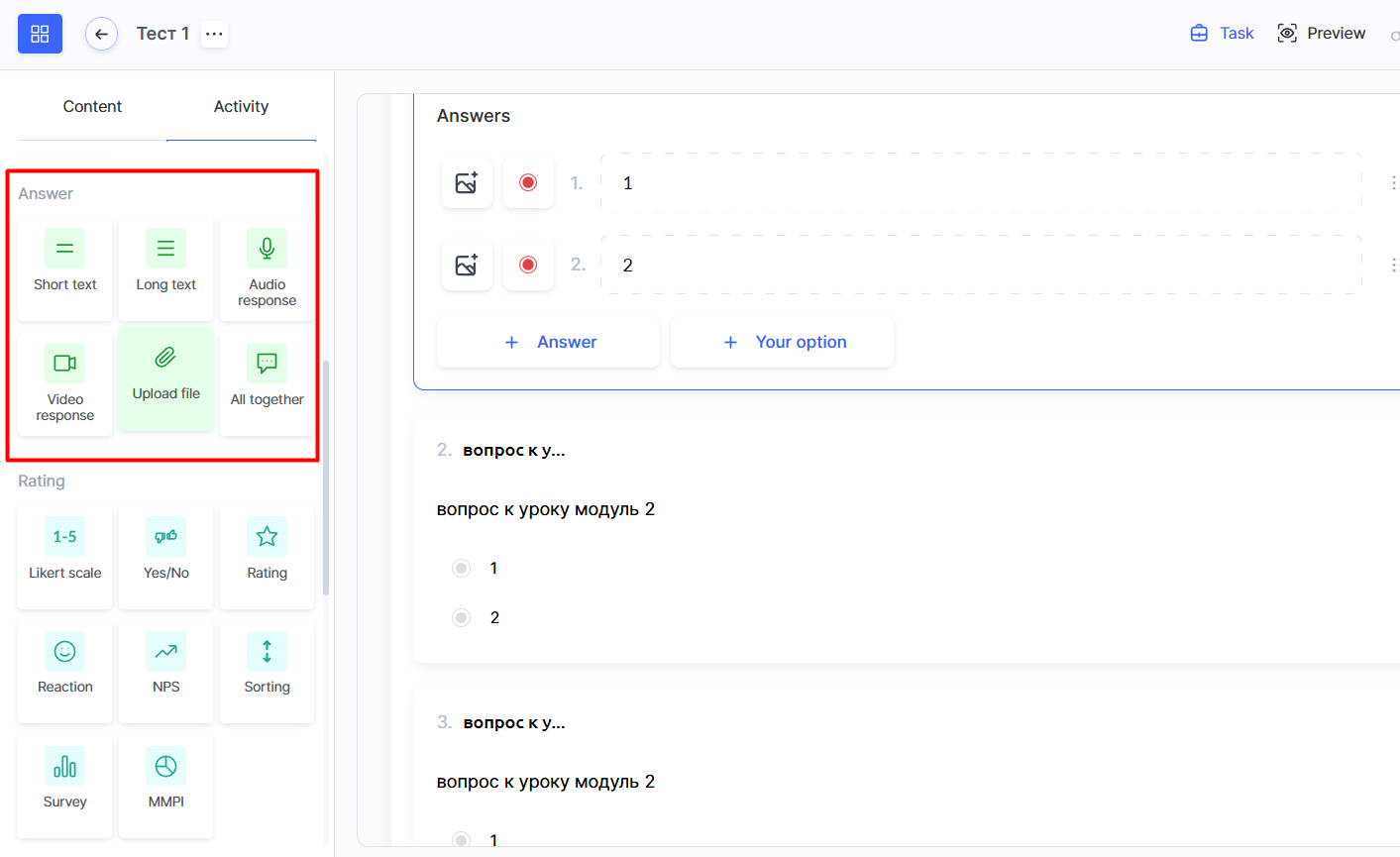
Short text
An assignment with an open-ended text response in a short format.
Long text
An assignment with a detailed, extended written response.
Audio answer
The student records an audio response to the assignment.
Video answer
The student records a video response to the assignment.
Upload a file
The student uploads a file as their response to the assignment.
All together
A combined format where different types of responses can be used simultaneously.
Rating
Question types for evaluation, collecting opinions, and measuring student satisfaction.
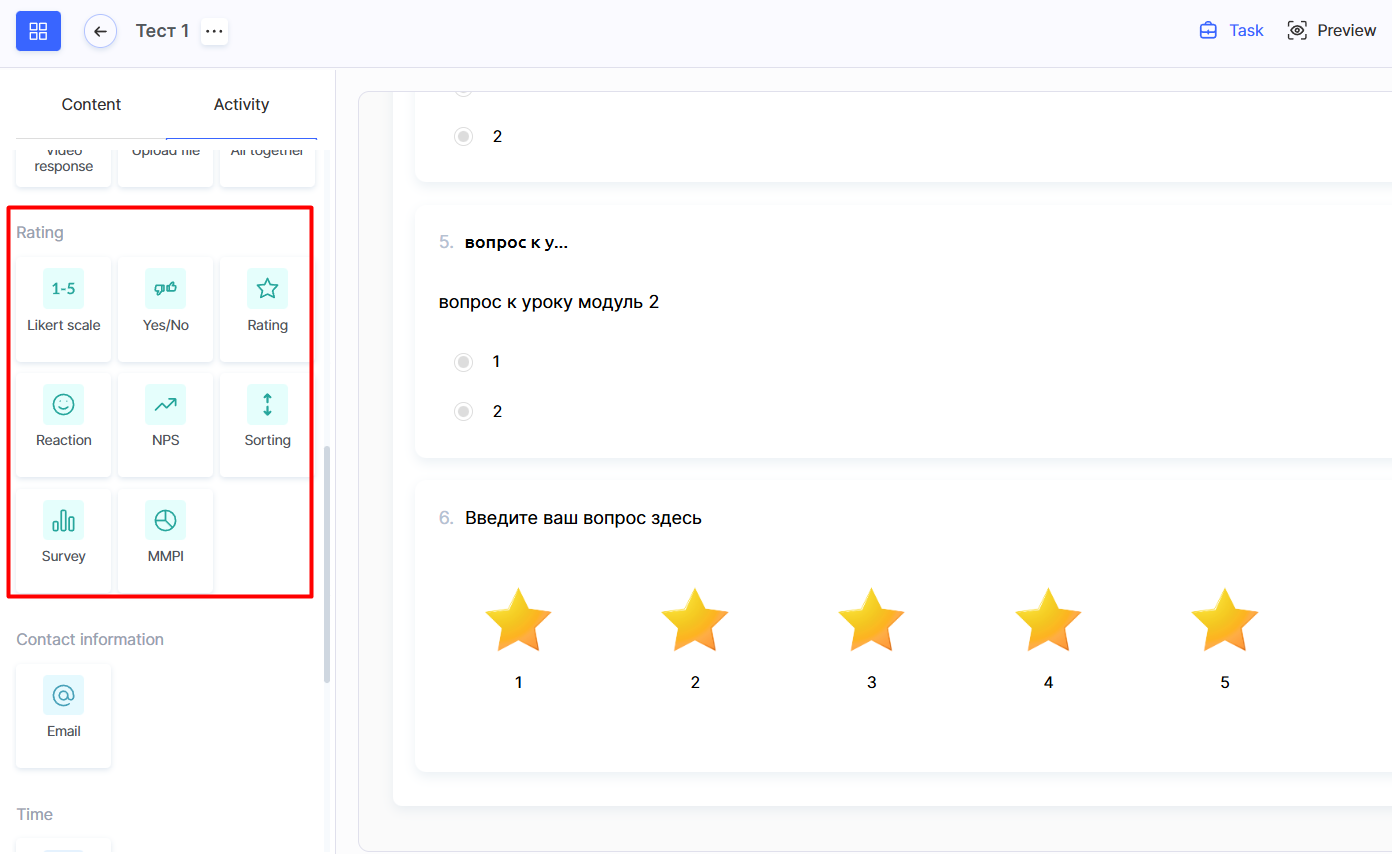
Likert Scale (1–5)
Used for rating on a scale of 1 to 5. The scale can be customized and displayed horizontally or vertically.
Yes/No
Simple confirmation or denial.
Rating
Rating using stars.
Reaction
A survey format for choosing emojis or quick responses.
NPS (Net Promoter Score)
A special survey type to measure user satisfaction.
Sorting
A task where elements must be arranged in the correct order.
Survey
Allows collecting feedback without right or wrong answers.
MMPI (Psychological Questionnaire)
A psychological test that helps better understand a person’s personality by assigning letter-based scales to answers.
Contact Information
A specialized field for collecting student contact details.
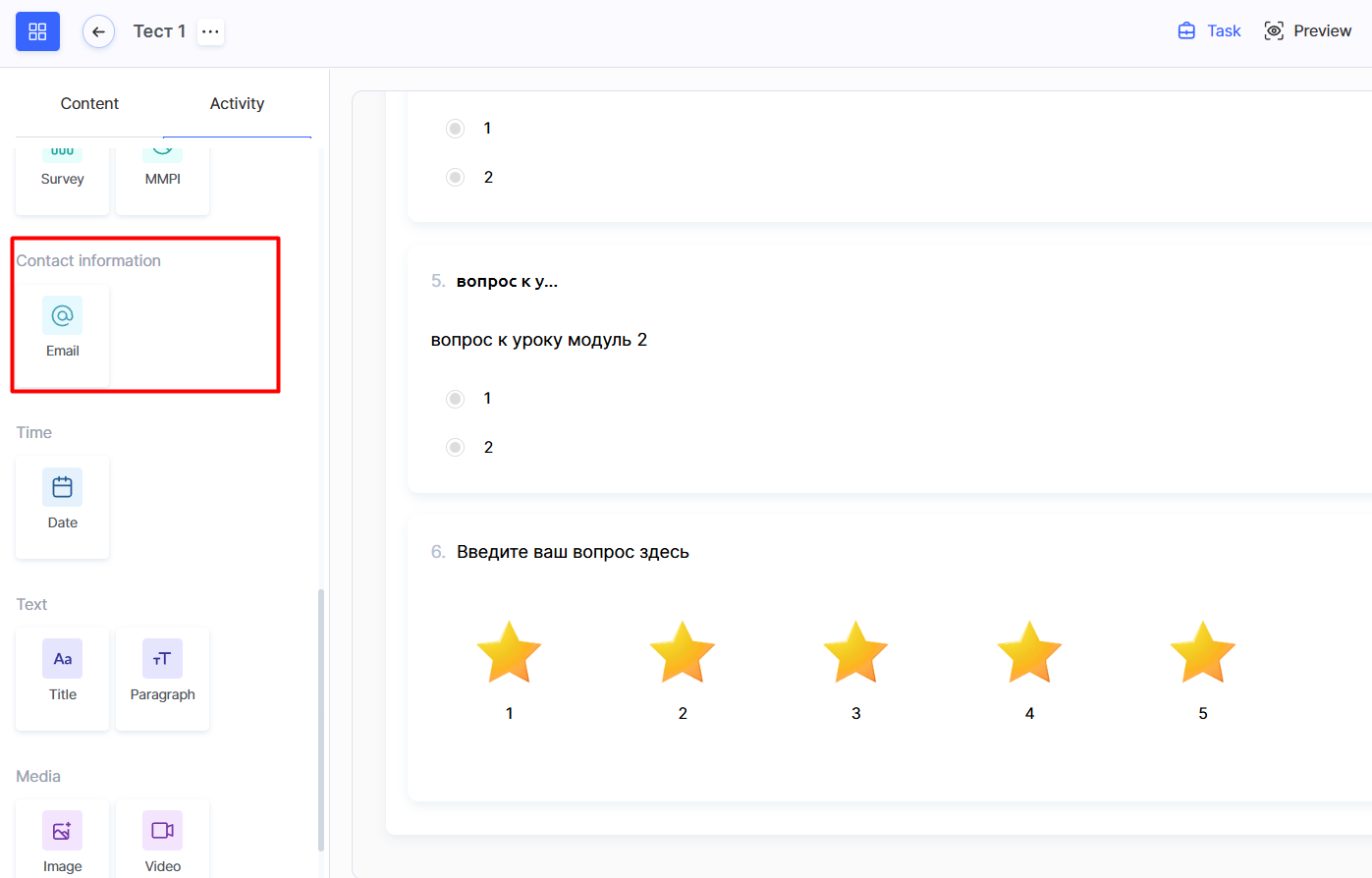
Email Address
A question type with a field for entering an email.
Time
Suitable for scheduling meetings, event registration, or collecting date-related information, including birthdays.
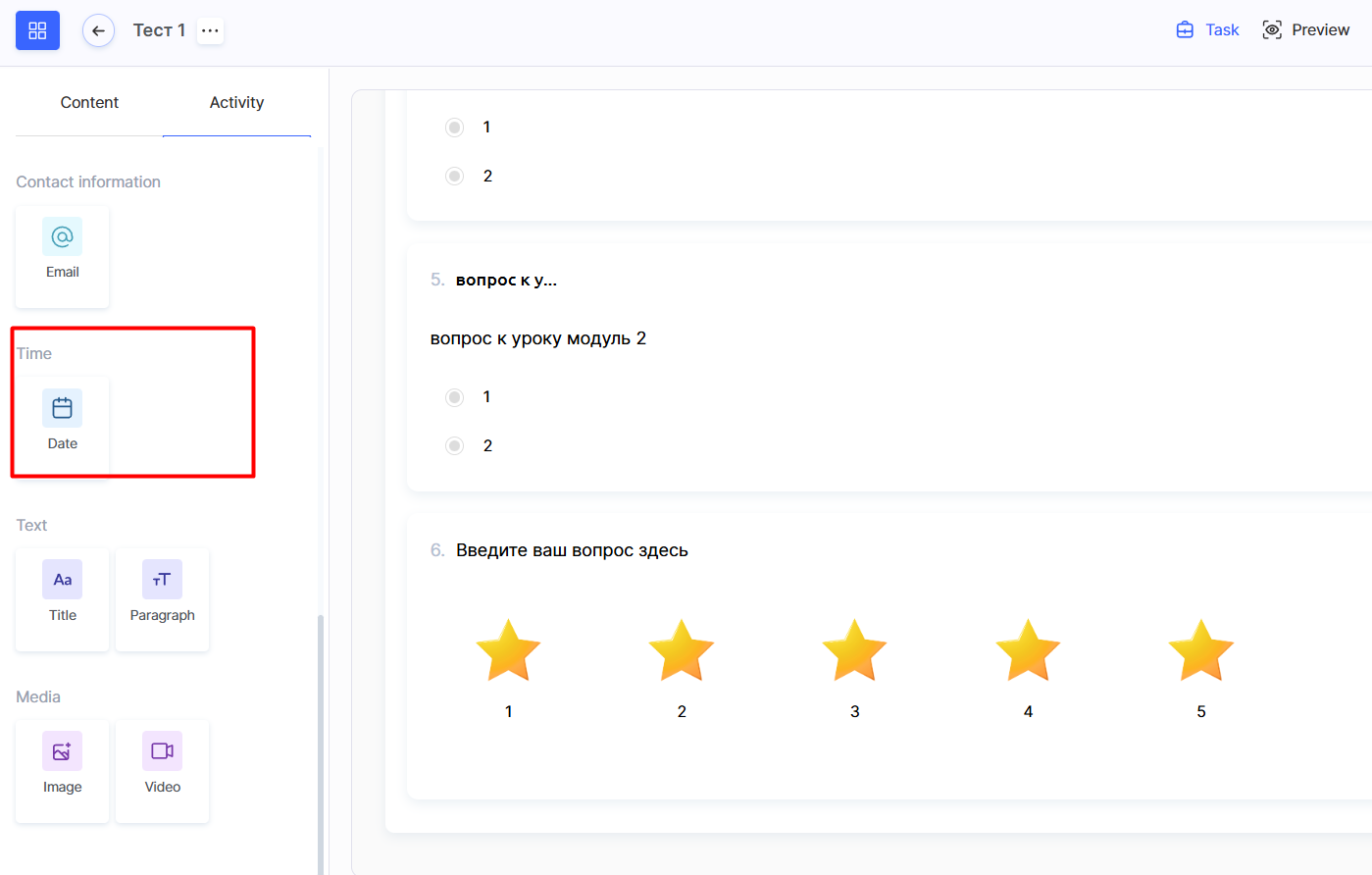
Date
A question type with a date selection field.
Text
Static text blocks for adding titles and descriptions to a quiz. These elements help structure the form and explain tasks but are not separate questions.
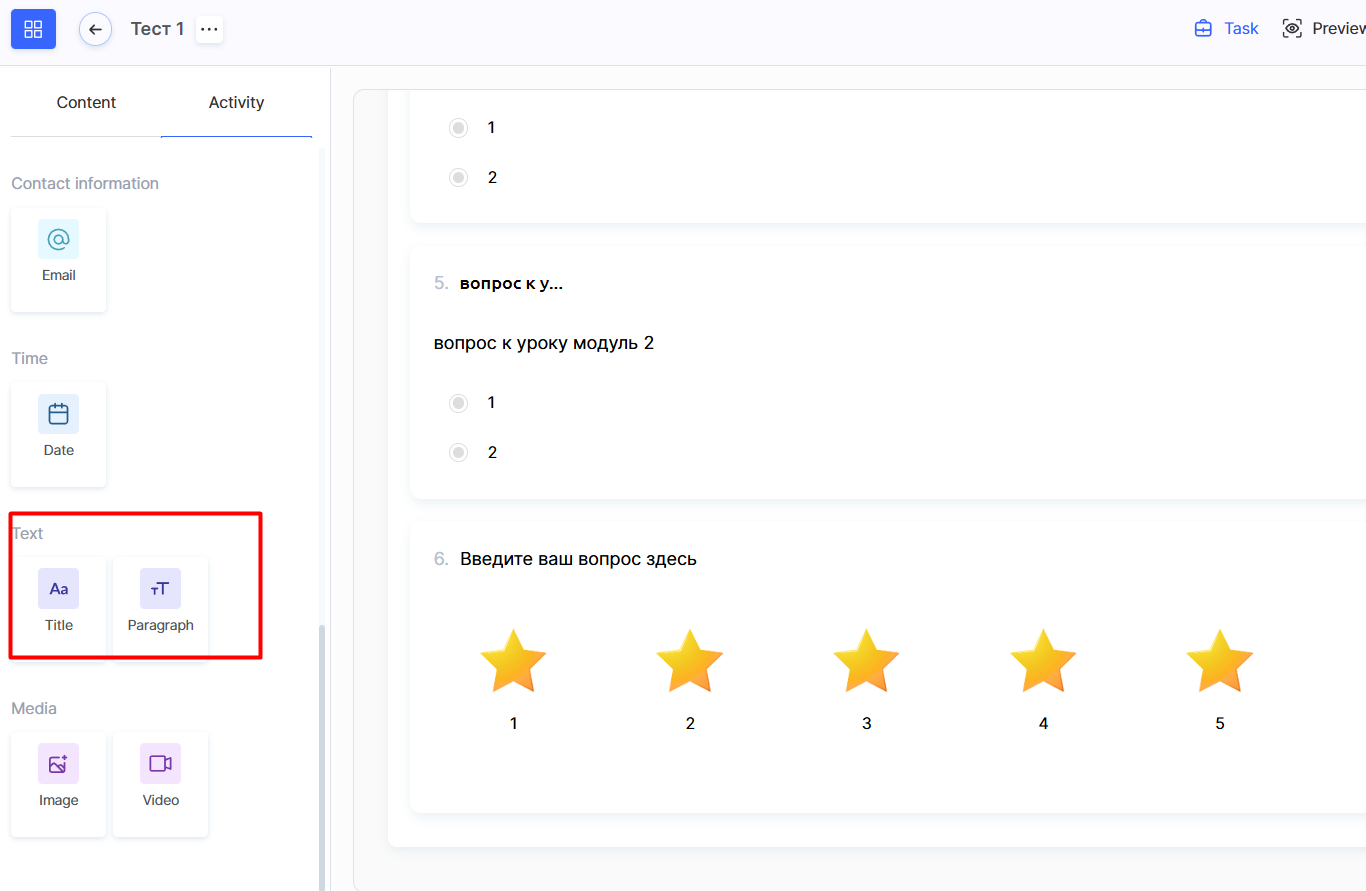
Title
A text element for structuring the form — not a quiz question type.
Paragraph
A text block for adding descriptions or explanations — also not a quiz question type.
Media
Allows adding images and videos directly into the quiz. Use this to illustrate questions, create visual tasks, or add educational materials.
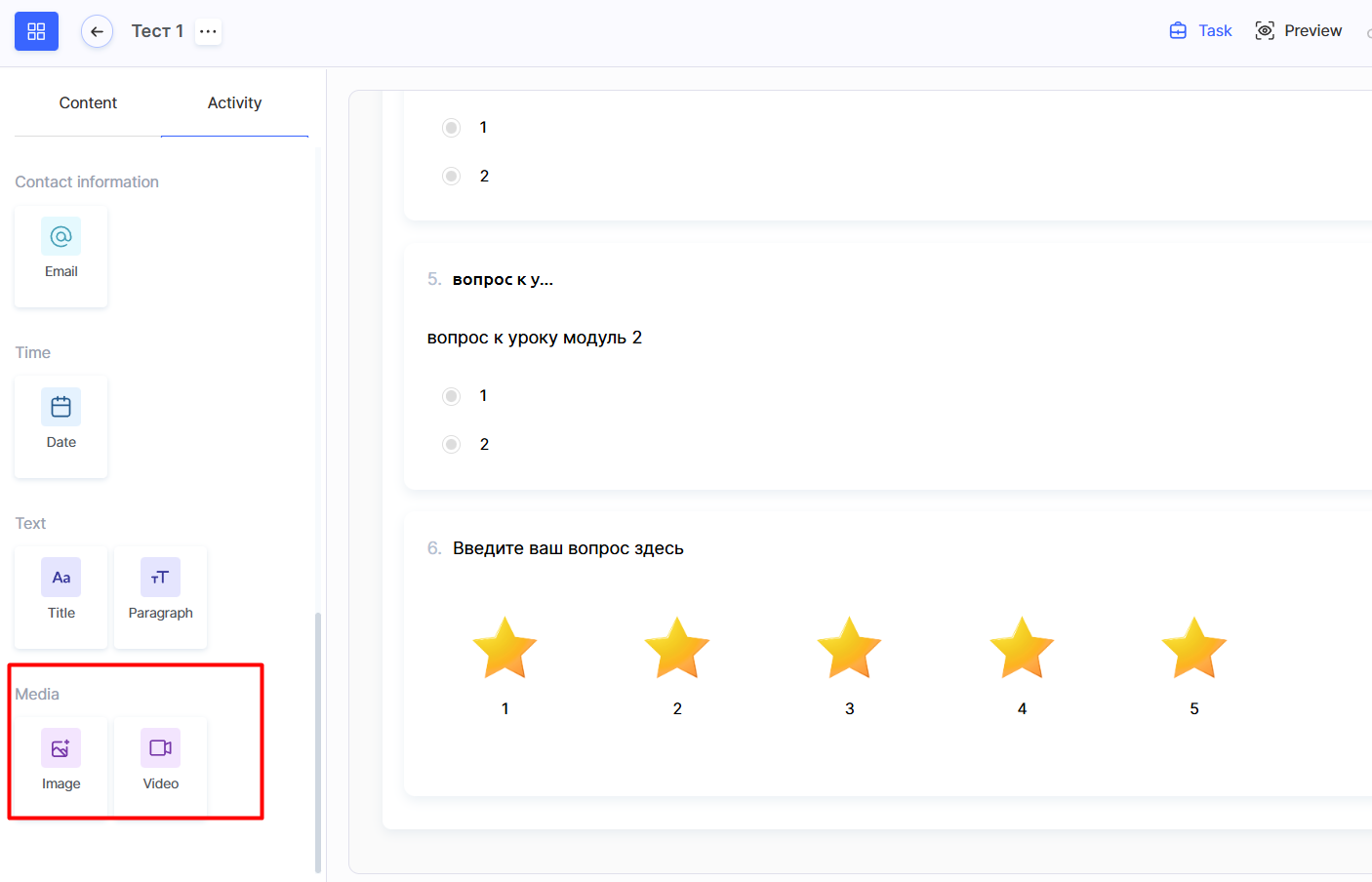
Image
Adds images to the quiz for visual content.
Video
Adds video content for more interactive and vivid tasks.
All question types, except for LMS Assignments, can be combined within a single quiz, allowing you to create engaging and interactive practices. You can add any number of questions, using identical or different types depending on your goals.
If a quiz is added to a course, all student responses can be exported as an Excel file for convenient analysis.
Kwiga’s quiz settings offer maximum flexibility and ease of use. You can create both simple surveys and complex educational tests, adapting them to any task.
See a separate article for detailed quiz settings.
Instructions on how to add a created quiz to a lesson are available via a dedicated link.
Thanks to the convenient category organization and intuitive interface, you can easily mix different formats to create unique and effective tools for knowledge assessment or feedback collection.
Didn't find the answer? Contact the support service via online chat or Telegram