
Articles:
- Homework
- Tests and grading
- Multiple open-ended questions in one assignment
- Fill in the blanks: insert the missing word
- Matching
- How to set up a test so that the student can view their answers
- Enter the word
- List and multi-list
- Form a sentence from words
- Fill in the table (option to fill in the blanks)
- How to Organize Technical Support for Course Participants
- How to Create an MMPI Psychological Questionnaire
- General Information about Quizzes: Creating and Organizing Practical Tasks, Surveys
- Creating and Configuring Style Templates for Quizzes
- Quiz Result Recalculation
- Quiz Randomizer: Creating Dynamic Tests
- How to Export Quiz Responses to a Separate File
- Quizzes, Practices: Question Types
- Practice settings (opening, closing)
- Quiz Setup
How to create a test with one or multiple answers, how to correctly assign points and set up automatic grading, along with other settings (number of retakes, time for answers, self-learning test).
On the Kwiga platform, you can create a test that consists of different types of questions. In this article, we will look at the most common option, when a student needs to choose one or more answers in a question.
You can view examples of tests in the lesson: https://sampleschool.kwiga.com/courses/new-course/tests
Creating a test
To create a test, open All solutions - Test Builder and +Quiz in the top menu.

On the Builder tab, you will see the available question options. Note that a quiz can consist of different types of questions, and you can combine them in any way that is convenient for you.

Click Single choice (or multiple choice) depending on how many correct answers are planned in the question.
You can add questions, a more detailed explanation for the question, and answer options. For more details, watch the video on how to create a test.
Several open-ended questions in one task
A feature of single-choice questions is the ability to let the student enter their own answer option. This option can also be used when a student needs to provide several short answers to questions, which will then be checked by an assistant.

Settings in tests
Adding points
You can award points for an answer, for a question, and for the entire quiz. To make this possible, make sure grading is enabled in the quiz settings; after that, you will be able to set points in the quiz builder.

In the example below, points for answers are indicated - if a student selects one of the answer options, they receive the specified points (in the example, this is 1 point for each answer)

Additionally, you can set points for a question. These points are added up with the points for the answer! You can set the condition under which points for the answer will be awarded: all answers are correct or only some of them.
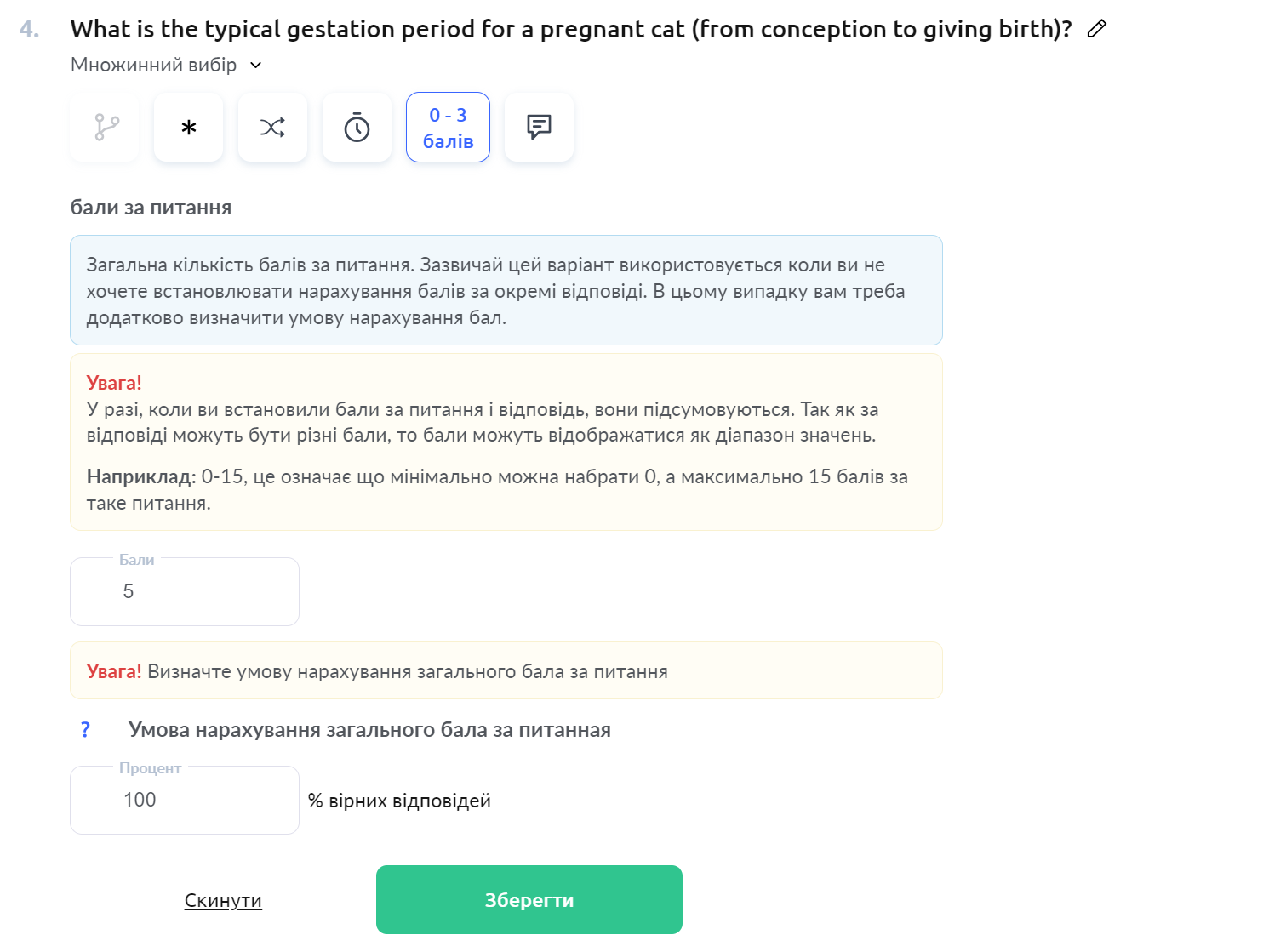
Additionally, you can award points for the quiz; this can be done in the quiz settings, where you enabled grading. Please note! These points are added to those that the student can receive for an answer or question.

Features of different test types for counting an answer as correct and calculating points:
Multiple choice
In this type of question, selecting an incorrect answer is not allowed. This means that if a student selects one incorrect answer and all the correct ones, this question will be counted as answered incorrectly. This is done so that if you have, for example, 5 answer options and 3 of them are correct, students do not select all 5 options and pass the quiz that way.
If a student does not select all the correct answers in such a question (for example, only one out of 3 correct ones), then the points for the question are counted partially (accordingly, as ⅓ of the points for the question).
Example: the question contains 5 answer options, the maximum score for the question is 3.
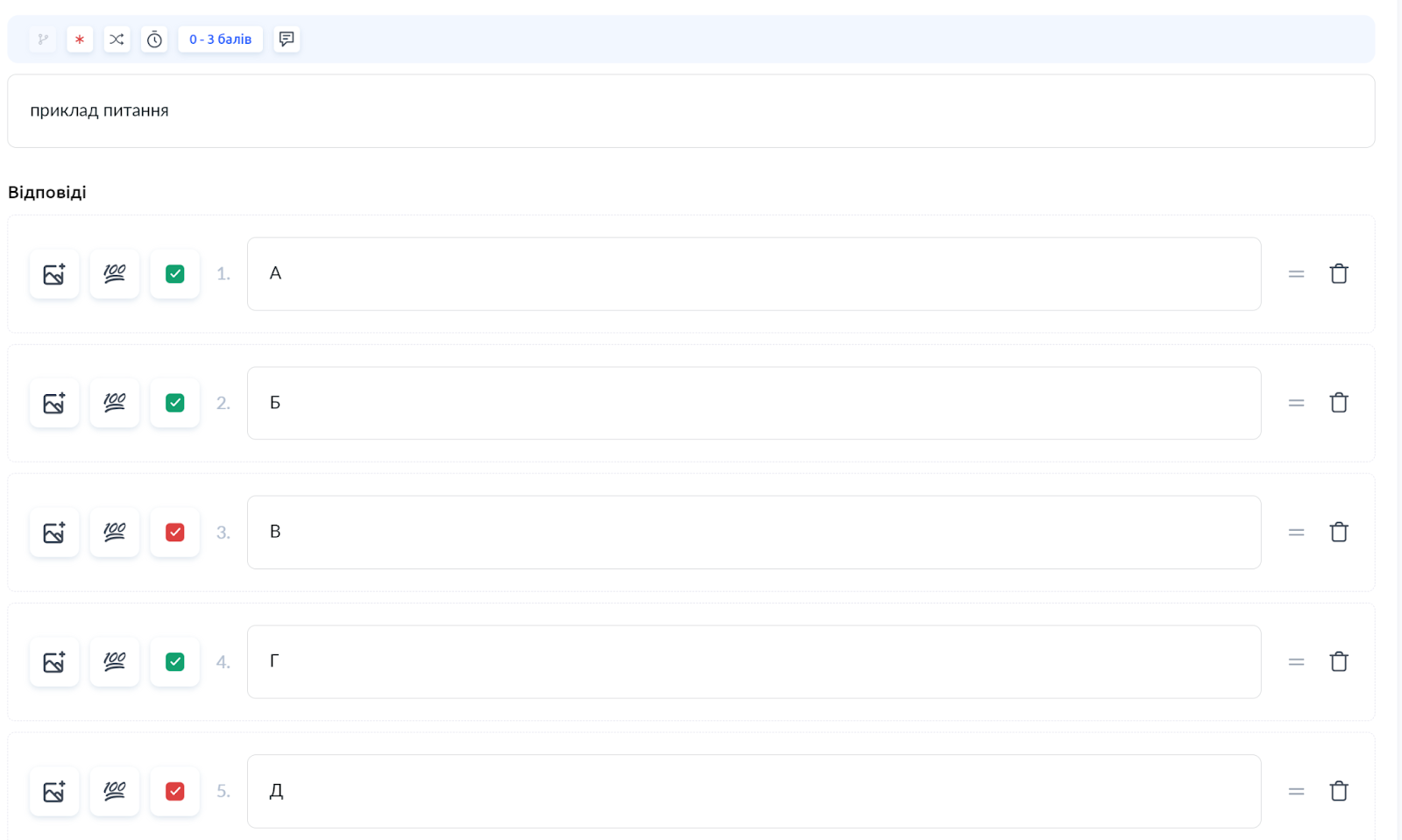
The student selects answers A, B, C, and D - the question will be counted as incorrect and the student will receive 0 points.
The student selects answers A, C - the question will be counted as correct. How many points the student receives depends on the General score award condition for the question setting:
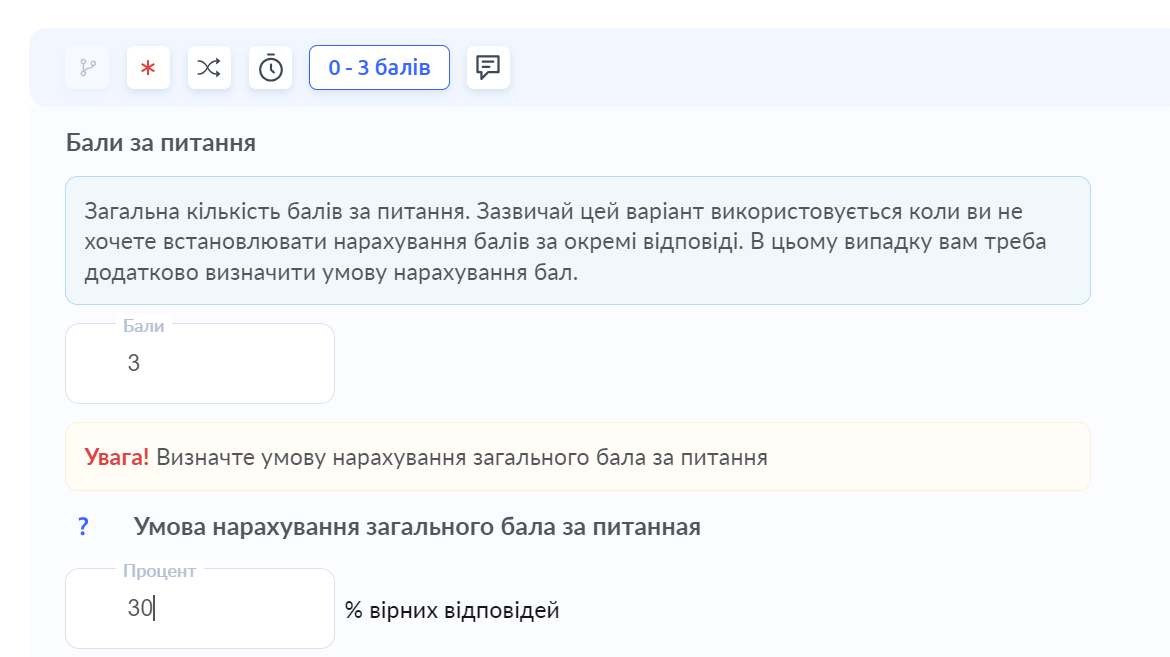
If 30% correct answers is specified, the student will receive 2 points.
If 100% correct answers is specified, the student will receive 0 points.
Matching
The calculation of correct answers is determined by the formula: number of the student's correct answers / max(number of correct answers in the statement or number of answers given by the student for this statement).
Example: there are 3 correct answers in the statement, and the student dragged only 1 answer there. According to the formula, 1 / 3 (number of correct answers in the statement) = 33%.
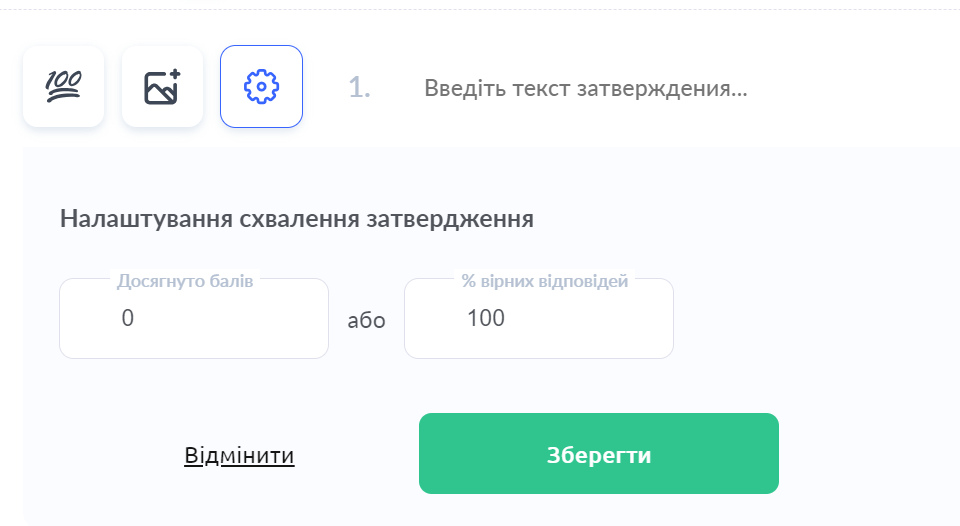
If the student dragged 3 correct answers and 1 more answer from another statement, then it is counted as 3 / 4 (number of the student's answers) = 75%. Awarding points in the statement will be determined by the statement approval setting (points or %).
Important! If a student completed the test, and after that you added points for answers, questions, or for the quiz, the student will not receive those points, because they did not exist at the time the test was taken. For the points to be counted, students need to take the test again, or an assistant or teacher needs to add the points manually.
Answer time (timer)
You can set an answer time for individual questions or for the entire quiz, as well as combine these two settings by limiting only some questions with answer time and adding an overall time for the quiz.
To limit the time for completing the entire quiz, open Quiz settings, and in the Start section you can set how much time is given for answers. This is not the period during which a student can submit the work; if you want to add a deadline for homework, this can be done in the course itself or in the offer settings.

If you want to limit the answer time for an individual question, this can be done in the question itself using the timer icon.

Auto-checking
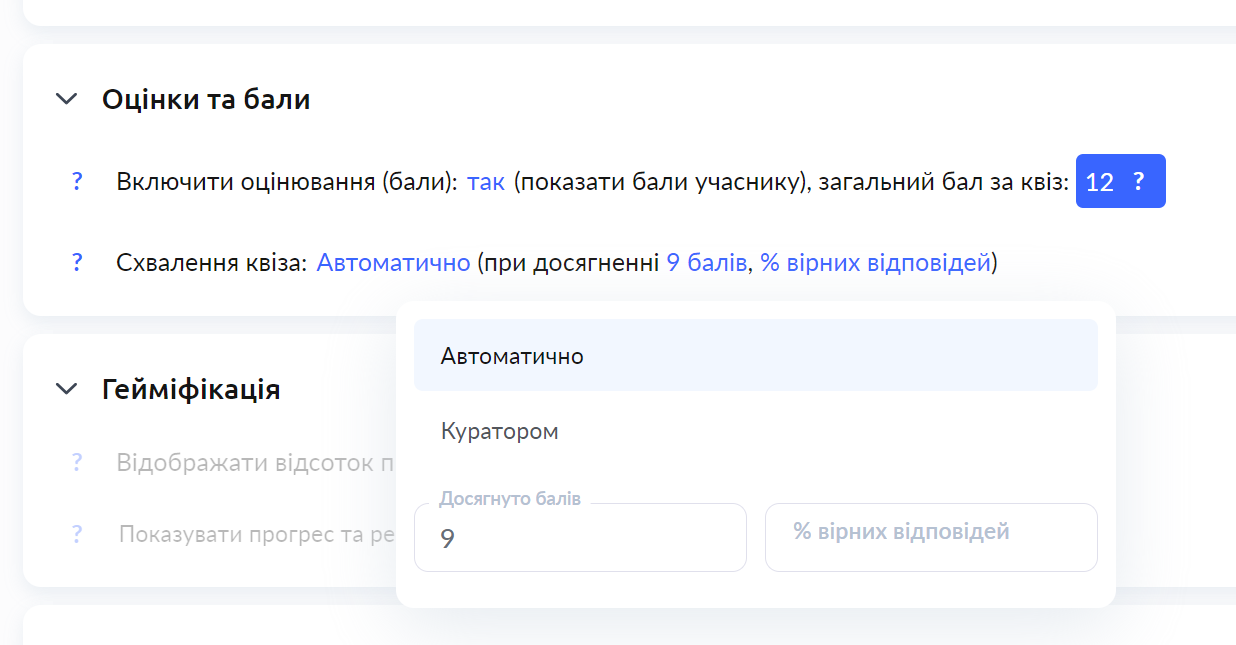
You can configure auto-checking on the Settings tab - in the Grades and points section. A quiz can be automatically counted as passed either with the correct percentage of answers or when students reach a certain number of points.
Other settings
-
In the quiz settings, you can set:
-
Number of retakes
-
Whether to show points to the participant or not
-
Shuffling answers and questions
-
Allow students to return to previous questions and change their answer
-
Set up automatic checking
-
What the student sees after completing the quiz
Didn't find the answer? Contact the support service via online chat or Telegram