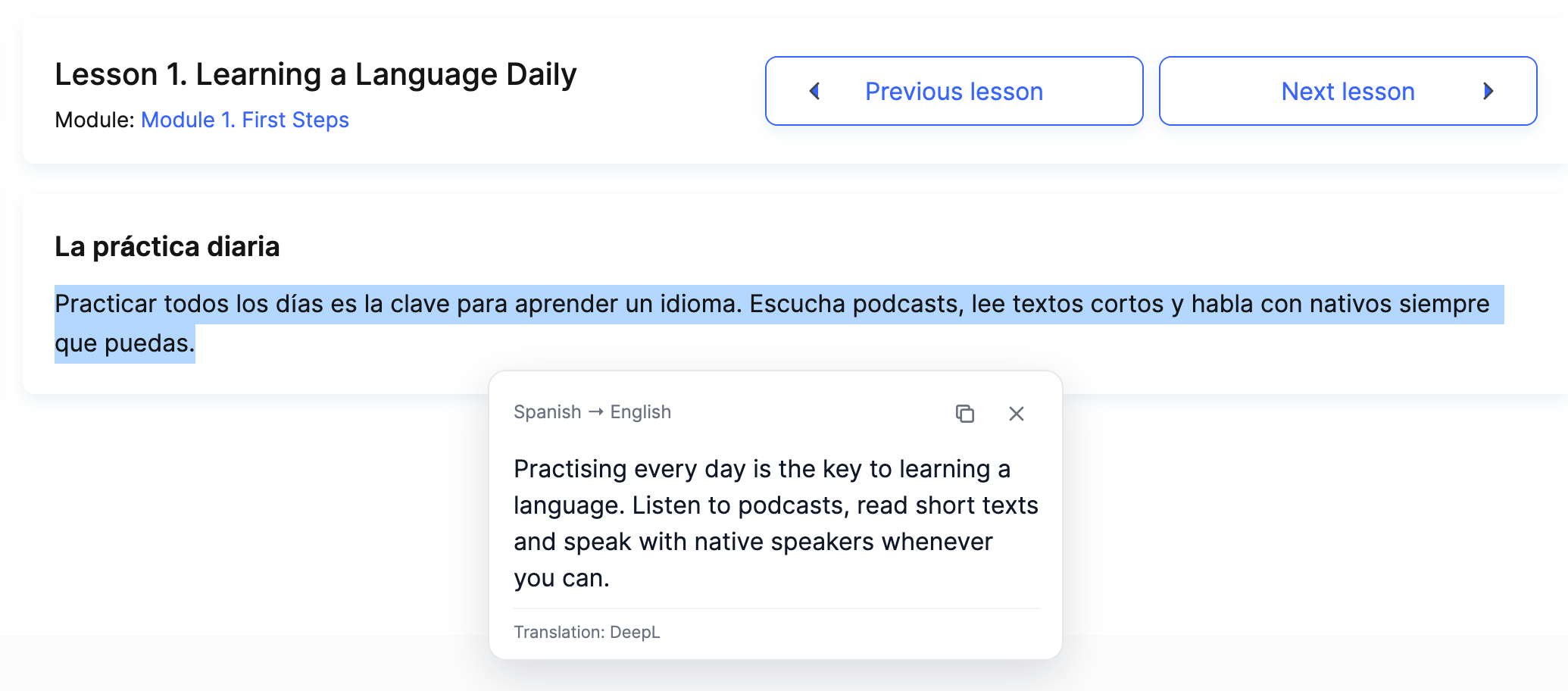
Help international students follow your lessons in their preferred language. They can simply select any text in a lesson to see an instant translation into their interface language — no need to copy and paste it into a separate translator.
It’s especially useful for schools with students from different countries and for language courses where learners may want to quickly check the meaning of a word or phrase.
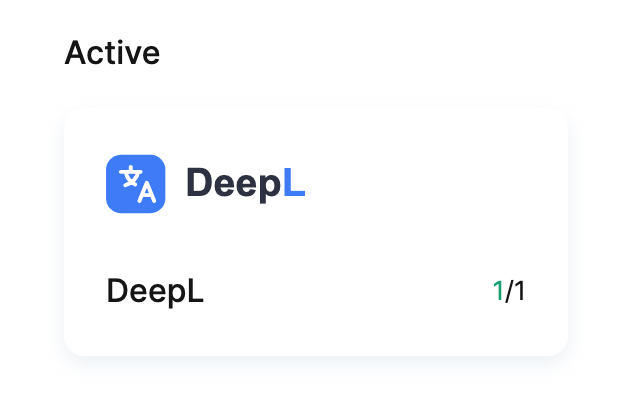
Translations are powered by DeepL using your school’s API key. You pay DeepL directly for the translations.
How to connect the translator
- Create a DeepL account and copy your DeepL API key — Free or Pro — under Account → API Keys.
- In your account, open Integrations → Translators → DeepL and paste the key. Kwiga checks it when you save.
- Open the course settings, the Education tab, and turn on Translator for students. It is off by default — turn it on in the courses that need it. Step by step — in Lesson text translation for students with DeepL.

What the student sees
On the lesson page the student selects text and clicks Translate to English — the button speaks the language of their interface. A window opens with the translation, the language pair and a Copy translation button. If the text is already in the student's language, the window says so.