
Articles:
- How to Add an Assistant to a Course
- How to remove a course assistant (but not from the project!)
- How to remove an assistant from the platform
- Assistants on the Project: Team Structure and Access Settings
- How to Assign a Senior Assistant and Configure Their Access
- How to Add a Team Member
- How to Remove a Team Member
- How to Set Assistant Visibility for Students
- Automatic Assignment of Assistants and Students to Groups
- How to Create a Participant Group and Assign it to an Assistant
- How to Add or Change a Public Figure on a Course
- Team members' access to storage folders
- Team members' access to specific quizzes
Learn how to give team members access to specific quizzes, assignments, and folders instead of the entire section.
In a team, quizzes are usually created by more than one person: instructional designers prepare tests for new courses, assistants create check-in surveys for their groups, and someone else handles final assessments. To make sure everyone sees only what they work with in the Quizzes section, you can configure access to quizzes and folders separately for each group by selecting specific items and the actions they can perform on them.
You can configure access to quizzes and folders separately for each group by selecting specific items and the actions they can perform on them.
Go to Settings → All settings → Team.
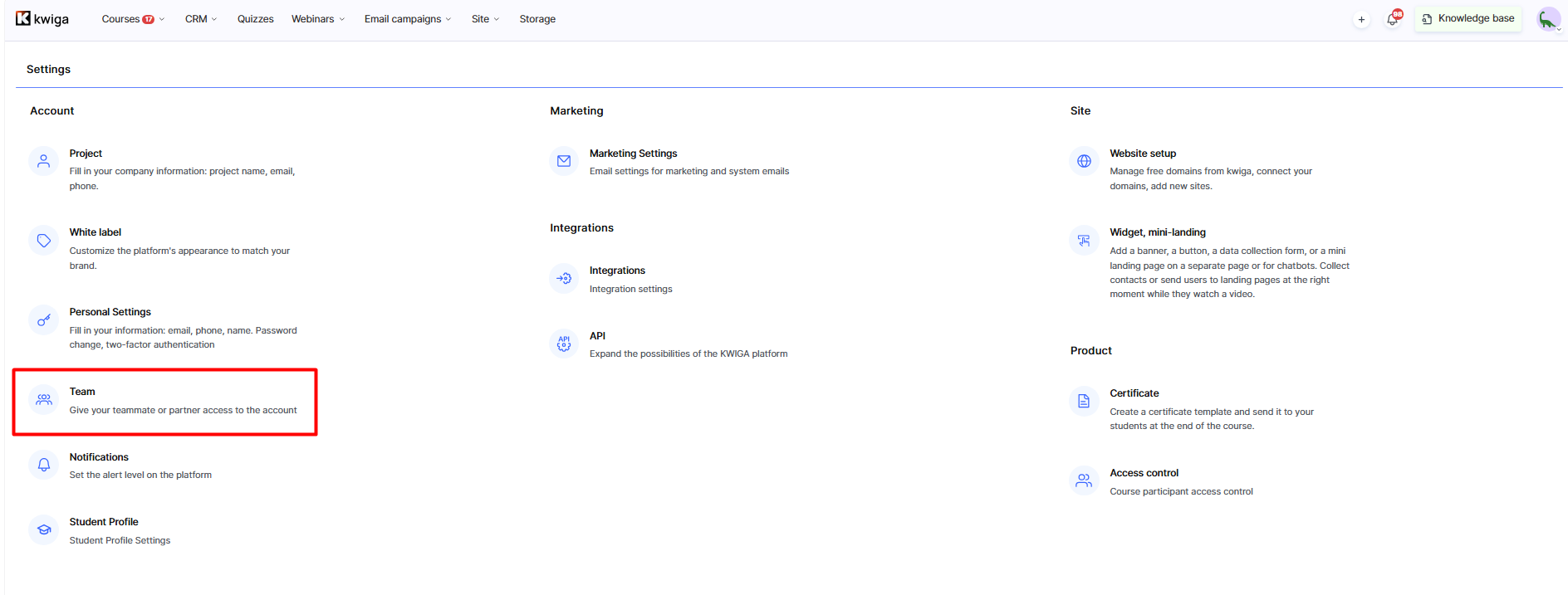
Open the Access groups.
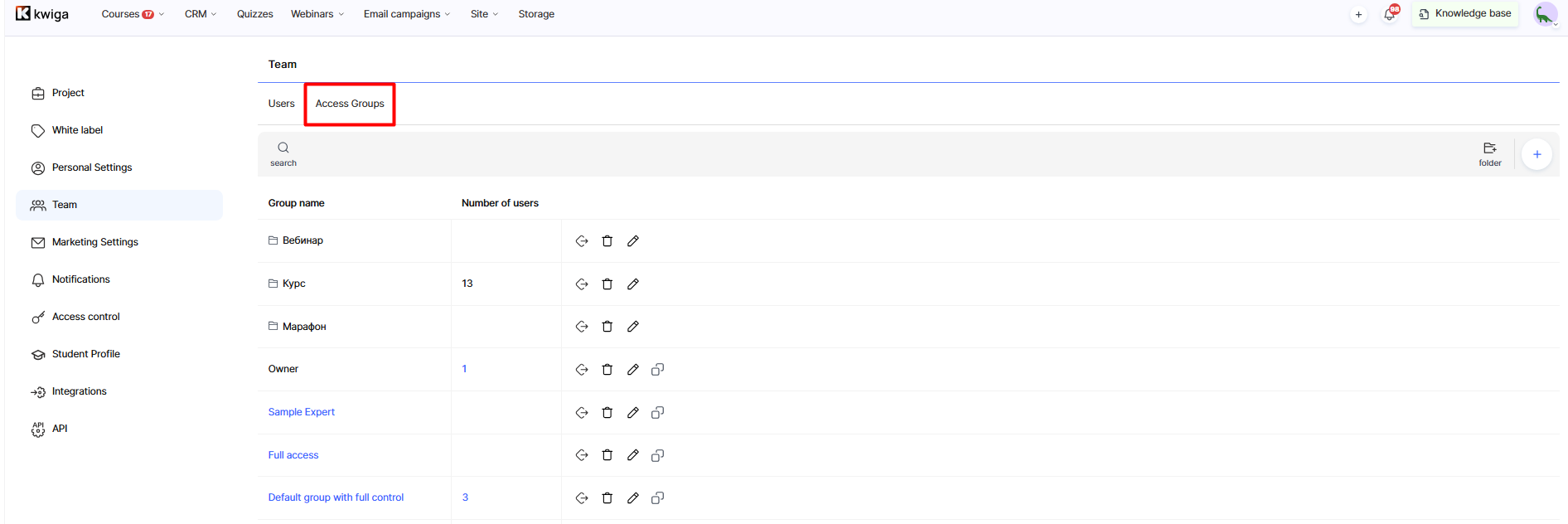
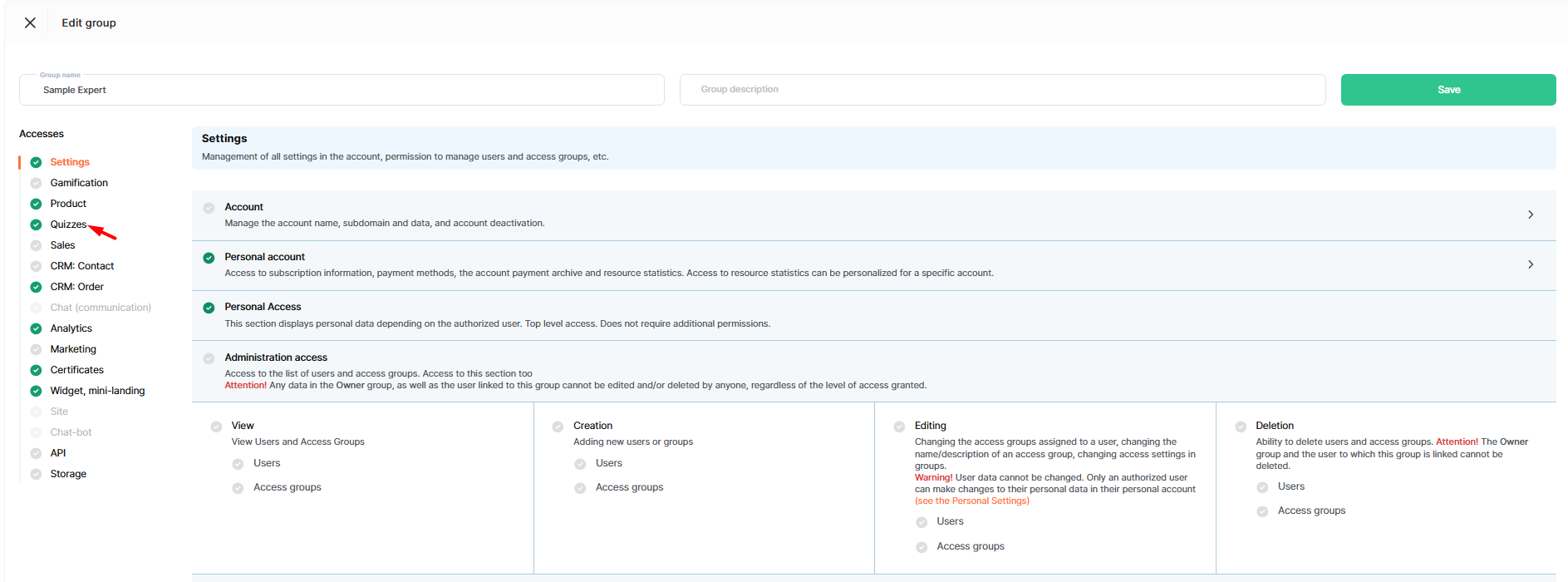
Select the group you need (or create a new one) and open the Quizzes menu in the access list on the left.
Next to the section name is the General access — Personalized access
In General access mode, the role can access all quizzes and folders according to its selected permissions (view, edit, delete). This works well for roles that need to work with every quiz in the account, such as a school administrator.
In Personalized access mode, the role can access only selected quizzes and folders, not the entire section. Once you enable this mode, a searchable list of all quizzes and folders appears below the permissions, with a checkbox next to each item.
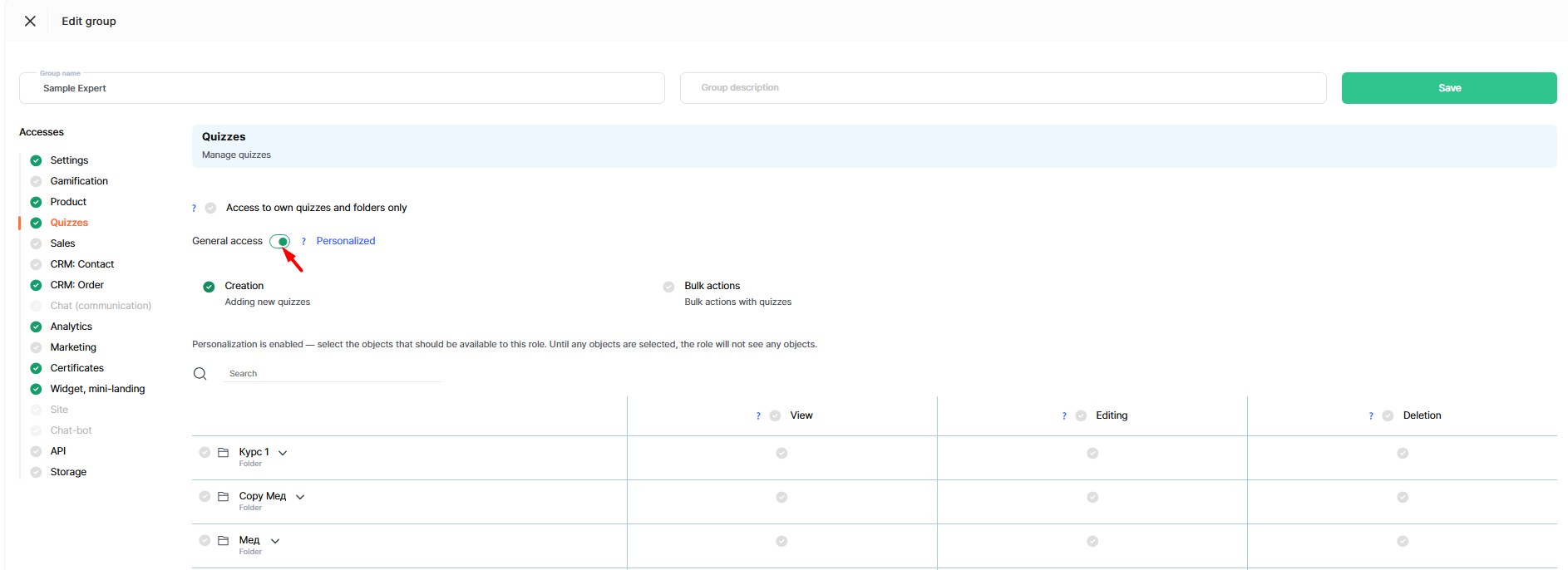
Important: as soon as you enable personalized access, the role cannot see any quizzes or folders until you select them. After switching modes, select the quizzes and folders the team needs to work with—for example, a folder of tests for a specific course that its assistant supports.
The Quizzes section has these permissions: View (view all quizzes and folders), Edit (edit quizzes and folders), Delete (delete quizzes and folders), Create (add new quizzes), and Bulk actions (perform bulk actions on quizzes, such as deleting or moving multiple quizzes at once).
Access only to own quizzes and folders
Above the General — Personalized switch is another setting: Access only to your own quizzes and folders.
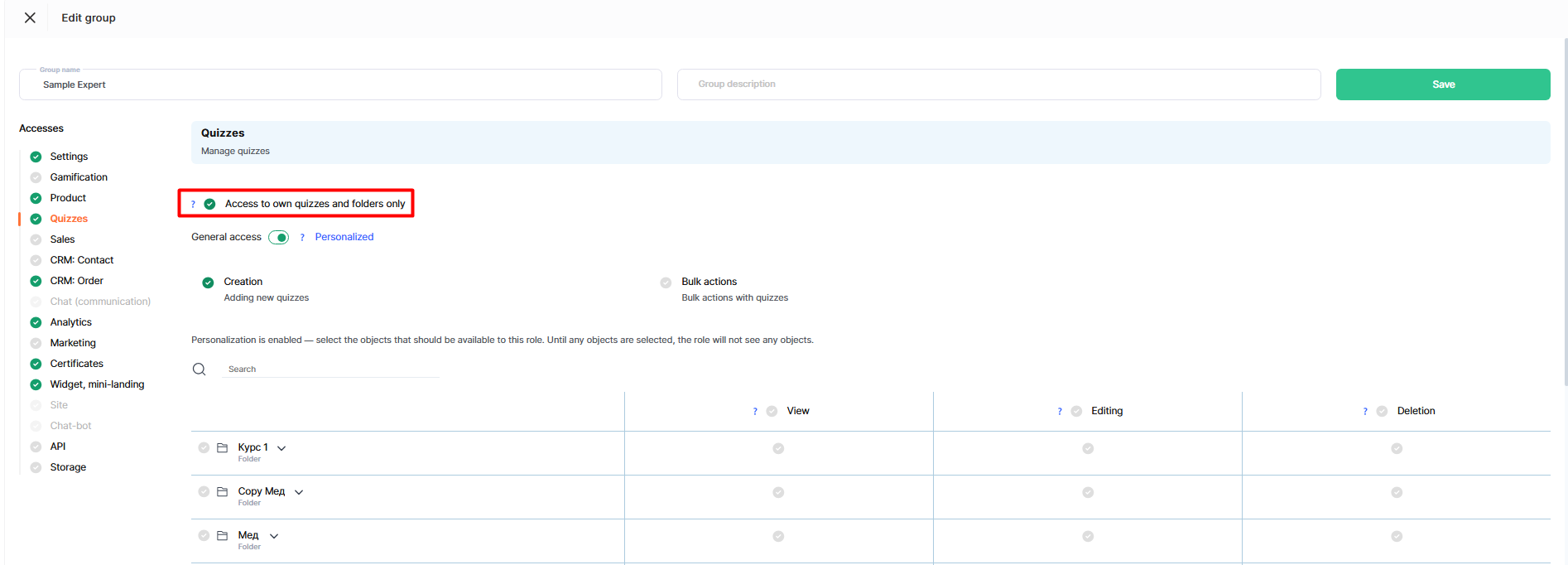
If you enable this setting, users will only see quizzes they created. Quizzes added by other team members will be completely inaccessible to them.
The same applies to folders. Users see only their own folders and folders containing their quizzes. Folders without any of their quizzes are not shown.
Note: If the platform can't identify a folder's creator, it shows the folder to everyone as shared, but no one can manage it (rename or delete it).
Important: New quizzes and folders created after personalized access is set up aren't included automatically. You'll need to add anything that appears in the Quizzes section after setup separately.
Didn't find the answer? Contact the support service via online chat or Telegram