
How to Create an MMPI Psychological Questionnaire
Create your own MMPI psychological questionnaire with ease. Build effective, professional assessments for personality testing, clinical use, or educational purposes.
The MMPI is a popular psychological test that helps better understand a person’s personality. Such quizzes are often used by psychologists, HR specialists, coaches, and teachers to assess different personality traits.
On the Kwiga platform, you can easily create your own psychological questionnaire. It doesn’t have to be complicated — you can start with 3–5 key personality traits that interest you.
Before you begin creating a quiz on Kwiga, decide on the main parameters. The original MMPI evaluates different aspects of personality using ten basic scales. For a simplified version, you can select the 3–5 most important scales.
Creating a Quiz
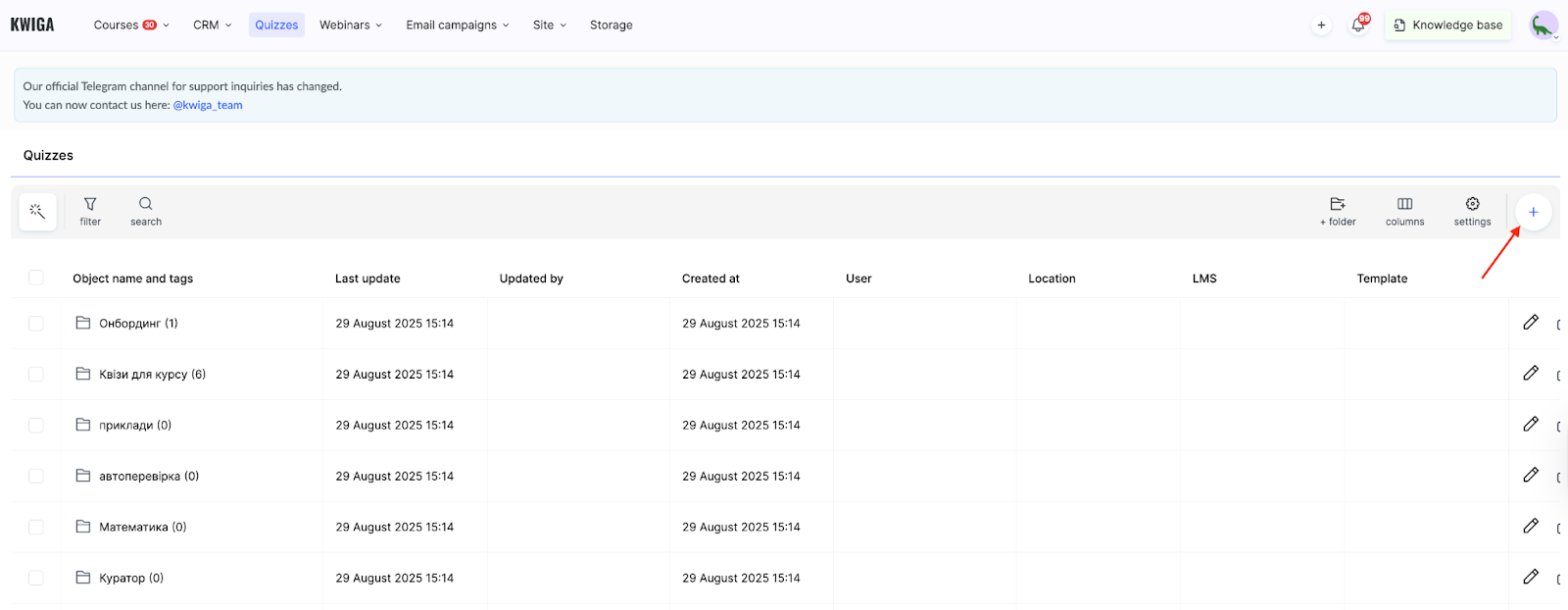
Go to the Quizzes menu in your Kwiga account. Click the + button to create a new quiz.
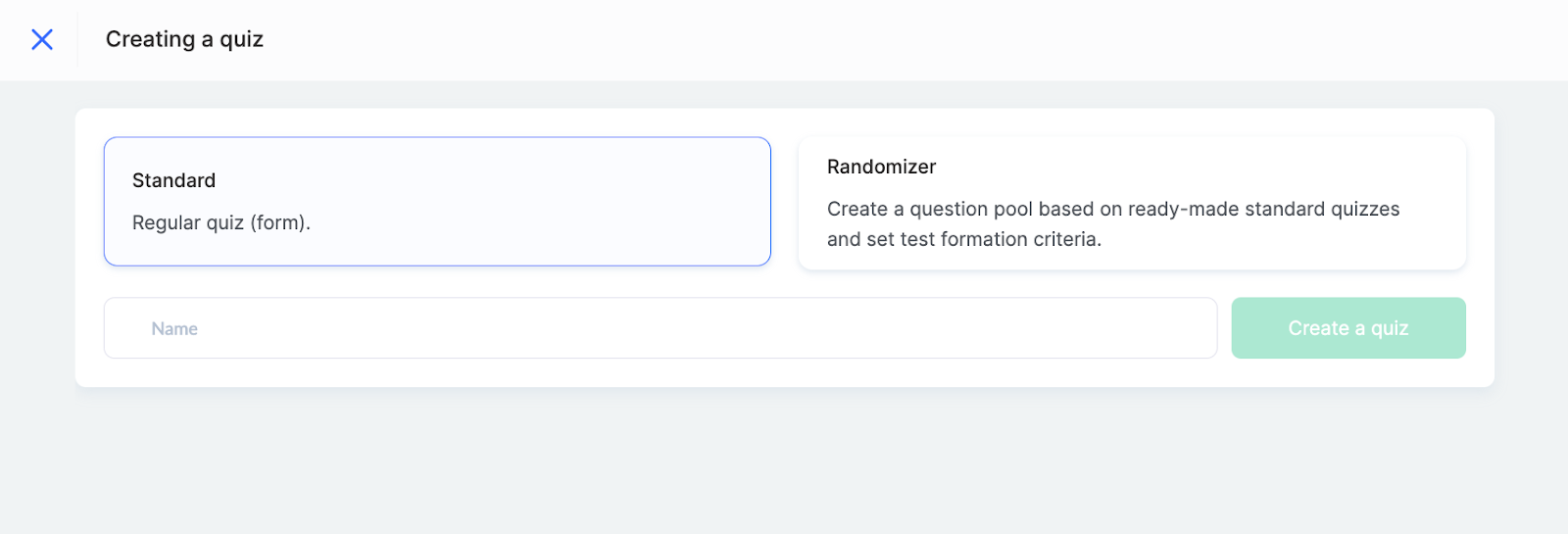
Choose Standard Quiz and enter a name in the corresponding field.
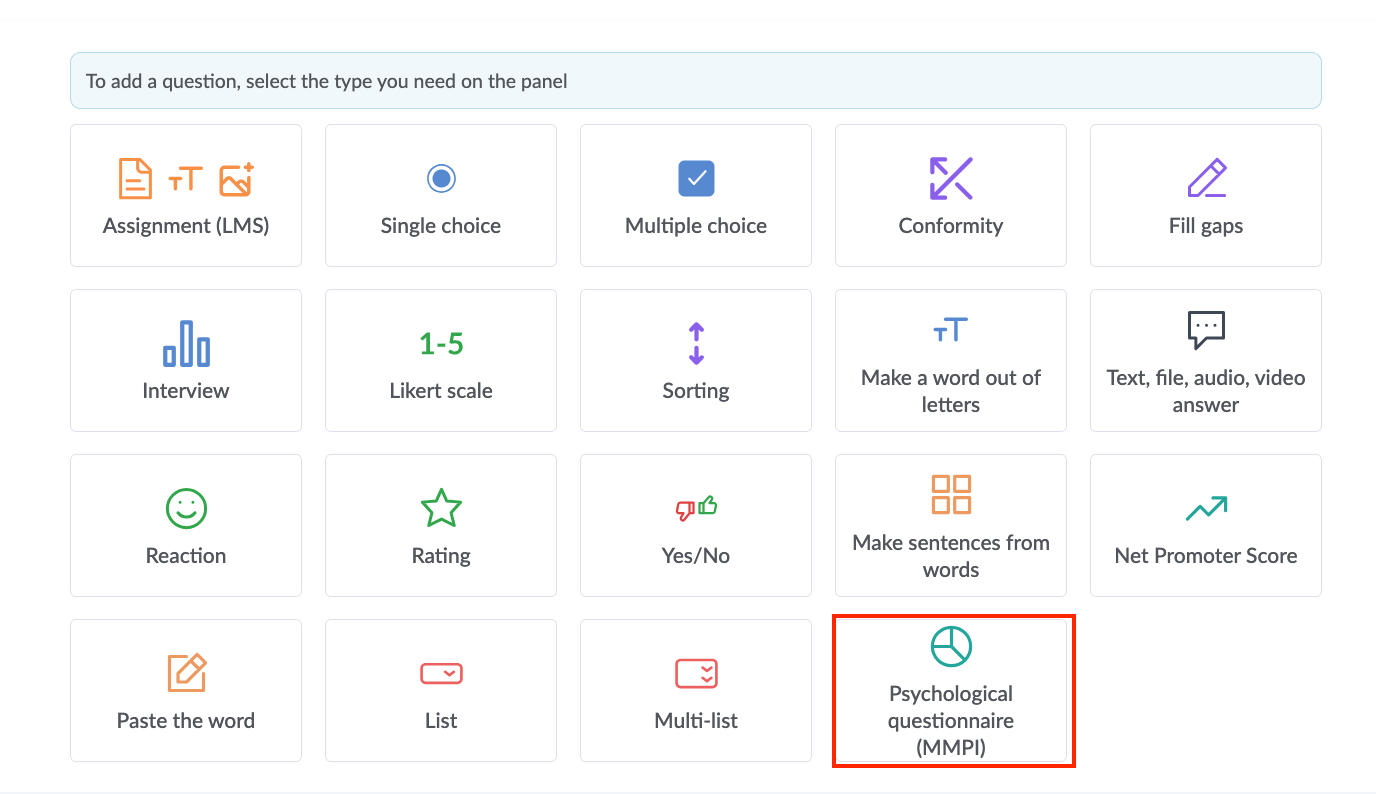
Click Create Quiz and select the MMPI Question type.
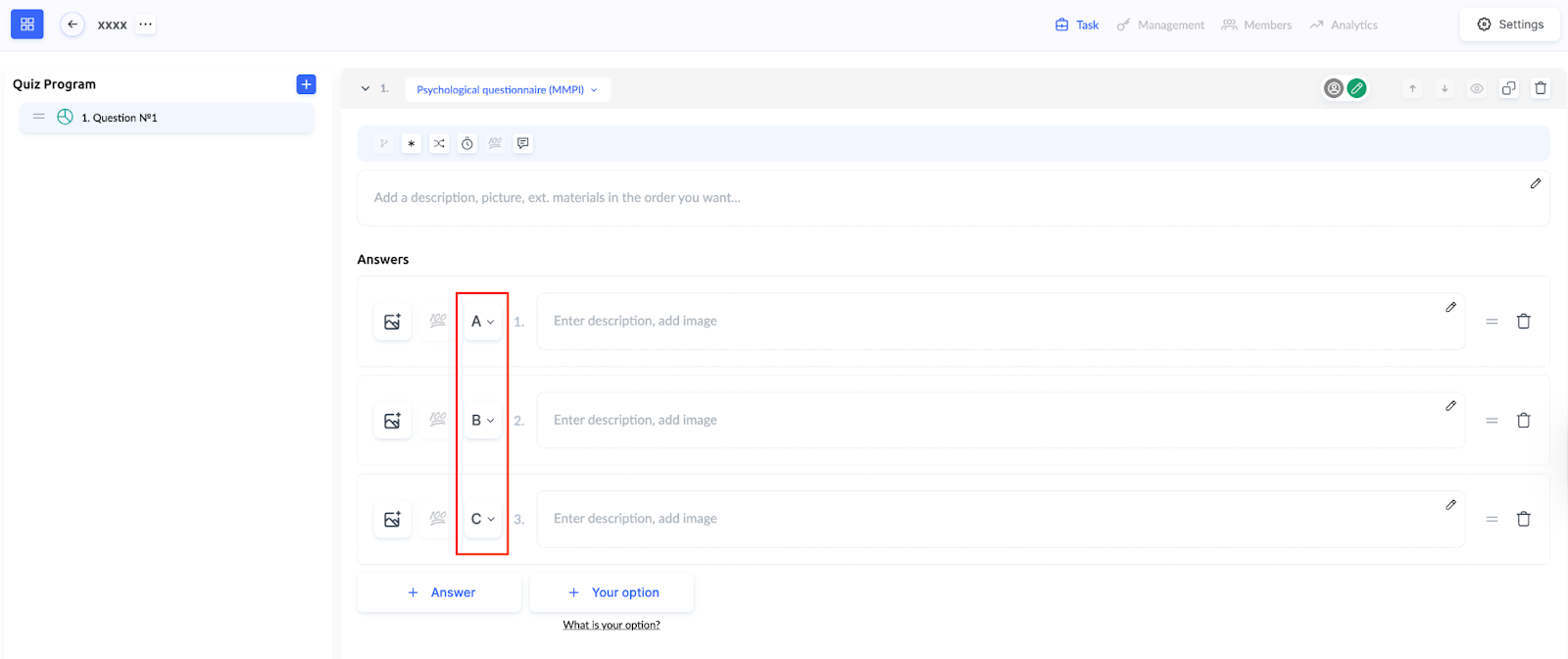
This is a special question type that lets you automatically assign letters to answers. The first answer option is automatically assigned the letter A, the second — B, and so on.
Add your question text in the appropriate field.
Add answer options and assign letters to them from the dropdown list. The platform automatically suggests A, B, C, but you can change these according to your test’s logic.
How the Scoring Works
Kwiga has a special calculation mechanism for MMPI-type questionnaires. When your quiz contains at least one MMPI question, the platform automatically performs the following steps:
-
It counts the total number of all answers with letters in the quiz.
-
It counts all the participants’ answers with letters (skipped questions are not included).
-
It calculates the percentage of each letter from the total number of answers.
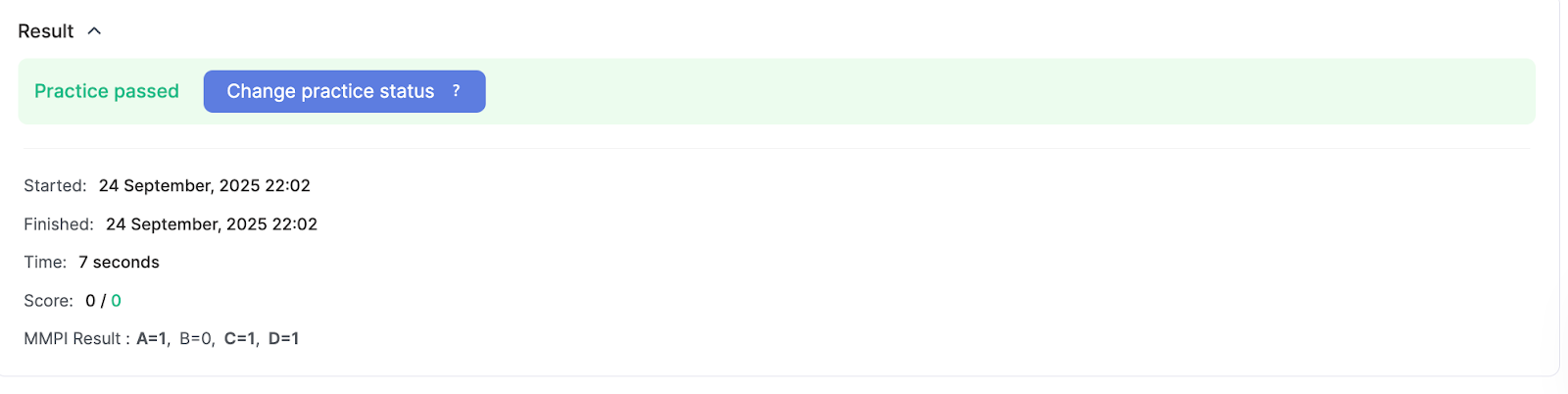
Example: Suppose you have 10 questions with 2 answers each, and you use three letters: A, B, C. This gives 20 possible answers in total: A = 10, B = 5, C = 5. A participant might skip some questions — let’s say they answered 7 out of 10 and skipped 3. Their answers could be: A = 2, B = 5, C = 0. In the final report, the participant will see: A = 2, B = 5, C = 0, with the highest value (in this case, B = 5) highlighted in bold.
Recommendation: In the quiz settings, you can turn on "Display mini-navigation for questions" so participants can see how many questions remain. This is especially useful for long psychological tests. You can also set a time limit per question to encourage quick, intuitive responses.
After creating the quiz, you can add it to your course. To do this, open the desired lesson for editing and add a Practice activity. You can find a detailed guide on adding activities to lessons in our article about adding assignments.
Frequently asked questions
Can I change the letter the platform automatically assigned to an answer option?
Yes. The platform automatically assigns letters in order – A for the first option, B for the second, and so on – but you can change each option's letter in the dropdown to match your test's logic.
Will letter-based scoring work if the quiz also contains other types of questions?
Yes. Scoring by letter is enabled when the quiz has at least one MMPI question.
What if a member skips some questions?
Skipped questions are not included in the member's result: only the answers with letters they actually selected are counted. For example, if they answered 7 out of 10 questions, their result will include 7 answers.
What will the member see after completing the questionnaire?
The member will see how their answers are distributed by letter – for example, A = 2, B = 5, C = 0. The highest value is shown in bold.
How can you make a long questionnaire easier for members to complete?
In the quiz settings, you can enable "Show mini navigation for questions" so members can see how many questions are left. You can also set a time limit for each question to encourage quick, intuitive answers.
Thanks for your feedback!
Thanks! We'll update the article. Need an answer now? Contact support