
Assignment answers: review and analyze student results
Learn how to use the Assignment answers report in KWIGA to see who completed your course quizzes and assignments and how: statuses, points, student answers, assistant review, filters, columns and export.
Report Assignment answers brings together all student attempts at quizzes and assignments across your courses in one table: who completed them, when, their results, and their answers.
It helps you quickly find submissions awaiting review, see where students make mistakes, and check a specific student's answers without opening each lesson separately.
You can use the report to review homework and monitor learning progress: track student results, find students who are struggling, compare attempts, and assess how well students have mastered the course material.
Where to find the report
Open the menu Courses → Assignment answers. You can also open a report for a single course from the course itself — select the Assignments tab in the top panel of the course.
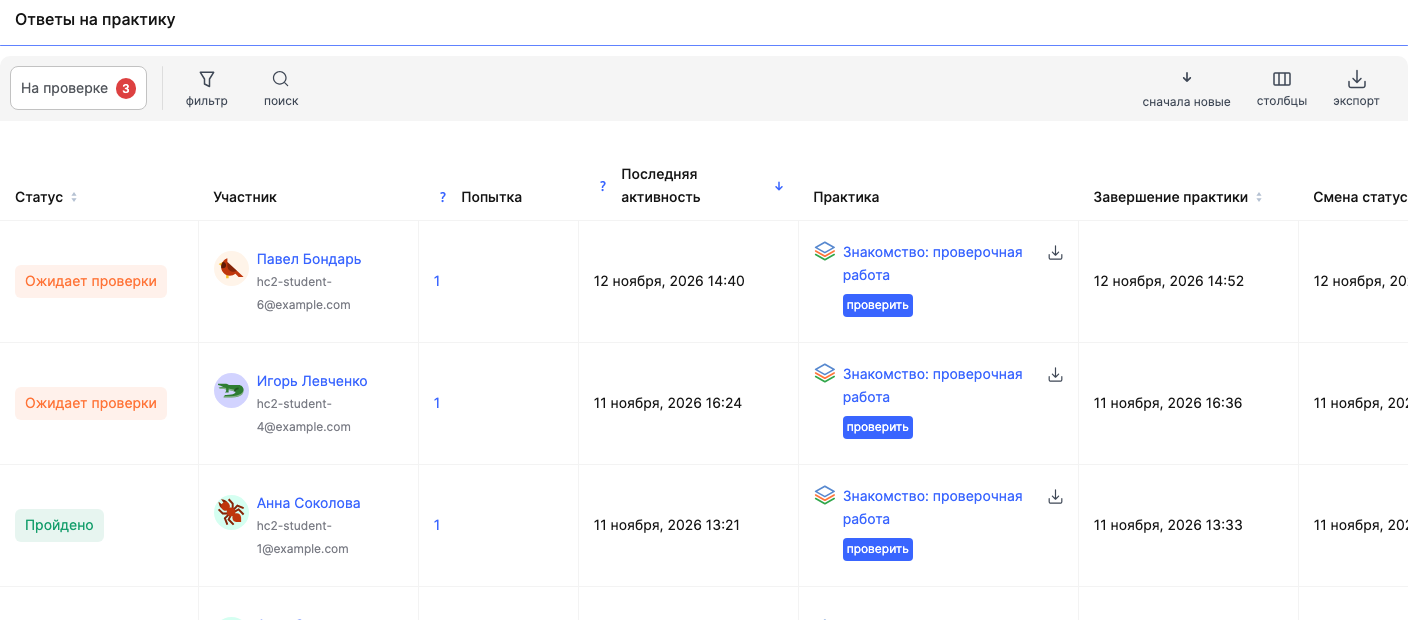
What the table shows
Each row represents one student's attempt at an assignment. Main columns:
- Status — Awaiting review, Passed, Not passed, Needs revision, In progress or Latest version changed the status.
- Member — the student's name and email. Click the name to open their contact.
- Attempt — the attempt number if the student completed the assignment more than once.
- Last activity — when the student last took an action in this attempt.
- Assignment — the name of the quiz or assignment. Next to it are the review button and the download answers icon.
- Assignment completion and Status change — when the student completed the assignment and when the status last changed (for example, when an assistant approved the submission).
- Points and Max. quiz points — how many points the student earned and the maximum possible score.
- Assistant, Course, Module, Lesson, Sections in the lesson, Access via, Group — where the assignment is located and how the student gained access to the course.
How to use the table data:
- Track progress. Check the statuses and last activity to see which students have started their assignments, who has completed them, and who is still working on them.
- Track review times. Use the assignment completion date and status change date to find submissions that have been waiting for review for a long time.
- Analyze results. Compare the scores earned with the maximum scores to see how well students are performing on assignments.
- Monitor assistants' work. Use the "Assistant" column to see submissions assigned to a specific assistant.
At the bottom of the table, you can choose how many rows to show per page and navigate between pages.
Please note: only started attempts appear in the report. If a student hasn't opened the assignment yet, they won't have a row in the report — you can see how far they've progressed on their course page. Therefore, a student's absence from the report doesn't mean they haven't received the assignment or don't have access to the lesson. You can see how far they've progressed on their course page.
Submissions awaiting review
The Awaiting review button at the top of the panel shows a count of attempts awaiting an assistant's review and attempts with unread comments. The button is visible while there are any such submissions. This is the fastest way to work through the queue: click it, then open the first submission.
Use this list as a homework review queue. If you have multiple assistants, filter by course and assistant to work only on assignments you're responsible for or those assigned to a specific assistant.
After you review a submission, its status will change and it will disappear from the "Awaiting review" list if it has no unread comments. This lets you work through the queue without returning to assignments you've already reviewed.
Student responses
Click the row or the review button — the attempt details will open on the right:
- Quiz and Lesson — which assignment it is and where it is in the course.
- Completion and approval settings — how the quiz is approved (for example, By an assistant) and the link All settings.
- Member — the student, link All user assignments, which plan and order give them access, and who their assistants are.
- Result — Started, Completed, Time, Points and all questions with the student's answers: which options they selected and whether each answer was correct.
What to look for when reviewing answers:
- Look beyond the total score and review the answers to individual questions. This helps you identify which topics the student has mastered and which they find challenging.
- If a student has taken a quiz more than once, compare their attempts. This shows whether they corrected their mistakes after reviewing the material.
- If a student scored low, review their incorrect answers. This will help you determine whether they need extra help or should revisit a specific lesson.
- When reviewing assignments, use comments to explain mistakes and give the student specific recommendations for improvement.
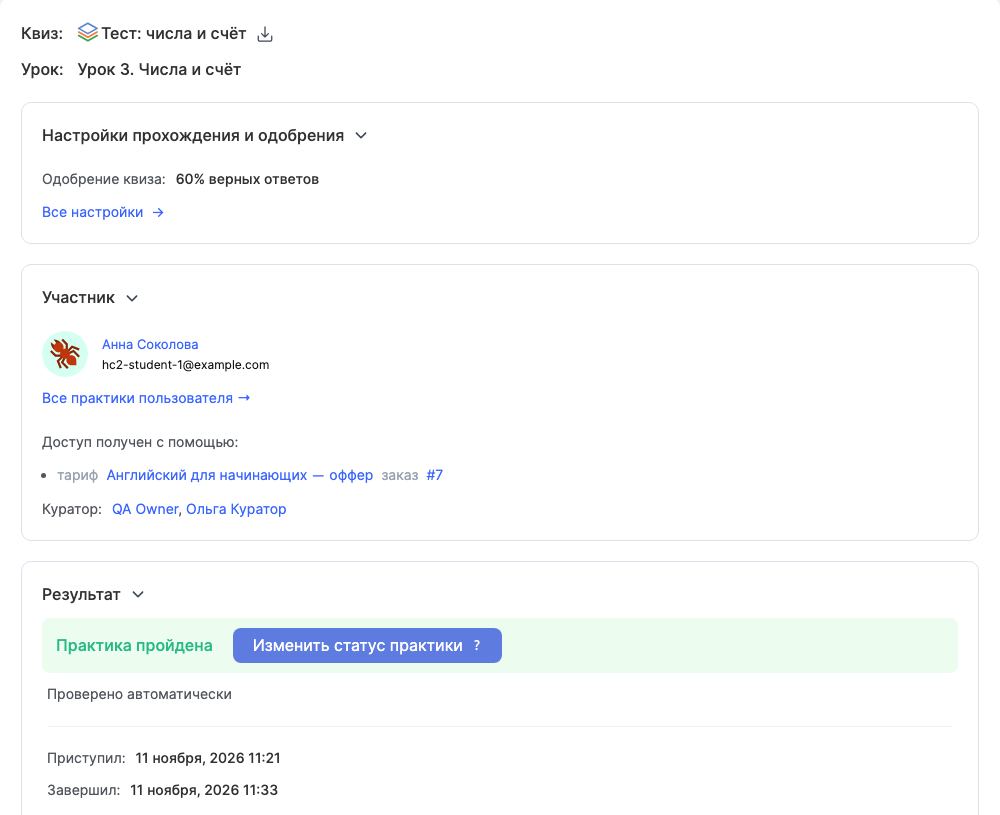
If an assignment is awaiting review, the Result section has a Review button: click it to accept the work, return it for revision, or leave a comment. For an attempt that has already been reviewed, you'll see the Change assignment status button instead, with the review method shown next to it — for example, Reviewed automatically.
Use the arrows in the upper-right corner of the card to move to the next or previous attempt without closing it.
Filters, search, and sorting
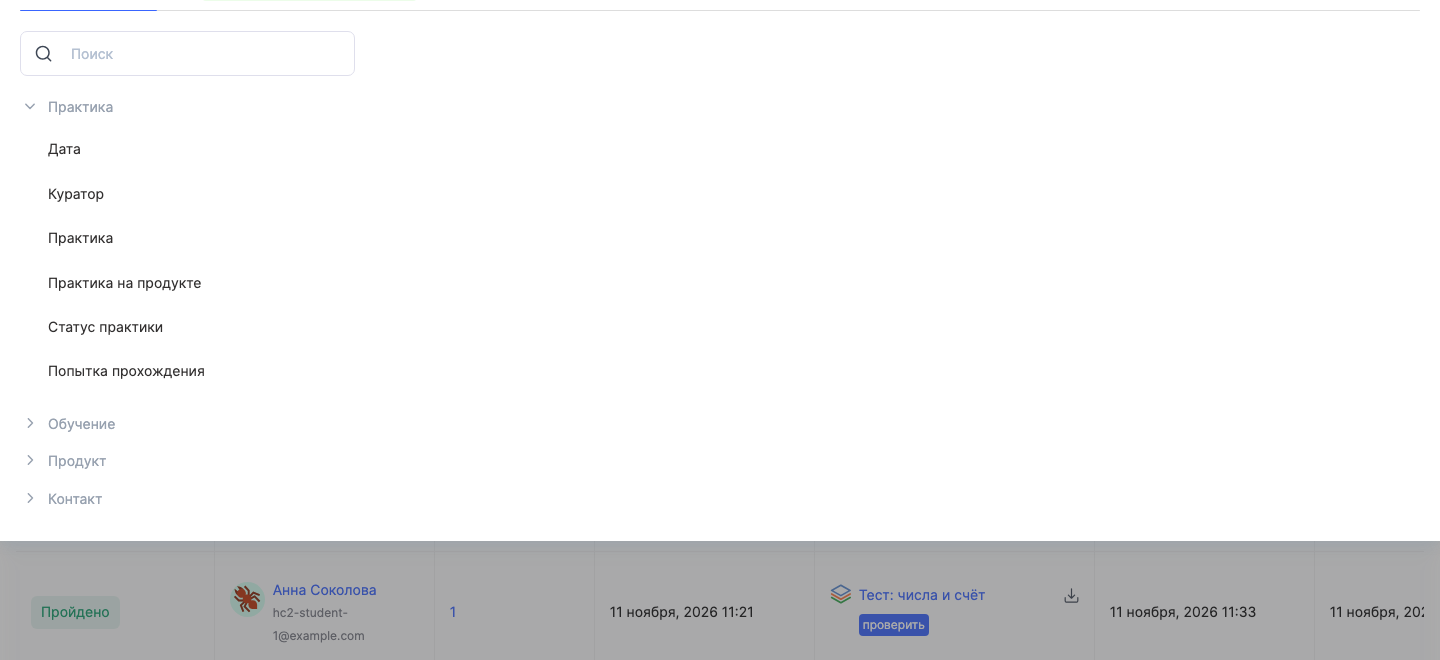
- filter — filter attempts using fields from the Assignment (Date, Assistant, Assignment, Assignment in product, Assignment status, Attempt), Learning, Product and Contact groups, then click Apply filter.
Filters are especially useful when the report contains many attempts. For example, you can:
- view all work awaiting review for a specific course;
- find students whose work needs revision;
- check the results of a specific assignment;
- view a specific student's attempts;
- filter work by a specific assistant.
You can save a useful set of conditions — it will appear on the Saved filters tab. This is useful if you regularly perform the same review, for example, reviewing homework for a specific course every week.
- search — find a student by name or email. Use it to quickly check a specific student's assignment history.
- newest first — the order of rows; you can sort by completion date, status, or status change date. For example, to review the oldest work awaiting review first, change the sort order by completion date.
- columns — choose which columns to show and change their order. If you regularly review work, you can keep only the essential columns: student, assignment, status, completion date, points, and assistant. This will make the table easier to use.
Export
Click export to download attempts matching the selected filters to a file. Export is useful if you want to save assignment results for a specific period, prepare a summary of student performance, analyze results outside KWIGA, or share data with the course manager or instructor.
For more details on exporting answers, see the article How to export students' quiz answers to a separate file.
Example: reviewing a week's homework
- Open Courses → Assignment answers and click Awaiting review.
- Open filter and filter attempts by the desired course.
- Open the first submission, read the answers in the Result section, and click Review.
- Use the arrow in the upper right to move to the next submission.
- When the queue is empty, the Awaiting review button will disappear — clear the filter and sort by status to see whose assignment is marked Not passed or Needs revision.
Finding students who need help
- Open the "Assignment answers" report.
- Select the course you need in the filter.
- Filter attempts by the "Not passed" and "Needs revision" statuses.
- Review students' answers and scores.
- Open a student's profile and check their other attempts.
This helps you identify students who consistently struggle with assignments and offer them help from an assistant before they fall behind.
Analyzing quiz results
- Select the assignment you need in the filter.
- Review the scores students earned.
- Open several attempt details and compare the answers.
- Find the questions most members get wrong.
This helps you identify which course topics need more explanation, which materials need more detail, and which quiz questions need clearer wording.
Frequently asked questions
Why isn't a student with access to the course included in the report?
The report only includes attempts that have been started: a student won't have a row until they open the assignment. This doesn't mean they don't have access to the lesson – you can see how far they've progressed on their page in the course.
Can I view assignment answers for just one course?
Yes. Open the course and select the "Assignments" tab in the top navigation bar to see a report for that course only. You can also use the "filter" to select the course in the overall report.
How can I quickly find submissions awaiting review?
Click the "Under review" button with the counter at the start of the panel to show only submissions awaiting an assistant's review. If there are multiple assistants, add a filter by course and assistant.
Can I move on to the next assignment without closing the attempt card?
Yes. Use the arrows in the upper-right corner of the card to go to the next or previous attempt.
Can I change the status of an assignment that has already been reviewed?
Yes. For a graded attempt, the "Result" section shows the "Change assignment status" button instead of "Grade", along with how the submission was graded – for example, "Graded automatically".
Does the export include all attempts or only the selected ones?
Based on the selected filters: click "export" to include the currently selected attempts in the file.
How can I review the oldest submissions first?
Change the sort order from "newest first" to assignment completion date to show the earliest completed work first.
Thanks for your feedback!
Thanks! We'll update the article. Need an answer now? Contact support