
How to set your project logo (preview) for messengers
How to set your own image for your dashboard or project to display in messengers.
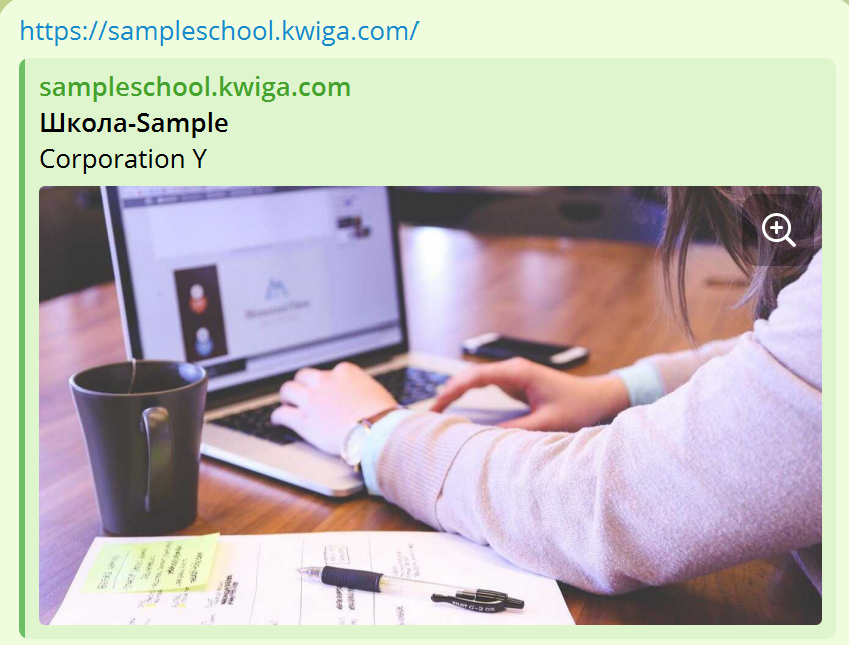
By default, when you add a link to your project (or a link to a course, offer, lesson, etc.), messengers display a standard image:

The settings in Kwiga allow you to add any other image: a logo, your photo for the preview in messengers:
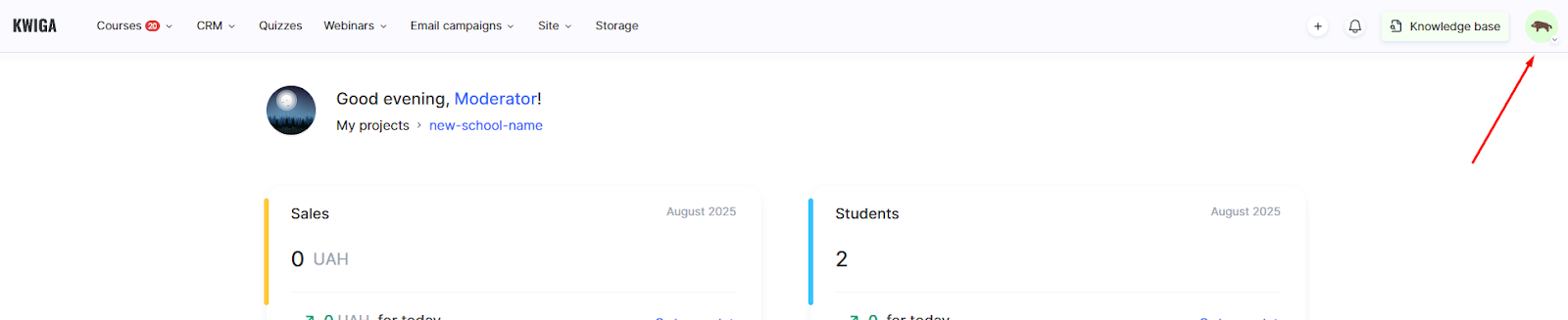
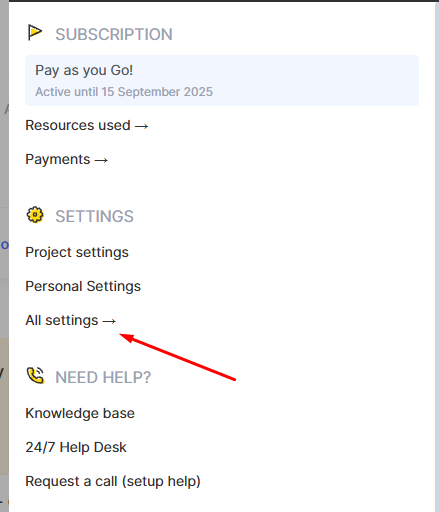
To replace the default image, click on your avatar in the upper right corner, select “All settings,” then “Marketing settings.”
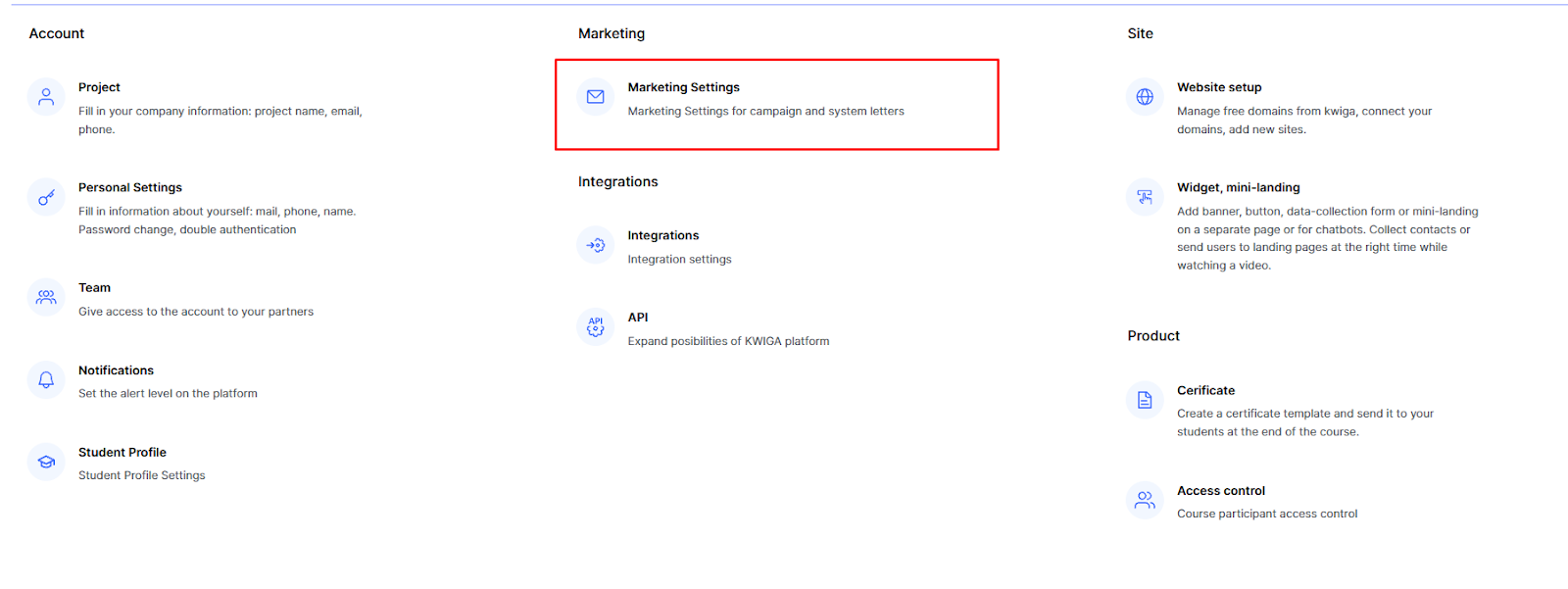
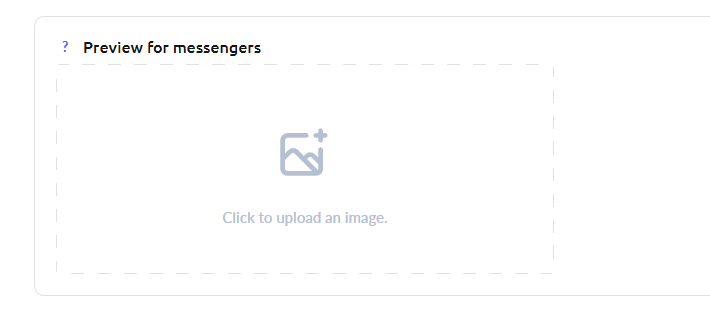
Scroll down the page to the “Messenger preview” section and select the desired image. All changes on this page are saved automatically.
If the image has not updated in Telegram: open the @WebpageBot bot and paste the link to your project to refresh the cache.
Frequently asked questions
Which links will have their preview image changed?
When you share a link to your project, course, offer, lesson, or other project pages in messengers, your image will appear instead of the default one.
Do I need to save changes after selecting an image?
No, all changes on this page are saved automatically.
Telegram is still showing the old image – what should I do?
Open the @WebpageBot bot and send it a link to your project – this will refresh the preview cache in Telegram.
Thanks for your feedback!
Thanks! We'll update the article. Need an answer now? Contact support