
Project freeze: how to put your school on pause
Learn how to temporarily freeze your project in KWIGA for 1 to 12 months and keep your products, materials and history.
If you've decided to take a break — you've finished a cohort, gone on vacation, or aren't selling right now — you don't have to cancel your subscription. You can freeze the project for 1 to 12 months: all products, materials, students and history are kept, and you only pay for storage.
This article explains how to freeze a project, what it costs, how to extend the freeze or end it early, and what happens when the freeze period ends.
What happens while the project is frozen
- All project data is kept: products, materials, contacts, history and statistics.
- You and your team members can log in to the account and view data, but you can't edit products.
- Students can't access products. When a student opens a course, lesson or practice, they see the "Access limited" page.
- Sales, email campaigns and lesson-opening notifications don't work.
- Your package doesn't expire: its end date moves forward by the length of the freeze. On the Plan tab, under "Active until …", you'll see the line "The plan period was extended by the project's freeze period".
How to freeze a project
-
Go to Settings → Subscription.
-
In the top right corner, click Freeze.

-
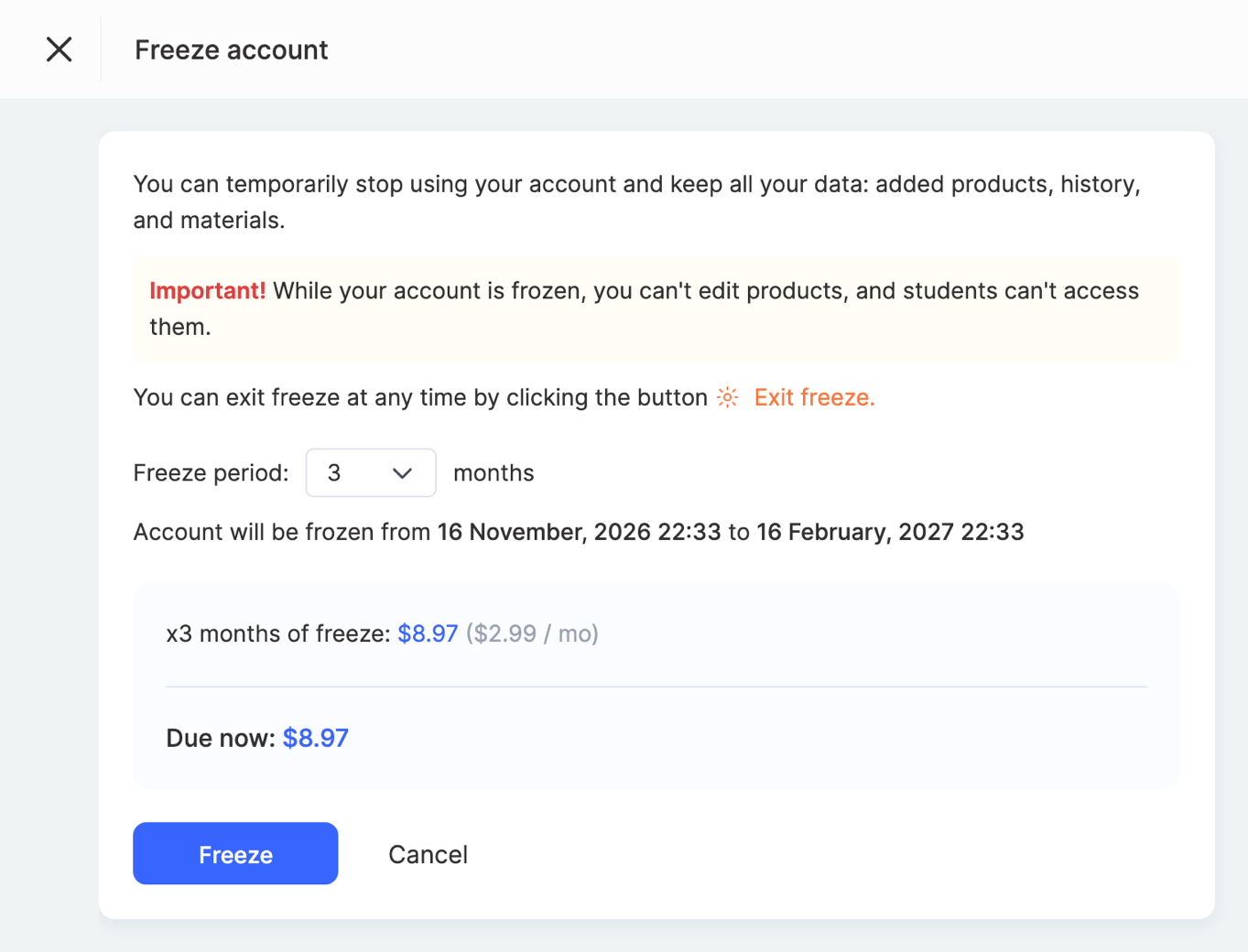
In the Freeze account window, choose the Freeze period — from 1 to 12 months. Right below, you'll see the dates the account will be frozen and the date your package will last until.
-
Check the amount and click Freeze.
-
Pay the invoice (see below).
If the Freeze button is inactive, hover over it — a tooltip shows the reason (see "When freezing isn't available").
What the amount consists of
In the freeze window, the amount is broken down into lines:
- x N months of freeze — the storage fee for the whole period you chose; the monthly price is shown in brackets.
- Storage — the fee for the volume of files currently in the project. The fewer files, the cheaper the freeze.
- Remaining amount due for the current period — if you've used the platform since your last payment, that unpaid period is included in the same invoice. The line below shows the date it's counted from.
- Due now — the total.
The freeze is paid upfront for the whole period you chose.
Payment
- If your balance covers the amount, it's charged right away and the window closes.
- If it doesn't, the regular invoice payment page opens: whatever is on your balance is used, and you can pay the rest by card.
After payment, the freeze turns on within 15 minutes — until then the project works as usual, and the Subscription page shows "Payment received".
Please note: until the invoice is paid, the project works as usual, and the Subscription page shows "Freeze is awaiting payment" with a Pay invoice → link. If the invoice isn't paid within 2 hours, the freeze request is canceled — no money is charged, and you'll get an email about it. You can set up the freeze again.
How to tell the project is frozen
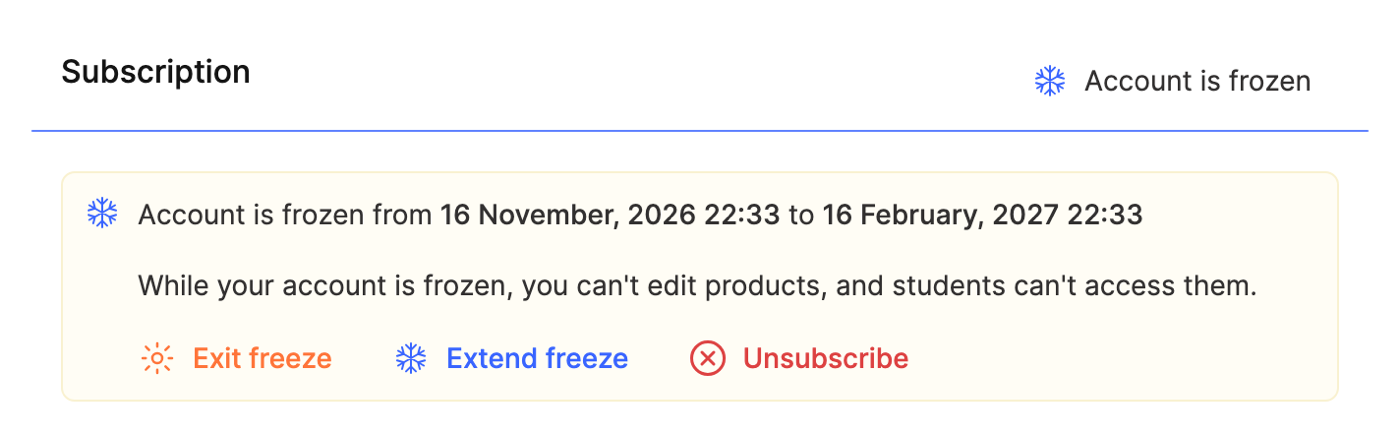
- On the Settings → Subscription page — the "Account is frozen from … to …" banner.
- At the top of the account — the line "Account frozen until …" with a Manage freeze link.
- In the profile menu (your avatar in the top right corner) — "Account is frozen" and the dates.
How to extend the freeze
- On the Settings → Subscription page, click Extend freeze.
- Specify how many months to extend by — the window shows the new end date ("Extend freeze until …") and the amount.
- Click Extend freeze and pay the invoice.
The extension counts from the current freeze end date, not from today.
How to end the freeze early
- On the Settings → Subscription page, click Exit freeze.
- In the window, click Resume subscription.
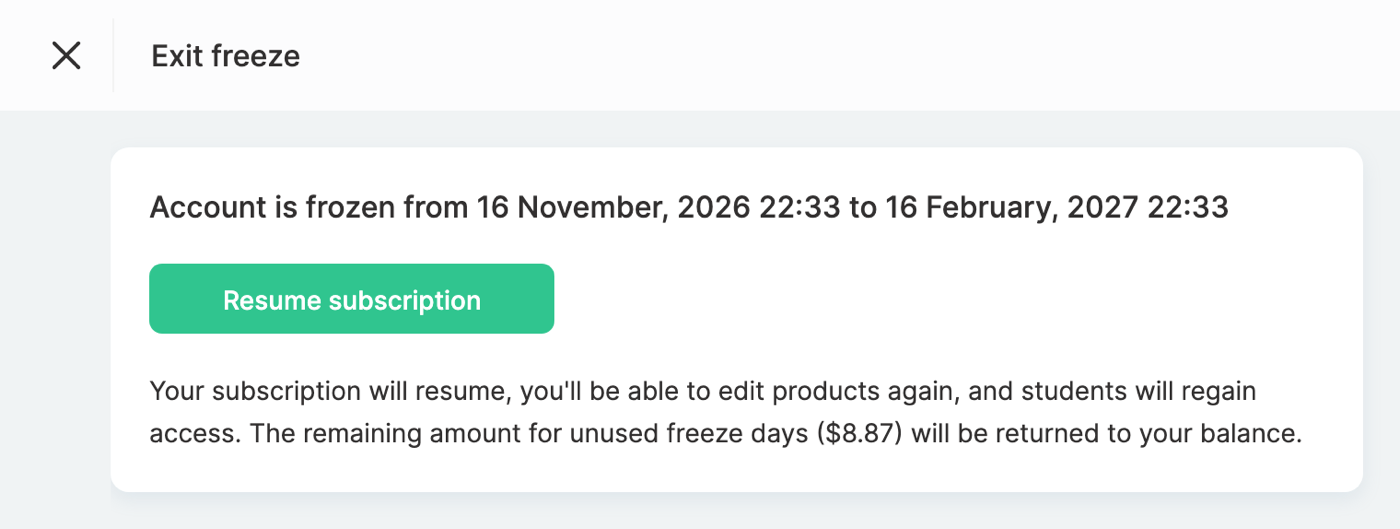
Your subscription resumes on the same plan, you can edit products again, and students regain access.
The fee for unused full days of the freeze is returned to your balance — the amount is shown in the window before you confirm. The remaining amount for the period before the freeze, paid together with it, isn't refunded.
When the freeze period has ended
After the freeze ends, you have 2 days to choose what to do next, free of charge. The Subscription page shows the "The freeze period has ended" banner with three buttons:
- Extend freeze — freeze the project for another period.
- Resume subscription — get back to work on your previous plan.
- Unsubscribe.
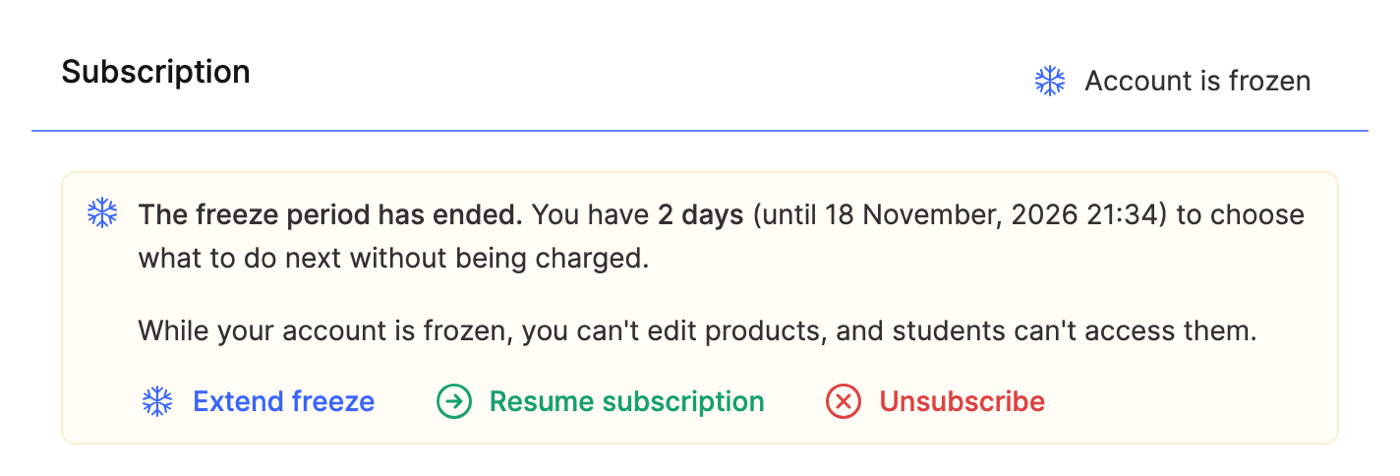
Important: if you don't choose anything within 2 days, the subscription is canceled automatically, and the project stays read-only.
So you don't miss the deadline, we send emails a week and a day before the freeze ends, and on the day it ends.
Freezing instead of canceling your subscription
When you cancel your subscription, the cancellation window may offer to freeze the project instead — for example, if you chose the reason "Sales are paused or have ended" or "No longer relevant". The freeze form opens right in that window.
If your subscription is already canceled, you can still freeze the project — with the Freeze button on the canceled subscription banner, while the project's data is still stored. After such a freeze ends, the subscription will be canceled again; to keep working, resume it.
If you cancel your subscription while the project is frozen, the freeze ends immediately, and the fee for unused days is returned to your balance.
Who can freeze a project
The project owner and team members with the Personal account → Subscribe → Cancel permission can freeze the project, extend the freeze and exit it. To pay for a freeze or an extension, a team member also needs access to payments (Payments → Editing). A team member without access to payments sees a note that an employee with access to payments can pay the invoice.
For more on team member permissions, see How to add a team member.
When freezing isn't available
The Freeze button is inactive if:
- the subscription isn't active — "Freezing is only available with an active paid subscription";
- you're on a trial period — "Freezing is unavailable during the trial period";
- you have an outstanding balance on your plan — "First, pay the outstanding balance on your plan";
- a freeze is already set up or awaiting payment.
Please note
- You can't change your plan, services or billing period while the project is frozen. Exit the freeze first.
- If the project was frozen by support (before this button existed), the Subscription page shows "Account is frozen" with no dates. You can't extend such a freeze — you can exit it and, if needed, set up a new one.
- The freeze lasts exactly the number of calendar months you chose: for example, 1 month from January 31 ends on February 28 (29).
Thanks for your feedback!
Thanks! We'll update the article. Need an answer now? Contact support