
Articles:
- How to give access to the course
- How to access a student's account
- How to view member progress
- How to Create a Certificate and Add It to a Course
- Automation: Awarding points upon completing lessons
- Conducting surveys (reactions, ratings, NPS)
- How to view all test attempts
- How to set up a test retake
- How to update a student's rate and keep their progress
- How to change access settings for a single student
- How to change the expiration date of the course
- The student entered wrong email
- How to extend access to a course
- Automation: Setting up reminders if a student does not log into the platform
- How to unblock a user
- Freezing and unfreezing access to a product
- How to find an email with a code needed to access Kwiga account
- Viewing the course as a student
- Pre-registration or waiting list.
- Importing and transferring the student database
- Comments: a convenient tool for user interaction
- Certificate Issuance After Passing a Test
- How an Expert Can Access Their Student Profile
- Student Registration and Authorization
- Certificates Report
- Manual issuance and reissuance of a certificate
- Managing products in a contact card: adding, closing, changing the date, and removing access
Learn how to issue or reissue a certificate to a participant manually прямо from the contact card — without waiting for automatic issuance.
In this article:
If the certificate has not yet been created, first review the article How to create a certificate.
Automatic certificate issuance is triggered when a participant meets the conditions specified in the course settings.
However, sometimes it is necessary to issue or reissue a certificate manually:
● the participant has completed the course, but the certificate was not received for some reason;
● the certificate needs to be issued early, without waiting for the conditions to be met;
● the certificate needs to be reissued after the template has been updated.
How to issue a certificate manually
Manual issuance is performed from the contact card. To do this, the certificate must be configured in the course, and the participant must have active access to it.
-
Open the contact card of the required participant.
-
Go to the Products tab.
-
Find the required course in the list of products.
Note: If the status “pending, course not completed” is displayed next to the certificate, it means the participant has not yet completed the course or met the conditions to receive it. The Issue now button allows you to issue the certificate forcibly, regardless of progress.
-
Next to the certificate name, click Issue now.
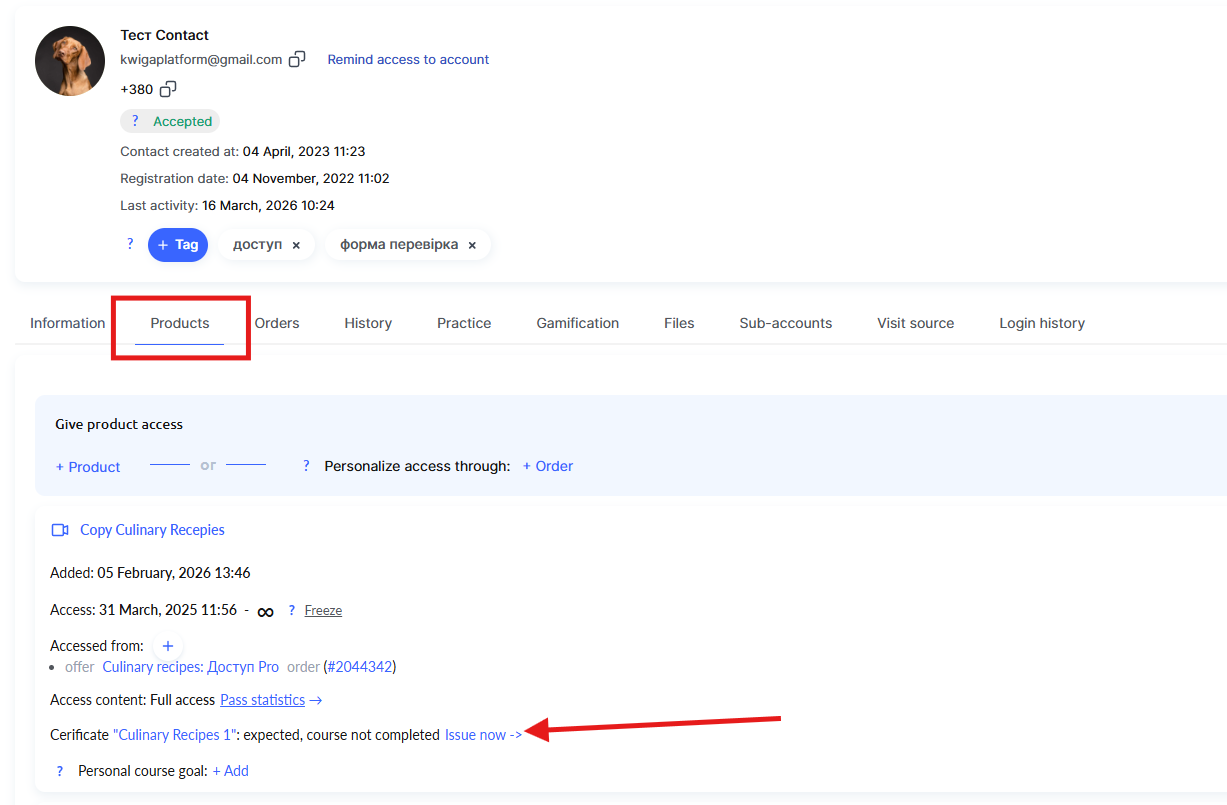
After that, the certificate will be issued instantly, and it will appear in the contact card and in the general Certificates report.
How to reissue a certificate
If a certificate has already been issued and needs to be updated, you must first delete the existing one and then issue a new one:
-
Open the participant’s contact card.
-
Go to the Products tab.
-
Find the required course and click × next to the issued certificate number — this will delete the current certificate.
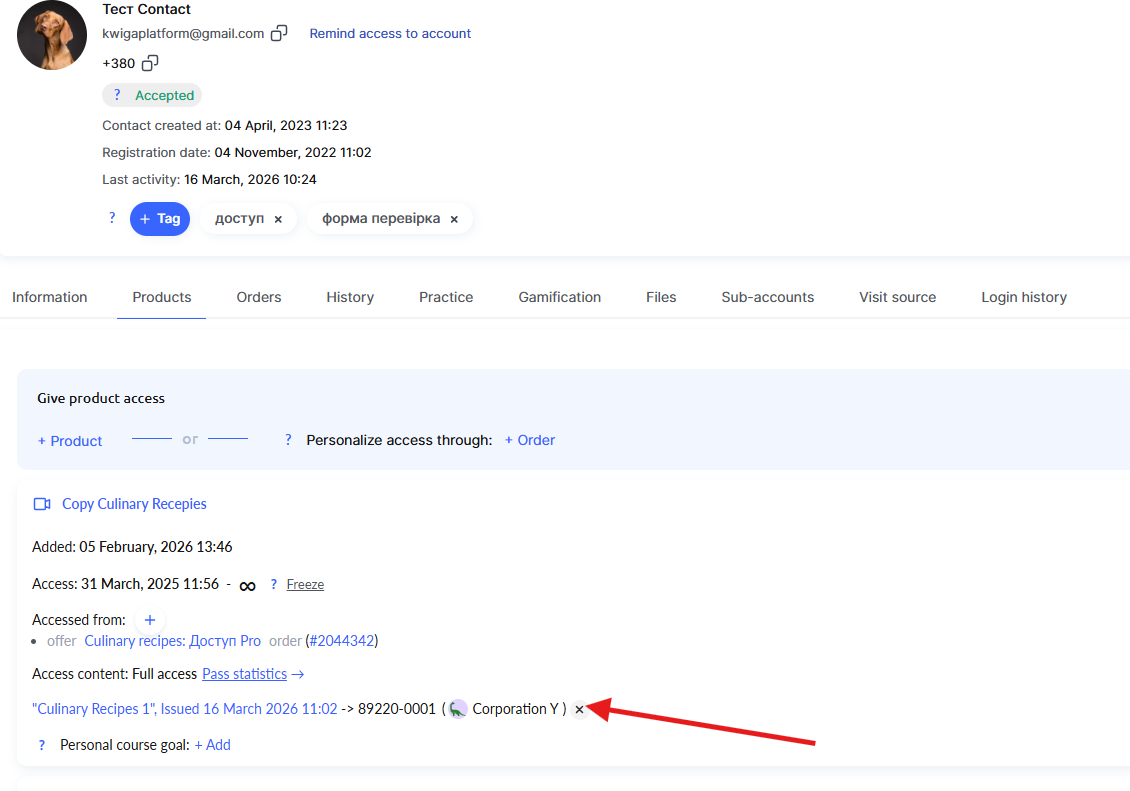
4. After deleting it, click Issue now next to the certificate name.
The platform will create a new certificate with the updated data.
Where to find the issued certificate
After issuance, information about the certificate will appear in two places:
● Contact card — in the Products section, a record will appear with the certificate name, issue date, and number.
● Certificates report (Courses → All reports → Certificates) — a general list of all certificates issued in the project.
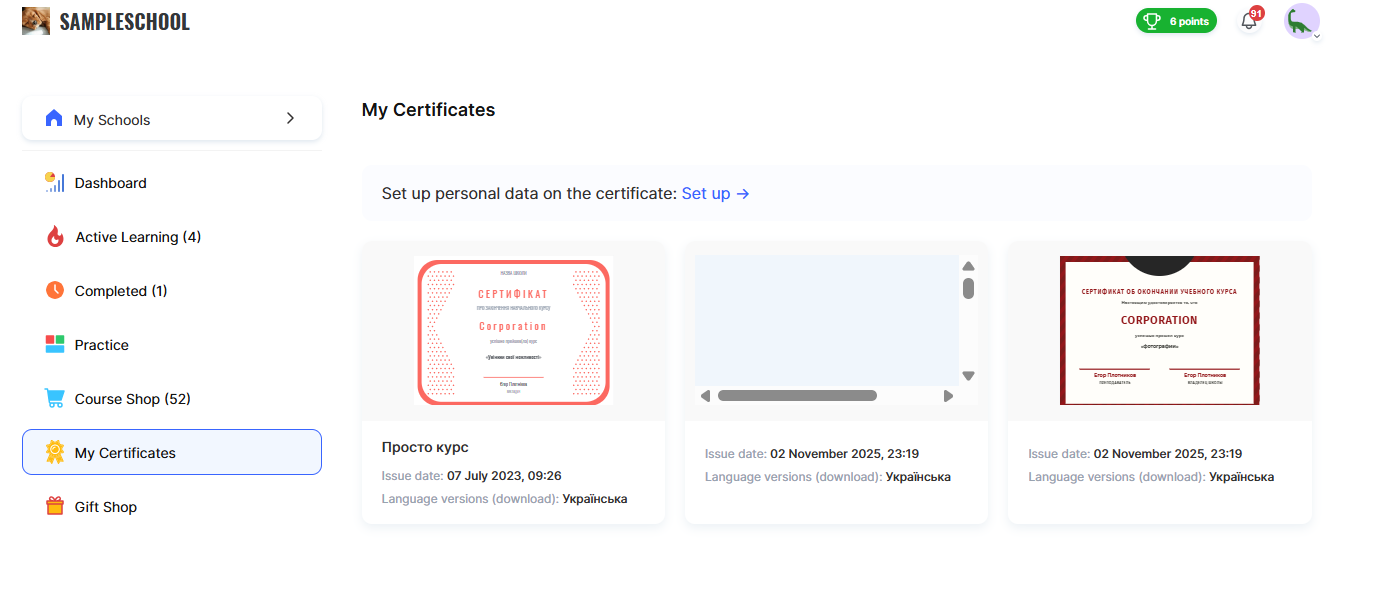
The participant will also see their certificate in their profile under the My certificates menu and will be able to download it.
Didn't find the answer? Contact the support service via online chat or Telegram