
Articles:
- How to delete a course
- Copyright protection of your content on Kwiga
- Public or trial lesson
- How to change the status of a lesson to draft and hide it from students
- Usage of checkpoints
- How to Add Practice to a Lesson
- How to create a task with mandatory review by an assistant
- How to create a task for different offers
- How to create a test with scores and automatic approval
- How to create and conduct a quiz among students on the course
- Contents of the lesson, all types of activities in the lesson
- Downloading video files
- How to add time codes to the video
- How to add button to the lesson
- Inserting iframe code
- Adding fractions, mathematical functions, formulas
- How to add text with spoiler to the lesson
- How to create a course on the Kwiga platform
- How to create a marathon
- How to add a cover to a course
- Course Program Display Options
- How to add a public face to a course
- How to add a team to a course
- Course preview with different access levels
- Block above lesson or module pages (top banner)
- Configure delays, the lesson opening schedule, and lesson closing
- Report on student progress on the course
- Analytics of assignments completion on the course
- Course sales report
- How to create a copy of the course
- How to copy lesson content
- Assistant’s Access to Practical Assignments
- Student Can't See the Course (Marathon, Closed Group)
- How to set up a test so that students see comments after completion
- Letter delivery: why letters don't arrive and how to fix it
- How to Customize the Appearance of a Course
- Manage activity visibility
Hide blocks from students without deleting them, and show different content to different participant groups.
In this article:
On the Kwiga platform, course content is organized into levels: a course can be divided into modules, modules into lessons, lessons into sections, and within them there are content blocks (video, text, files, practical assignments).
Each of these elements can be hidden from students without deleting it. Hidden activity is not displayed on the student's side, but remains visible to the administrator and assistant in the builder.
How to hide or show activity
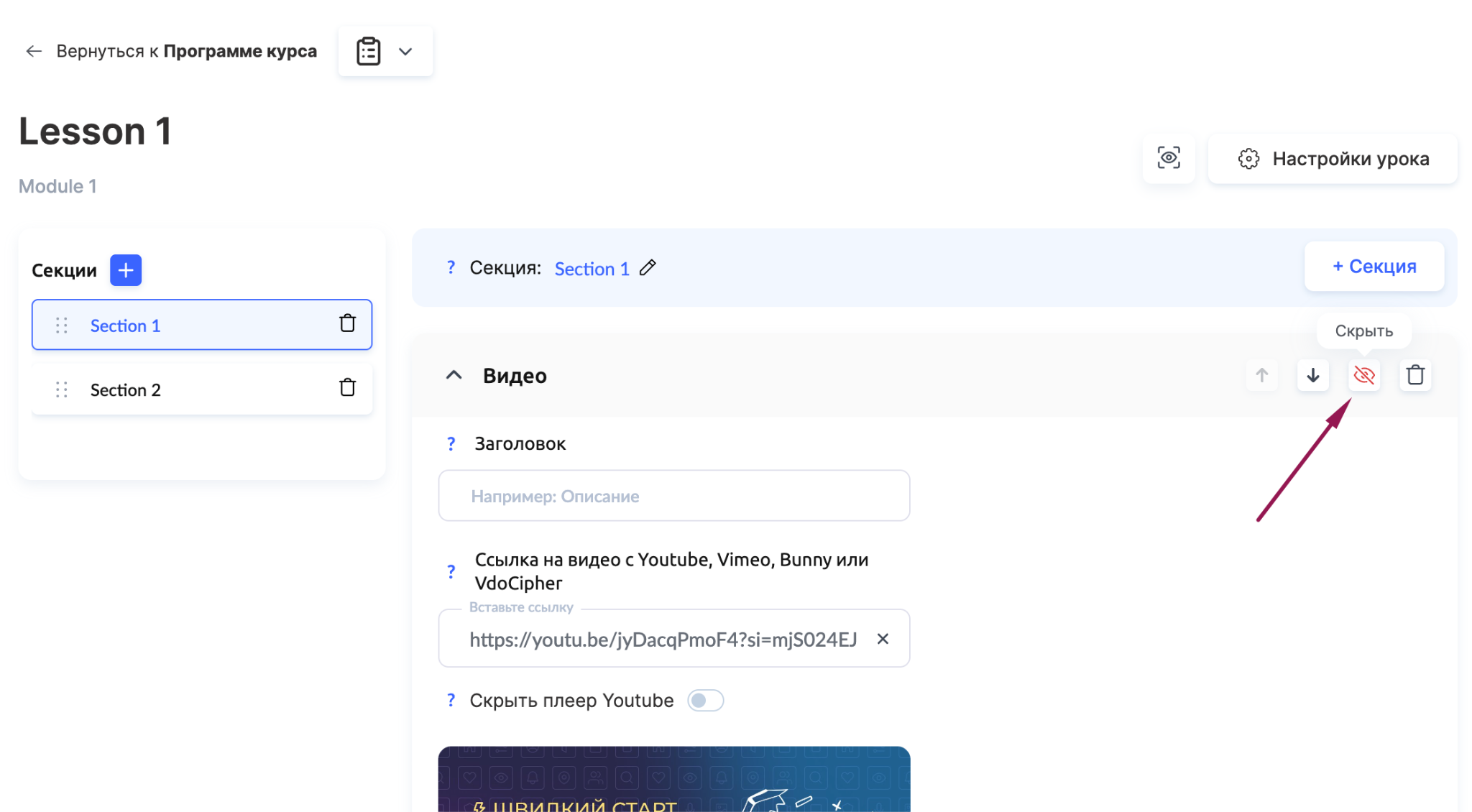
Each block has an eye icon. Click it to hide the element or show it again. Blocks in a lesson or section - the eye icon is located to the right of the block in the lesson builder.
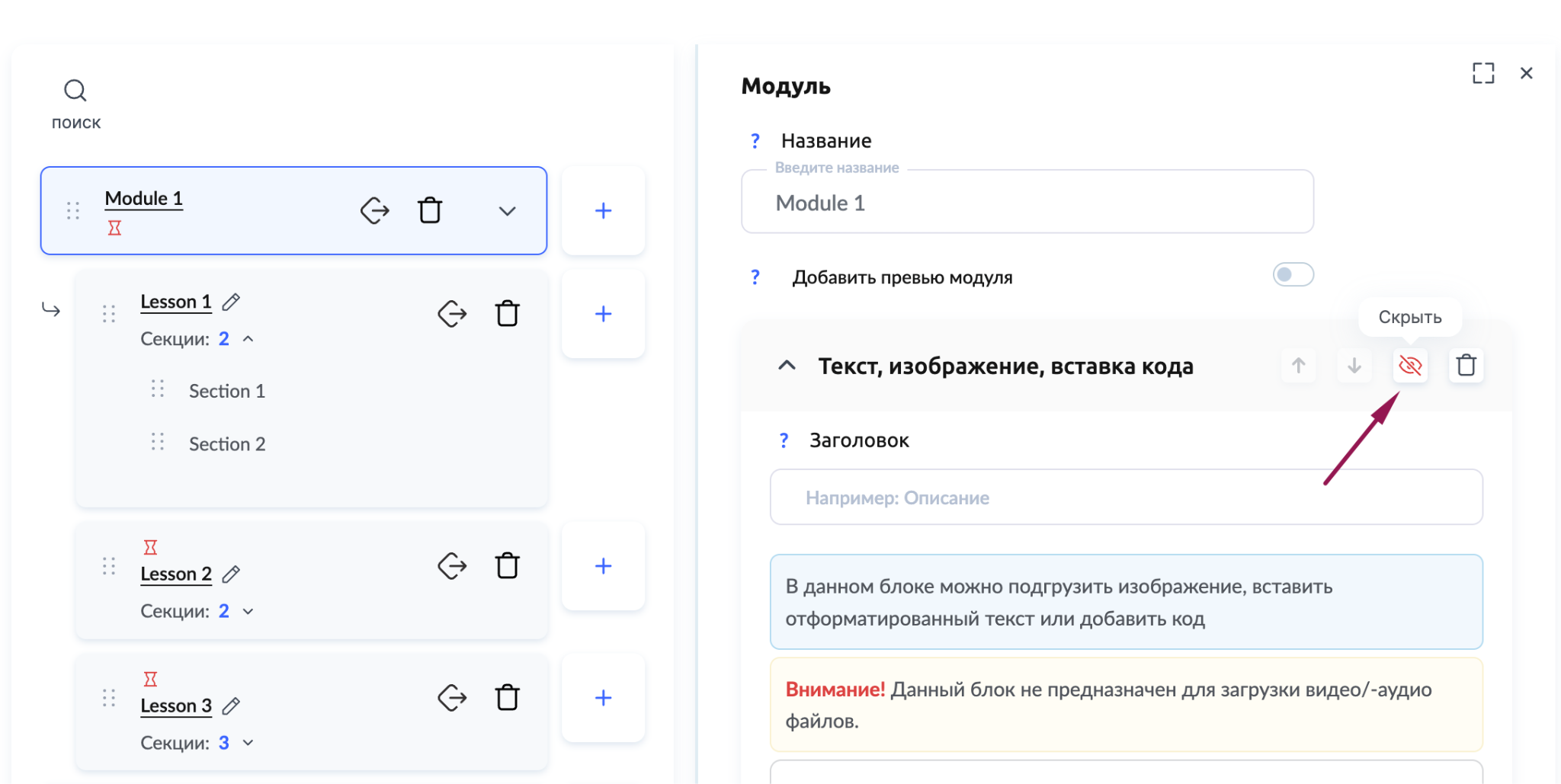
Blocks in the module description - the eye icon is located to the right of the block in the module description editor.
Note: the eye icon hides an individual block. If you need to hide the entire lesson, change its status to Draft in the Lesson Settings.
Different course versions for different pricing plans
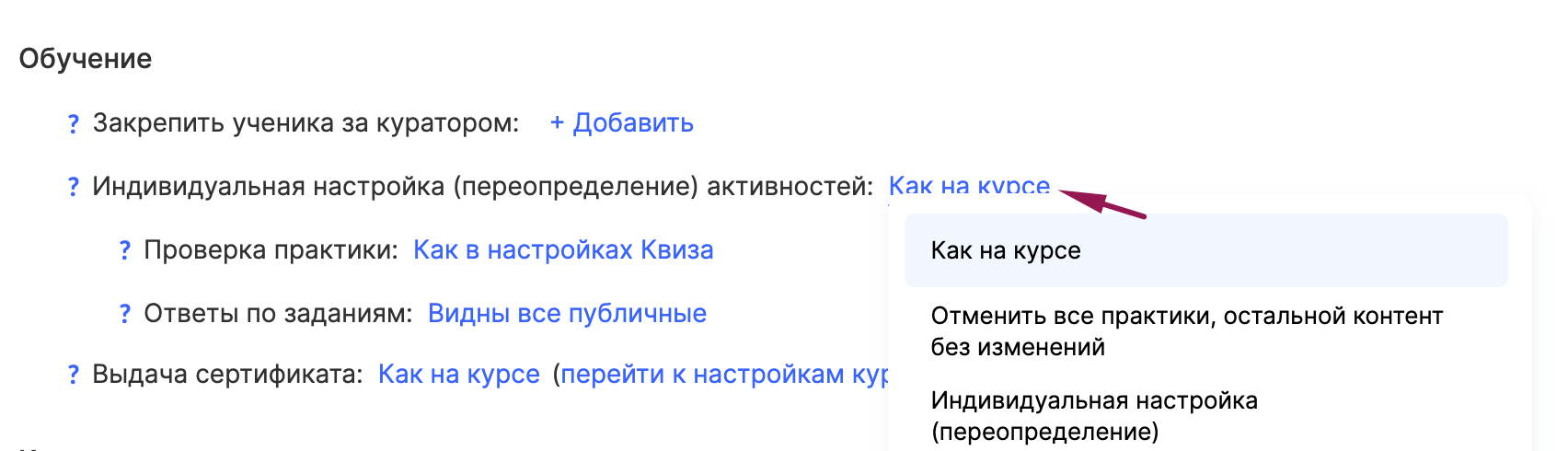
Visibility management allows you to create different versions of a course based on the same content, without the need to duplicate content. The logic is as follows: fill the lesson with all activities, hide the elements that should not be included in the standard program, and then configure visibility for the required pricing plan.
Didn't find the answer? Contact the support service via online chat or Telegram