
Articles:
- How to delete a course
- Copyright protection of your content on Kwiga
- Public or trial lesson
- How to change the status of a lesson to draft and hide it from students
- Usage of checkpoints
- How to Add Practice to a Lesson
- How to create a task with mandatory review by an assistant
- How to create a task for different offers
- How to create a test with scores and automatic approval
- How to create and conduct a quiz among students on the course
- Contents of the lesson, all types of activities in the lesson
- Downloading video files
- How to add time codes to the video
- How to add button to the lesson
- Inserting iframe code
- Adding fractions, mathematical functions, formulas
- How to add text with spoiler to the lesson
- How to create a course on the Kwiga platform
- How to create a marathon
- How to add a cover to a course
- Course Program Display Options
- How to add a public face to a course
- How to add a team to a course
- Course preview with different access levels
- Block above lesson or module pages (top banner)
- Configure delays, the lesson opening schedule, and lesson closing
- Report on student progress on the course
- Analytics of assignments completion on the course
- Course sales report
- How to create a copy of the course
- How to copy lesson content
- Assistant’s Access to Practical Assignments
- Student Can't See the Course (Marathon, Closed Group)
- How to set up a test so that students see comments after completion
- Letter delivery: why letters don't arrive and how to fix it
- How to Customize the Appearance of a Course
- Manage activity visibility
Learn how to organize the gradual release of materials for course participants, set clear access deadlines, and automate the learning process.
In this article:
Delays for opening lessons and modules allow you to organize gradual learning, ensuring sequence and control over how materials are absorbed.
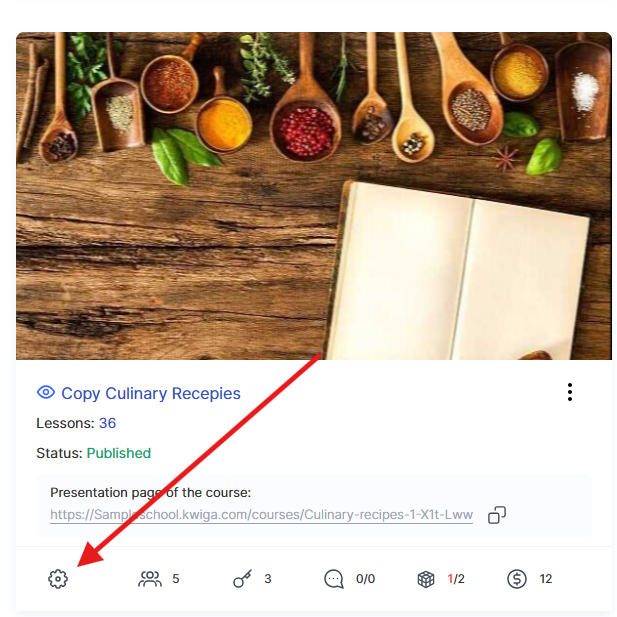
To set delays, go to the course settings.
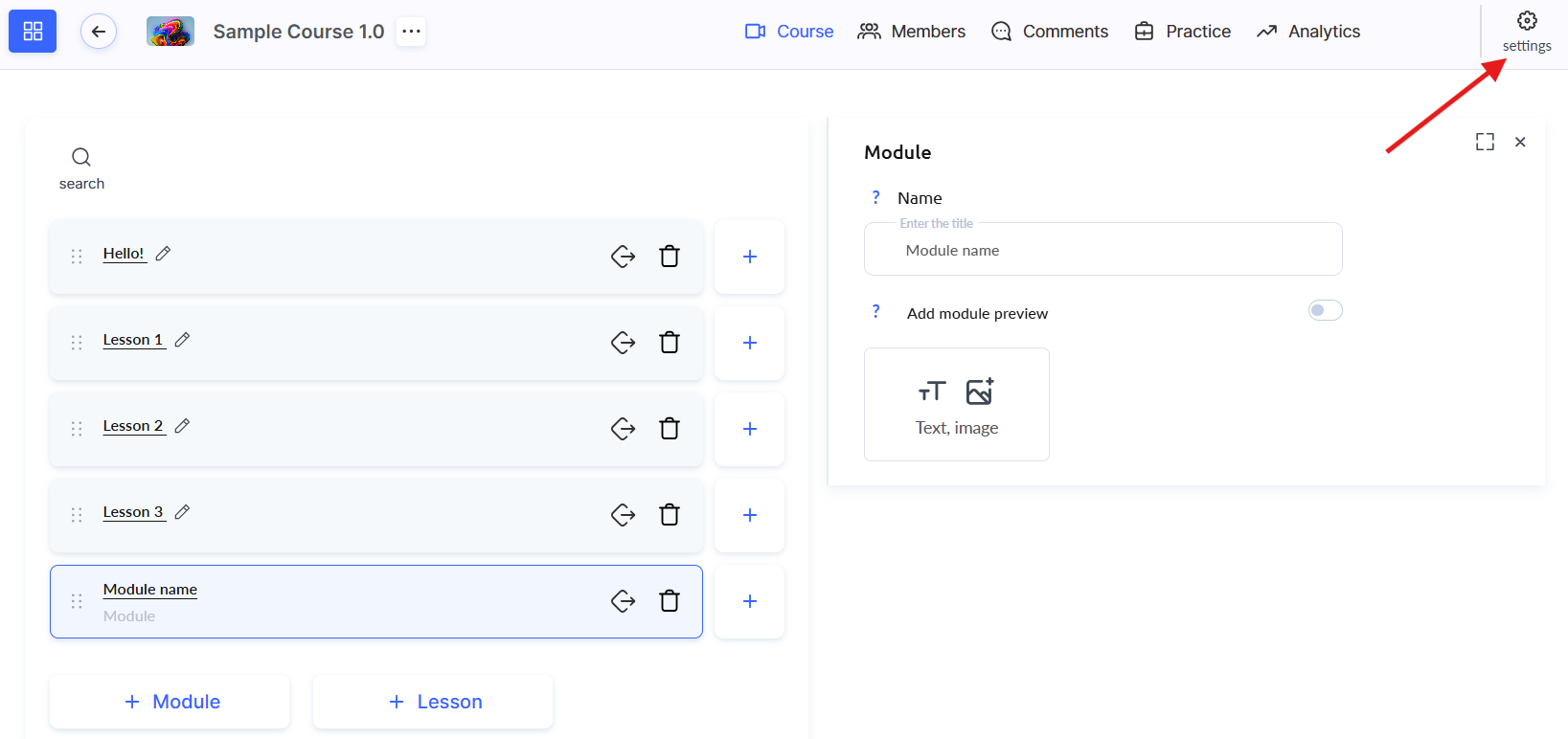
Then go to the Lesson opening tab.
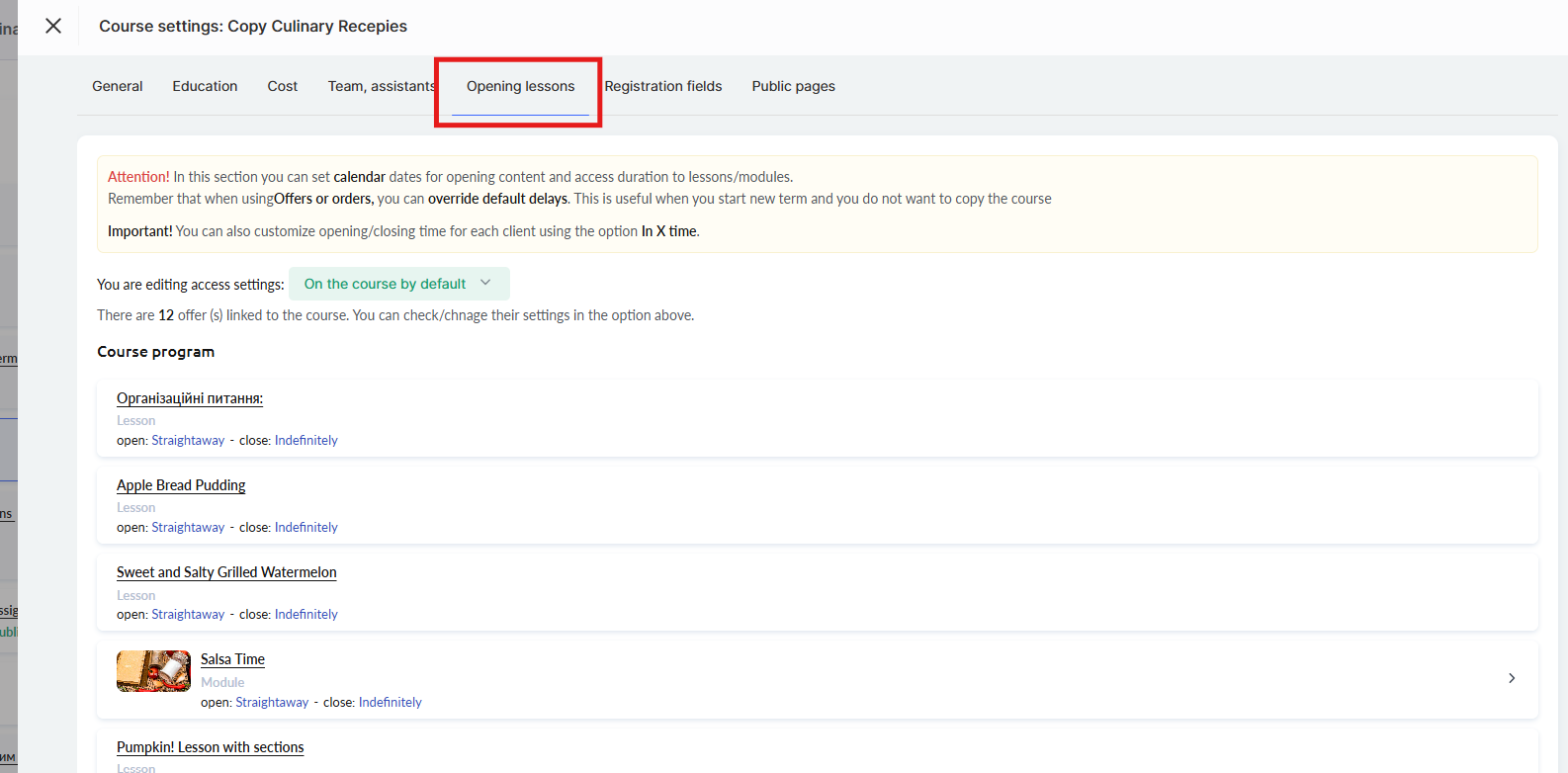
How to configure lesson opening delays
Opening delays apply to modules, lessons, and sections. Three options are available:
Immediately. The lesson becomes available as soon as the participant gets access to the course. Suitable for courses where all materials should be open without delays.
After N time. The lesson or module opens after the specified number of days from the course start. This is convenient for courses with staged content delivery, for example weekly releases – so you do not overwhelm participants with a large amount of information at once.
When selecting this option, you can configure the opening time:
-
Participant's time – the content will open exactly at the time corresponding to when access was granted. For example, if the participant got access at 15:56, it will open after N days at 15:56. The opening time is unique for each participant.
-
Specific time – you set a specific opening time (for example, 09:00) and time zone. You can choose the student's time zone – then the content will open at 09:00 in each participant's local time, or specify a particular time zone from the list – then everyone will see the content simultaneously.
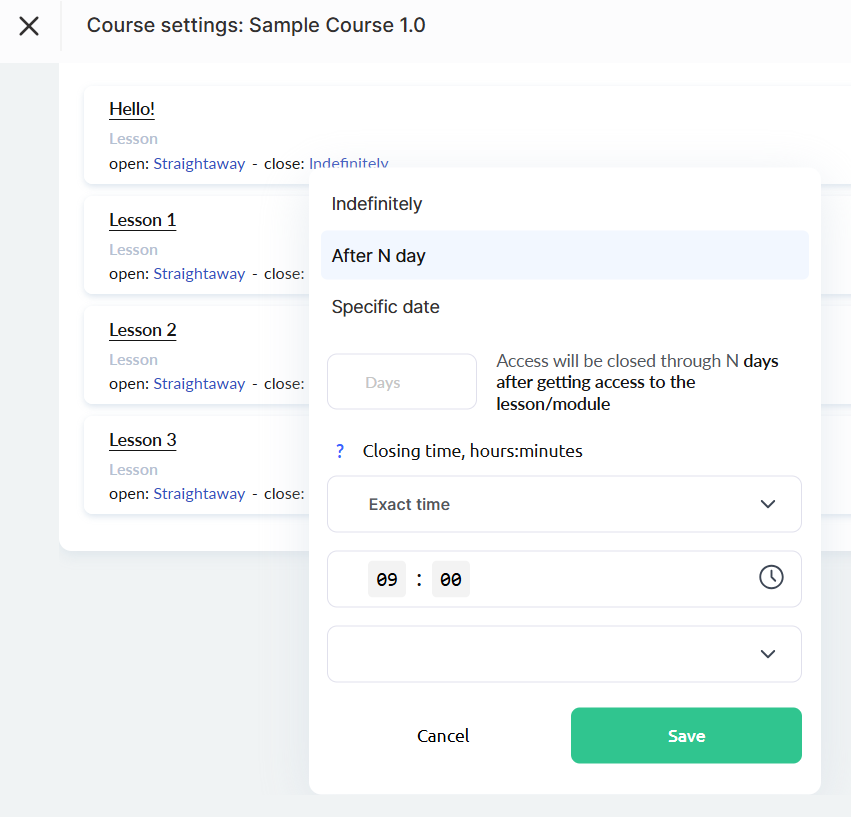
Specific date. Access opens on a particular day. For example, if the course starts on the 1st, and a certain lesson should only be available from the 15th – this option is ideal.
The opening time settings are similar to the "After N days" option:
-
Participant's time – the content will open on the specified date at the same time the participant got access to the course.
-
Specific time – you set the exact time and time zone: the student's time zone or a specific time zone from the list.
Delays for modules and sections
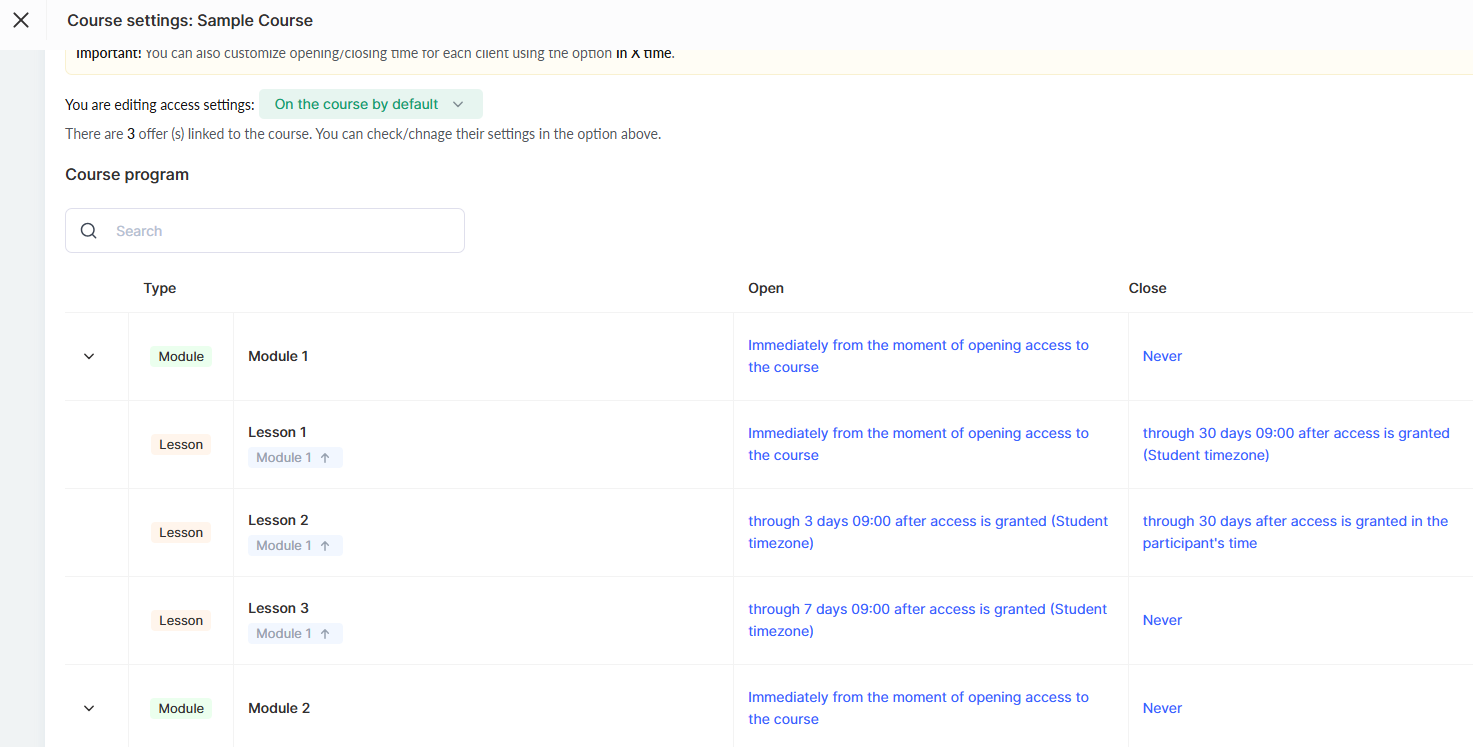
Delays can be set not only for lessons, but also for modules and sections. If you set a delay on a module, this rule automatically applies to all lessons and sections inside it.
If necessary, you can set an individual delay for a specific lesson or section inside a module. For example, a module opens 1 day after the course starts, but the final lesson in that module becomes available only after 20 days.
How to configure lesson closing
Closing allows you to restrict access to materials after a certain period. This is convenient for courses where it is important to motivate participants to complete them on time.
Recommendation: If access to the course is limited (for example, to 2 months), set this period in the settings of the offer itself (plan), rather than manually for each lesson. If you set delays for each module separately, then when extending access for a client you will have to manually change the dates for each person. Setting this up through "offers" will save you a lot of time.
Three options are available:
Indefinitely
Access remains open without restrictions.
After some time
Access closes after the specified number of days from getting access to the course. For example, if you want students to complete a certain lesson within 30 days, choose this option.
When selecting this option, you can configure the closing time:
-
Participant's time – closing will happen exactly at the time corresponding to when access was granted. For example, if access was granted at 15:56, closing will occur after N days at 15:56.
-
Specific time – you set a specific closing time (for example, 09:00) and time zone. You can choose the student's time zone – then closing will happen at 09:00 in each participant's local time, or specify a particular time zone from the list – then closing will happen for everyone at the same time.
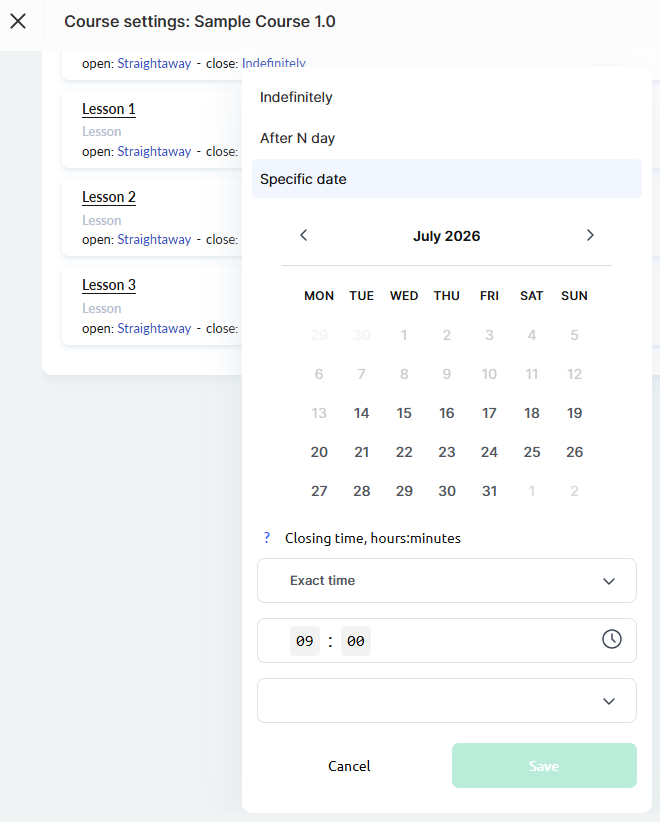
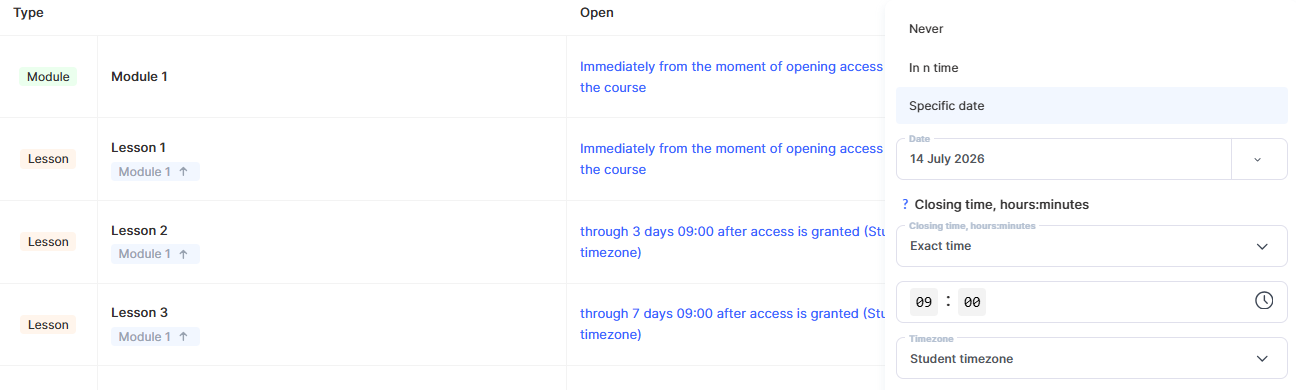
Specific date
The lesson, module, or section will become unavailable on the specified day. The closing time settings are similar to the "After some time" option: you can choose the participant's time or a specific time with a time zone.
How to override delays in a plan, offer
In the offer settings, you can manage delays independently of the general course settings – this is convenient when launching new cohorts or creating separate plans.
Go to the settings of the required offer.
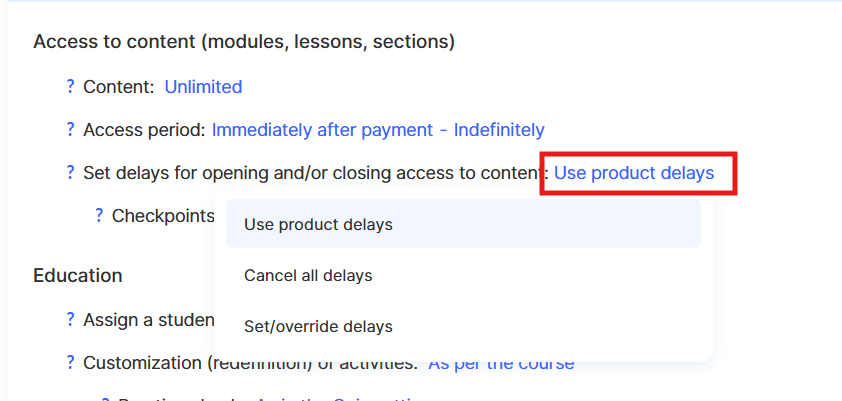
Three options are available for lesson opening settings in the offer:
Use product delays – the default value. Delays are taken from the product settings.
Cancel all delays – cancels all delays set on the product for participants of this offer.
Set\/override delays – allows you to set your own delays for the current offer. Delays on the product will not apply to users who got access through this offer.
Ways to configure delays
When selecting the Set\/override delays option, you will be prompted to choose the source of the base settings:
Copy from product
The current delay settings will be copied to the offer and become standalone: any subsequent changes in the product will no longer affect the delays in the offer.
Inherit from product
Delays will be updated automatically when the product settings change. This is similar to the "Use product delays" mode, but with the option to manually override individual values.
Important: If you manually change a specific delay, it will stop being inherited and will no longer depend on the product settings.
Use saved
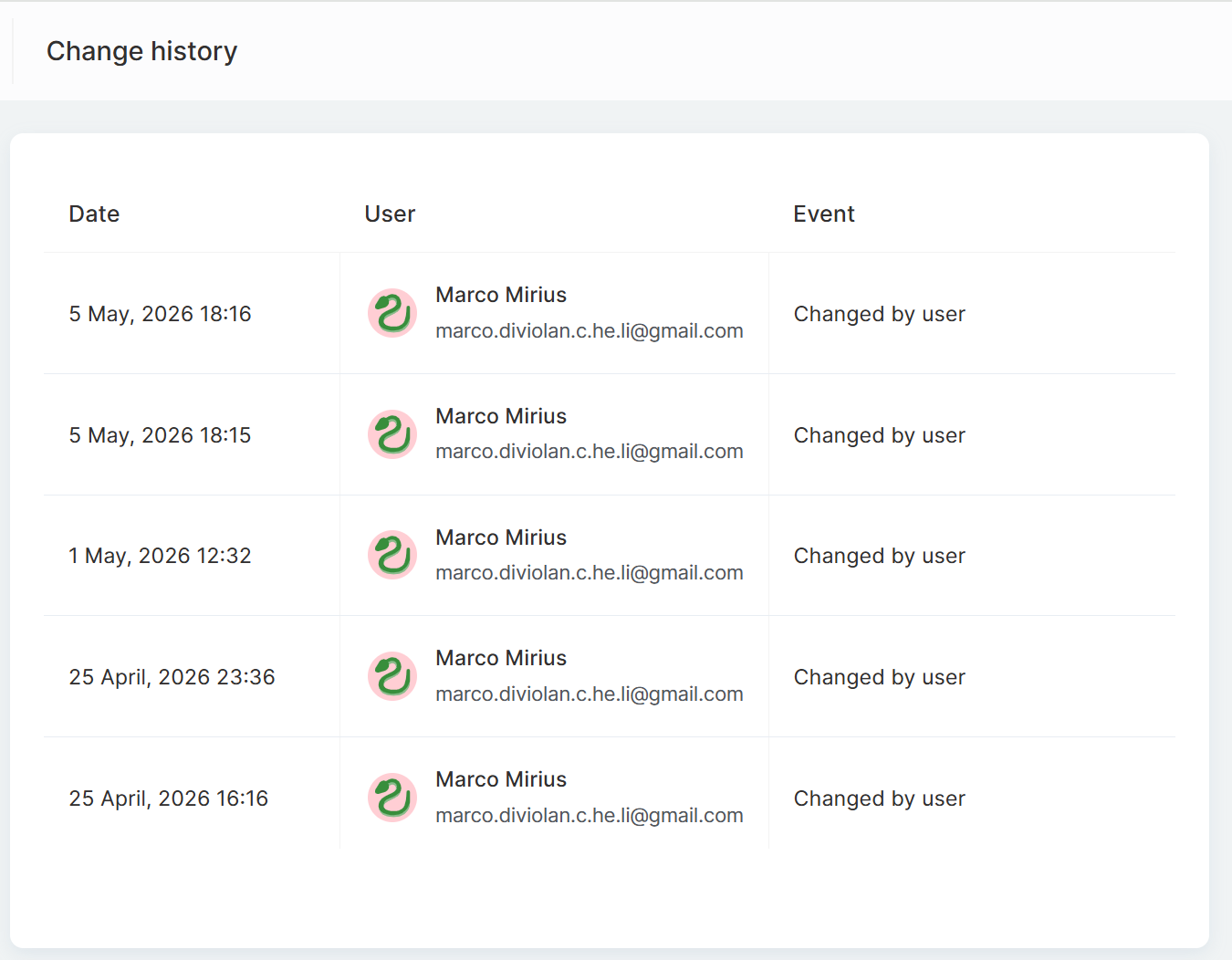
Lets you restore settings from one of the previous versions. The change history is available right in the interface – you can see who made changes and when, and return to the required version if needed.
Set up from scratch
Create delay settings from scratch, without linking them to a product.
Note. If you are creating a new course stream with a new schedule, we recommend overriding delays through offers rather than creating a copy of the course or changing delays in the current course settings.
How to create a new stream with its own schedule.
Why is this convenient?
As soon as a new lesson, module, or section becomes available, participants automatically receive notifications by email and in their personal account. This helps them stay on top of their learning and provides a clear structure combined with flexible settings.
Setting up a lesson release schedule will help you provide a high-quality learning experience for participants by organizing a gradual and comfortable pace for absorbing the materials.
Didn't find the answer? Contact the support service via online chat or Telegram