
Student page in a course: the full picture of progress and unlocking lessons
Learn how to see one student's progress through a course in KWIGA: access, current lesson, progress, assignments and points, locked lessons, and how to open a lesson early.
The student page in a course shows one person's complete progress: their access, where they are now, how many lessons they've viewed and completed, their assignment progress, and which lessons are locked and why.
You can also unlock a lesson early by skipping its opening date or checkpoint, without changing the course settings for anyone else.
How to open a student's page
- Open the course and select Analytics in the top course navigation bar.
- In the progress table, click the student's name or avatar.
You can also open the same page using the Detailed statistics icon next to the student on the course's Members tab (the page opens in a new tab), or by clicking the course link in the media history on the contact's profile.
To return to the table, click Back to list.
Student details and access
The top card shows the student's name and email, their Access (the plan and order through which they received the course), and their Assistants.
Below is a summary:
- Access – the start and end dates of course access. "Unlimited" means access doesn't expire.
- Current lesson – the lesson where the student left off. Click to open it.
- Last activity – when the student was last active in the course.
- Lessons viewed and Lessons completed – the percentage of course lessons viewed and completed.
- Assignments – how many have been completed out of the total, and how many are under review, awaiting revision, or not completed.
- Assignment points – the student's total points out of the maximum possible.
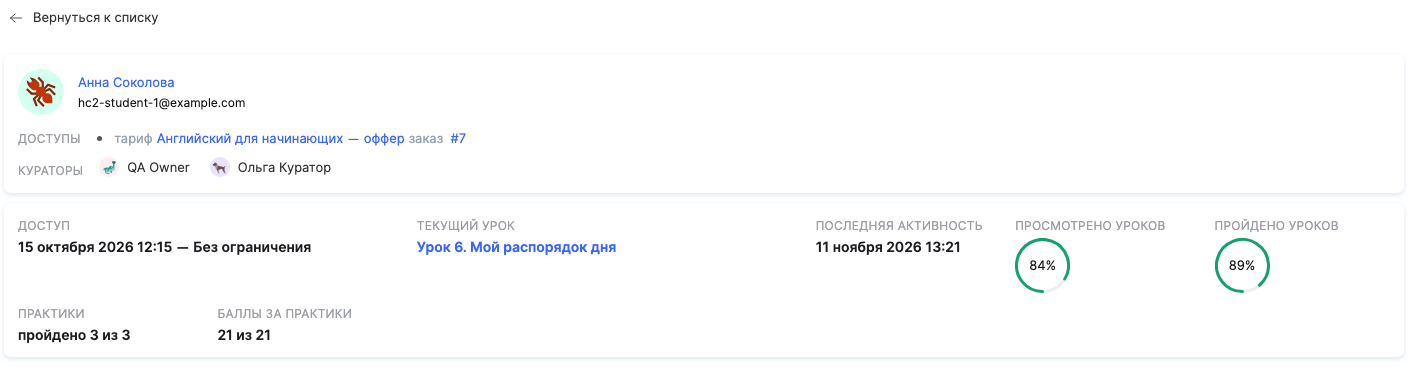
If the student can't currently see the course, the reason appears above the summary: for example, course not published or student blocked.
The course outline from the student's perspective
Below are the course modules and lessons in the order the student sees them. Each module and lesson shows:
- status – Completed, In progress, Not started;
- Period – when the student started and finished the lesson;
- the lesson's assignments and their statuses. Click an assignment to open the student's attempt.
Use the filter button above the outline to show only the lessons you need.
Note: lessons the student can't see (drafts, lessons outside their plan, or hidden blocks) are marked Not visible to student with the reason.
Locked lessons
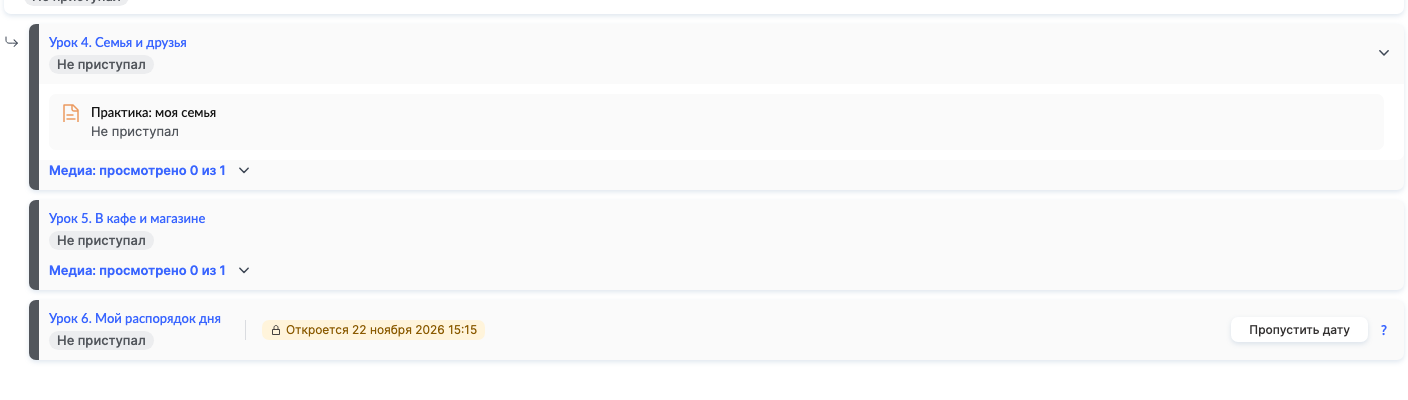
If a lesson is currently locked, the reason appears next to its status:
- Opens November 22, 2026 at 11:15 – the lesson will open according to the course schedule.
- Opens after the "…" assignment – the lesson is locked by a checkpoint: the student must first complete an assignment in a previous lesson. The Go to assignment link takes you to it.
- Not available in the student's plan or Student's access has expired – the issue is access, not the schedule.
How to unlock a lesson early
Sometimes a student needs access to a lesson outside the schedule: they're going away, catching up with the group, or have already submitted the assignment elsewhere. Locked lessons have buttons for this:
- Skip date – the lesson opens now, without waiting for the scheduled date.
- Skip checkpoint – the student gains access to lessons currently locked by this assignment.
- Click Skip date (or Skip checkpoint) on the lesson you want to unlock.
- Read the warning and click Confirm.
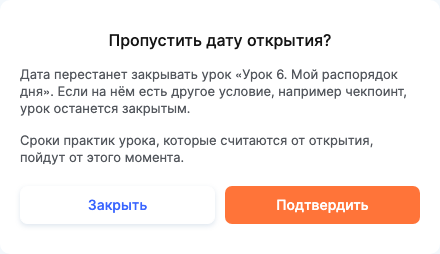
The skip applies only to this student – the course opens as scheduled for everyone else.
Note:
- If a lesson is locked by both a date and a checkpoint, it will remain locked after you skip the date until you also skip the checkpoint.
- If the lesson has a closing date, it will also no longer apply after you skip the date.
- Deadlines for lesson assignments that are calculated from the lesson's opening time will start from the moment you skip the date.
You can undo the skip: the button will change to Undo date skip or Undo checkpoint skip, and the lesson will be locked again according to the course settings. The confirmation window shows who applied the skip: a team member, an automation, or a system command.
Example: a student catches up with the group
- Open the course → Analytics and click the student.
- The summary shows that the Current lesson is the third, while the sixth lesson is already available to the group.
- The lesson "My daily routine" shows Opens November 22 – click Skip date and Confirm.
- The student can see the lesson in the course outline immediately and continue learning.
Frequently asked questions
If I give a student early access to a lesson, will it also become available to the other students?
No. Skipping a date or checkpoint applies only to this student – the course opens as usual for everyone else.
The lesson is locked by both a date and a checkpoint – will it open after the date passes?
No. After the date is skipped, the lesson will remain locked until the checkpoint is skipped too.
What happens to the lesson closing date and assignment deadlines after the date is missed?
The lesson closing date will also no longer apply. Deadlines for lesson assignments that are calculated from the lesson opening date will instead be calculated from the moment the lesson is skipped.
Can I undo skipping a date or checkpoint?
Yes. The lesson button will change to "Cancel date skip" or "Cancel checkpoint skip" – after you cancel, the lesson will be locked again according to the course settings.
How can I find out who gave a student early access to a lesson?
Click "Undo date skip" or "Undo checkpoint skip". The confirmation window shows who skipped it – for example, a staff member or an automation.
Why can't the student see the course even though their access is listed on the page?
The reason appears above the summary on the student's page – for example, "course is not published" or "student is blocked".
What does "Not available on the student's plan" or "Student's access has expired" mean for a lesson?
The lesson is locked due to the student's access settings, not the schedule: the lesson is not included in their plan or their access has expired.
Thanks for your feedback!
Thanks! We'll update the article. Need an answer now? Contact support