
How to set up an assignment for different plans
How to have assignments checked automatically in one plan and reviewed by an assistant in another.
Practice assignment settings on Kwiga let you adapt the learning process to the different needs of your students. In this article, we will look at how to do this.
Assignment, quiz: set up the review method
The first step is to create the assignment (quiz) you will use in the course. It can be a test or a more complex exercise tailored to your goals.
- Open Quizzes in the top menu.
- Click +, choose the "Standard" type, enter a name, and click "Create a quiz".
- Add questions of the types you need (for example, multiple choice, fill in the blanks, or a text answer) and set the quiz up.

- In the quiz settings, set Quiz approval to Automatically. You can set the percentage of correct answers required for automatic approval — for example, the quiz is approved when 70% of the answers are correct.
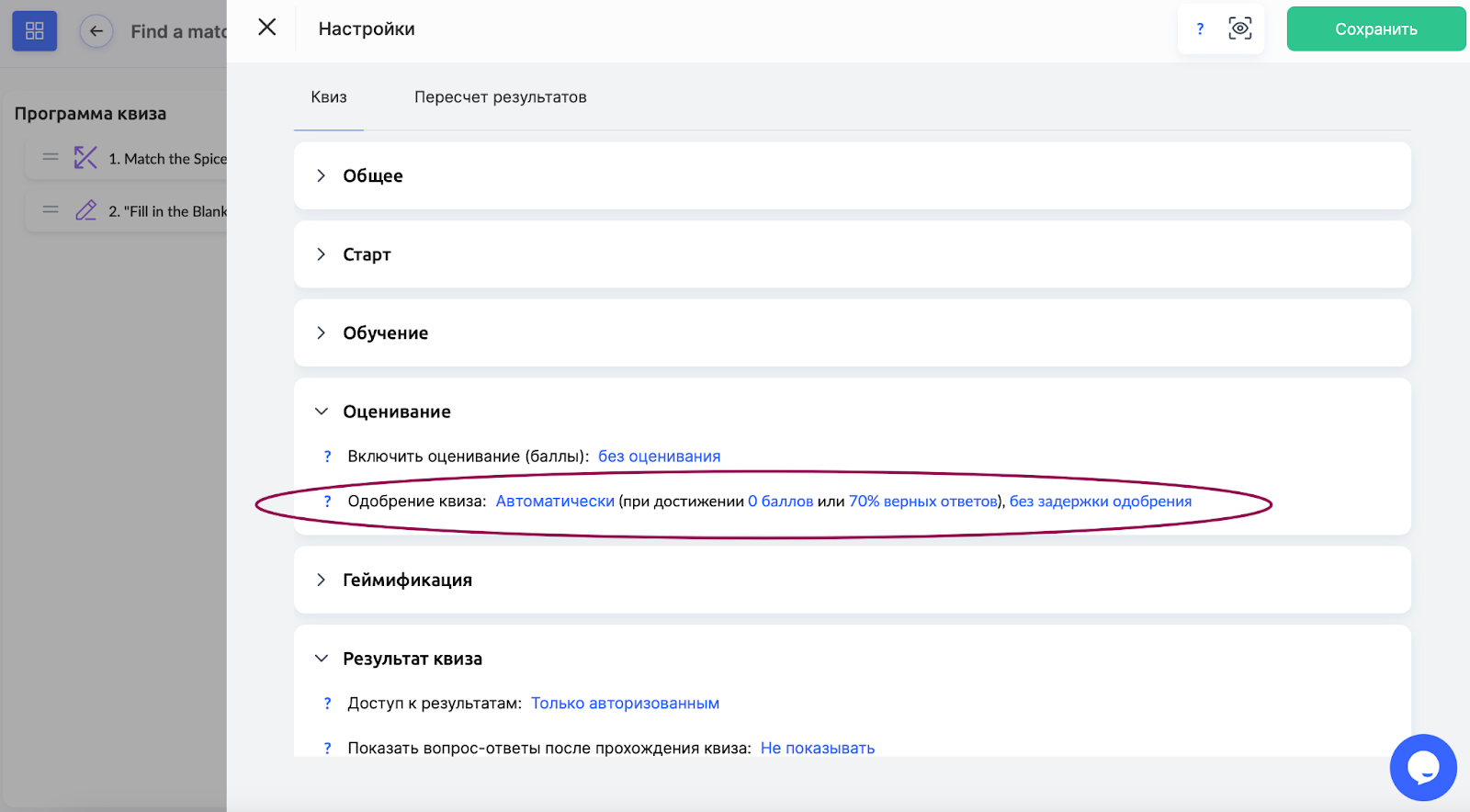
Once the assignment is created, add it to a lesson. Once the course is created, you can move on to setting up plans.
Plan with automatic review
For plans with automatic review, create a plan with the matching settings:
- Open Courses → Sales settings → Plans (offers) in the top menu.
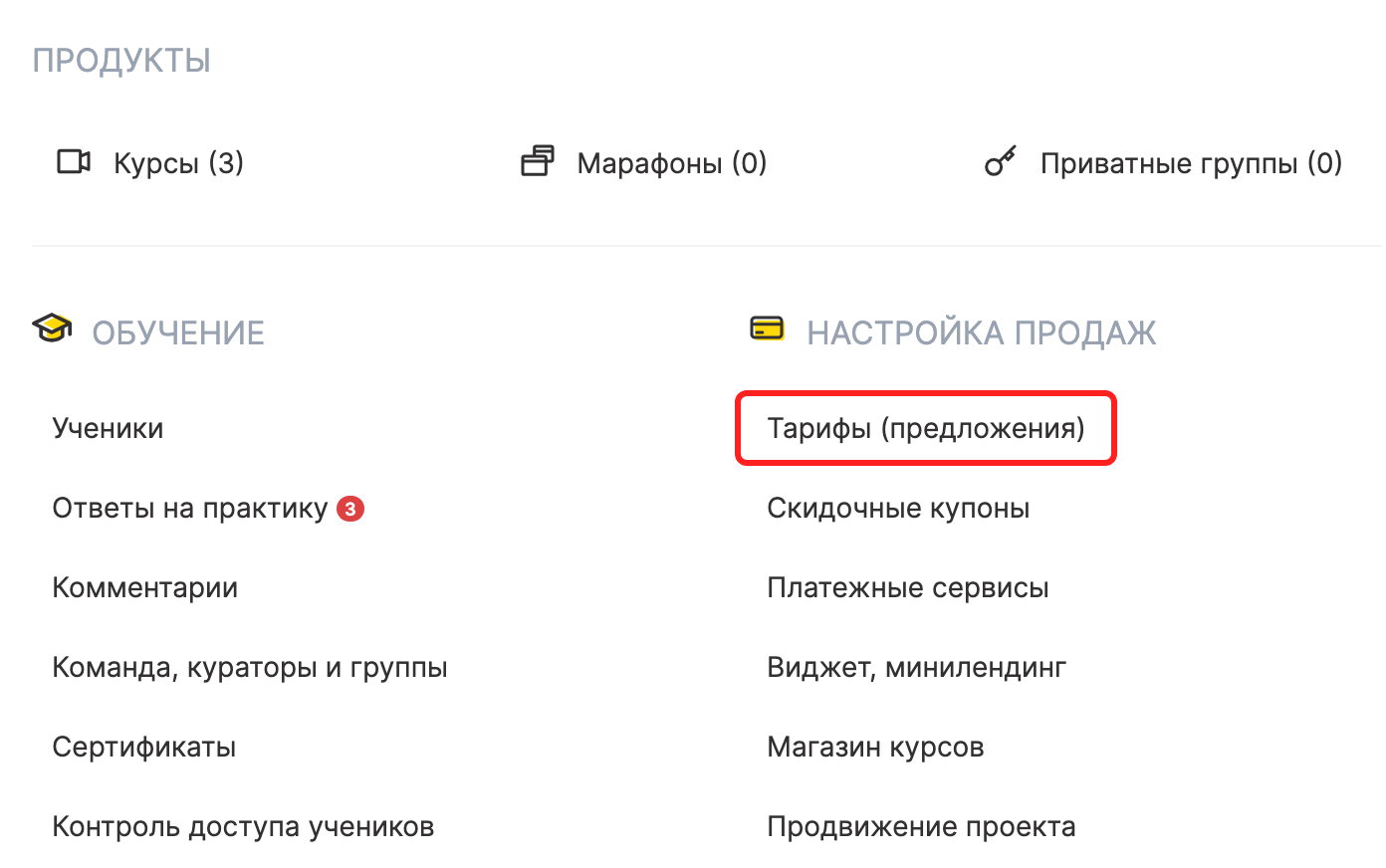
-
Click +, enter the Plan name, and click Create. The plan editor opens.
-
Go to the Products tab, click + Product, and add the course. In the course card, in the Training block:
- leave Individual activity settings (override) set to Same as in the course;
- set Practice review to Automatic checking.
Changes are saved immediately. With automatic review, you can also set a Quiz approval delay — the student then gets the result not instantly but after the specified time.
Participants who buy this plan will complete assignments without waiting for an assistant's approval.

Plan with mandatory assistant review
For participants who choose the extended plan, the assignment will be reviewed by an assistant. This gives them personalized feedback and recommendations.
- Create another plan in Plans (offers): click +, enter the Plan name, and click Create.
- On the Products tab, click + Product and add the course. In the course card, in the Training block:
- leave Individual activity settings (override) set to Same as in the course;
- set Practice review to Mandatory review by an assistant.
This approach lets you offer different levels of interaction depending on what your students need. How participants' practice work is reviewed depends on the plan they chose.

Important! The Practice review setting in the plan takes priority over the quiz-level settings. If the plan is set to Automatic checking or Mandatory review by an assistant, the plan, not the quiz, determines how assignments are reviewed; As in the quiz settings leaves the decision to the quiz.
Frequently asked questions
Which takes precedence – the review method in the quiz settings or in the plan?
The "Assignment grading" setting in the plan takes priority. If "Automatic grading" or "Required assistant review" is selected, the plan determines how assignments are graded, not the quiz. Select "Use quiz settings" to let the quiz determine the grading method.
Can the result be delayed when using automatic grading?
Yes. For automatic grading, you can set a "Quiz approval delay" in the course plan settings. The student will receive the result after the specified time.
How do I set the percentage of correct answers required to automatically approve a quiz?
In the quiz settings, select "Automatically" under "Quiz approval" and enter the percentage of correct answers – for example, 70%.
Should the review settings be saved in the plan's course card?
No, changes to the "Learning" section of the course card are saved immediately.
Thanks for your feedback!
Thanks! We'll update the article. Need an answer now? Contact support