
Articles:
- Orders: creating and editing orders.
- How do I add an individual payment link to a student
- Transactions
- How to set up sending your own email after purchase
- Integration with the Sendpulse chatbot
- How to integrate a payment system on Kwiga
- How to set a specific language for an offer page
- Important Project Settings
- How to grant access to students if the sales were not made on Kwiga
- Payment without authorization
- How to create a new stream with your own schedule
- How to give access to one student
- How to change access for one student
- How to set up demo access to a course, open house day at the school
- Setting up subscriptions (recurring payments)
- Automation: Follow-up email sequences (unpaid orders and applications)
- Credits and installments, payment in parts
- Promotional offer
- Discount coupons and possible settings
- How to launch course registration with prepayment
- How to create cross-sell offers in Kwiga
- How to start selling on Kwiga: creating a price plan
- Creating multiple pricing plans
- Selling consultations and one-on-one sessions
- How to Change a Student's Plan (Additional Payment on Kwiga)
- How to sell (give access to) parts of the course
- How to implement access renewal sales
- Selling through a registration form on a third-party site
- Selling through a mini-landing page created on Kwiga
- How to add a video to a page (mini-landing, course page)
- How to create a link with an applied coupon
- Offers and Payments on Kwiga: How It Works
- Repeat Sales: Setting Conditions and Sending a Coupon Based on Purchase Count
- Setting up notifications in a Telegram channel
- Sending Emails with Promo Codes (Unpaid Orders)
- Course Store: Settings and Capabilities
- Setting Up the Public Offer Page
- Organization of CPD on Kwiga: step-by-step guide
- How to set up a thank-you page after payment
- Set up access to lessons, sections, and modules
- How to change the contact in an order
We will explain how to add a demo video to a course description page or a mini-landing page.
If you want to add a demo video to the course description page or to a mini landing page, then this video must be uploaded to YouTube or Vimeo, or another similar service. For now, it is not possible to use a video from storage.
How to get the video code on YouTube
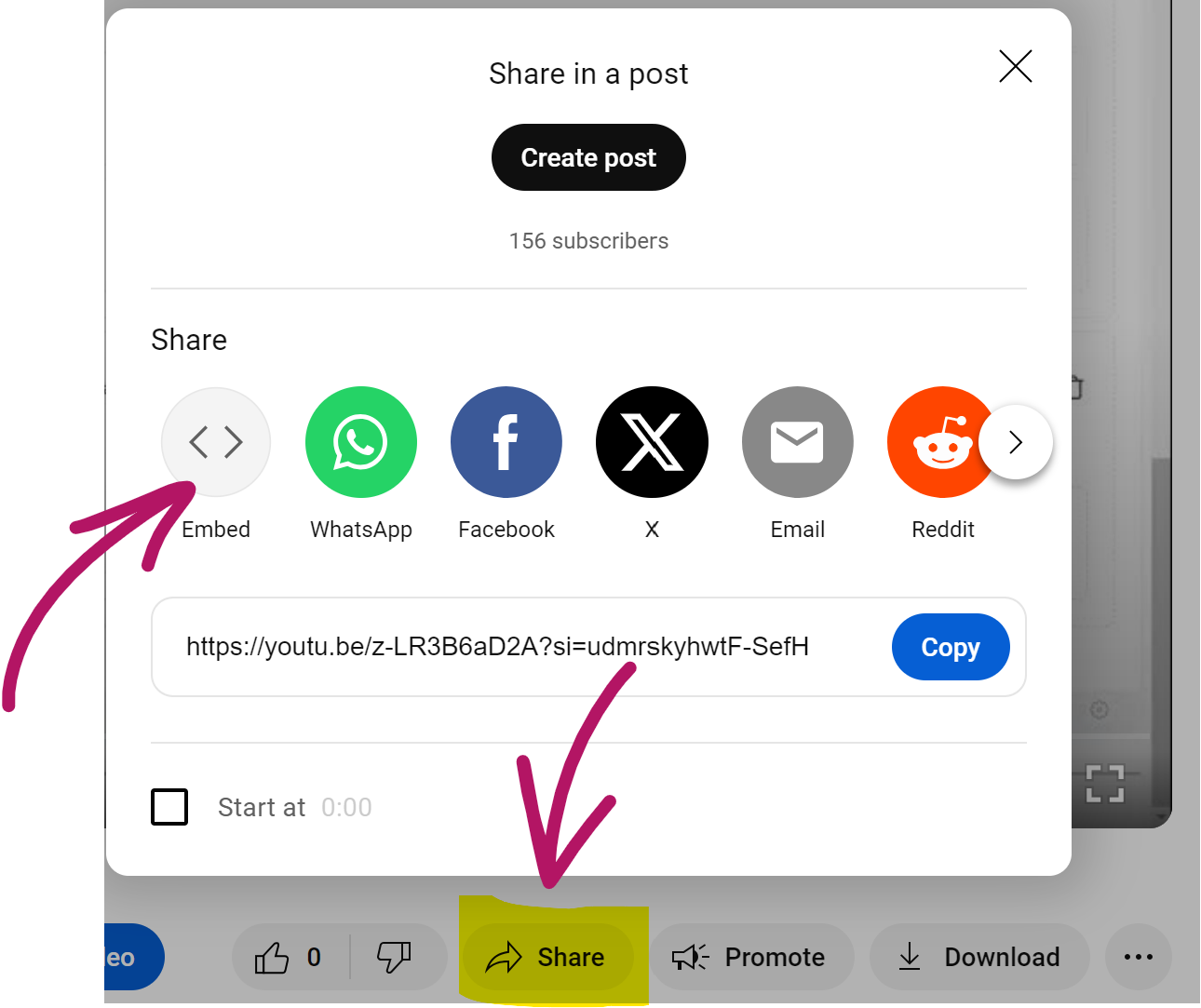
Click the Share button below the video and select Embed:
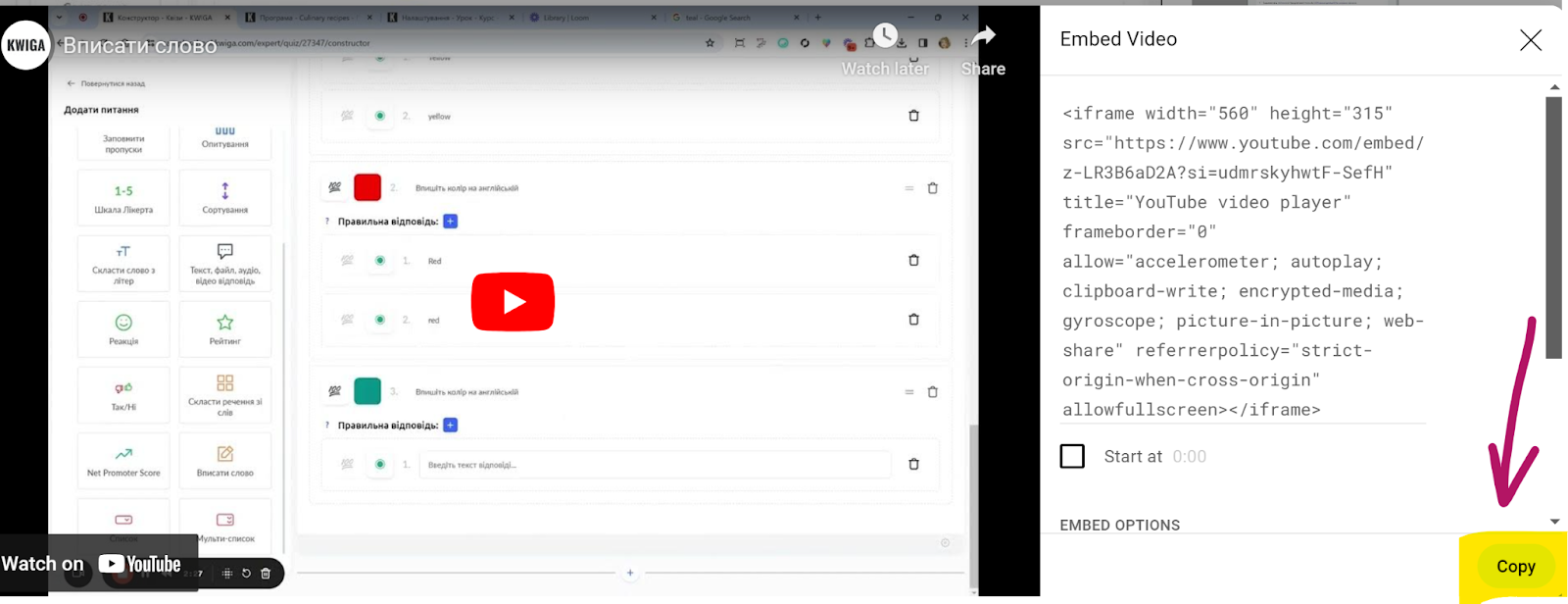
Simply click the Copy button to copy the entire code
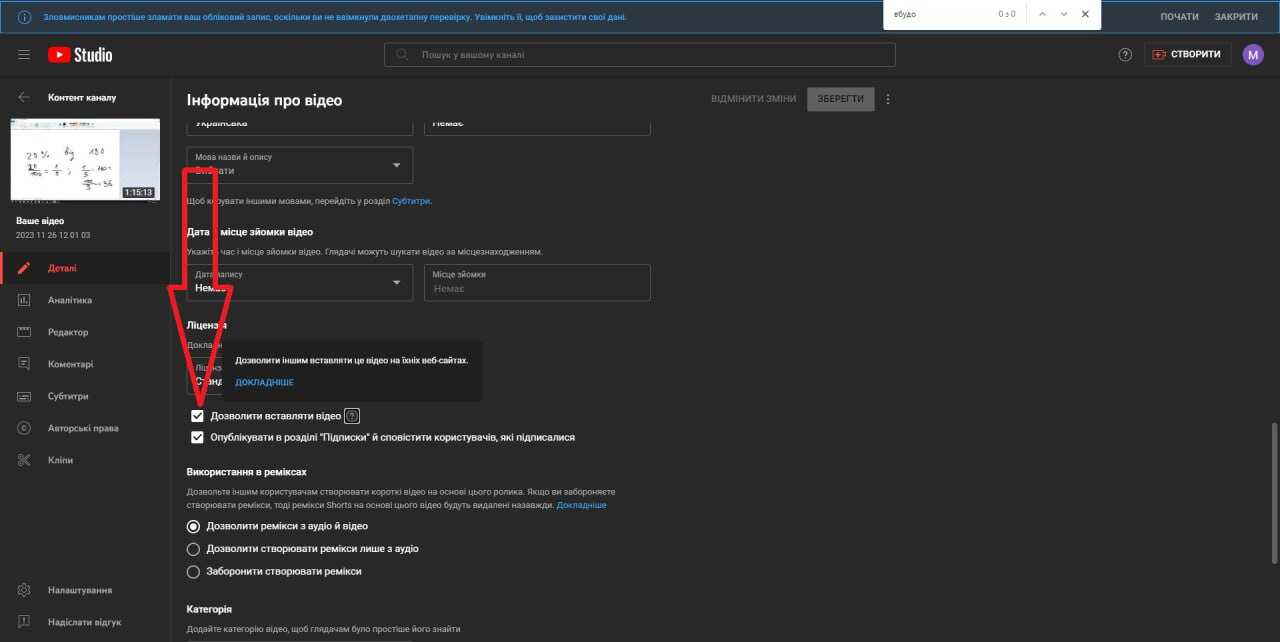
If this is your video, make sure that your video settings on YouTube allow embedding the video on other resources.
How to add a video to the course description page
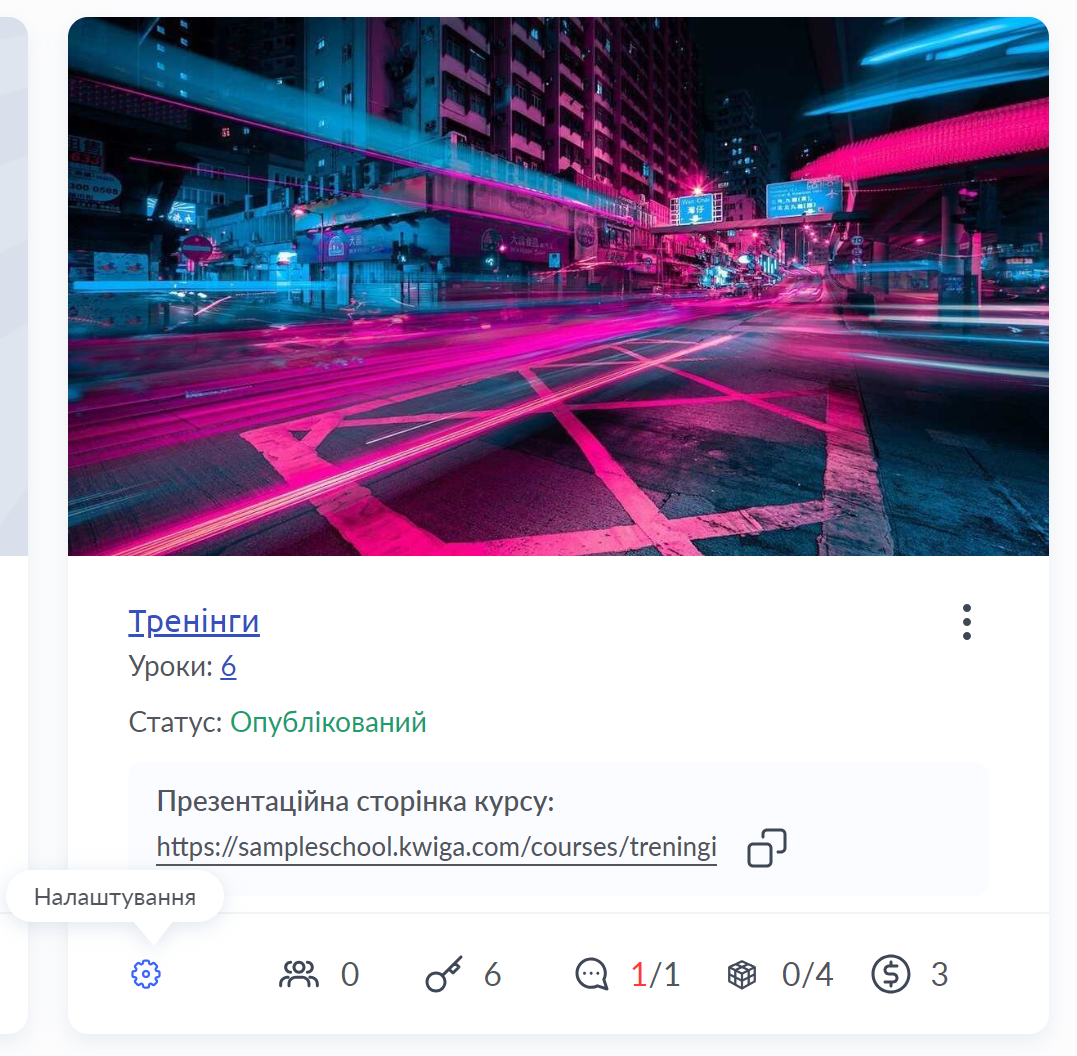
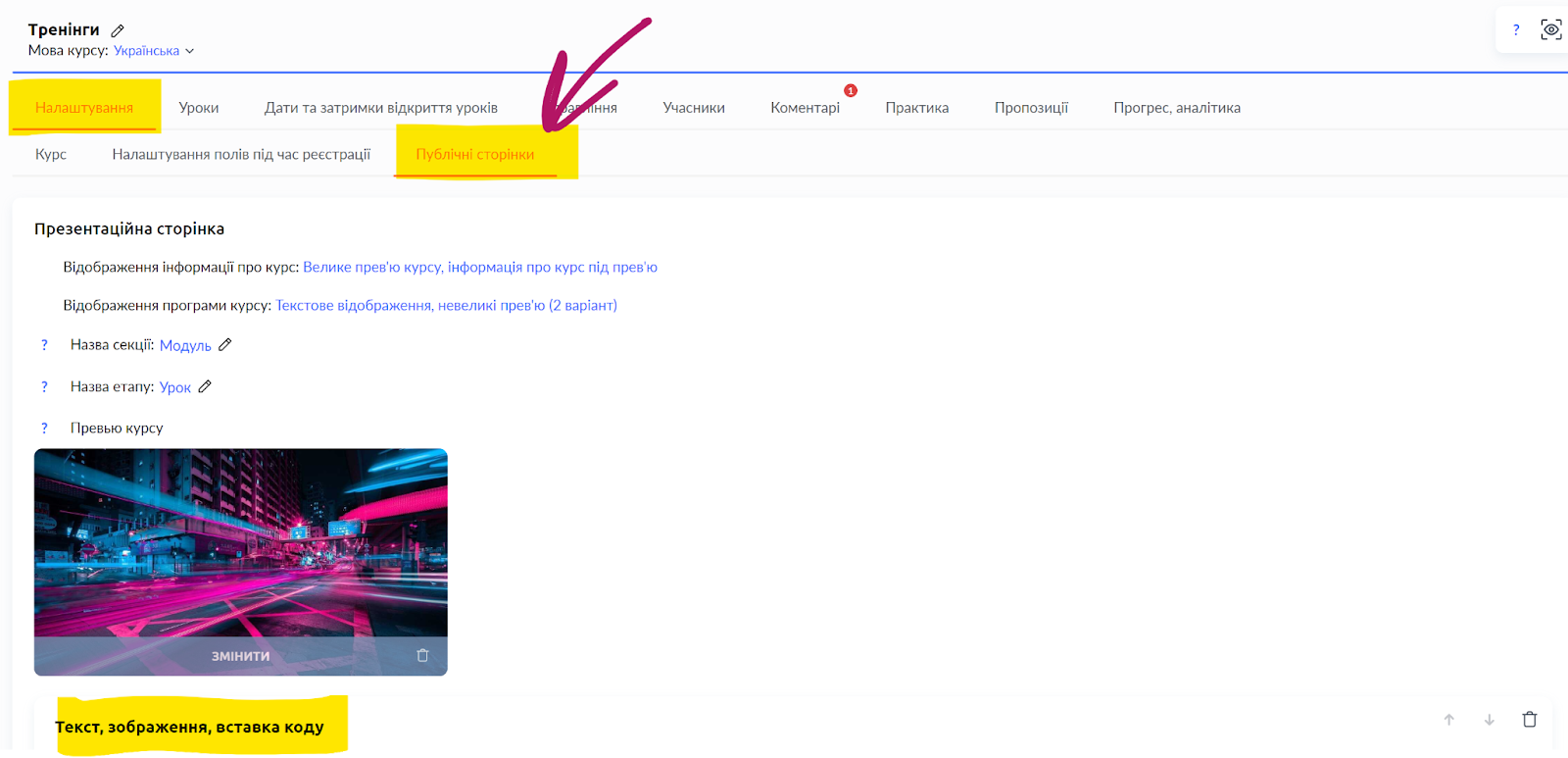
Open the course settings:
Go to the Public Pages tab and scroll down to the Text, image, code embed block – in this block you can edit the text, images, and also add videos that are displayed on the course's public page.
Adding a video is done via inserting iframe code, which you can easily copy from the video page on YouTube (this is shown in more detail in the video above).
How to add a video to a mini landing page
Adding a video to a mini landing page is similar to adding a video to the course description page, that is, it is done via inserting iframe code, which can be obtained on the video page on YouTube.
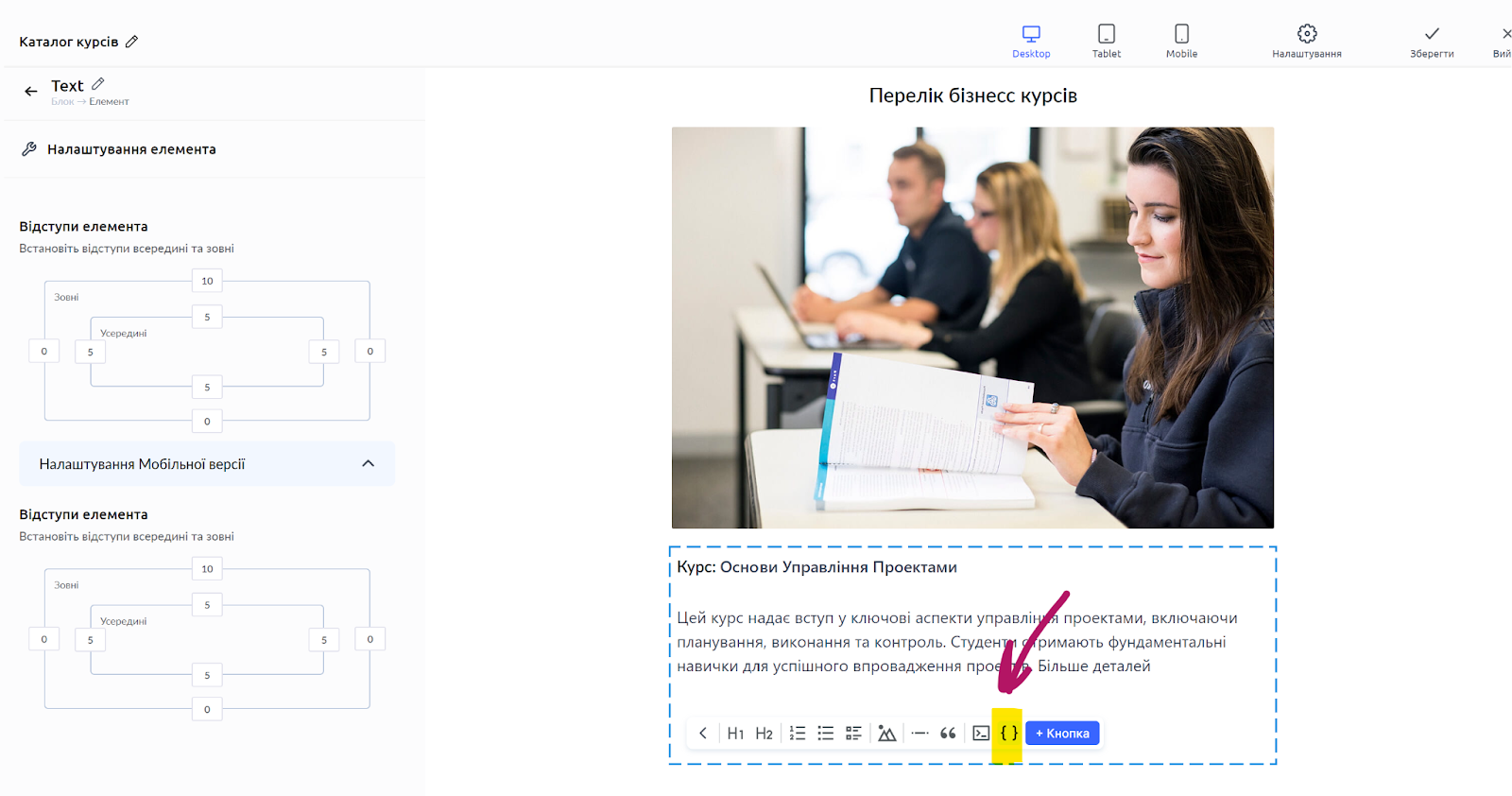
Open the mini landing page where you want to add the video, add a Text element (or select an existing text element), click the blue + button and choose HTML, then copy the video code. The process is shown in more detail in the video.
Didn't find the answer? Contact the support service via online chat or Telegram