
A/B testing funnel pages
Learn how to compare several versions of a funnel step page, split traffic between them, and select a winner.
An A/B test shows different visitors different versions of the page of one step and compares which version sells better. You can run a test on any funnel step: Sales page, Order form, and Thank you page.
A visitor lands on one of the versions and from then on always sees that same version.
How to start a test
- Open Courses → Sales settings → Sales funnels, then select the funnel and the step.
- Go to the A/B test tab and click Create A/B test.
- Enter the Variant name.
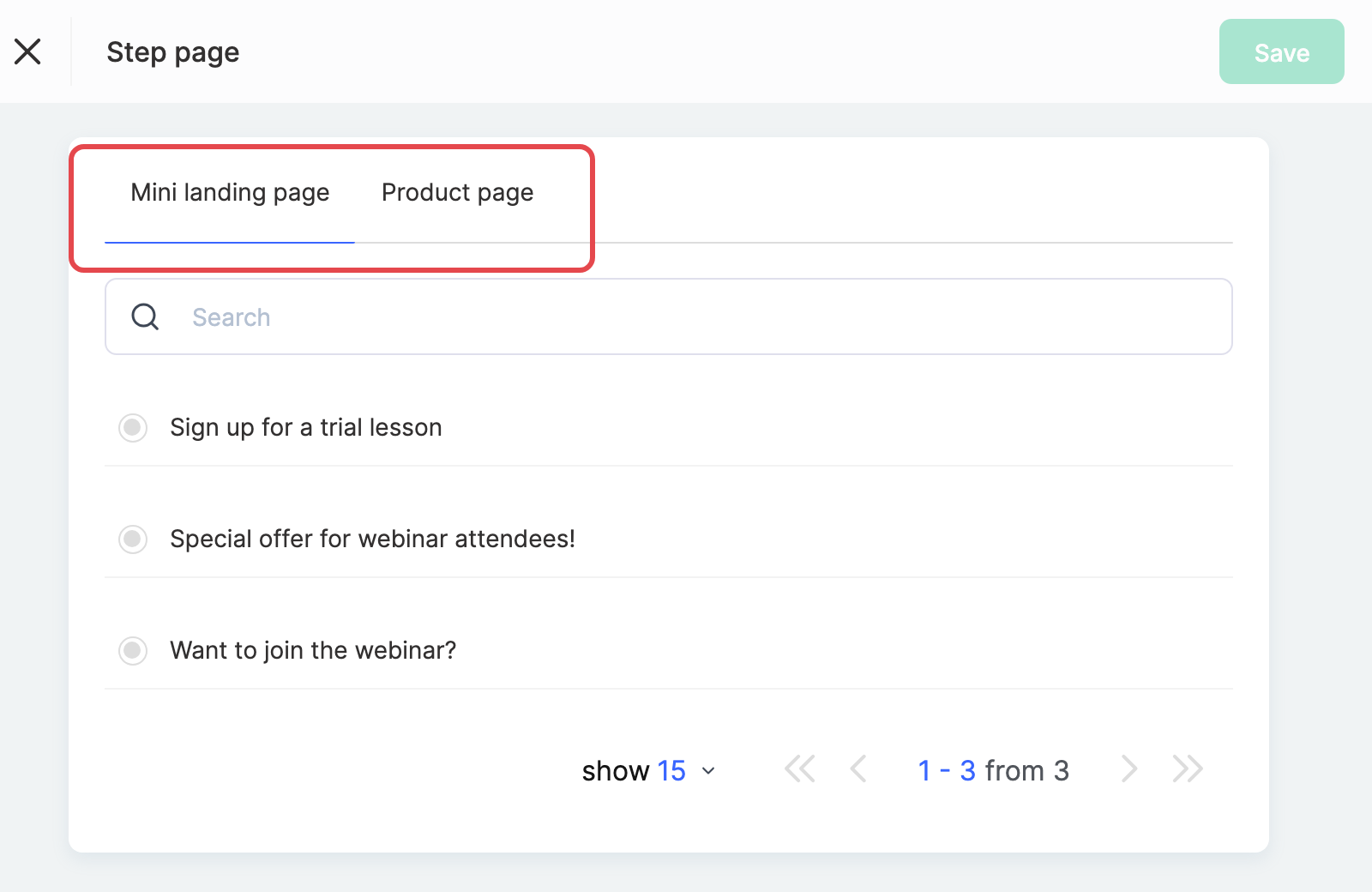
- Click + Select page and choose the page for the new version on the Mini landing page or Product page tab.
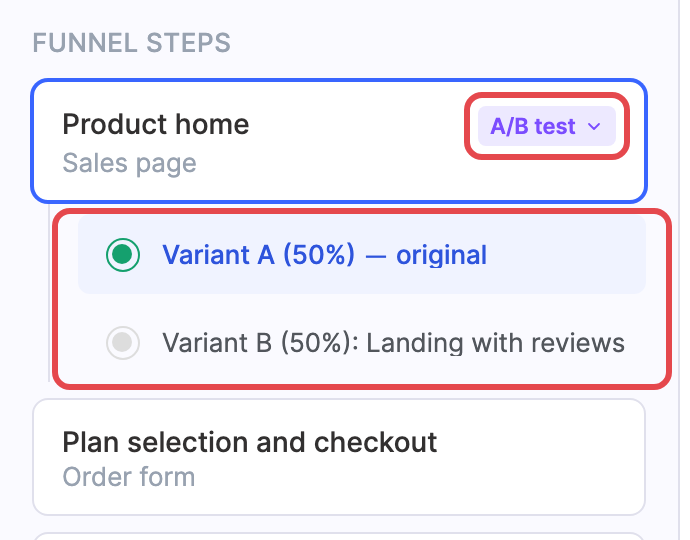
- Change the Traffic split if needed. By default, traffic is split 50% / 50% between the original and the new version. In the steps column, the versions are labeled Variant A (50%) — original and Variant B (50%) with the page name.
- Click Save.
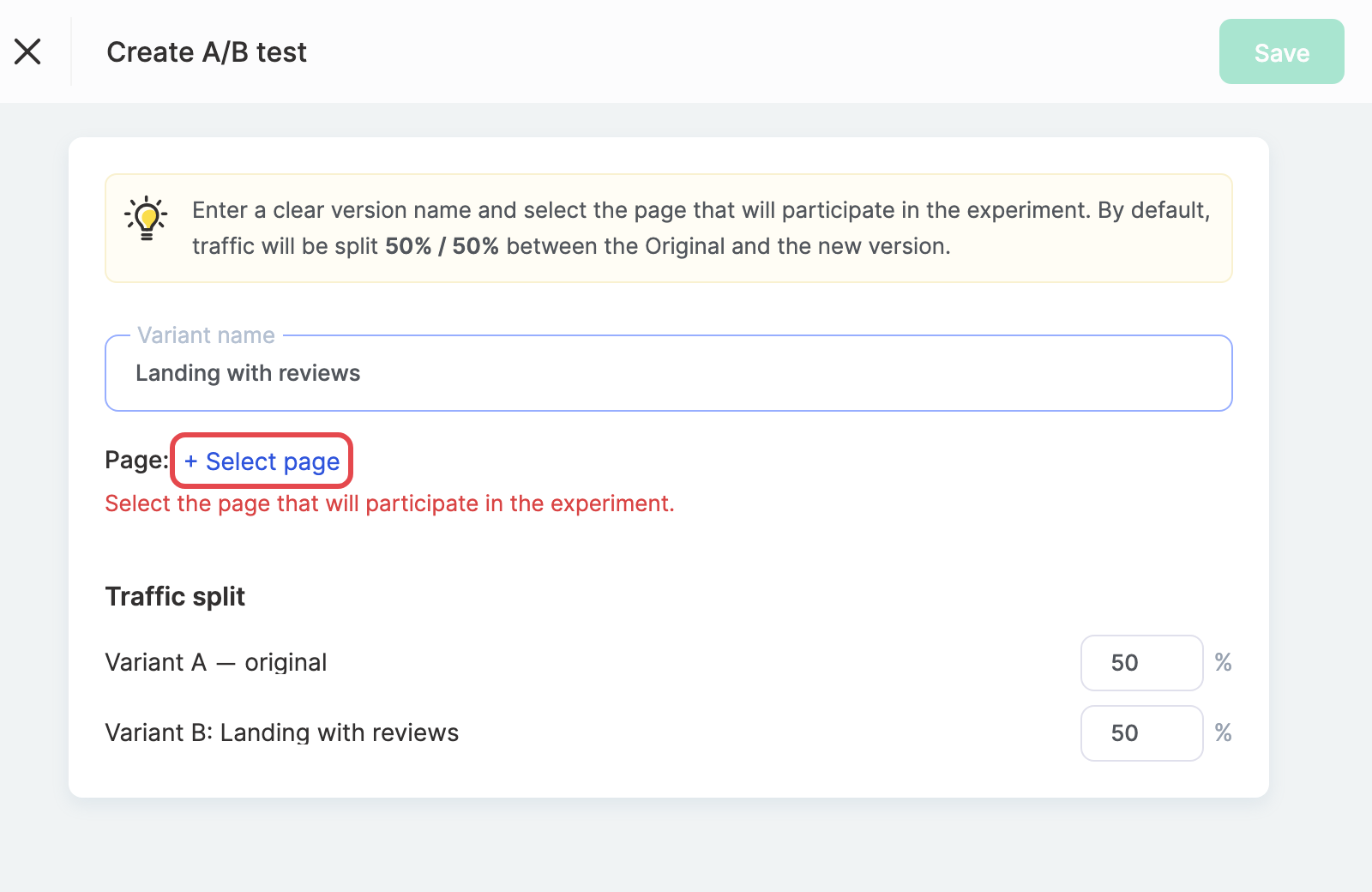
The test is named "Test of step …". You can change this in the Test name field.
Which pages you can choose:
- Mini landing page — a mini landing page of the project that isn't already used by any funnel step, including steps of this funnel: one page belongs to one step.
- Product page — a page of a course that has no funnel of its own — neither enabled nor disabled — and that isn't taken by another step; the course page of this funnel itself is not listed. If there are no suitable pages, the tab will be empty.
Note: on the Thank you page step, you don't need to choose a page. A version of this step differs by its set of pages after payment: in the creation window, set up Redirect after payment / getting free access for the new version.
Once the test is running, an A/B test badge and a list of versions appear under the step in the Funnel steps column. Select a version to view its settings. The step link is the same for all versions: each visitor gets a version at random. To open a specific version for sure, use the link in the hint on the Template tab. The Thank you page step has no link of its own, so it has no such hint.
Test results
The A/B test tab shows:
- the test status, start date, author, and duration;
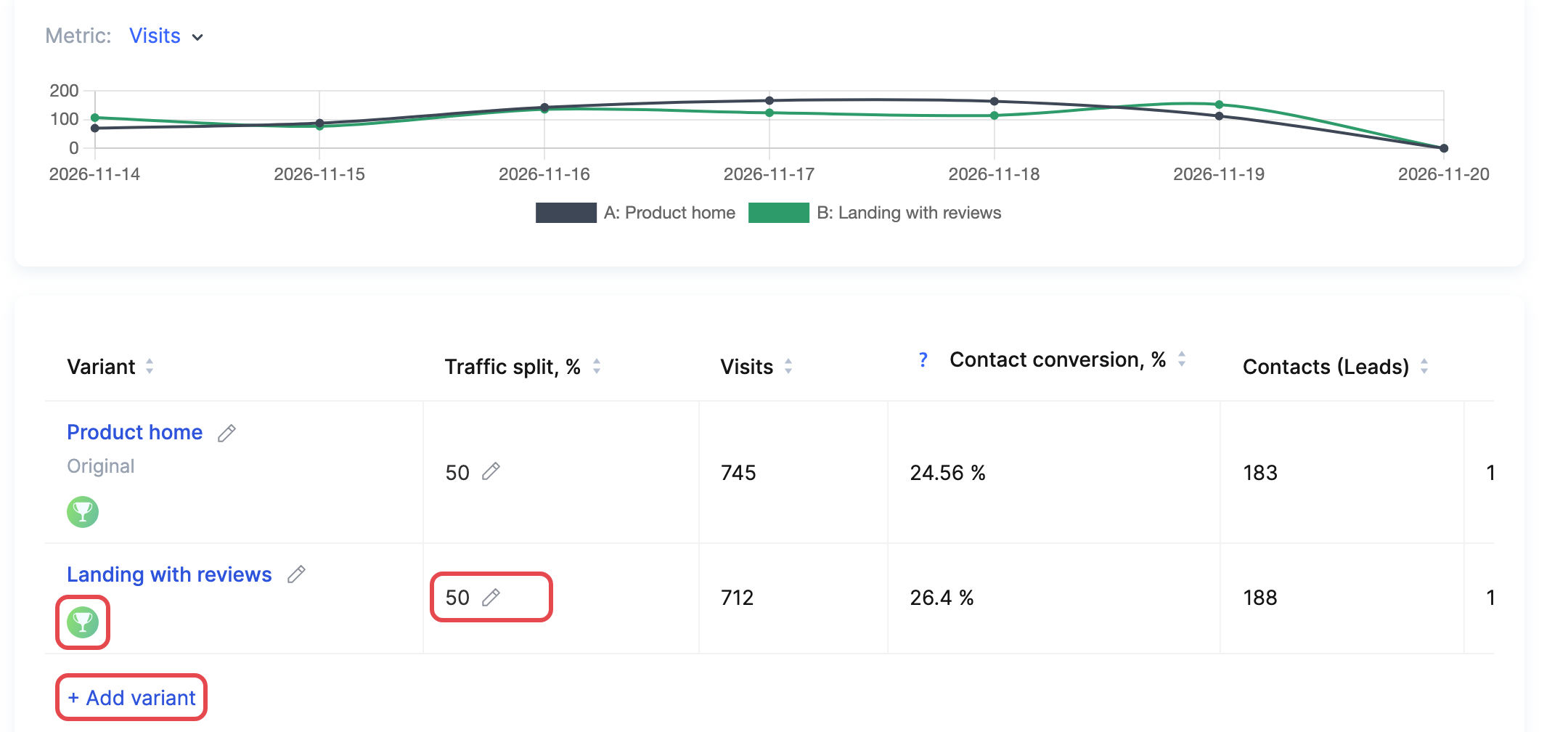
- a chart — choose a Metric to compare the versions by it;
- a table of versions: Traffic split, %, visits, conversions, buyers, payments, amounts, Variant conversion, %, and Variant LTV.
You can change the period and the test in the filter. For what each metric means, see the article Funnel analytics.
How to change a test
- Add variant — the + Add variant button under the table. Traffic will be split evenly between all versions.
- Change the traffic split — click the percentage in the table, set the shares (they must add up to 100%) or click Split evenly, then Save and restart test.
- Rename variant and Delete variant — the icons next to the name. The original can't be deleted, and a variant can be deleted only if the test has more than two versions.
Important: if the new versions have already received visitors, adding or deleting a variant and changing the shares restarts the test: the statistics collected so far go to the archive, and counting starts from zero.
How to end a test
- Click the trophy icon next to the best version — Select as winner.
- Confirm in the End test and select a winner window.
The winning version becomes the only page of the step and receives 100% of the traffic. The test results are saved on the Archived tests tab.
Archived tests
The Archived tests tab stores completed and restarted tests. You can open a version from the archive — its settings are view-only.
Note: the settings on the step's Settings tab are shared by all versions of the test.
Example: you're not sure what sells the course better — the standard course page or a mini landing page with reviews. On the Sales page step, create an A/B test, name the variant "Landing page with reviews", and choose the mini landing page. Two weeks later, compare Variant conversion, % in the table: if the landing page sells better, click the trophy in its row — from then on, all of the step's traffic will go to the landing page.
Frequently asked questions
How do I open a specific version of the page to check it during a test?
Use the link in the tooltip on the "Template" tab – it always opens the selected version. The regular step link is the same for all versions: visitors are randomly assigned a version and will always see that version thereafter.
The "Thank You Page" step doesn't have its own link, so it doesn't have this tooltip either.
Why isn't the page I need listed when selecting a version?
Only available pages are listed:
- "Mini landing page" – a mini landing page that isn't used in any funnel step, including steps in this funnel: each page belongs to one step;
- "Product page" – a page for a course that has no funnel of its own, whether enabled or disabled, and isn't used by another step; the page for the course associated with this funnel isn't listed.
If there are no suitable pages, the tab will be empty.
How do I run an A/B test on the "Thank You Page" step?
You don't need to select a page at this step. Versions differ in the pages shown after payment: in the test creation window, configure "Redirect after payment / receiving free access" for the new version.
Will I lose statistics if I add a variant or change the traffic split?
If the new versions have already received visitors, yes, the test will restart. Adding or removing a variant or changing traffic shares archives the accumulated statistics, and counting starts from zero. Previous results remain on the "Archived tests" tab.
Can I delete the original or one of the versions?
You can't delete the original. You can delete a variant using the icon next to its name, but only if the test has more than two versions.
What happens after a winner is selected?
The winning version will become the only page for this step and receive 100% of the traffic. The test results will be saved on the "Archived tests" tab, where you can open the version to view its settings only.
Can I configure different step settings for different versions of the test?
No, the settings on the step's "Settings" tab apply to all versions of the test.
Thanks for your feedback!
Thanks! We'll update the article. Need an answer now? Contact support