
Loans and installments, paying in parts
How to set up paying in parts in a plan — in equal installments, on a special schedule, or with a bank installment plan.
On Kwiga, you can set up any payment scheme, including paying in parts or an installment plan based on trust.
Note: Kwiga is not a payment system, doesn't provide installment plans, and can't guarantee that the student will pay the remaining amount. For such guarantees, use an installment plan or a loan from a bank. On the platform, you can only plan a payment schedule: the platform tracks whether each payment has been made, reminds the student about the next one, closes access if a payment doesn't arrive, and automatically opens it again as soon as the next payment goes through.
Besides paying in parts, the platform also offers subscriptions — automatic charges of the same amount at regular intervals. This option is covered in Setting up a subscription (recurring payments).
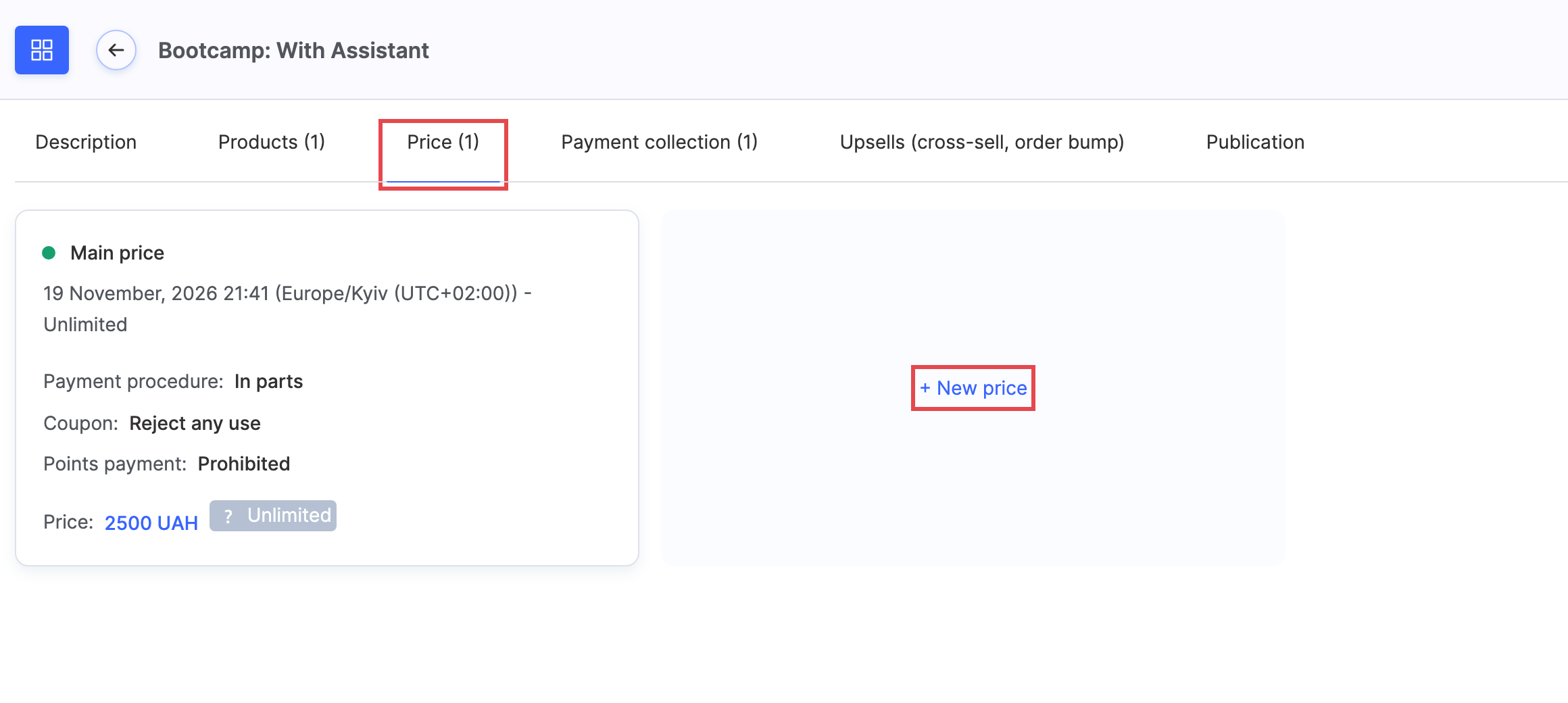
Paying in parts is set up on the Price tab of the plan editor.
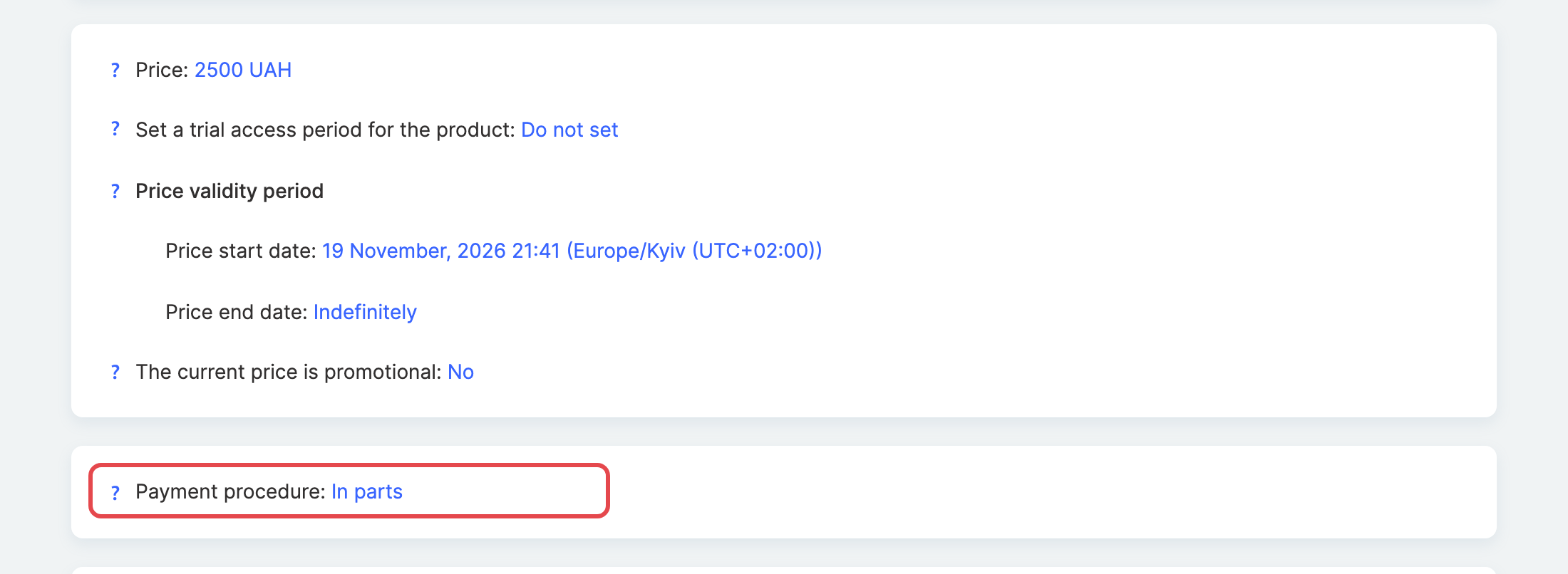
After entering the cost, select In parts in the Payment procedure field.
Recommendation: Since the platform can't guarantee that the student will make all payments on time, we recommend aligning the release of course content with the payment schedule — use delays for opening access to modules, lessons, or sections on the Products tab. For example, if the course payment is split into 3 parts a month apart, open only the first third of the course after the first payment and release the rest gradually as the following payments come in. This way, dishonest buyers won't get access to all the materials without paying for the course in full.
Once you've selected In parts, first choose the charge method in the The charge will be made field.
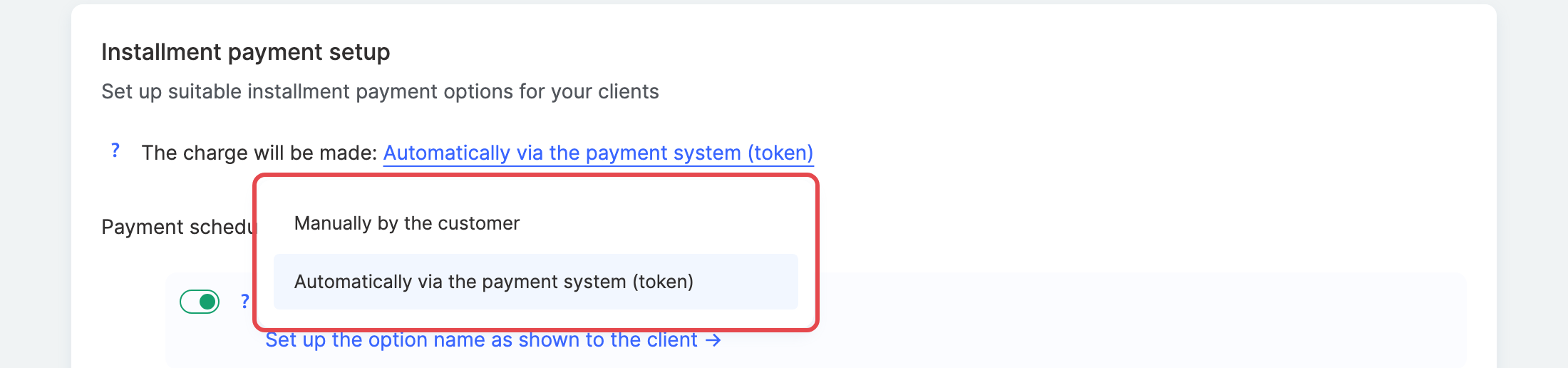
Manually by the customer means that the student pays each part themselves using the link from the reminder email or from their personal account (the Purchase history section). Automatically via the payment system (token) charges the following payments without the student's involvement — they only need to be present for the first payment. Not all payment systems support tokens, so check the list of supported systems (it is given in the description of this option) before setting this up, and for some of them (PayPal, WayForPay, LiqPay, Payment by Mono) also enable token saving through the payment system's own support team. If the card or the token expires, the next payment automatically switches to manual payment until the student updates their card details.
Below, in the Payment schedule block, choose which payment options the student will have — each one is turned on with its own toggle and has a name for the customer that you can edit.
Allow paying the full amount now lets the student pay the full cost in one payment, even if the plan offers installments. If you create a separate plan for full payment, you can turn this option off in the installment plan.
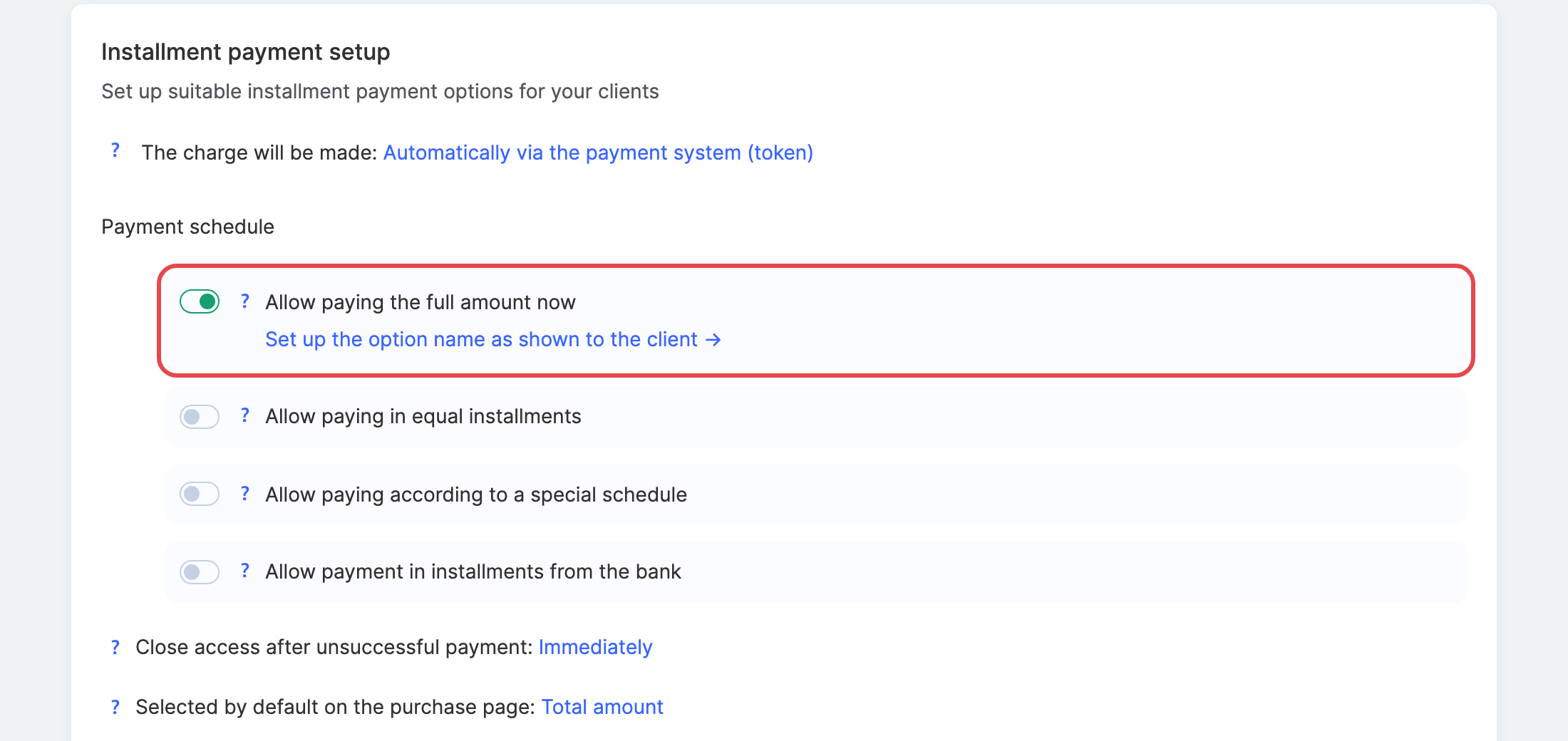
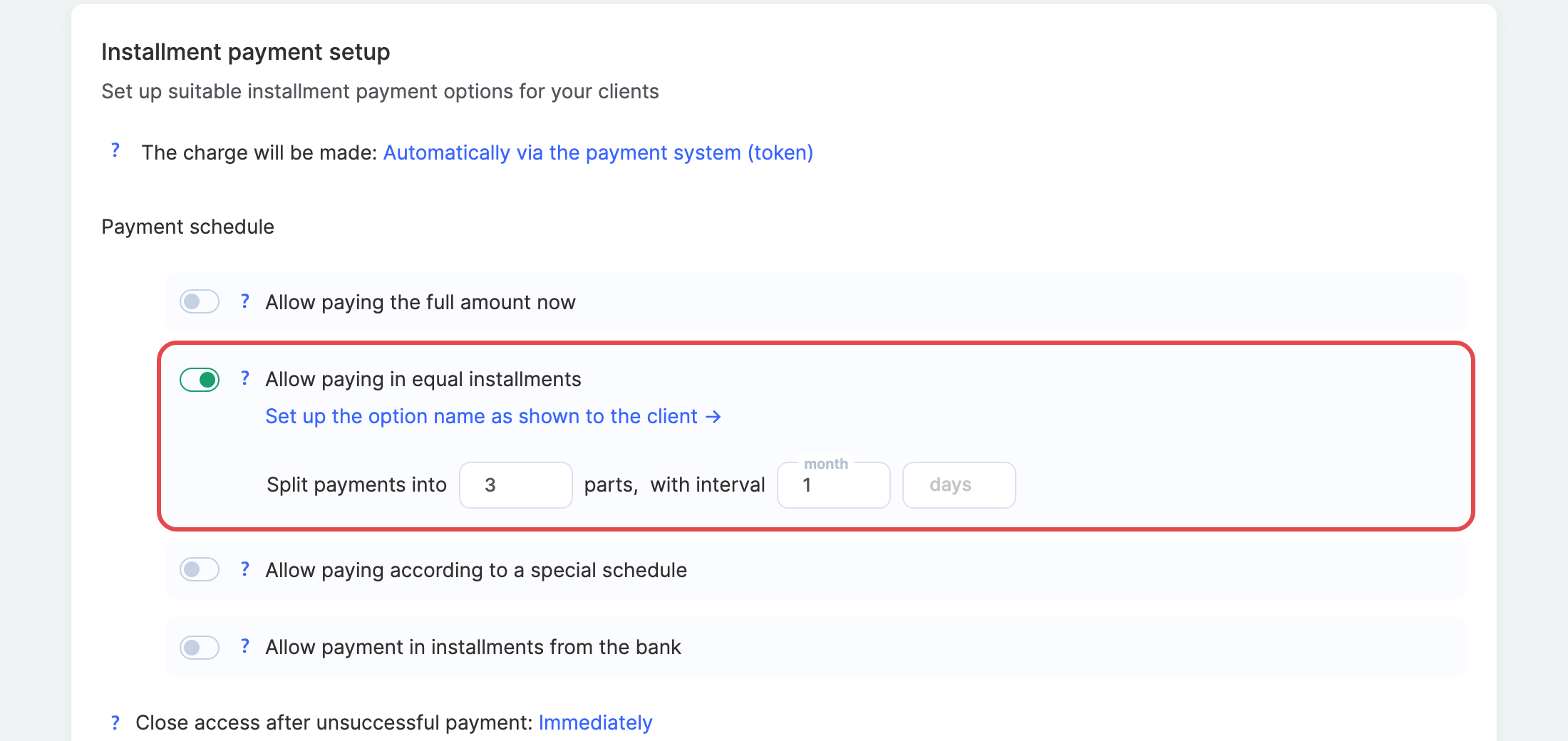
Allow paying in equal installments splits the amount into several equal parts: enter the number of parts and the interval between them, for example 3 parts one month apart. The number of parts is from 2 to 36. Intervals are counted from the date of the first payment, and the student can make the next payment ahead of schedule.
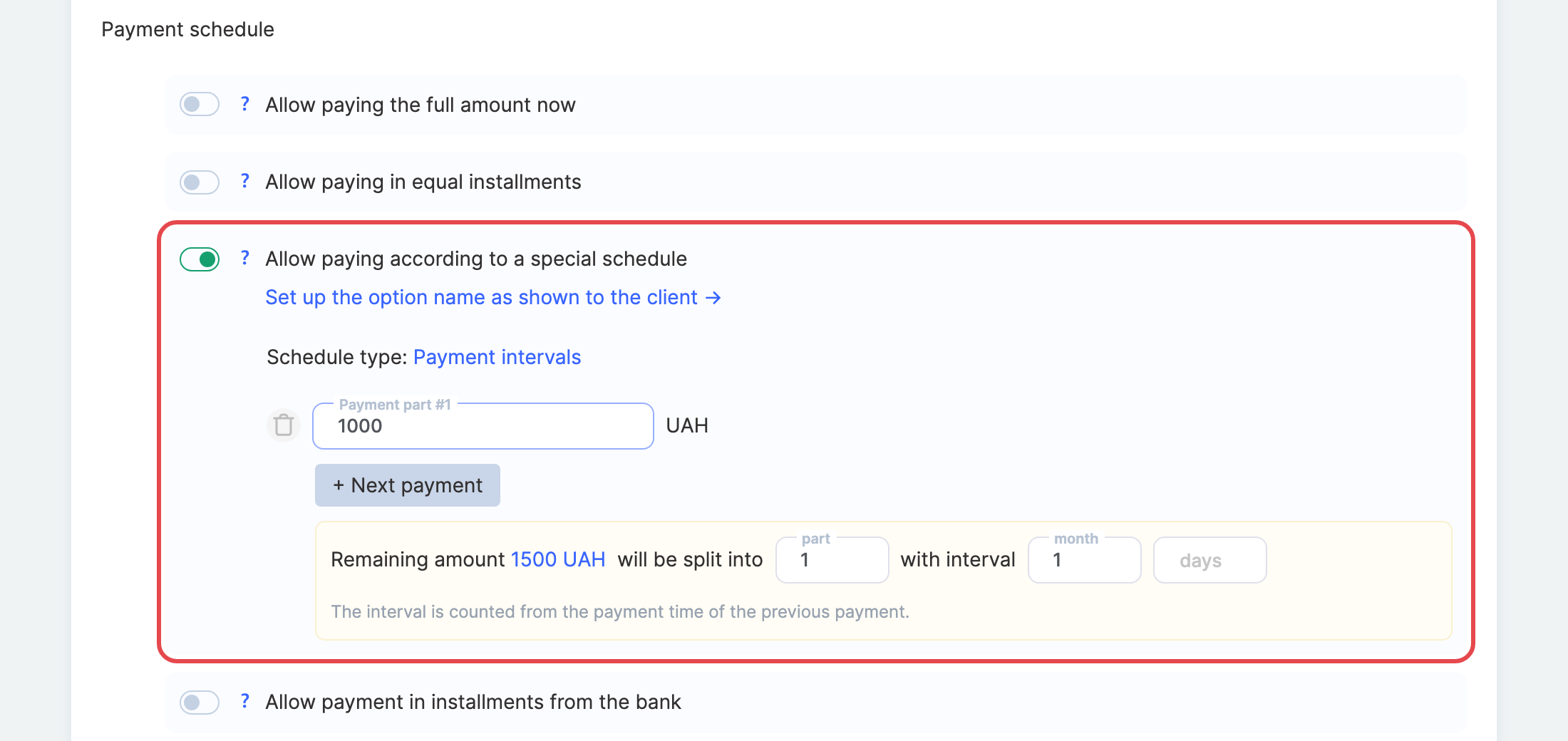
Allow paying according to a special schedule is useful when you need to split the payment into unequal parts, set custom intervals, or tie payments to specific calendar dates. In the Schedule type field, choose an option: Payment intervals — a custom amount and time interval for each part separately, where each part's interval is counted from the previous payment; the sum of the parts cannot exceed the plan cost, and if it is lower, the remainder (the Remaining amount block) is split into equal parts at the interval you set; Calendar schedule — each part is tied to a specific date.
Important: If a payment is overdue, the student sees an overdue mark and access to the product is closed — how soon this happens is set separately in the Close access after unsuccessful payment field, for example after 1 day. The student can still pay after the deadline: the payment link is available both in the reminder emails and in their personal account.
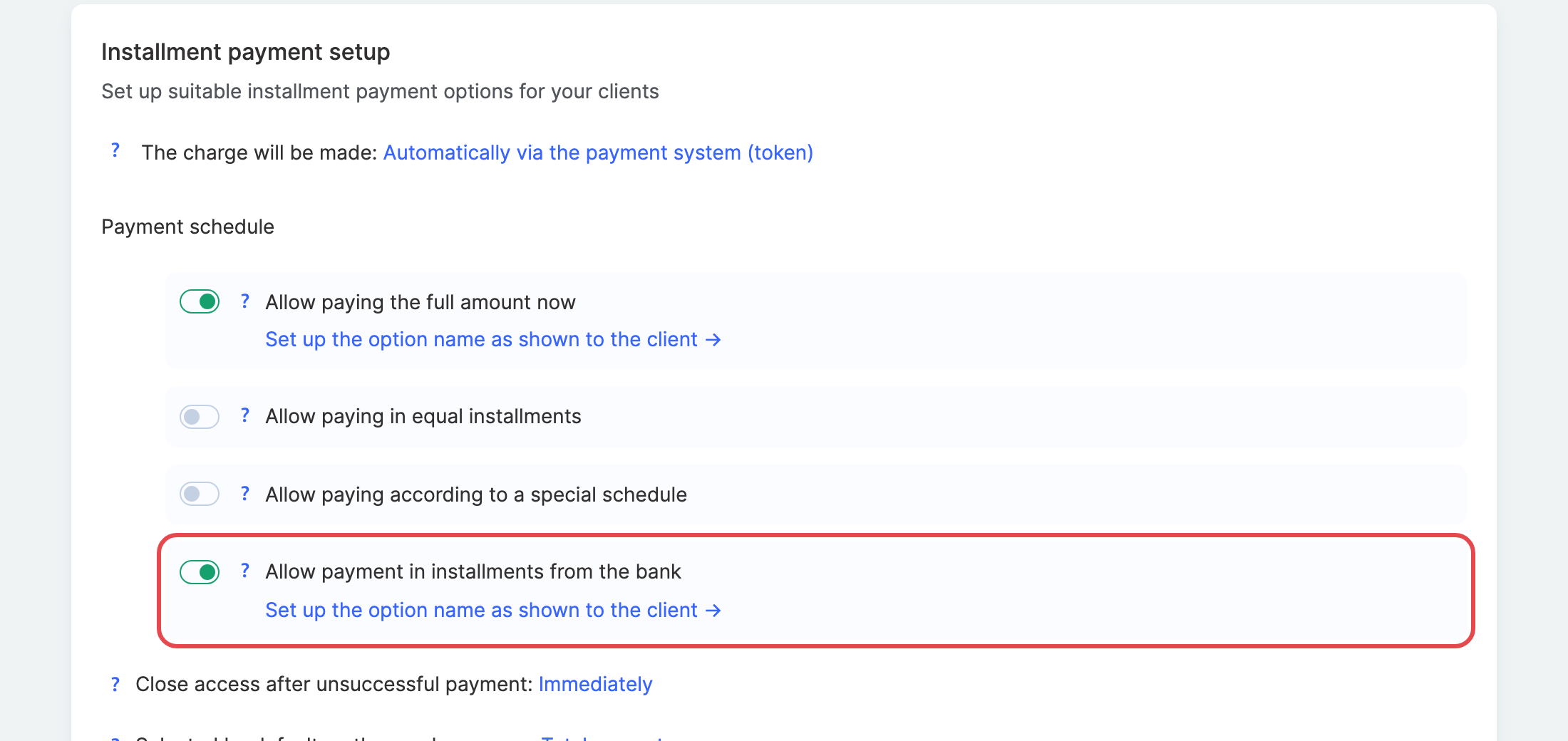
Allow payment in installments from the bank is a marketing option that shows the student, at the first step of choosing a plan and payment method, that a bank installment plan is available: the option "Pay in installments from the bank" appears there. If the student chooses it, the full cost of the selected product is sent to the payment system, and on the payment system's side the student can either pay for the order right away or use a bank installment plan, if one is connected in your payment system.
If several options are enabled at once, use the Selected by default on the purchase page field to choose which of them the student sees preselected on the payment page.
In the Close access after unsuccessful payment field, specify how much time to give the student to pay before access is closed: by default, access is closed right after a failed payment, but you can set a pause, for example 1 day, to give them more time to pay.
If an automatic charge of a part fails. This applies to the Automatically via the payment system (token) method: KWIGA charges each part to the student's saved card on the scheduled date.
- The bank declined the charge — KWIGA tries again once a day — 4 attempts in total: on the payment date and on the next 3 days. For example, the second part is scheduled for the 10th: if the bank declines it on the 10th, the next attempts will be on the 11th, 12th and 13th.
- No response came from the payment system — such a part is not charged again, so as not to take the money twice. If the payment went through, the payment system will report it, and the part will be marked as paid automatically.
- The attempts are used up — the part stays unpaid, and access is closed after the period set in the Close access after unsuccessful payment field. The order is not cancelled: the student can pay the part on their own in their account, and you can mark it as paid manually.
- The next parts are not charged until the missed one is paid. Access is already closed after an unpaid part, and taking money for the next one would be wrong. As soon as the missed part is paid, automatic charges continue on schedule.
Coupons with installments. If the buyer applied a coupon with a fixed discount in currency, by default the discount is split evenly across the installments. How the discount is spread is set in the coupon itself, in the Application scope for installment payments, subscriptions field (more about coupons); which installments the coupon applies to is set in the tariff price settings.
If needed, you can also set a trial access period for the product on the same tab: the customer gets access only after entering their card details, and the first charge happens after the trial period ends.
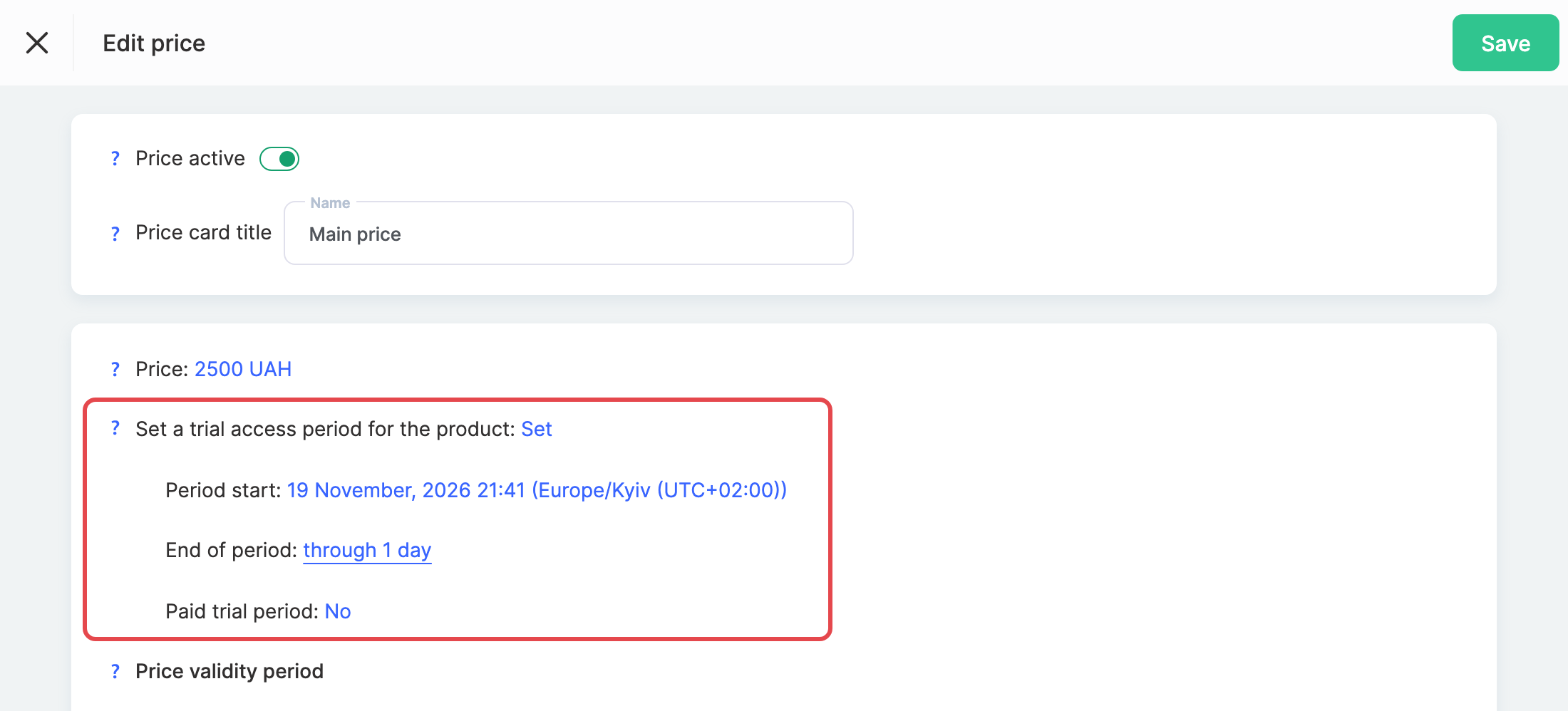
For this, the connected payment system must support card verification without a charge or creating a token after the first payment. If neither is supported, the trial period is ignored and the full cost is charged right away.
Frequently asked questions
Does Kwiga guarantee that the student will pay all installments?
No, Kwiga does not provide installment plans or guarantee that a student will pay the remaining balance – you need an installment plan or financing from a bank for that guarantee. The platform only manages the payment schedule: it tracks payments, sends reminders about upcoming payments, blocks access if a payment is missed, and automatically restores access when the payment goes through.
How can I prevent a student from getting access to the entire course after the first payment?
Align content access with the payment schedule: on the "Products" tab, set delays for access to modules, lessons, or sections. For example, if payment is split into 3 monthly installments, grant access to only the first third of the course after the first payment.
What happens if a student misses a scheduled payment?
The student will see an overdue notice, and access to the product will be closed – by default, immediately after a failed payment. You can set a delay in the "Close access after a failed payment" field, for example, 1 day. The student can still pay after the deadline using the payment link in the reminder emails or their account.
How many installments can the payment be split into?
For equal installments – from 2 to 36. Intervals are calculated from the date of the first payment, and the student can pay the next installment early.
Can I split the payment into unequal installments or schedule them for specific dates?
Yes, enable "Allow the client to pay on a custom schedule" and select the "Schedule type":
- "Payment intervals" – set an amount and time interval for each installment. Each interval starts from the previous payment; the total installments cannot exceed the plan price. If the total is less, the remaining balance (in the "Remaining balance" section) is split into equal installments at the specified interval;
- "Calendar schedule" – each installment is tied to a specific date.
How does the "Pay in installments through a bank" option work?
This is a marketing option: the student sees that a bank installment plan is available, while the full product price is sent to the payment system. There, the student can pay for the order in full or use a bank installment plan, if it's enabled in your payment system.
Why didn't the trial period work?
The trial period only works if the connected payment system supports card verification without a charge or token creation after the first payment. If neither is supported, the trial period is skipped and the full amount is charged immediately.
Thanks for your feedback!
Thanks! We'll update the article. Need an answer now? Contact support