
"Sales page" step
Learn how to set up the first step of a course funnel — the presentation page with the "Get access" and "Pre-registration" buttons.
Sales page is the first step of a course funnel. It is the course presentation page: here the buyer learns about the program and clicks Get access to go on to choosing a plan. By default, the step is called "Product home". For how the funnel works as a whole, see the article Sales funnels: what they are and how they work.
To open the settings:
- Open Courses → Sales settings → Sales funnels.
- Open the course funnel and select the Sales page step.
- Go to the Template tab.
Note: many settings of this step are settings of the course itself. They can be changed by a team member with permission to edit both the funnel and the course.

Name and link
- Step name — visible only to you, in the funnel and in analytics.
- Link — the address of the course presentation page. If you change the end of the link, the course page address changes.
The Step preview button opens the page in a new tab — the way the buyer will see it.
Product
Under the Product heading, the funnel's course is shown — click it to open it in a new tab.
Product information
- Layout — how to arrange the course preview and description: "Large course preview, course information under the preview" or "Small course preview, information to the right of the preview".
- Product data — which course information to show: preview, speaker, price, language, tags, categories, number of lessons. Click the name of the current template, choose another one from the list, and click Save.
"Get access" and "Pre-registration" buttons
- Get access — when clicked, the buyer moves on to the next step: the Order form with the list of plans. The button can be turned off with a toggle. If no plans are connected to the course, the button isn't available to buyers.
- Pre-registration — lets you collect contacts before the course launches. People who sign up appear in the participant list, but without access to the materials. The Pre-registration toggle is available only when the Get access button is turned off.
Click set up → next to the button to configure:
- on the Title tab — the button text in each language of the project;
- on the Design tab — the button's appearance.

Additional information
The Add additional course information toggle shows an extra block on the page. When the toggle is on, you can add content below it: text, images, and scripts.
Course program
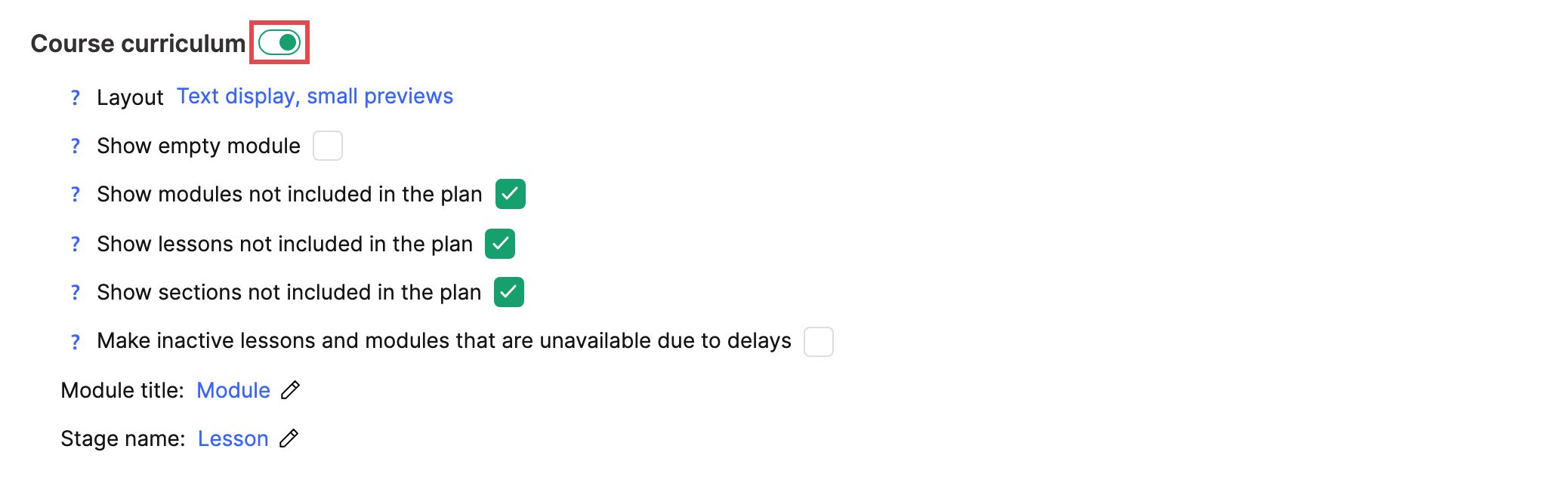
The toggle in the Course program heading shows or hides the program on the page. When the program is on, the following are available:
- Layout — how the program looks, for example "Text display, small previews" or "Modules (preview) in one column".
- Show empty module.
- Show modules not included in the plan, Show lessons not included in the plan, Show sections not included in the plan — the participant can either see such items marked as unavailable or not see them at all.
- Disable lessons and modules that aren't available yet due to delays.
- Module title and Stage name — what to call program items in each language. Click the pencil icon to change them.
The settings for showing items not included in the plan and Disable lessons and modules that aren't available yet due to delays work only for signed-in users.
Course store
The block shows whether a sales block with other courses is displayed on the page: Displayed on the page: Yes / No. By default, the settings are inherited from the general sales block settings in Course Store → Sales block on course pages.
Warnings
If no plans are connected to the course or the Get access button is turned off, hints appear on the funnel steps with a link to the step where you can fix it.
A different page instead of the course page
The Sales page step always shows the course presentation page. To test a different page — for example, a mini landing page — run an A/B test on this step: learn more in the article A/B testing funnel pages. If the mini landing page wins the test, the Template tab shows a Selected page block with a go to the editor → link instead of the template settings.
Example: the course is still being prepared, and you want to build a list of people who are interested. Turn off the Get access button, turn on Pre-registration, and in the set up → window set the button text to "Join the waiting list". When the course is ready, connect plans on the Order form step and turn Get access back on.
Frequently asked questions
Why is the "Get access" button disabled for buyers?
If no plans are connected to the course, the button is unavailable to customers – connect plans in the "Order form" step.
You can also turn off the button using the toggle on the "Template" tab of the "Sales page" step. The funnel steps will then show prompts with a link to the step where you can fix this.
Why can't I turn on the "Prerecording" toggle?
The "Pre-registration" toggle is only available when the "Get access" button is turned off. First, turn off "Get access", then turn on "Pre-registration".
Will those who pre-registered for the course get access to the materials?
No. People who sign up will appear in the member list, but they won't have access to the materials. When the course is ready, connect plans in the "Order form" step and turn "Get access" back on.
Why can't I change the settings for the "Sales Page" step?
Many settings for this step are course settings. Only a team member with permission to edit both the funnel and the course can change them.
Why aren't the visibility settings working for modules and lessons not included in the plan?
The "Show modules not included in the plan", "Show lessons not included in the plan", "Show sections not included in the plan", and "Disable lessons and modules unavailable due to delays" settings apply only to logged-in users.
Can I show a mini landing page instead of the course page at this step?
Yes, with an A/B test at this step: you can compare the course page with another page, such as a mini landing page.
If the mini landing page wins the test, the "Selected page" section will appear on the "Template" tab instead of the template settings, with a "go to builder →" link.
Can buyers see the step name?
No. Only you can see the "Step name" in the funnel and analytics. By default, the step is called "Product home".
Thanks for your feedback!
Thanks! We'll update the article. Need an answer now? Contact support