
Public plan page: what the buyer sees and where to set it up
What the plan purchase page looks like, which plan tabs the name, description, price, coupons, and payment methods come from, where to get the link, and how the plan page differs from the Plan selection and checkout funnel step.
The public plan page is the page where the buyer sees the plan's terms, chooses a payment method, and places an order. Each plan has its own. If the plan is published, anyone with the link can open this page.
Example link — https://sampleschool.kwiga.com/o/TRJc4Tq2ZIWU
If you haven't created any plans yet, see the separate article on creating a plan and its basic settings.
Note: if the plan is part of a sales funnel, the buyer usually lands on the funnel step Plan selection and checkout. To learn how to set up the page layout, plan order, and cards on this step, see The Order form step. This article is about the content of the plan itself: it is the same on the plan page and in any funnel unless the funnel overrides it.
How to open the plan page
- Go to Courses → Sales settings → Plans (offers) and open the plan.
- Click the eye icon in the plan header (tooltip Preview) — the public page opens in a new tab.
For a published plan, you can copy the page link on the Publication tab, in the Public link field: a draft doesn't have this field. If the plan has the Draft status, the page isn't available via the link, but you can still grant a customer access manually.

What the page consists of and where each part is set up
Name, image, and description — the Description tab
- Image — the picture on the plan card.
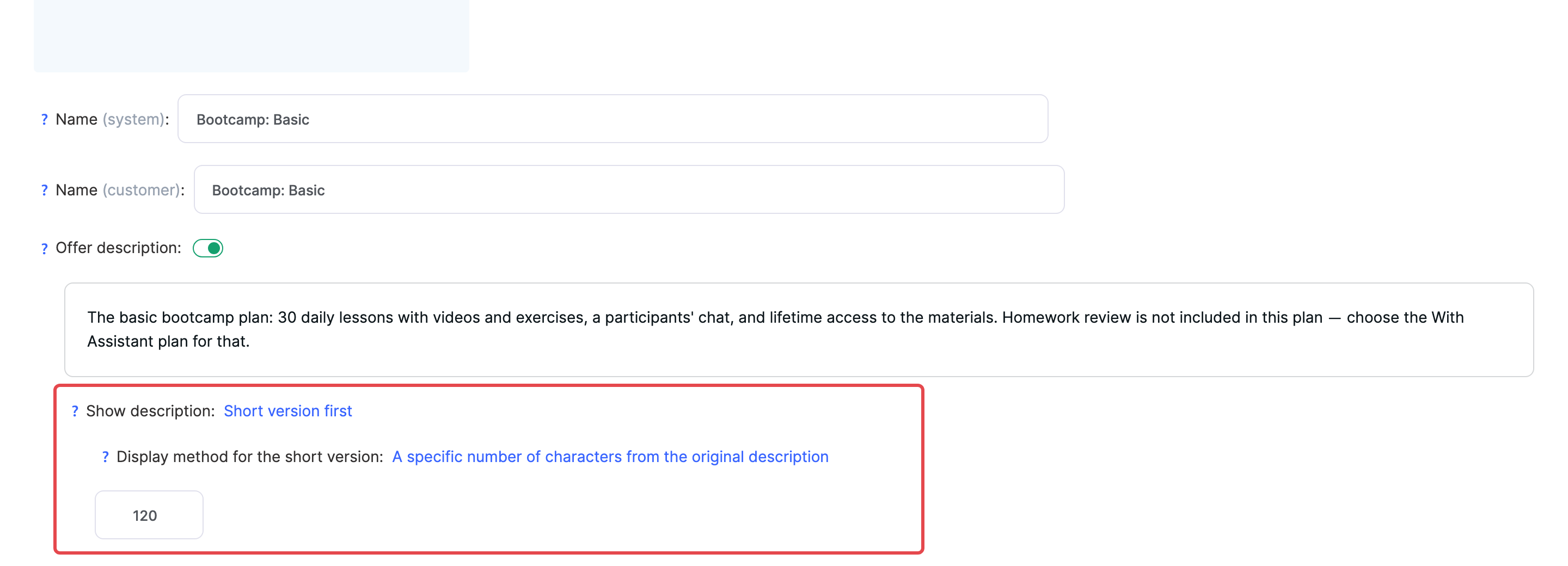
- Name (system) — visible only to you and your team. For example, "Standard — March cohort".
- Name (customer) — the name the buyer sees. Usually it is the name of the pricing tier, for example "Standard", "Premium", "VIP", or "Basic access".
- Offer description: — turn on the toggle and describe what the plan includes. In the editor, you can format text and add images and links.
- Show description: — Completely or Short version first. In the second case, the buyer sees the beginning of the description and a Show full link.
- Display method for the short version: — A specific number of characters from the original description (all characters count, including tags) or Custom variant — a separate short text.
The description is optional but recommended: the short version is the first thing the buyer sees, so use it to briefly describe the plan's main benefits.
Plan products — the Products tab
The products the plan gives access to are shown on the plan card.
Price, promotions, and discounts — the Price tab
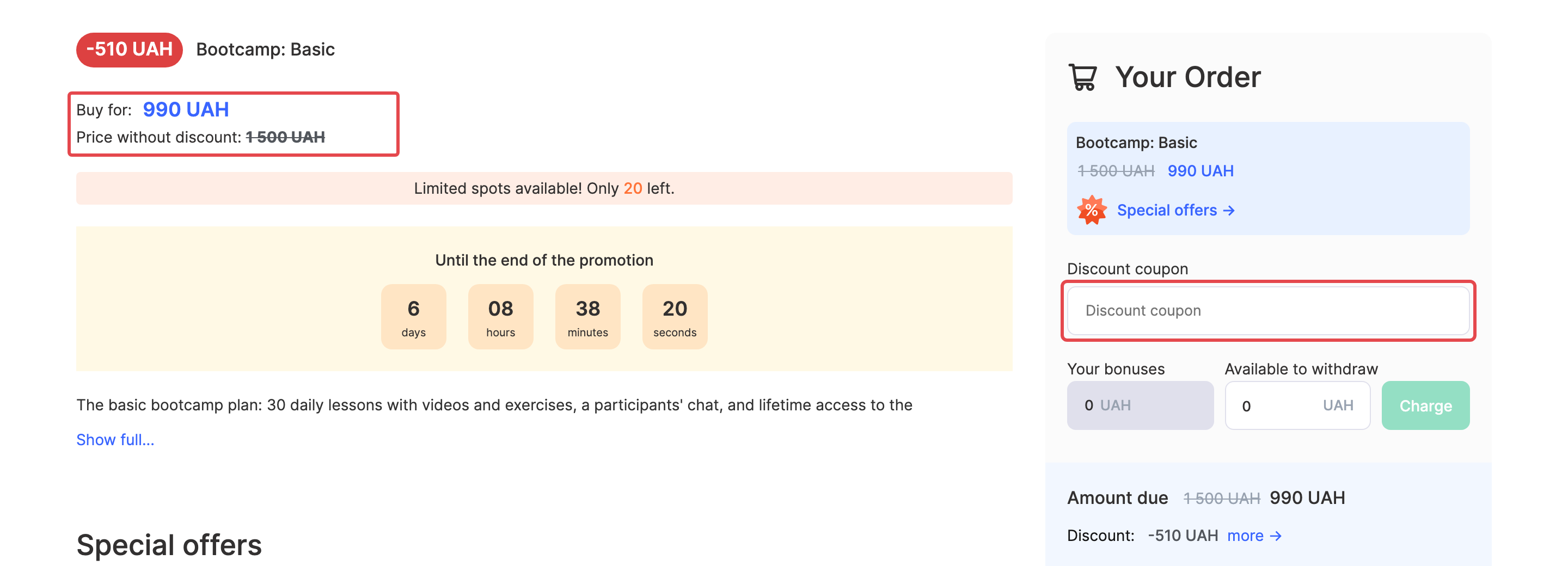
The price on the page is built from the plan's prices. If the plan has several prices, the buyer sees the one that is currently valid. Learn more in The plan price builder.
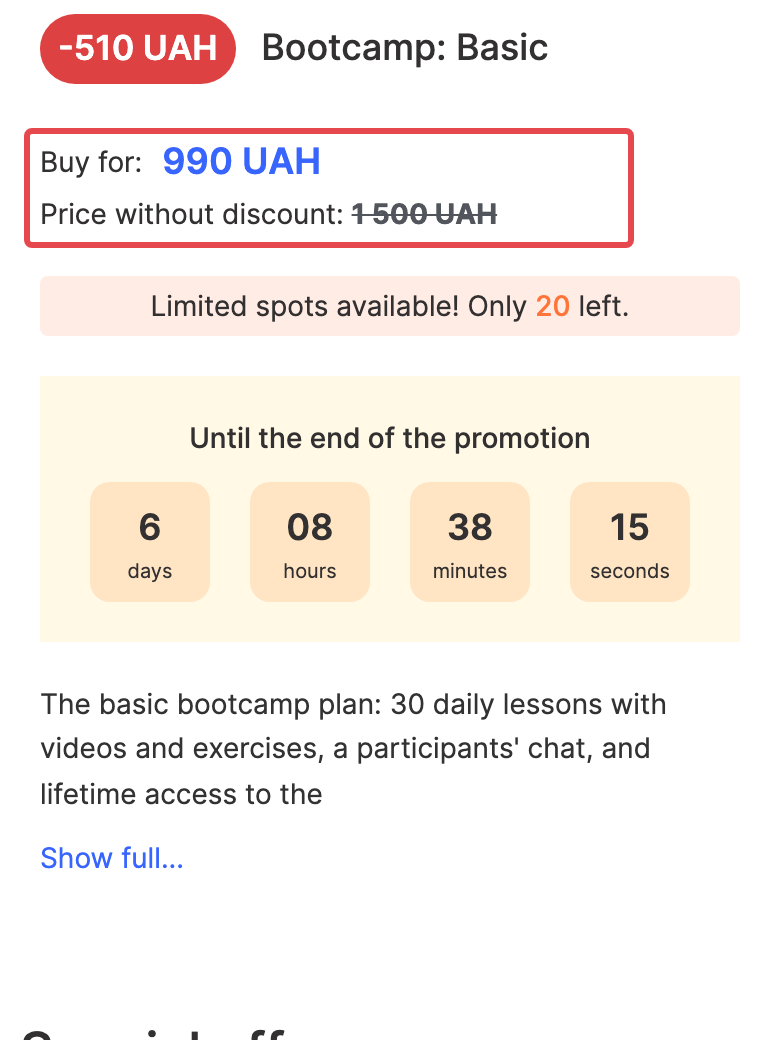
- If a promotional price is active, the buyer sees it with the old price crossed out, and, if the timer is on, an Until the promotion ends countdown. This visually highlights the benefit of buying right now.
- If the number of spots is limited, the card shows "Limited spots available! Only … left."
- With paying in parts, the buyer sees the payment schedule; with a subscription, how often charges are made.
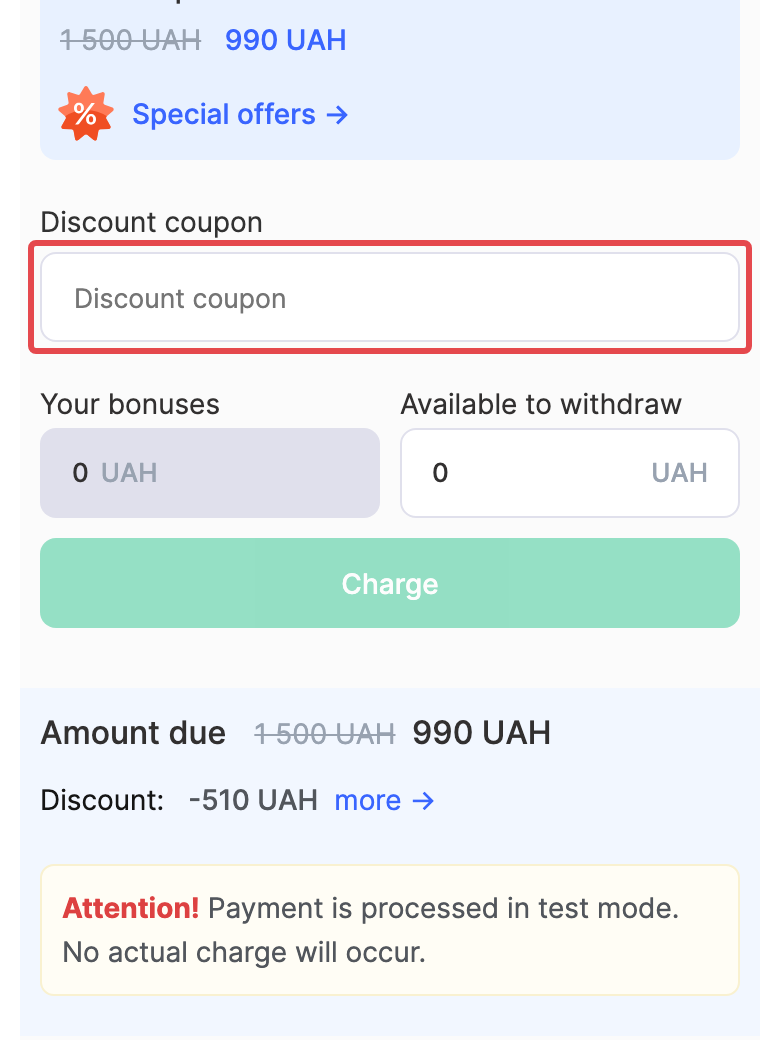
- Allow a discount coupon — a field for entering a promo code appears on the page; the price is recalculated right after the code is entered. To learn how to create coupons, see the article on discount coupons.
- Points payment — on the payment page, the buyer sees the Your bonuses block: how many points are Available to withdraw and a Charge button.
Payment methods — the Payment collection tab
The buyer chooses one of the payment systems connected to the plan.
Upsells — the Upsells (cross-sell, order bump) tab
Additional plans the buyer can add to the order.
Important: for a plan paid in parts or by subscription, the upsell block isn't shown on the page.
Order form fields
Which details the buyer fills in at checkout, and the text of consent to the terms, come from the project's registration settings (CRM → Contacts → Settings, the Customizing fields for registration tab), not from the plan. If the plan has one product with its own registration settings enabled, those apply.
Footer
The footer is the bottom part of the page that stays the same on all public pages of your school on KWIGA. You can place contact details, useful links, or other important elements there. Learn more in the separate article on setting up the footer.
The plan page and the sales funnel
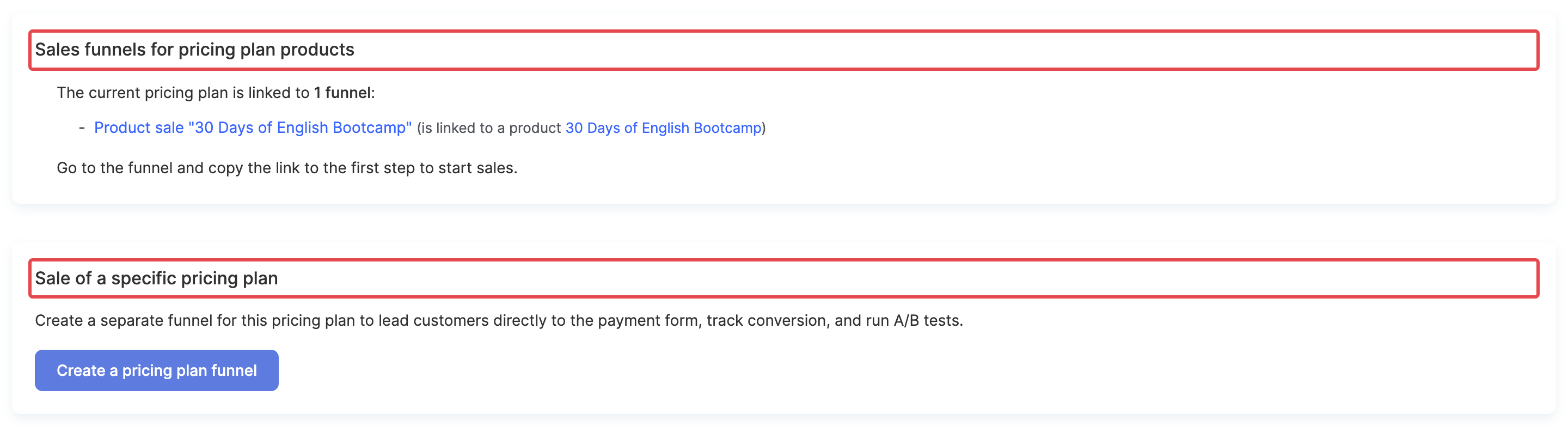
The plan's Publication tab shows which funnels it takes part in:
- Sales funnels for pricing plan products — the funnels of the courses the plan is connected to. Buyers who come via the funnel link choose the plan on its Plan selection and checkout step.
- Sale of a specific pricing plan — with the Create a pricing plan funnel button, you set up a separate funnel for this plan: its first step leads straight to the plan page. In it, you can choose the page layout, track conversion, run A/B tests, and set up the pages shown after payment.
The look of the plan page — layout, plan order, the card's own name and description — is set in the funnel step Plan selection and checkout (The Order form step). If the plan isn't part of any funnel, the page uses the Everything on one page: plans, upsells, order form layout. Learn more about funnels in Sales funnels: what they are and how they work.
Recommendation
Before you start selling, open the page via the link and check that:
- the name and description are clear and easy to read;
- the image loads;
- the price and the promotion are displayed correctly;
- the promo code works, if you allowed one;
- the Pay button leads to the payment system's page.
Frequently asked questions
Will the plan page open if its status is "Draft"?
No, the page is unavailable via the link while the plan is in "Draft" status. However, you can grant the customer access manually.
Where can I copy the link to the plan page?
For a published plan, find it on the "Publication" tab in the "Public link" field. This field is not available for plans in "Draft" status. To view the page, click the eye icon in the plan header (labeled "Preview") – it will open in a new tab.
Will the buyer see the plan's internal name?
No. Only you and your staff can see the "Name (internal)". The customer sees the "Name (customer)", for example, "Standard" or "Premium".
Why aren't upsells shown on the plan page?
The upsell section is not displayed on the page for plans with installment payments or subscriptions.
Where can I change the fields the buyer fills in when placing an order?
Order form fields and the text for accepting the terms come from the project's registration settings, not the plan: "CRM" → "Contacts" → "Settings", under the "Registration field settings" tab.
If the plan contains one product and that product has its own registration settings enabled, those settings apply.
How can a customer apply a promo code or pay with points?
If "Allow discount coupons" is enabled in the plan price settings, a promo code field will appear on the page, and the price will update as soon as the code is entered.
If "Pay with points" is enabled, the buyer will see a "Your points" section on the checkout page, showing the number of points "Available to redeem" and a "Redeem" button.
Where can I change the plan page layout?
The layout, plan order, and custom card title and description are set in the "Plan selection and checkout" funnel step. If a plan isn't included in any funnel, the page uses the "All on one page: plans, upsells, order form" layout.
Thanks for your feedback!
Thanks! We'll update the article. Need an answer now? Contact support