
How to change a student's plan (upgrade payment on Kwiga)
How to create a separate plan priced at the upgrade difference so a student can move to a higher plan on their own and keep their progress.
You may need to change a student's plan in different situations: for example, if they want access to additional materials or want to move to a more extensive service package.
We recommend using plans to set up your pricing tiers. This keeps all of the student's progress, answers, and results.
If the payment was made outside the Kwiga platform, see the article How to upgrade a plan and keep a student's course progress.
How to set up a plan upgrade with an extra payment
To let students upgrade their plan on their own, you need to create additional plans. For example, if you have three plans, create additional plans for moving between them.
- Open Courses → Sales settings → Plans (offers) and, in the menu of the plan students will move to (for example, the plan with an assistant), select Copy. The copy appears in the list with the "Copy" prefix, in the same status as the original plan ("Public access" for a plan on sale), and opens when you click it.
- On the Description tab, change the name of the copy (for example, "Upgrade from the self-paced plan to the plan with an assistant").
- On the Products tab, make sure all settings match the plan students are moving to: the course, access, bonus materials, and so on. The copy carries them over in full, so adjustments are usually minimal.
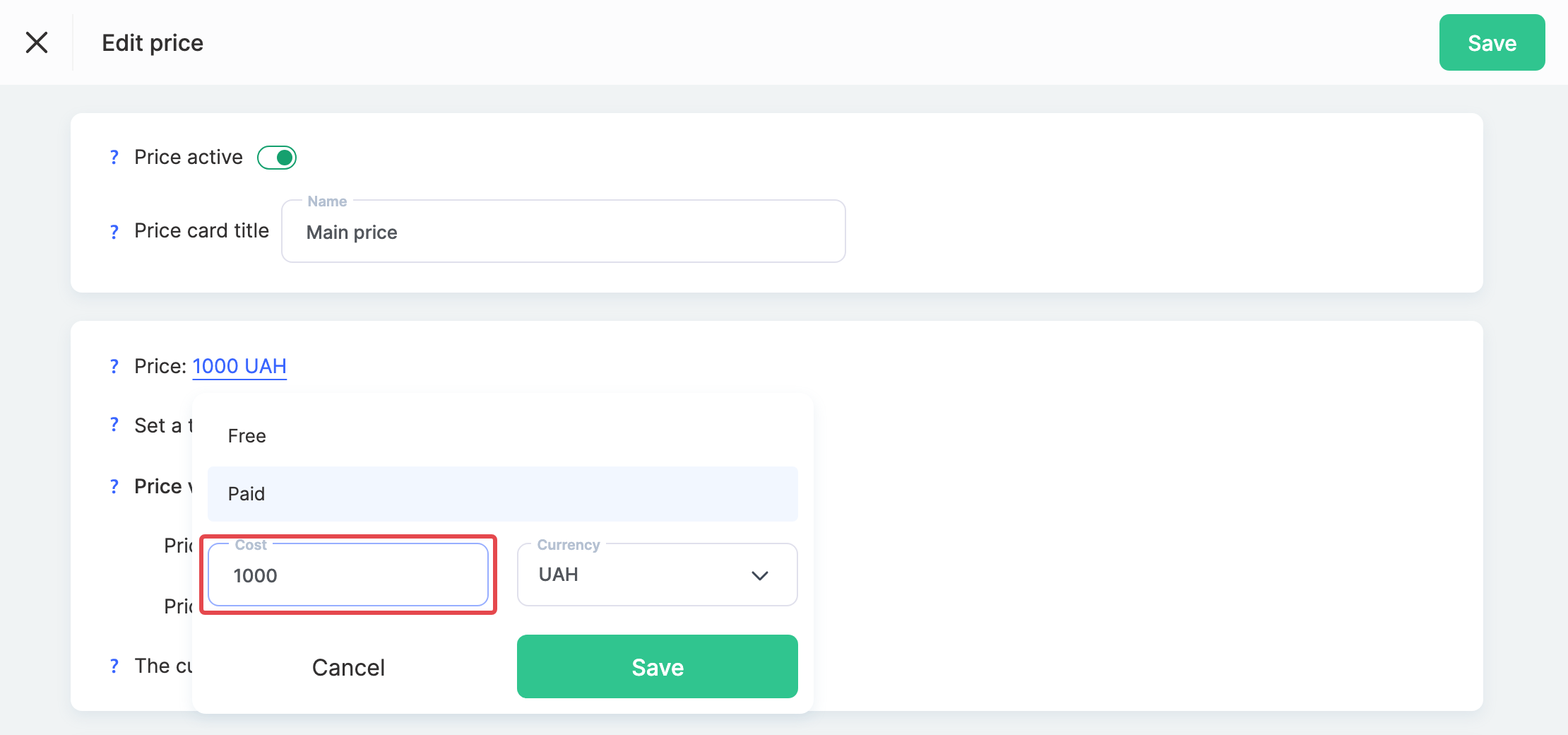
- On the Price tab, open the price, click Edit, and in the Price block enter the upgrade difference in the Cost field, not the full price of the new plan. Click Save.
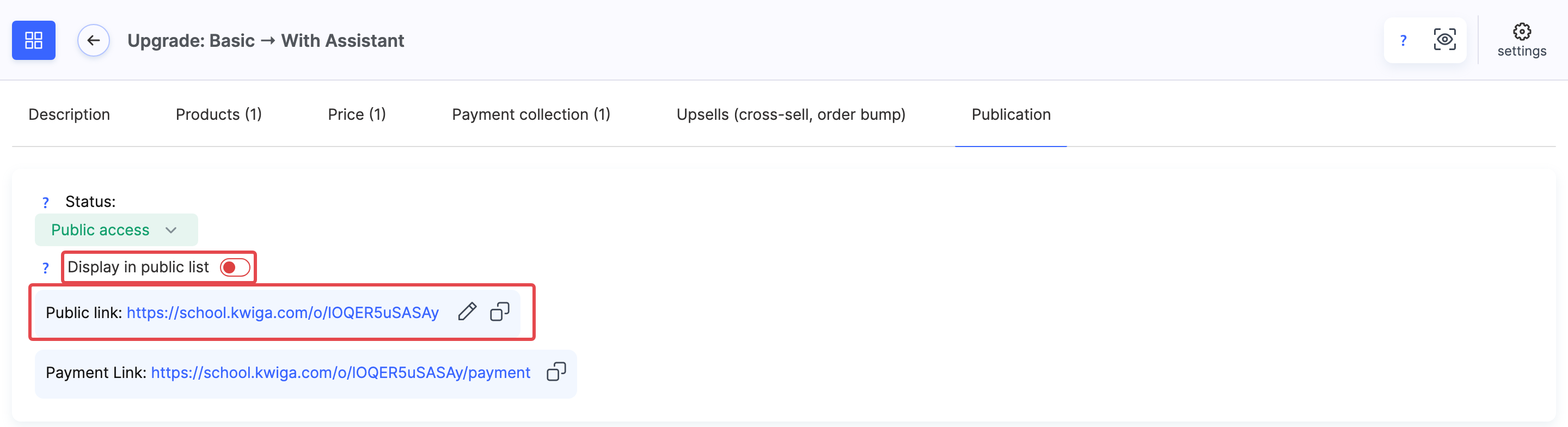
- On the Publication tab, turn off Display in public list — the plan won't appear in the list of plans on the product page, but will remain available via the link.
Note: the copy carries over all prices of the original plan, including promotional prices and prices for different periods. Enter the upgrade amount in each of them or delete the extra ones, otherwise the student may see a different amount. The copy also carries over upsells — if you don't need them for the upgrade, delete them on the Upsells (cross-sell, order bump) tab.
Now send the student the link to the new plan — you can copy it on the Publication tab. After payment, the plan changes automatically, and access to the new materials opens with no further action needed.
Frequently asked questions
Will the student's progress be saved when switching to another plan?
Yes, if the transition is configured through plans: all of the student's progress, answers, and results are preserved.
What amount should I specify for the plan upgrade – the full price or the difference?
The upgrade amount, not the full price of the new plan. The copy retains all prices from the original plan, including promotional prices and prices for different billing periods. Enter the upgrade amount for each one or remove any you don't need; otherwise, the student may see a different amount.
Will other customers see the plan with an additional payment?
To hide the plan with an additional payment from the list of plans on the product page, turn off "Show in public list" on the "Publication" tab. It will still be available via the link.
Do I need to manually grant the student access after they pay the additional amount?
No. Send the student a link to the plan with an additional payment – you can copy it from the "Publication" tab. Once they pay, their plan will change automatically, and they'll get access to the new materials without any further action.
Should upsells be removed from the plan copy?
If you don't need upsells for the additional payment – yes: the copy includes them along with the other settings. Remove them on the "Upsells (cross-sell, order bump)" tab.
Thanks for your feedback!
Thanks! We'll update the article. Need an answer now? Contact support