
"Order form" step
Learn how to set up the page where buyers choose a plan and place an order: page layout, connected plans, their cards, and upsells.
Order form is the step where the buyer chooses a plan and places an order. By default, the step is called "Plan selection and checkout". In a course funnel it is the second step; in a plan funnel it is the first. For how the funnel works as a whole, see the article Sales funnels: what they are and how they work.
To open the settings:
- Open Courses → Sales settings → Sales funnels and select the funnel.
- Select the Order form step.
- Go to the Template tab.
Name and link
- Step name — visible only to you.
- Link — the address of the plan selection page. In a course funnel, it is a separate page listing the course plans. In a plan funnel, the step has its own link that redirects to the plan page. Changing the ending of the step link doesn't change the plan link, and vice versa.
Page layout
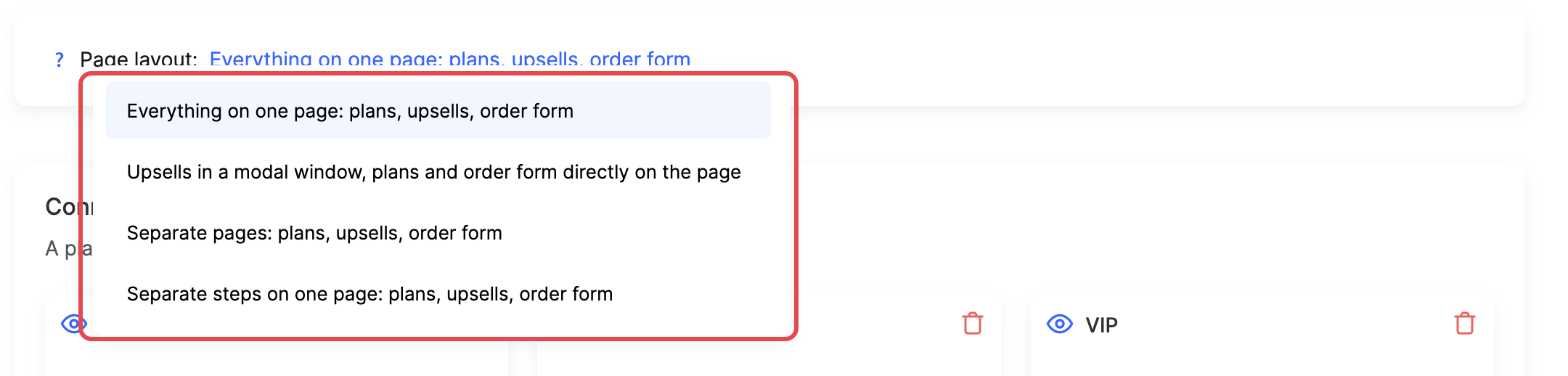
In the Page layout field, choose how the buyer will see the plans, upsells, and order form:
- Everything on one page: plans, upsells, order form — the page is split into two parts: plan cards and upsells on the left, the order form on the right. This layout is selected by default.
- Upsells in a modal window, plans and order form directly on the page — like the previous one, but upsells appear in a separate window after the buyer clicks "Pay". After choosing upsells, the buyer proceeds to payment.
- Separate pages: plans, upsells, order form — the buyer goes from the plan selection page to the upsell page (if upsells are set up), and then to the checkout page.
- Separate steps on one page: plans, upsells, order form — everything is on one page, but the content opens up in turn: each next step expands below the previous one.
For what the public plan page looks like to the buyer, see the article about the public plan page.
Connected plans
A plan sets the price and the level of access to the course. The Connected offers block shows the cards of the course plans. To learn how to create a plan, see the article about creating a plan; to learn how to sell a course with several plans, see the article about several plans.
- To connect a plan, click + add offer, select the plans, and save.
- The eye icon on a card shows or hides the plan on this page. A hidden plan stays connected to the course and is still sold via its own link.
- The delete icon removes the plan from the course.
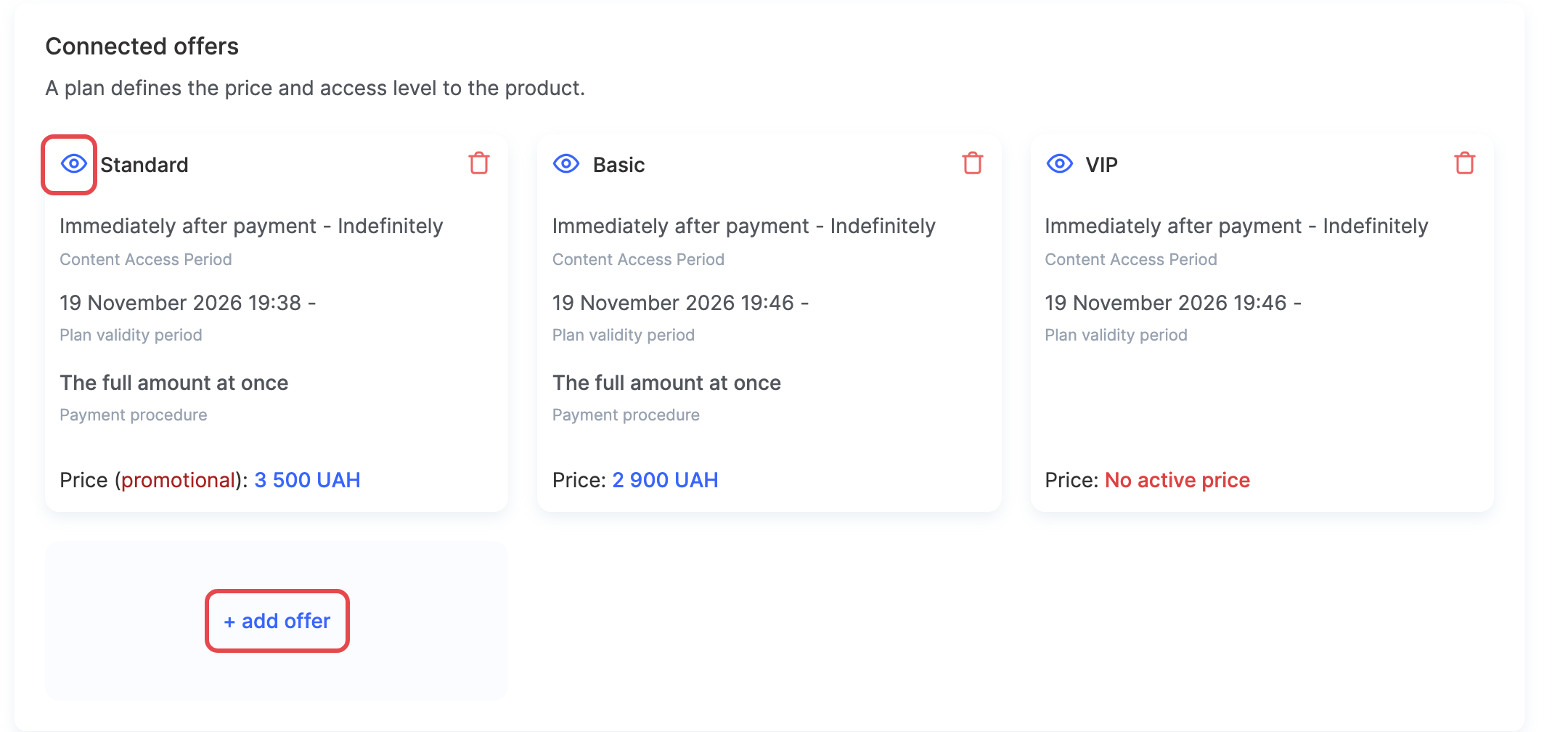
Important: connecting and disconnecting a plan changes the course itself, not just this funnel. If you deselect a plan in the add window or delete its card, the plan will no longer include this course and will disappear from all the course's funnels. KWIGA asks you to confirm this first — for example, in the Unlink the deselected plans? window.
In a plan funnel, the connected plan can't be changed: this funnel was created for a single plan.
Note: if you hide all of the course's plans with the eye icon, the plan selection page will stop opening.
Plan sorting and content
If two or more plans are connected, choose the order of the cards in the Sorting on the buyer's side field:
- By date added, from oldest to newest;
- By date added, from newest to oldest;
- Manual sorting — drag the plans into the order you need.
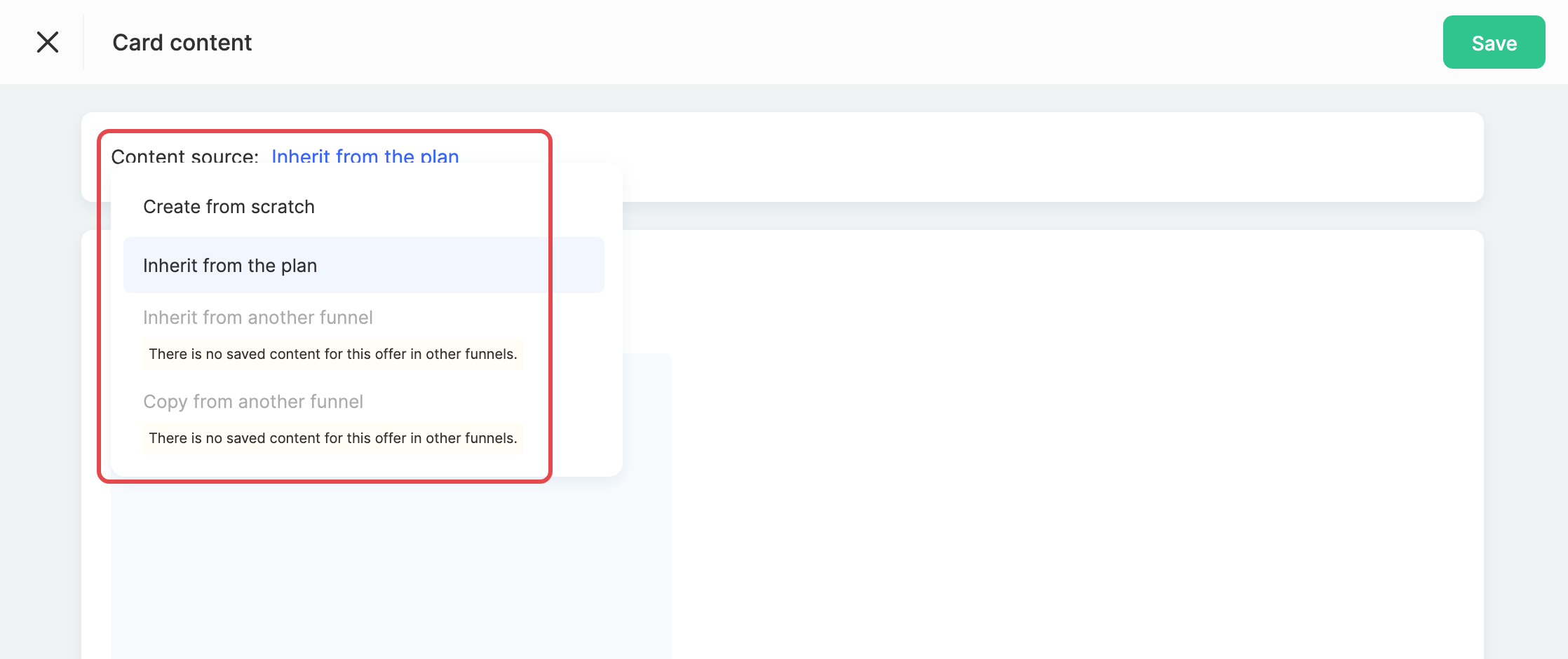
Next to each plan are the to the offer → and Change title, description, and image → links. The second link opens the Card content window: here you can set how the plan card looks in this particular funnel.
In the Content source field, choose:
- Create from scratch — your own name, description, and image for this funnel.
- Inherit from the plan — the card takes the name, description, and image from the plan description.
- Inherit from another funnel — the card mirrors this plan's card from another funnel.
- Copy from another funnel — the card is copied from another funnel, and after that you can edit it separately.
The last two options are available if the plan is in another enabled funnel — for example, the course funnel. Choose the funnel in the Source funnel field. Only an enabled funnel can be a source.
Card fields: Image, Name (customer), Offer description, and how the description is displayed — in full or a short version first.
If the card differs from the plan description, an overridden mark appears next to the plan.
Upsells
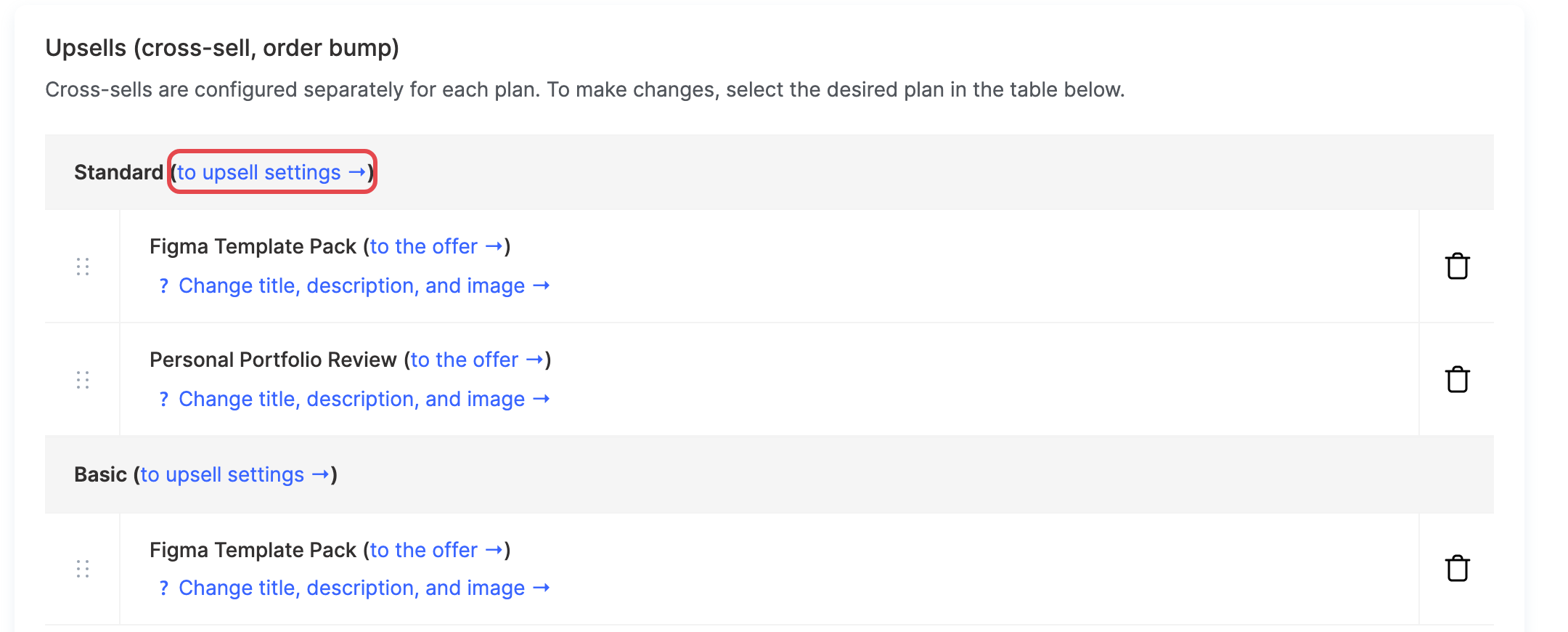
The Upsells (cross-sell, order bump) block appears if the connected plans have upsells. Upsells are set up for each plan separately, so in the table they are grouped by plan. To learn how to add an upsell to a plan, see the article about upsells (cross-sell).
- to upsell settings — opens the plan so you can add upsells.
- Drag upsells to change their order.
- Change title, description, and image → — opens the upsell's Card content window. Besides the content, an upsell has a Design settings block with a Card background color field.
- The delete icon removes the upsell.
Important: deleting an upsell on this page deletes it from the plan completely.
If the plan's payment method is "Payment in installments" or "Subscription payment", the upsell block isn't shown to the buyer — a hint in the step settings warns you about this.
Step warnings
- If no plans are connected to the course, the step will prompt you to connect at least one so that the "Get access" button becomes active.
- If the "Get access" button is turned off on the Sales page step, buyers won't be able to reach this step.
Where the buyer lands after payment is set up on the next step — Thank you page.
Example: a course has two plans — "Basic" and "With an assistant". You choose the Separate steps on one page: plans, upsells, order form layout, select Manual sorting in the Sorting on the buyer's side field, and put "With an assistant" first. For this funnel, in the Card content window you choose Create from scratch and enter the name "With an assistant — the best choice". In the course's other funnels, the card stays the same.
Frequently asked questions
Can someone buy a plan if I hide it using the eye icon?
Yes. The hidden plan is still linked to the course and can be purchased using its link – it just isn't shown on this page.
If you hide all course plans, the plan selection page will no longer open.
What happens if I delete a plan card or deselect a plan in the add window?
The plan will no longer include this course and will disappear from all of the course's funnels. Connecting or disconnecting a plan changes the course itself, not just this funnel. Before making the change, KWIGA will ask you to confirm the action, for example, in the "Unlink removed plans?" dialog.
Can I change the plan name for just one funnel?
Yes. Click "Edit name, description, and image →" next to the plan, then select "Create from scratch" in the "Content source" field. The plan card will remain unchanged in other funnels.
If the card differs from the plan description, an "overridden" label will appear next to the plan.
Why are the "Inherit from another funnel" and "Copy from another funnel" options unavailable?
They appear if the plan already has a saved card in another enabled funnel. A disabled funnel cannot be a source. Select the funnel in the "Source funnel" field.
The difference: an inherited card mirrors the card in the source funnel, while a copied card can be edited separately.
Why can't the customer see upsells on the order page?
If a plan uses "Installments" or "Subscription" as its payment method, the upsell block is not shown to the buyer. A hint in the step settings warns you about this.
The "Upsells (cross-sell, order bump)" block appears only when the connected plans have upsells. You can add them in the plan settings.
If I delete the upsell from the funnel, will it remain in the plan?
No. Deleting the upsell on this page removes it from the plan entirely.
Can I change the plan or the step link in a plan funnel?
Plan – no: a plan funnel is created for one plan, and you can't change the plan linked to it.
Step link – yes: each step has its own link that redirects to the plan page. If you change the end of the step link, the plan link won't change, and vice versa.
Thanks for your feedback!
Thanks! We'll update the article. Need an answer now? Contact support