
Direct payment links for a plan
Learn how to create a direct payment link for a plan, how to turn it off, and which sales funnel's statistics its visits go to.
A direct payment link takes the buyer to payment for a specific plan, skipping the course page and plan selection. It is handy in a campaign, a post or an ad when the buyer has already decided what to buy. Each direct link is tied to one of the plan's sales funnels: visits through it go to that funnel's statistics. To learn what funnels are, see the article Sales funnels: what they are and how they work.
There are two kinds of direct links:
- Direct payment link — KWIGA chooses the payment system based on the plan's settings. The link stays the same even if you change the plan's payment systems.
- Direct payment link via a specific payment system — the buyer pays through the system you selected.
What the buyer sees
- If the buyer is already signed in to KWIGA, the link takes them straight to the payment system.
- If the buyer is not signed in, they first land on this plan's checkout page and go on to payment from there. If the link was created for a specific payment system, only that system is offered on the checkout page.
If the buyer is logged in, for a link without a selected payment system KWIGA chooses the system according to the Distribution between payment systems setting on the plan's Payment collection tab. A buyer who isn't logged in chooses the payment system themselves on the checkout page.
Where to create a link
Direct links are created on the plan's Publication tab. The direct link blocks appear once at least one payment system is connected to the plan; a "custom" plan doesn't have them. A team member with the right to edit plans can create, turn on, turn off and delete links; to create one, they also need access to the funnel.
You can create a link for any of the plan's sales funnels:
- the funnel of the course the plan is connected to;
- the plan funnel, if you created it with the Create a pricing plan funnel button in the Sale of a specific pricing plan block.
If the plan has no funnels, you'll see a hint instead of the choice: connect a product to the plan or create a funnel in the Sale of a specific pricing plan block. The list shows only the funnels you have access to.
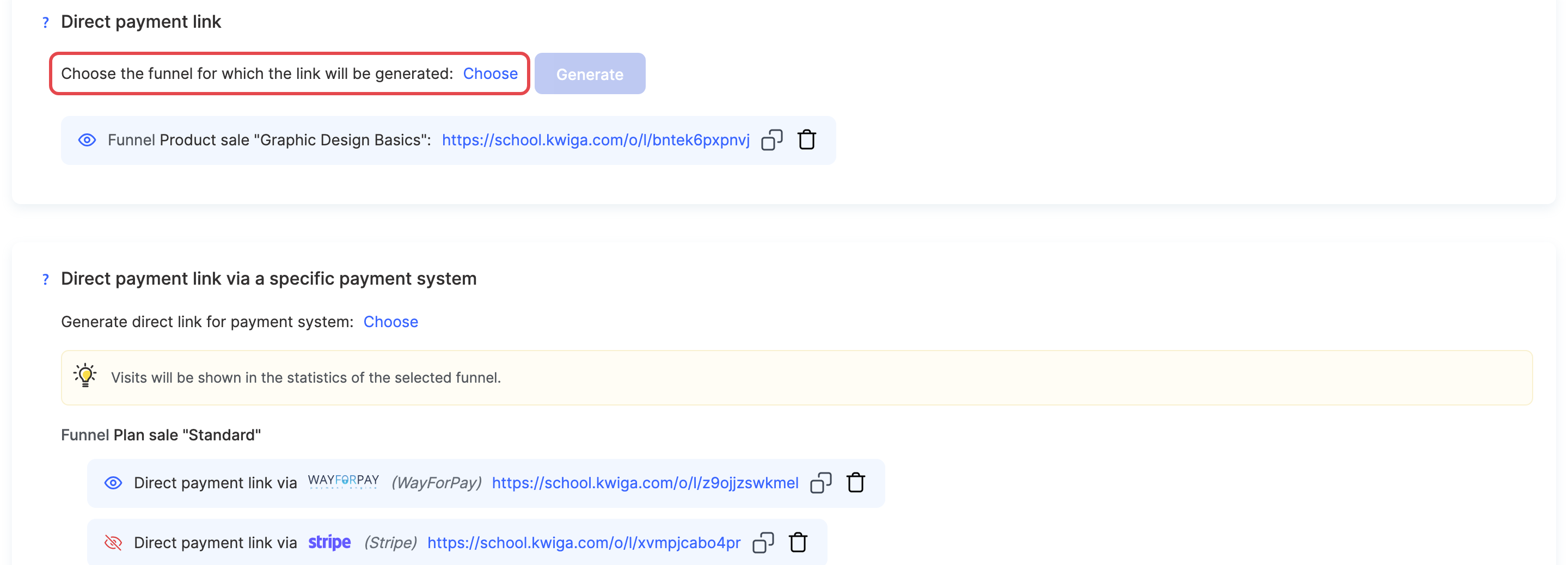
Link without choosing a payment system
- Open Courses → Sales settings → Plans (offers) and select the plan.
- Go to the Publication tab.
- In the Direct payment link block, select a funnel in the Choose the funnel for which the link will be generated field.
- Click Generate.
The link appears as a row with the funnel name. Click the copy icon to copy it. Only one such link is created per funnel, so once the link is generated, the funnel disappears from the list.
Link via a specific payment system
- On the plan's Publication tab, in the Direct payment link via a specific payment system block, select a system in the Generate direct link for payment system field.
- Select a funnel in the Choose the funnel for which the link will be generated field.
- Click Generate.
Links are grouped by funnel. For one funnel, you can create one link for each connected payment system. If links for a payment system have already been created for all funnels, you'll see the message "For this payment system, links have been created for all funnels."
How to turn a link off and on
To the left of each link there is an eye icon:
- a blue eye — the link works;
- a red crossed-out eye — the link doesn't work.
Click the eye to turn the link off (Disable link) or turn it back on (Enable link). A link that is turned off keeps its address: if you turn it on again, the same address you have already sent out will work again.
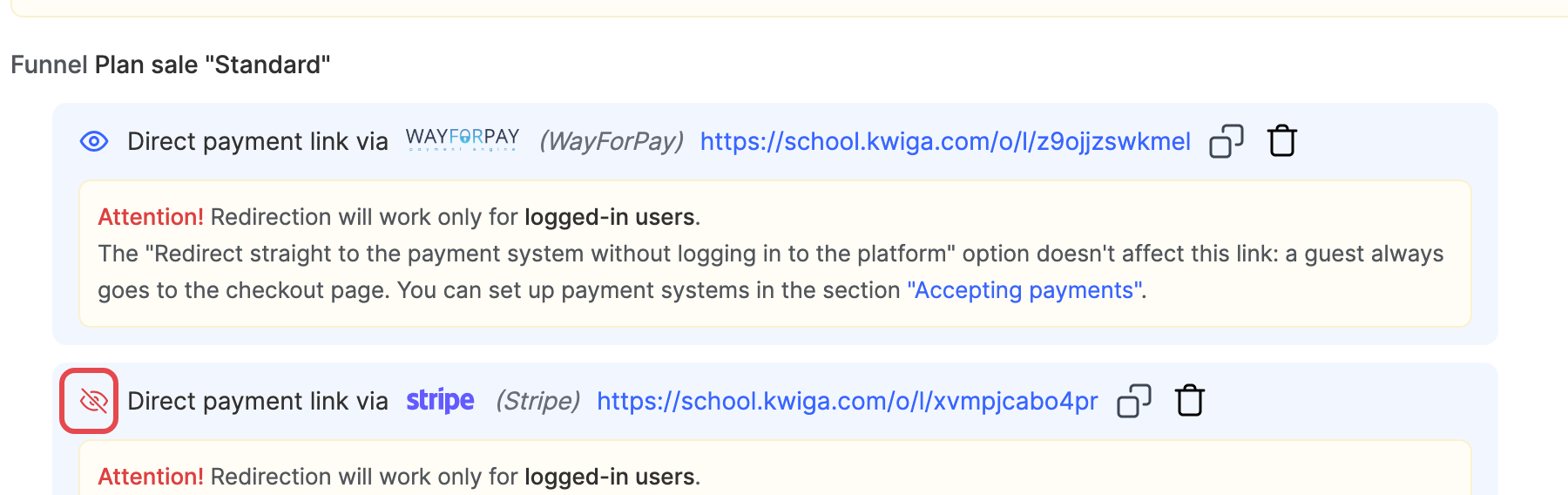
A link also stops working, and its eye turns red, if:
- the funnel the link is tied to is turned off;
- the plan is switched to the Draft status.
A buyer who opens a link that doesn't work will see a 404 error page.
How to delete a link
Click the trash icon in the link row and confirm the deletion in the Delete link window. Once deleted, the link becomes unavailable to customers. If you then create a link for the same funnel again, it will have a new address.
Note: if you only need to pause sales through the link for a while, turn it off with the eye instead of deleting it — then the address in emails and posts you have already sent will work again once you turn it back on.
When a sales funnel is deleted, all its direct links are deleted with it.
How a direct link differs from a funnel step link
The link of the Order form step (by default it is called "Plan selection and checkout") in a course funnel opens a page where the buyer picks one of the course's plans and places an order. Learn more in the article The "Order form" step. A direct link leads to payment for one specific plan.
In the funnel statistics, a visit through a direct link counts as a visit to the Order form step of the funnel the link was created for. You can see these visits in the funnel analytics.
Ad tags
You can add UTM tags to a direct link, for example ?utm_source=instagram&utm_campaign=autumn. The tags are kept when the buyer is redirected further.
Personal links for a single buyer are described in the article on individual payment links, and links with a coupon already applied — in the article on coupon links.
Example: you're sending graduates of your basic course an email offering the "Advanced" plan. Create a direct link without choosing a payment system for the plan in the course funnel and add ?utm_source=email&utm_campaign=alumni to it. Graduates who are signed in to KWIGA will go straight to the payment system, and everyone else will land on the checkout page. All visits will show up in the statistics of this funnel's Order form step. When the promotion ends, turn the link off with the eye.
Frequently asked questions
What will a buyer who isn't signed in to KWIGA see when they open the direct link?
They'll first go to the checkout page for this plan, then proceed to payment. If the link was created for a specific payment system, only that system will be available at checkout.
A customer who is already logged in to KWIGA goes directly to the payment system.
Which payment system will the customer use when paying through a link without selecting a payment system, and will it change if I change the plan's payment systems?
The link itself won't change, even if you change the plan's payment systems.
KWIGA will direct a signed-in buyer to a payment system based on the "Distribution between payment systems" setting on the plan's "Receiving payments" tab. A buyer who isn't signed in will choose a payment system on the checkout page.
Why can't I create a direct link or see the funnel I need?
Possible reasons:
- no payment system is connected to the plan – without one, the direct link sections won't appear on the "Publication" tab;
- the plan is "on request" – it doesn't have direct link sections;
- you don't have permission to edit plans or access the funnel – an employee with permission to edit plans and access to the funnel can create links, and the list only shows funnels you can access;
- the plan has no funnels – connect a product to the plan or create a funnel in the "Sell a specific plan" section;
- a link for this funnel has already been created – one link is created per funnel without selecting a payment system, and the funnel disappears from the list once the link is generated.
Why does a buyer see a 404 error when using a direct link?
The link isn't working – the eye icon to its left is red and crossed out. This happens if:
- the link was disabled using the eye icon;
- the funnel linked to the link is disabled;
- the plan was moved to "Draft" status.
Which is better – disabling the link or deleting it?
To temporarily pause sales through the link, turn it off using the eye icon. The URL will be preserved, and the same URL you already shared will work again when you turn it back on.
If you delete a link and create a new one for the same funnel, it will have a new URL. When you delete a sales funnel, all its direct links are deleted along with it.
Where can I see how many people clicked the direct link?
In the statistics for the funnel the link was created for, clicking the direct link counts as a visit to the "Order Form" step.
Can I add UTM parameters to a direct link?
Yes, add tags to the link, such as utm_source and utm_campaign. They are preserved when the buyer is redirected.
Thanks for your feedback!
Thanks! We'll update the article. Need an answer now? Contact support