
Plan price builder: several prices, validity periods and priority
Learn how to give a plan several prices with different validity periods, which one the buyer sees, and what happens when no price is in effect.
In KWIGA, a plan's cost is not a single number but a set of prices. One plan can have several prices: for example, an early bird price before the course starts, a regular price after that, and a promotional price for the weekend. Each price is a separate card with its own amount, validity period and payment terms. At any given moment, the buyer sees only one of them — the one currently in effect.
To learn how to create the plan itself, see the article on creating a plan.
Where prices are set up
- Open Courses → Sales settings → Plans (offers) and select the plan.
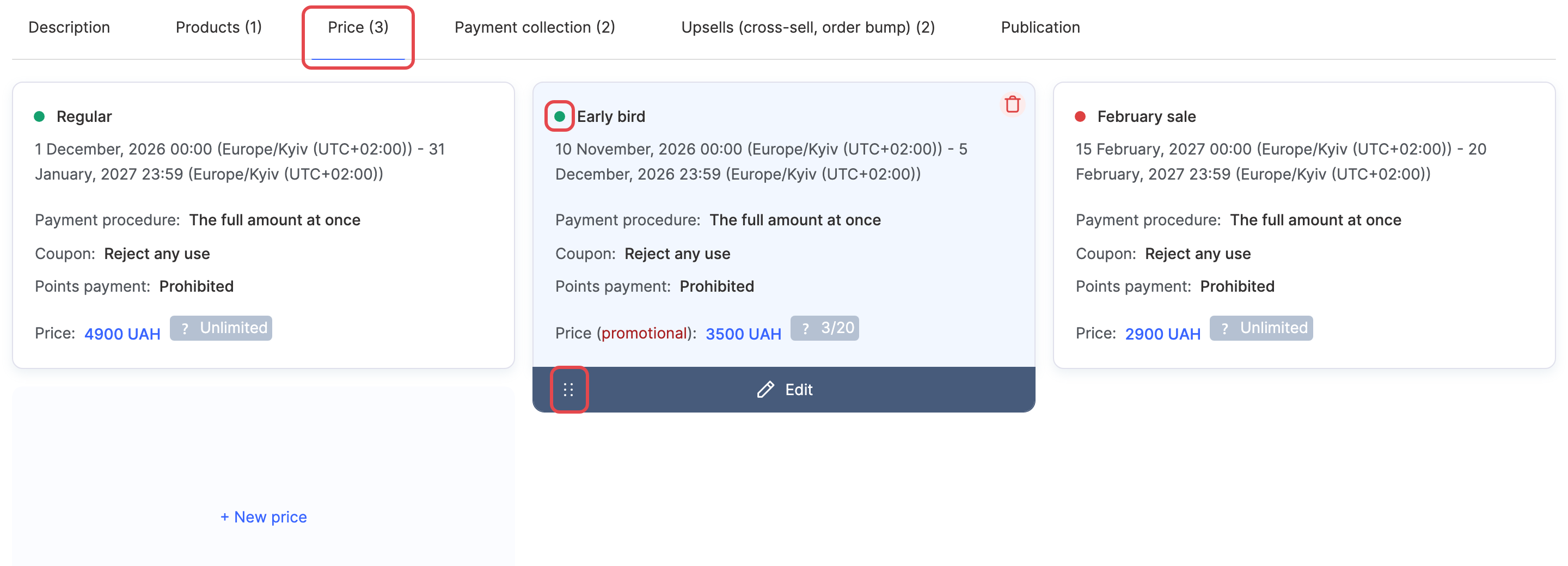
- Go to the Price tab. The number next to the tab name shows how many prices the plan has.
Each price card shows:
- a colored dot — whether the price is turned on. Hover over it to see Price is available in the offer or Price is not available in the offer;
- the card title and the price validity period;
- Payment procedure, Coupon and Points payment;
- the amount. If the price is promotional, it is marked "promotional"; if a sales limit is set, a counter of sold spots is shown, for example "3/20". When the spots run out, the counter turns red.
If the plan was created before prices were introduced, its cost and payment terms are moved into the first card automatically the first time you open the tab. The plan's active discounts are moved over as separate promotional prices.
How to add a price
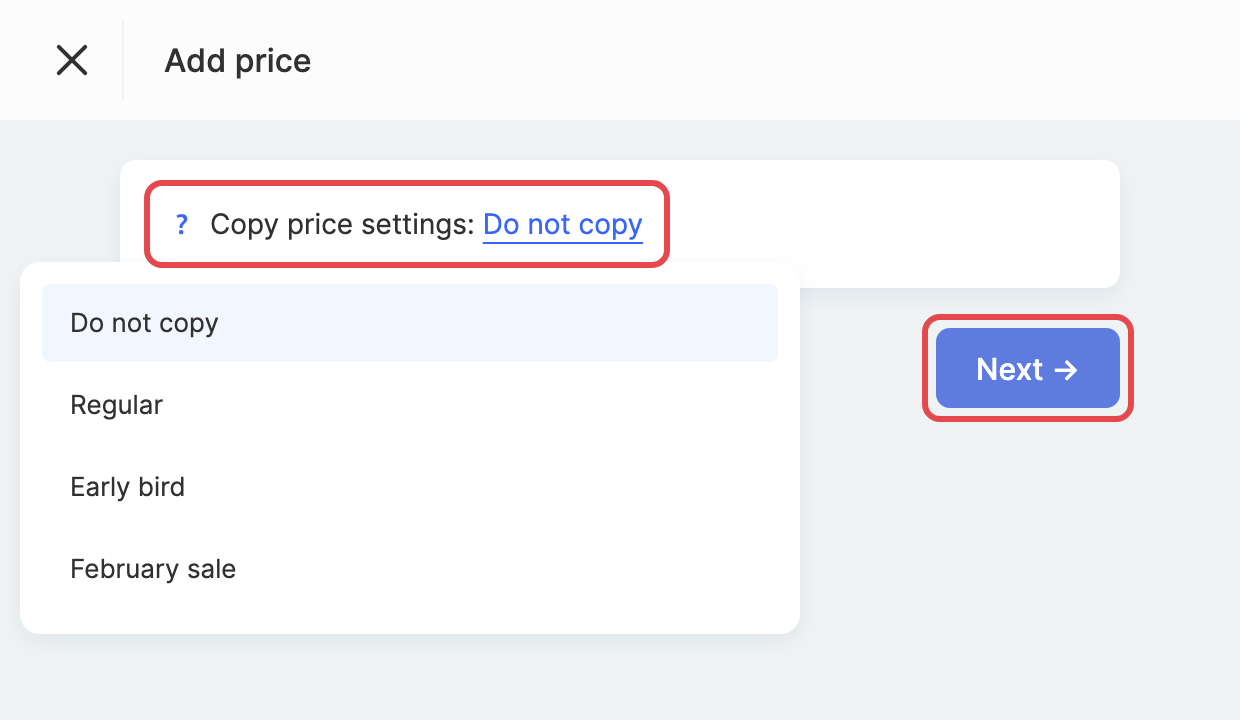
- On the Price tab, click + New price.
- If the plan already has prices, in the Copy price settings field select the card whose settings you want to reuse, or leave Do not copy, and click Next →.
- Fill in the Add price form and click Save.
To change a price, click Edit on its card. To delete it, click the trash icon in the corner of the card.
Note: if you delete the last price, the plan will have no prices in effect and will stop selling. To keep selling the plan, add a new price.
What you can set up in a price
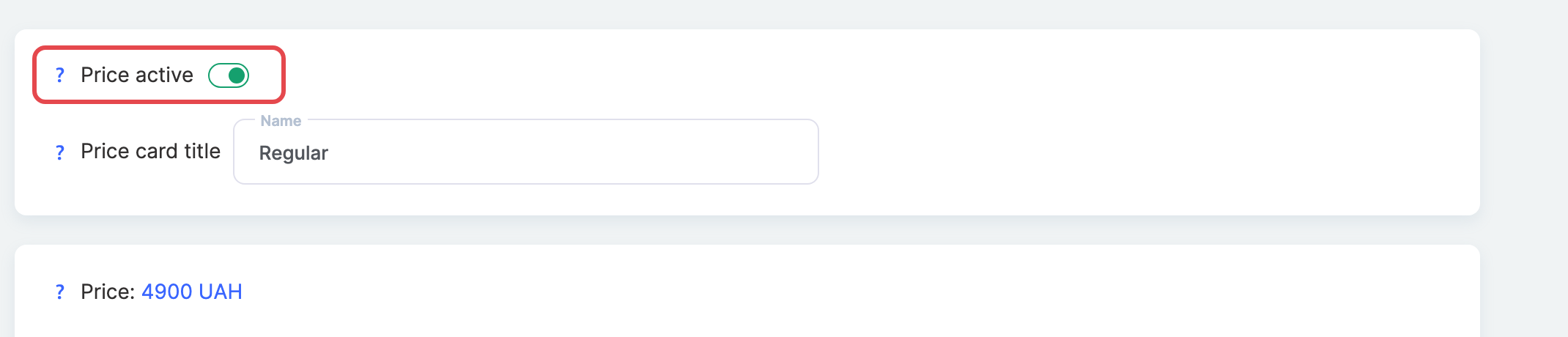
- Price active — turns the card on and off. A price that is turned off is not sold, even if its validity period has already started. For example, you can prepare a sale price in advance and turn it on when the day comes.
- Price card title — visible only to you; the buyer won't see it. For example, "Early bird" or "Black Friday".
- Price — Free, or Paid with an amount and currency. For a free price, the payment, coupon and points settings are not shown.
- Trial period — a free or paid trial period before the first charge.
- Price validity period — when the price starts and stops being in effect (see below).
- The current price is promotional — select Yes to show the buyer the crossed-out undiscounted price next to the current one.
- Payment procedure — The full amount at once, In parts or By subscription.
- Disable repeat purchases — Do not disable, Always disable or Disable only while there is an active subscription.
- Number of sales limit — how many times the plan can be bought at this price.
- Allow a discount coupon — Reject any use, Any active coupon or Specified coupons. When a coupon is allowed, you choose below which payment methods it works for (Apply to …), and for installments also For all parts or For specific parts. Next to the selected coupons there is a (to coupon →) link that opens the coupon card.
- Points payment — Prohibited or Allowed.
- Tax (VAT) at checkout — a line under the price if the plan accepts payment via Stripe. It shows how Stripe will calculate tax for this price. The mode itself is set in the Stripe account settings and applies to all its plans; you can change it via the "Change in integration" link. Learn more in the article on connecting payment systems, Stripe section.

More on individual settings: payment in parts — in the article on payment in installments, subscriptions — in the article on subscriptions, promotional prices, countdowns and restarts — in the article on promotional offers.
Important: the repeat purchase restriction applies to the whole plan, not just to one price.
Price validity period
In the Price validity period block, set two dates.
Price start date:
- On a specific date — the price takes effect on the date and at the time you specify;
- From the end date of another price — the price takes effect as soon as the selected price of this plan ends. This makes it easy to chain prices: when the early bird price ends, the regular one begins;
- From the end of the trial period — available only if a trial period is set in the price.
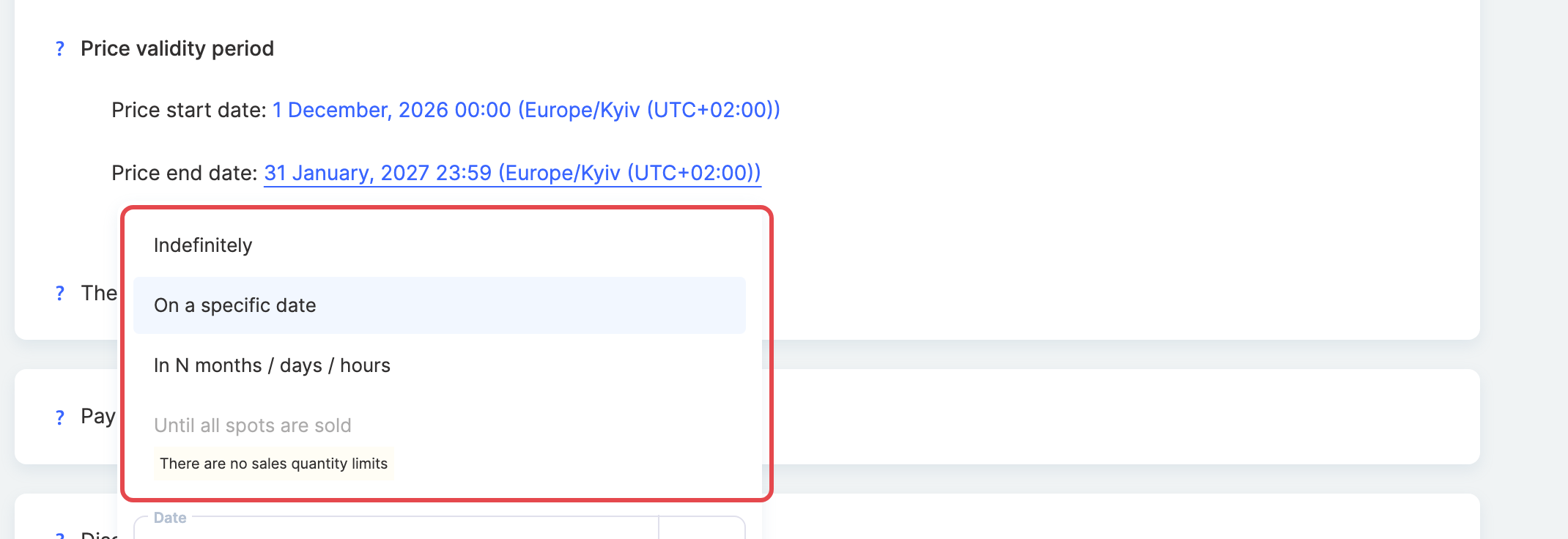
Price end date:
- Indefinitely — the price stays in effect until you turn it off;
- On a specific date;
- In N months / days / hours — counted from the price start;
- Until all spots are sold — the price stays in effect until the sales limit is reached. This option is available only if a number is set in the Number of sales limit field.
Note: the price validity period is the time during which the price can be bought. It has nothing to do with the access period to the product the buyer receives.
If the price has a specific end date or duration, you can turn on a countdown and automatic restart of the price — the price will then be shown with a timer and start again on a schedule. Learn more in the article on promotional offers.
Which price the buyer sees
Only one price is in effect at any moment. KWIGA chooses it like this:
- Only prices that are turned on, are within their validity period right now and still have spots left are considered.
- If exactly one price fits, the buyer sees it.
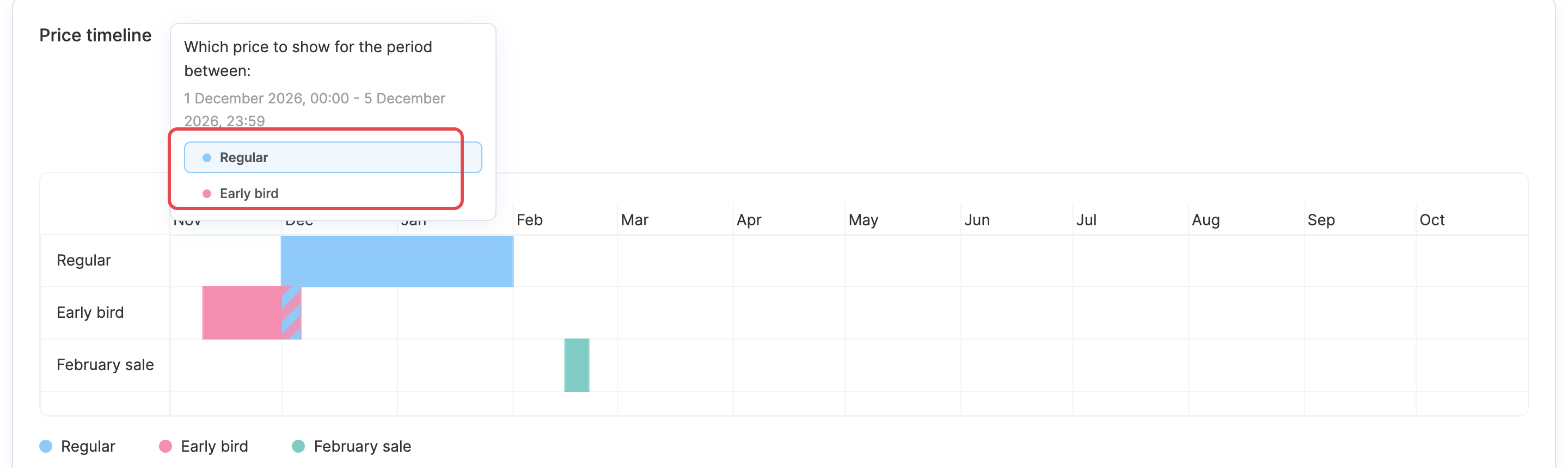
- If the periods of several prices overlap, the price in effect is the one you chose for that interval in the Price timeline block.
- If no choice has been made, the price whose card comes first in the list is in effect. You can reorder the cards by dragging: hover over a card, and a drag icon appears in its bottom bar, to the left of Edit.
The exception is a price with automatic restart: during its restart periods it is always in effect, even if it overlaps with another price, and during its first period, unless another price is selected for that overlap in the Price timeline.
The Price timeline block appears under the cards when the plan has more than one price. The scale shows which price is in effect in each period. For each overlap, KWIGA asks Which price to show for the period between: — select the price you need. An interval between two prices that are turned on, when neither of them is in effect, is marked No price. A price that is turned off does not fill such a gap.
When no price is in effect
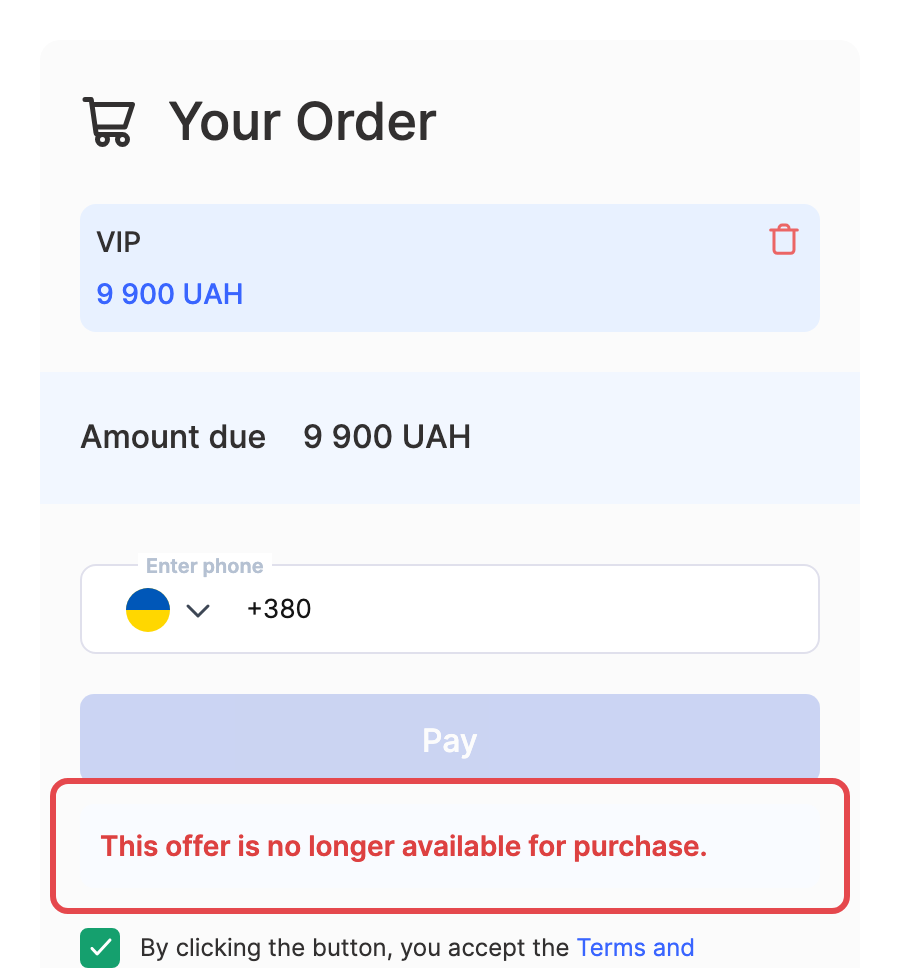
If at some point the plan has no price in effect — the period hasn't started yet, has already ended, or all spots are sold — the plan can't be bought. On the plan's public page the buyer will see "Offer expired", and on the page of an order that was placed but not paid — "This offer is no longer available for purchase.", and the order can't be paid. To keep sales going without interruption, make sure there are no No price gaps on the timeline.
A price that already has subscribers
If active subscriptions were purchased at a price, its amount and currency can't be changed: subscribers' renewals are charged at the amount they bought at. If you try to save a new amount, you will see a message about this.
Important: changing a price's payment schedule (Next payment, Payment day) also affects existing subscribers: their next charges will follow the new schedule, while a payment that is already scheduled won't move. If you don't want that, create a new price.
To have new buyers pay a different amount or on a different schedule:
- Create a new price with the terms you need — it is convenient to copy the current price's settings in the Copy price settings field.
- Set its validity period, or turn off the old price with Price active.
Existing subscribers will keep paying the old price, and new buyers will get the new one.
To learn where the buyer sees the price and how to set up the plan selection page, see the article The "Order form" step. To learn how to share a link that goes straight to paying for a plan, see the article Direct payment links for a plan.
Example: a course starts on December 1. Create an "Early bird" price of 3,000 ₴ ending On a specific date, November 30 at 23:59. Then create a "Regular" price of 4,000 ₴ starting From the end date of another price — select "Early bird" — and ending Indefinitely. Until November 30, buyers see 3,000 ₴; from December 1, they see 4,000 ₴, and there are no No price gaps on the Price timeline.
Frequently asked questions
What price will the customer see if the periods for multiple prices overlap?
The one you selected for this period in the "Price timeline" block: for each overlap, there is a question, "Which price should be shown during the period between:". If no price is selected, the price whose card appears first in the list applies. Drag the cards to change their order.
The exception is a price with automatic restart: it always applies during restart periods, and during the first period if no other price is selected for that overlap in the "Price timeline".
What will the buyer see if the plan currently has no active price?
Customers won't be able to purchase the plan. On the public plan page, they'll see "The offer has expired". On the page for an order that has been placed but not paid for, they'll see "The offer is no longer available for purchase." and won't be able to pay for it.
This happens when the price period hasn't started yet, has already ended, or all spots have sold out. To keep sales going, make sure there are no "No price" gaps on the "Price timeline".
What happens if you delete the last price for a plan?
The plan will have no active prices left and will no longer be available for sale. To continue selling the plan, click "+ New price" on the "Price" tab to add a new price.
Can I change the price if it already has subscribers?
No. If there are active subscriptions at this price, you can't change its amount or currency: subscribers renew at the price they originally paid.
To charge new customers a different amount, create a new price (you can copy the current settings using the "Copy price settings" field) and set its validity period, or turn off the old price using "Price active". Existing subscribers will continue to pay the previous price.
Will changing the payment schedule affect existing subscribers?
Yes. If you change “Next payment” or “Payment day” for a price, future charges for existing subscribers will follow the new schedule, but the next scheduled payment won't change. If you don't want this, create a new price.
Does the price validity period affect how long the buyer has access to the course?
No. The price validity period is the time during which the price is available for purchase. It is not related to the period of access to the product that the buyer will receive.
Does the restriction on repeat purchases apply to only one price?
No, the repeat purchase restriction applies to the entire plan, not just the price where it was configured.
Thanks for your feedback!
Thanks! We'll update the article. Need an answer now? Contact support