
Sales funnels: what they are and how they work
Learn how sales funnels work in KWIGA, where to find them, which steps they consist of, and how to track your advertising channels.
A funnel shows the buyer's journey — from the first contact with your brand to the purchase. In KWIGA, a funnel is a chain of pages the buyer goes through: the course page, the page where they choose a plan and place an order, and the page they see after payment. For every funnel step, KWIGA collects statistics on visits, contacts, and sales.
Where to find funnels
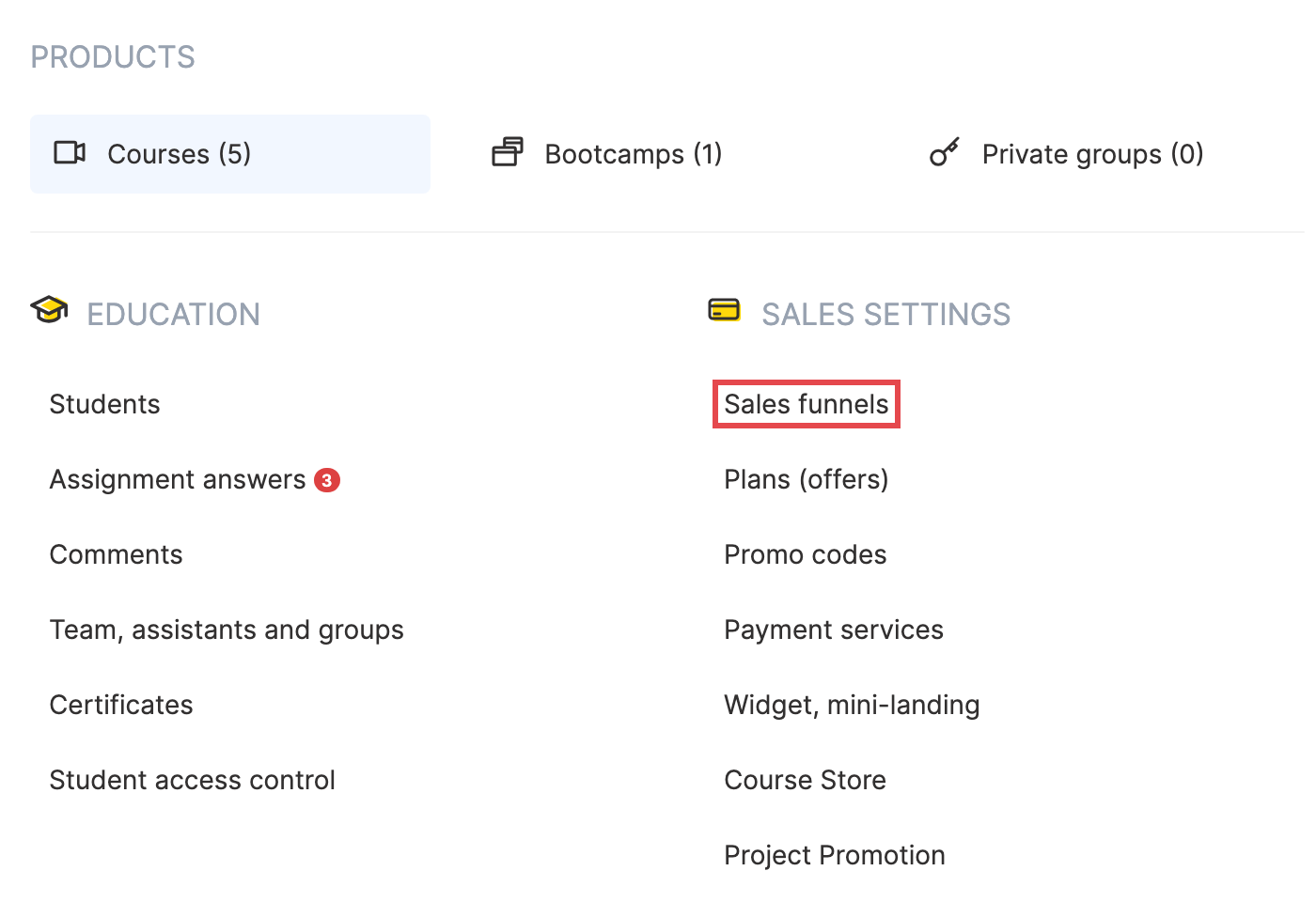
Open Courses → Sales settings → Sales funnels. The item is visible to team members who have permission to view funnels.
Types of funnels
- Course funnel. Created automatically when you create a course. It is named "Product sale "Course name"" and consists of three steps: Sales page, Order form, and Thank you page.
- Plan funnel. Use it if you want to sell a specific plan directly — straight from the checkout page. It consists of two steps — Order form and Thank you page — and is stored in the Plans folder. It is named "Plan sale "Plan name"".
A plan funnel is created with a button:
- Open Courses → Sales settings → Plans (offers) and select the plan.
- Go to the Publication tab.
- In the Sale of a specific pricing plan block, click Create a pricing plan funnel.
A plan can have only one plan funnel: clicking the button again does not create a new one. You can't create a plan funnel for an "on request" plan.

Note: for other product types (webinars, closed groups, etc.), a funnel is not created automatically.
Course funnels and plan funnels are system funnels: they can't be deleted. The set of steps in a funnel is fixed: steps can't be added, removed, or reordered.
Funnel list
For each funnel, the list shows:
- Status — "Active" or "Disabled". None of the pages of a disabled funnel open.
- Name — click it to open the funnel settings. Under the name there is a Products and pricing plans linked to the funnel link: which products open after payment and which plans can be paid for in this funnel.
- Helpful information — appears if the funnel isn't selling yet: for example, the course is in pre-registration mode or no plans are connected to the course. The window explains what to do.
- Metrics — visits, conversions, contacts, buyers, payments, amounts, and LTV. Each one is described in detail in the article Funnel analytics.

Above the list:
- Search by name.
- Filter in the Sales group: Product, Plan, Status.
- + Folder — create a folder. You can sort funnels into folders via the … menu → Move to folder.
- Export of the list — the columns are exported in the same order as in the table.
- Column settings — show, hide, and reorder columns, and pin a column while scrolling. The Created and Modified columns are hidden by default.
You can switch the amounts in the money columns to another currency right in the cell — the currency changes for the whole row.
The … menu of a funnel: Edit, Move to folder, Analytics, Delete. The Delete item is available only for non-system funnels.
Course funnels are also shown in the course itself — on the Sales tab, in the Sales funnels for this product block. And the plan's Publication tab has a Sales funnels for pricing plan products block, which lists the funnels where this plan is sold.
How the funnel page is organized
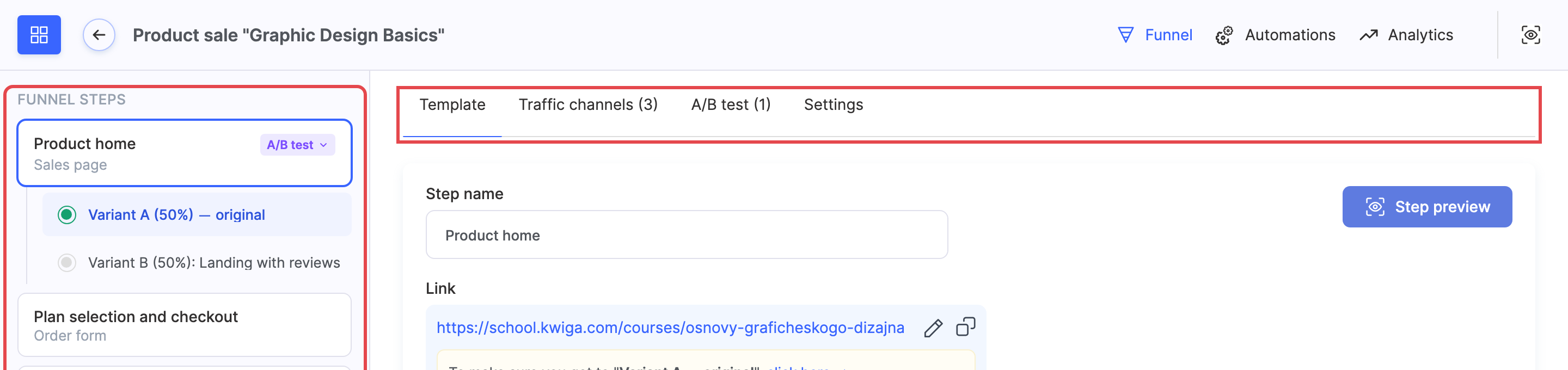
At the top of the page are the funnel name (you can edit it right in the field) and the sections:
- Funnel — the steps and their settings.
- Automations — automations, order transfer to CRM, and sending leads to external services. Learn more in the article Funnel automations.
- Analytics — funnel statistics.
- The eye icon — preview of the selected step's page.
On the left is the Funnel steps column. Under each step's name, its type is shown: Sales page, Order form, or Thank you page. On the right are the settings of the selected step, on these tabs:
- Template — the step name, link, and page design.
- Traffic channels — tagged links for ads. The Thank you page step doesn't have this tab.
- A/B test — comparing versions of the step page. Learn more in the article A/B testing funnel pages.
- Settings — after how long a visitor is considered to have left the step.
Step links
The Sales page and Order form steps each have their own public link — it is in the Link field on the Template tab. Only the end of the link can be changed: Latin letters, digits, and hyphens. The link can't be empty and can't match a page of your project or a system address.
- For the Sales page step, the link is the address of the course presentation page. If you change it, the course page address changes too.
- For the Order form step, the link leads to the plan selection page. In a plan funnel, the step link is its own and redirects to the plan page: changing the ending of the step link doesn't change the plan link, and vice versa.
- The Thank you page step has no link of its own — the buyer lands on it after payment.
The Step preview button opens the step page in a new tab.
You can create a link that leads straight to payment for a single plan on the plan's Publication tab — learn more in the article Direct payment links for a plan.
Traffic channels
Channels help you understand which ads bring in buyers.
- Open the funnel and select the Sales page or Order form step.
- Go to the Traffic channels tab.
- Enter the source name, for example "Google Ads", and click Save.
- Copy the channel link and use it in your ads.
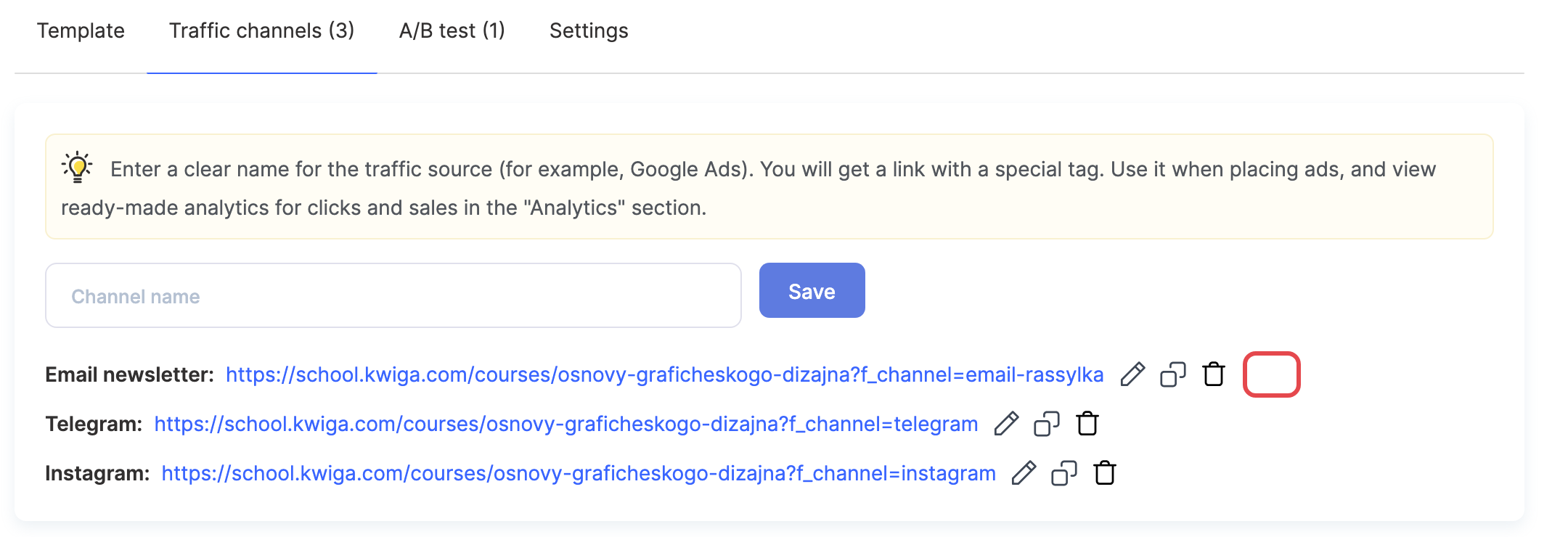
A channel link is the step link with a channel tag. Channels are shared across the whole funnel: a channel created on one step is also available on any other step with a Traffic channels tab. Statistics by channel are in the funnel's Analytics section.
- Renaming a channel doesn't change its link — ads that are already running keep working.
- A deleted channel disappears from the list, but the statistics collected for it remain in analytics marked "(archived)".
- A funnel can't have two channels with the same name.
UTM tags and the channel tag are preserved when the step link redirects the buyer further — to the course page or the plan page.
Team member permissions
Funnel permissions are configured in Settings → Team, in the team member's role, in the Sales funnels group:
- View — see funnels, their steps, and folders.
- Create — add new funnels and folders.
- Edit — change funnels, their steps, and folders.
- Delete — delete funnels and folders.
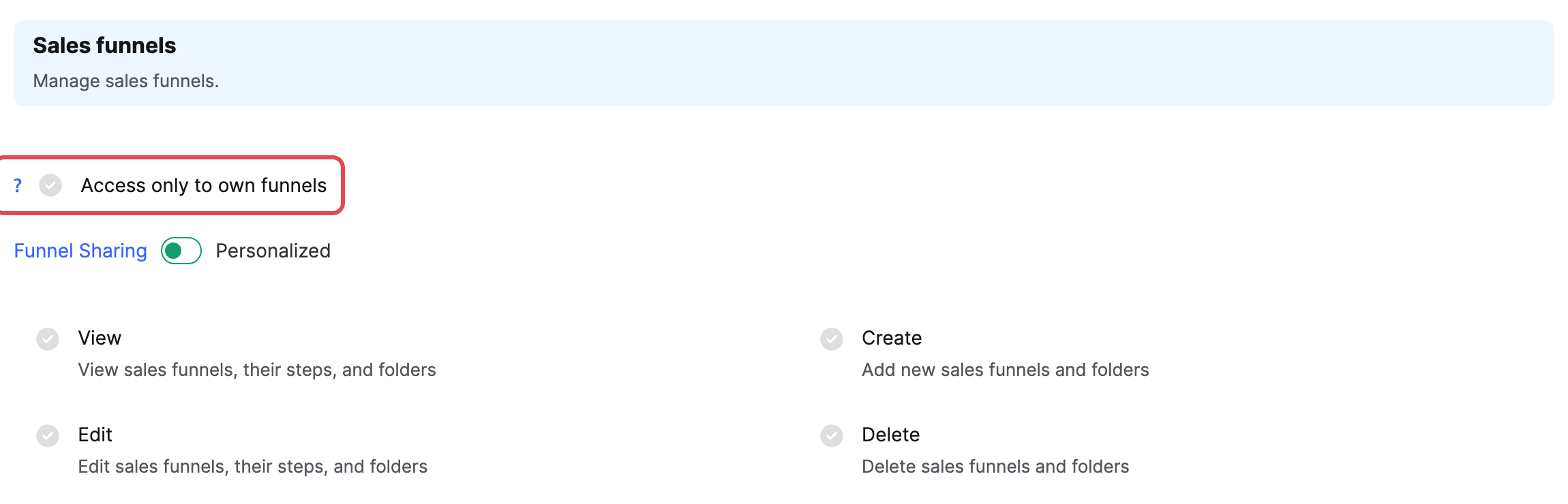
- Access only to own funnels — the team member sees only the funnels they created themselves. The author of a course funnel is whoever created the course; the author of a plan funnel is whoever clicked Create a pricing plan funnel.
Besides general access to all funnels, a role can be given personalized access — then it works only with the selected funnels and folders.
Important: permission for a funnel doesn't grant permission for plans and courses. If an action in a funnel changes a plan or a course (connecting a plan, changing the course page link, enabling pre-registration), the team member also needs permission for that plan or course. If the team member's role has personalized access to products, funnel analytics is visible only if at least one of the funnel's products is among the granted ones.
Example: you launch the course "English for beginners". KWIGA immediately creates the funnel "Product sale "English for beginners"" with three steps. You connect two plans on the Order form step, create the "Instagram" and "Google Ads" channels on the Sales page step, and place their links in your ads. A week later, the funnel's Analytics shows which channel brought in more buyers.
Frequently asked questions
Why can't I delete a course funnel or a plan funnel?
Course and plan funnels are system funnels and can't be deleted. The "Delete" option in the "…" menu is only available for non-system funnels.
The steps in these funnels are also fixed: you can't add, delete, or reorder them.
Can I create multiple sales funnels for one plan?
No. A plan can have only one plan funnel: clicking "Create plan funnel" again will not create a new funnel.
You cannot create a plan funnel for the "Custom" plan.
Why wasn't a funnel created for the webinar or private group?
A funnel is created automatically only when you create a course. Funnels are not created automatically for other product types, such as webinars and private groups.
What happens if you rename or delete a traffic channel?
Renaming a channel doesn't change its link – ads you've already placed will continue to work.
A deleted channel disappears from the list, but its collected statistics remain in analytics, marked as "(archived)".
Will UTM tags be preserved if the step link redirects the customer elsewhere?
Yes. UTM tags and the channel tag are preserved when the step link redirects the buyer to the course or plan page.
Will the course page URL or plan link change if I change the step link?
The "Sales Page" step link is the URL of the course landing page: if you change its ending, the course page URL will change too.
In a plan funnel, the "Order Form" step has its own link that redirects to the plan page. Changing the end of the step link does not change the plan link, or vice versa. You can only change the end of the link, using Latin letters, numbers, and hyphens.
The employee has access to funnels, but can't connect a plan or see funnel analytics – why?
Access to a funnel does not grant access to plans or courses. If a funnel action changes a plan or course – for example, assigning a plan, changing a course page URL, or enabling advance registration – the employee also needs access to that plan or course.
If an employee's role has custom access to products, funnel analytics are visible only if at least one product in the funnel is among the products they can access.
Thanks for your feedback!
Thanks! We'll update the article. Need an answer now? Contact support