
Setting up a subscription (recurring payments)
How to set up a plan paid by subscription, how the charge methods differ, and how to change a price when the plan already has subscribers.
You can set up subscription payments on the platform: a fixed amount is charged to the student's card automatically at regular intervals. If there is no money on the card, the charge fails and access to the products is closed. If the card has expired, a subscription charged via token switches to manual payment until the student updates the card (see below).
Before you start, create the products you will sell access to. They don't have to be filled with content yet — it is enough for the products themselves to exist on the platform.
A subscription can work in two ways: with automatic charges, when the money is debited without the student doing anything, or with manual payment, when the student makes each payment via a link. Automatic charges, in turn, come in two kinds: via a token stored by the platform, or on the payment system's own schedule. Manual payment works more like membership fees. In both cases, access is closed if a payment is late.
Setting up a subscription in a plan
You can set up subscription access for any product: a course, a bootcamp, a closed group, and so on.
As an example, let's create a subscription plan with monthly payments for a course and a closed Telegram chat: students get access to both products for a month at a time, and access stays open as long as payments arrive on time. If the next payment fails, access to the course is closed and the student is removed from the chat.
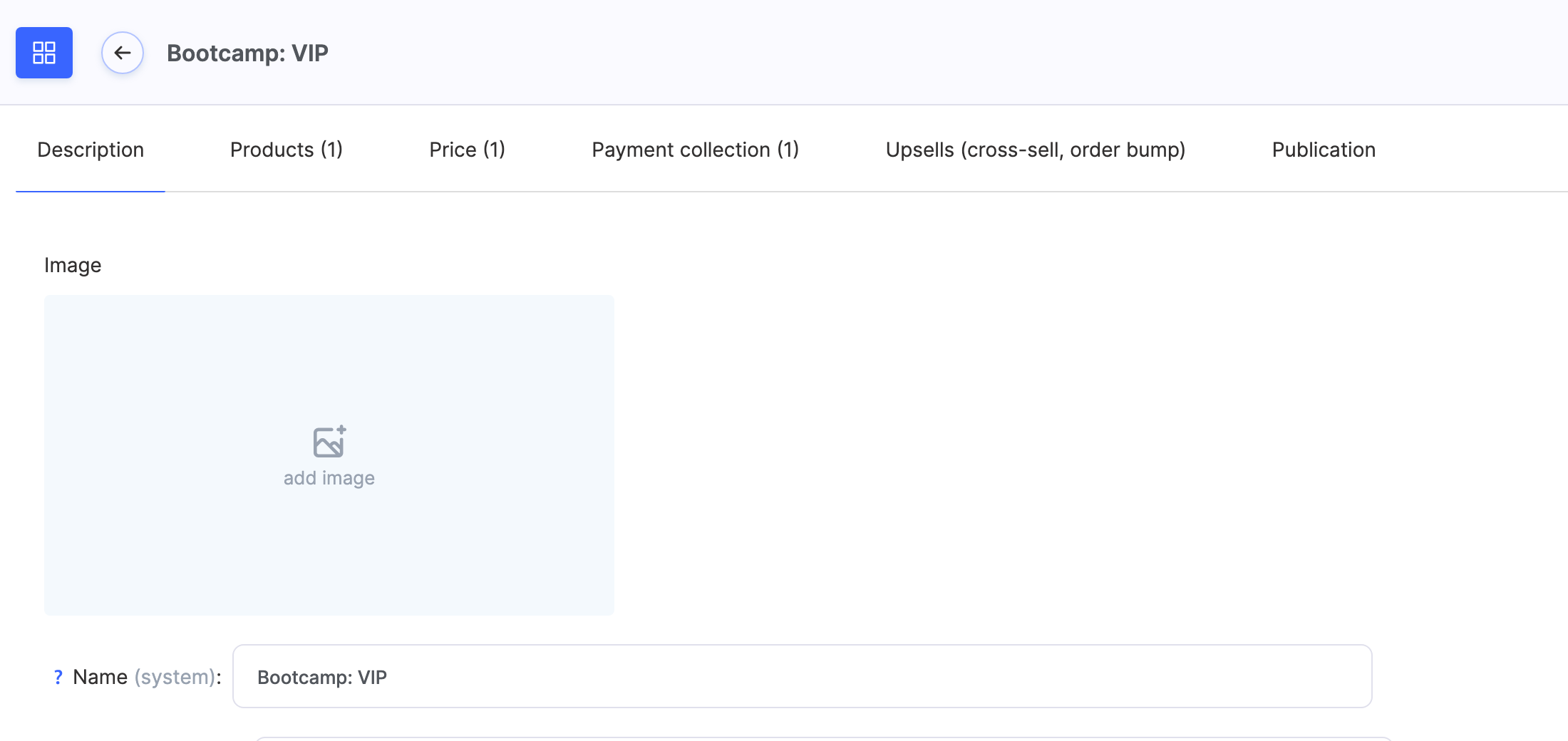
Create a plan via Courses → Sales settings → Plans (offers) or from the course card, as described in How to start selling on Kwiga: creating a pricing plan. On the Description tab, enter the plan name. It usually includes the name of the course, the plan, and the cohort if the sale is tied to a specific group. If needed, add a description of what the student will get.
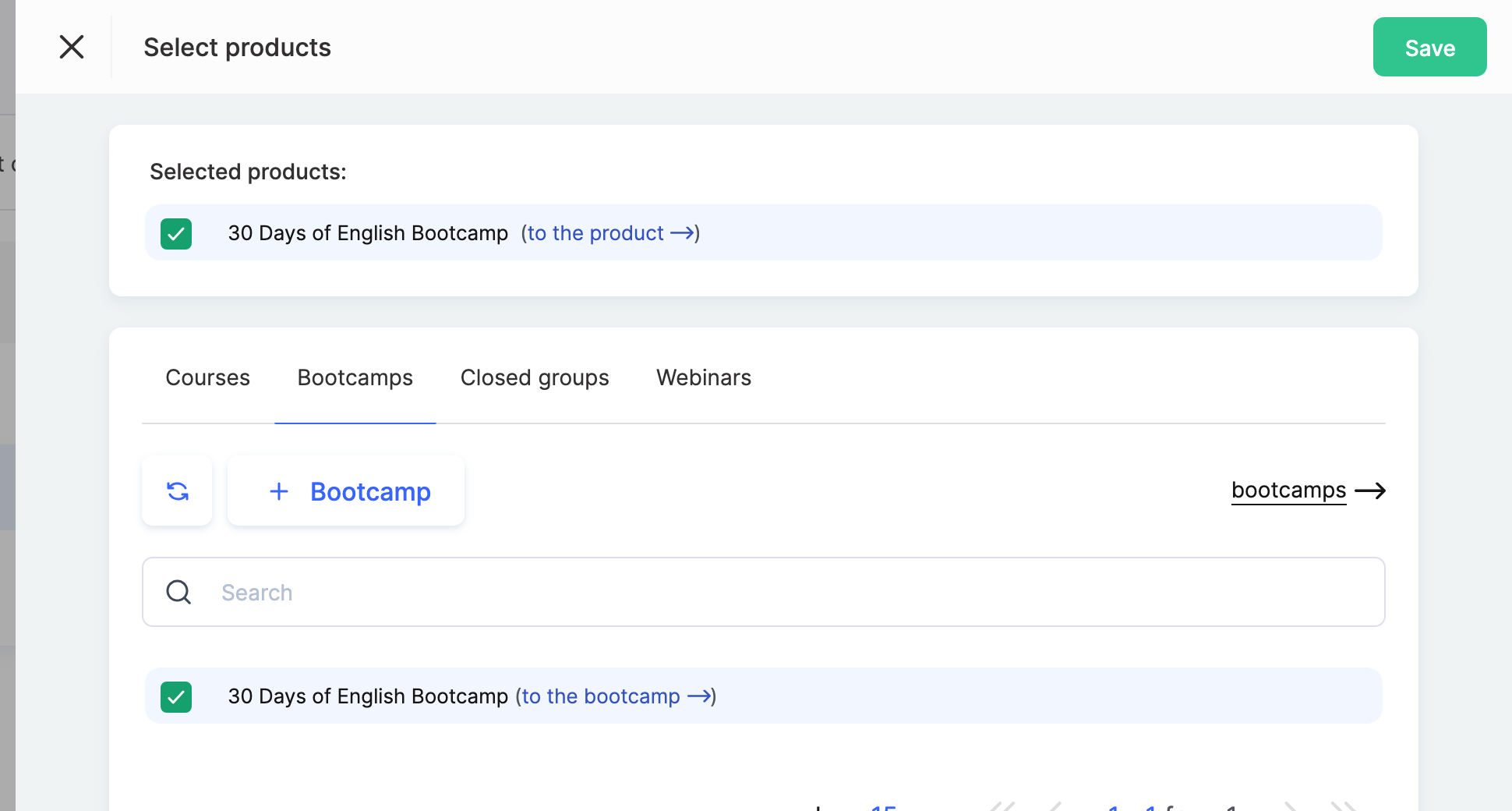
On the Products tab, add the course and the closed chat.
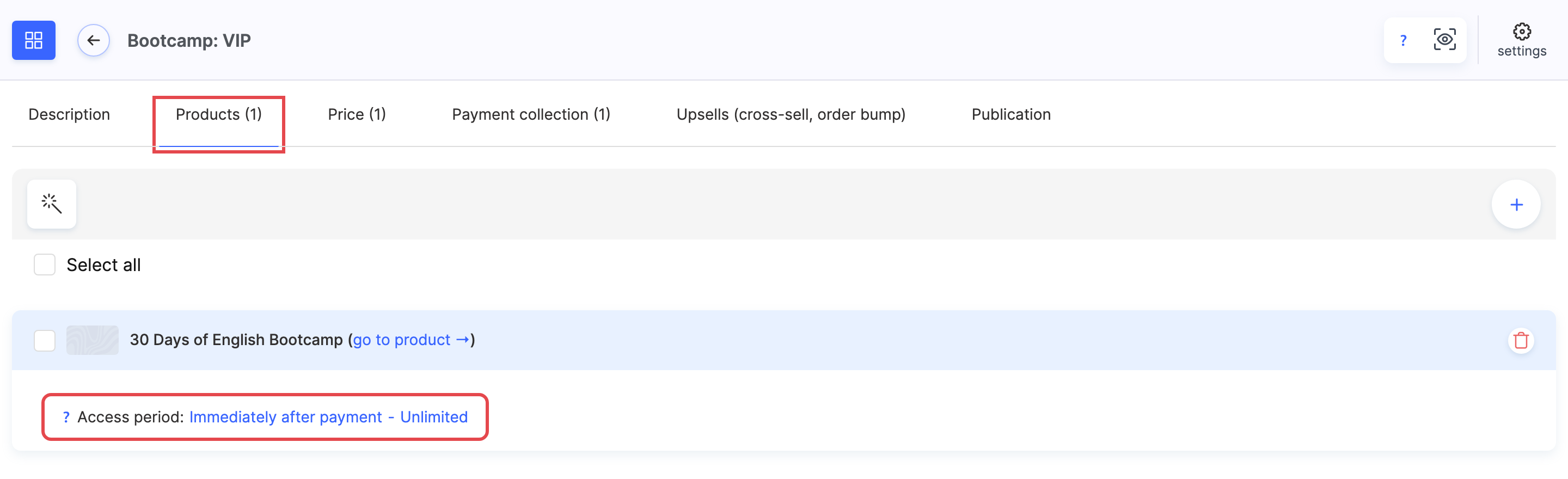
In Access period, enter the maximum length of the whole subscription, not of a single payment. If the course lasts a year with monthly payments, enter 12 months. If access to the chat has no time limit, leave it unlimited: with a subscription, access is still granted only for the paid period.
If the course has a lesson release schedule, we recommend keeping Use product delays for a subscription and managing the schedule at the course level rather than in the plan. Fill in the rest of the tab (assistants, practice review, certificate, comments) the same way as for a regular plan.
On the Price tab, enter the subscription cost, that is, the amount of one recurring payment.
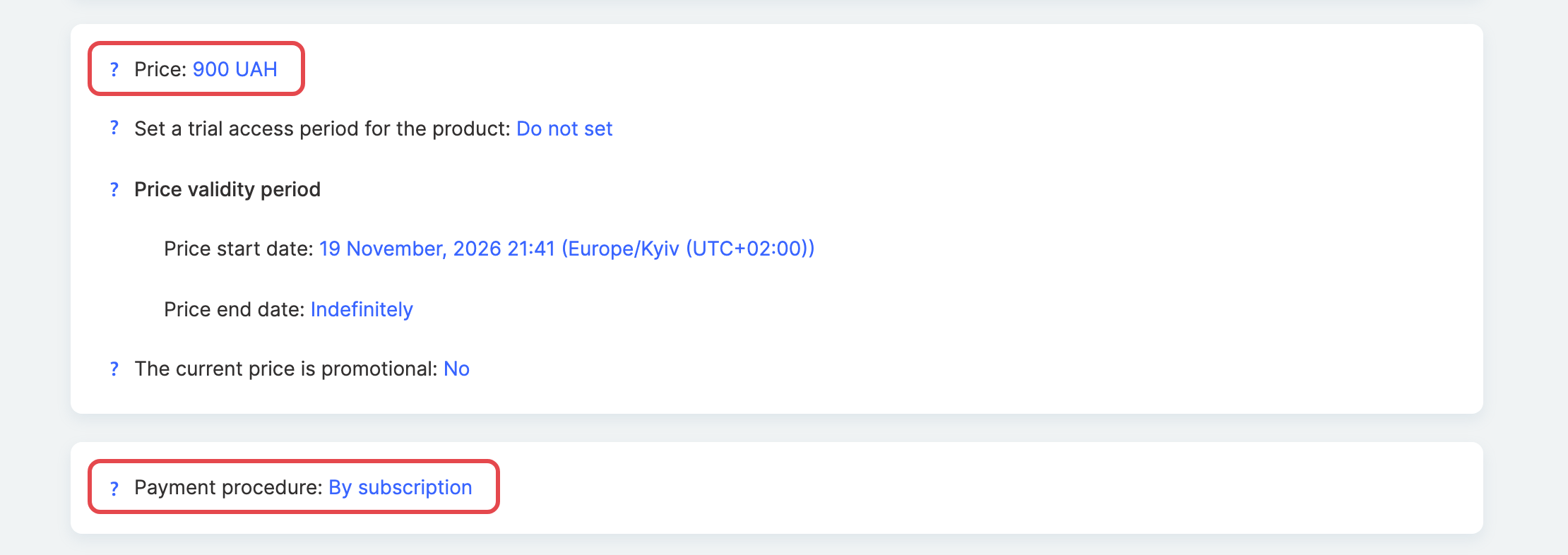
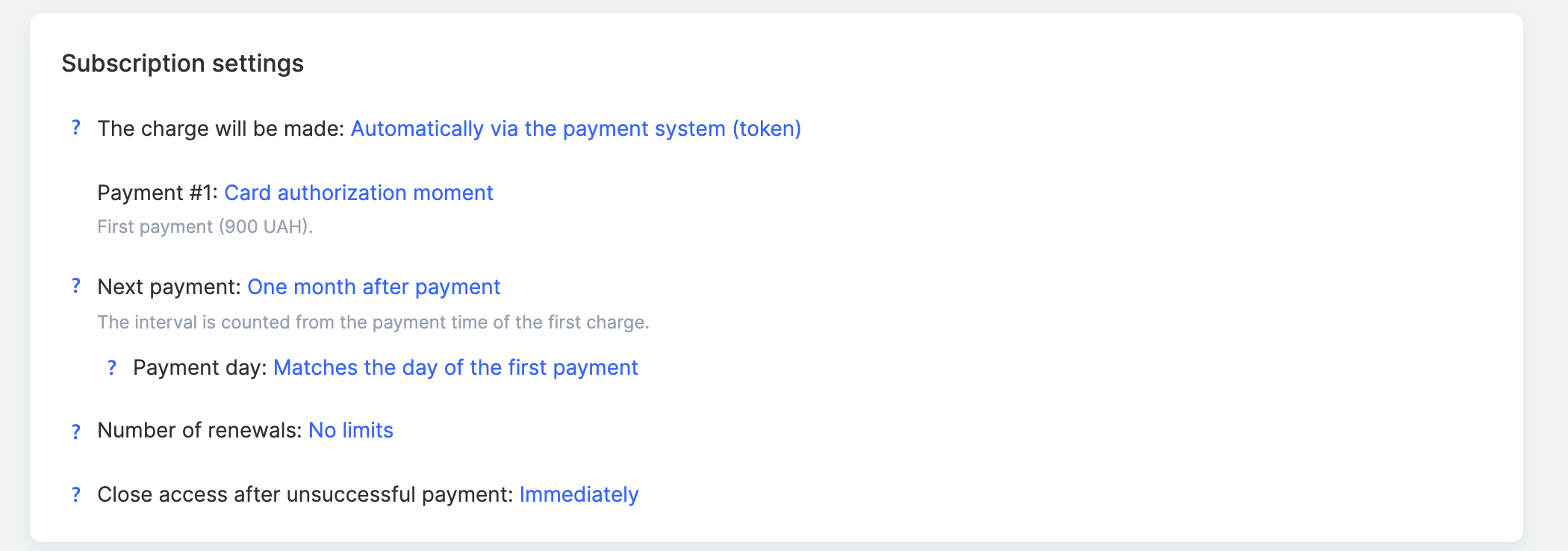
In Payment procedure, select By subscription, and the Subscription settings block appears below.
There, first choose the method in the The charge will be made field: Manually by the customer, Automatically via the payment system (token), or Under the payment system terms (there are limitations).
The differences between them are described in the next section. Then set up the payment schedule. Payment #1 is the first payment: by default it is charged when the card details are authorized, and the amount of the first payment is shown below it. In the Next payment field, set the interval between payments, for example one month after payment, and in the Payment day field choose whether the charge day matches the day of the first payment. Number of renewals determines how many times the subscription renews: keep Unlimited if the subscription runs until the student cancels it, or enter a number if the subscription should end on its own, for example when the training is over. In the Close access after unsuccessful payment field, specify when to close access if a payment fails: by default this happens immediately, but we recommend giving the student a few days to pay.
If a trial period is set on the same tab, the first payment and the countdown of the payment interval start after the trial ends.
On the Payment collection tab, connect a payment system. How to integrate a payment system on Kwiga.
If an automatic charge fails
This applies to the Automatically via the payment system (token) method: KWIGA charges each payment to the student's saved card on the scheduled date.
- The bank declined the charge — there was not enough money on the card, the card is blocked, or the bank refused for another reason. KWIGA tries again once a day — 4 attempts in total: on the payment date and on the next 3 days. For example, a payment is scheduled for the 10th: if the bank declines it on the 10th, the next attempts will be on the 11th, 12th and 13th.
- No response came from the payment system — for example, because of a connection failure. Such a payment is not charged again: the money may already have been taken, and a second attempt would charge it twice. If the payment actually went through, the payment system will report it, and the payment will be marked as paid automatically.
- The attempts are used up — the payment stays unpaid, and access is closed after the period set in the Close access after unsuccessful payment field. The subscription is not cancelled: the student can pay on their own in their account, and you can mark the payment as paid manually, see How to mark a subscription as paid (via the platform).
Please note: with the Under the payment system terms (there are limitations) method, charges and retries are made by the payment system itself under its own rules — KWIGA does not control them.
Payment system features and limitations
The subscription charge method depends on the connected payment system. Kwiga offers three options: Manually by the customer, Automatically via the payment system (token), and Under the payment system terms (there are limitations).
Manually by the customer is the simplest option and works with any connected payment system, including those that don't support tokens. The platform doesn't charge the money itself: before each payment, the student receives an email with a payment link, and the same link is always available in their personal account under Purchase history, next to the order.
Reminders are sent 7 days, 3 days, 1 day, and 1 hour before the payment date, and you can turn off any of these emails in the plan settings if needed. This option works well for membership fees and access to closed communities, when students are willing to confirm each payment themselves. If a payment doesn't arrive on time, access is closed; you can add a few days in the Close access after unsuccessful payment field so that the student can pay without a break in their learning.
Automatically via the payment system (token) charges every following payment without the student's involvement: they only need to take part in the first payment, when the token is created. Since charges are made by token rather than on the payment system's own schedule, the intervals between payments can be anything — there are no restrictions here.
Attention! For PayPal, WayForPay, LiqPay, and Payment by Mono, you also need to contact the payment system's support team to enable saving the card token. If the card or the token expires, the subscription automatically switches to manual mode ("Manually by the customer") until the student updates their card details. Also check in the integration settings on the Kwiga side that the "Save card details for future charges" option is enabled for the payment system.
Under the payment system terms (there are limitations) works differently: charges follow a schedule built into the payment system itself, so the available intervals depend on what it supports.
Attention! Klarna, Przelewy24, RedSys, CoinPayments, and Interkassa don't support built-in recurring charges on their side at all, so for them a subscription can only be set up with Manually by the customer or Automatically via the payment system (token).
Canceling a subscription
Both the student and the expert can cancel a subscription. Canceling doesn't close access right away: the student keeps learning until the end of the period already paid for (plus the extra days, if they are set in the plan settings), and only then is access closed. After cancellation, payment reminders stop.
How a student cancels a subscription
The student cancels the subscription in their account: Purchase history → the order → Cancel.
The platform asks them to confirm and reminds them until what date access will remain. After confirmation, the order page shows Subscription canceled.
How to cancel a subscription as an expert
Open the order and click Cancel subscription.
The button appears only for subscription orders that haven't been canceled yet, and only if the subscription can be canceled: for a Manually by the customer subscription the button is always there; for the others, if the payment system supports cancellation, and for WayForPay, if the password for regular payments is set in the integration settings. Only a team member with permission to edit orders sees the button.
What happens depending on the charge method
If payments go through Manually by the customer, the payment system takes no part in charging the money, so canceling simply stops the payment reminders.
If the payment system itself charges the money (Stripe, WayForPay, Monobank, Hutko, LiqPay, Fondy, Tranzzo), the platform first sends it a cancellation request and marks the subscription as canceled on its side only after the cancellation is confirmed.
If the subscription is canceled in the payment system's account
The platform learns about such a cancellation only for Stripe, and sometimes for WayForPay. In other cases the charges stop, but in Kwiga the subscription stays active and the student keeps receiving payment reminders. So cancel the subscription in the order card on the platform as well.
Changing existing subscriptions
Renewals of existing subscriptions are charged at the price the student subscribed at. That's why you can't change the amount and currency of a price that has active subscriptions: on saving, the platform shows the message "This price has active subscriptions — they renew at the purchase amount, so you can't change the price amount or currency. Create a new price: new buyers will get it."
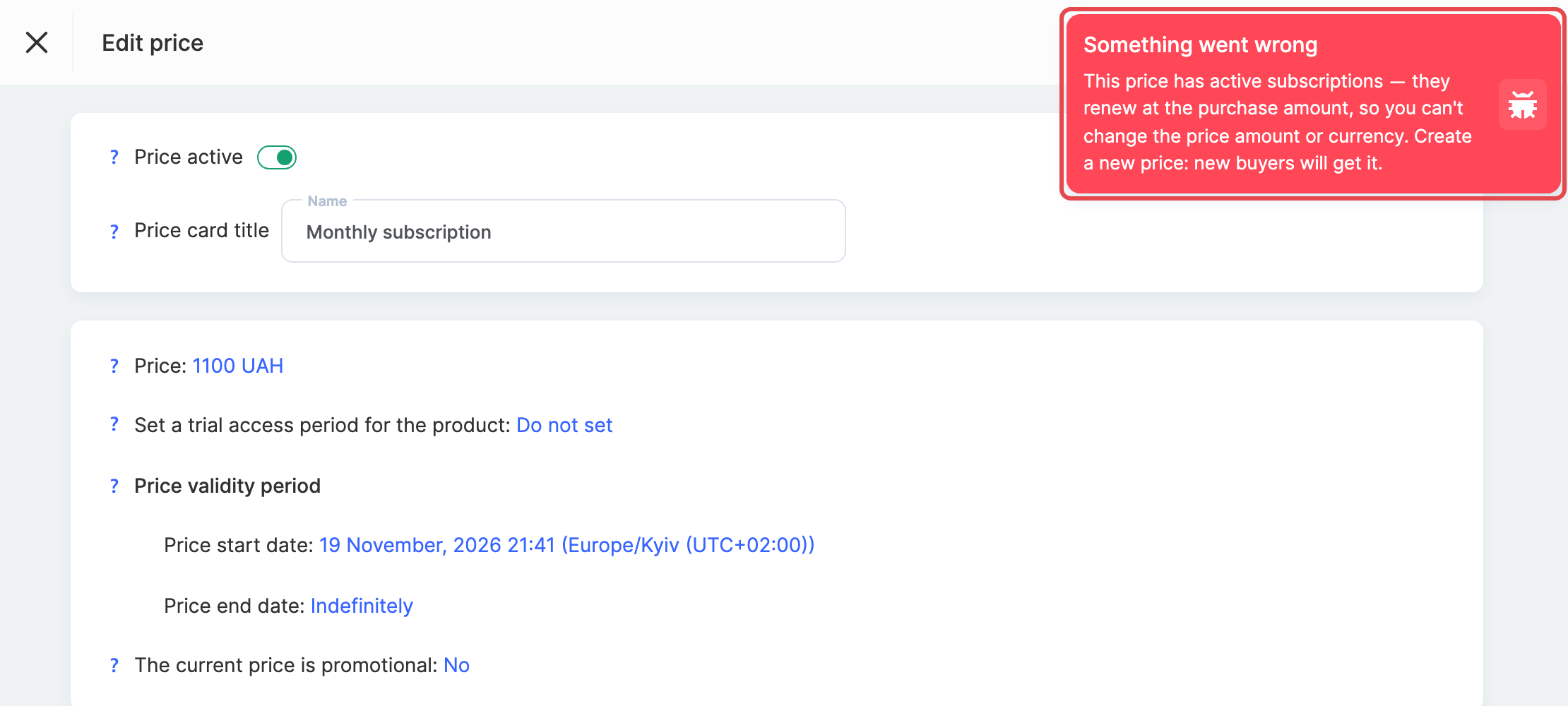
To have new students pay a different amount:
- Open the plan and go to the Price tab.
- Click + New price. To avoid setting up the subscription again, select the current price in the Copy price settings field (or Do not copy) and click Next.
- Enter the new amount and click Save.
- Open the old price and turn off the Price active toggle. It stays in the plan: new students won't see it, and those who have already subscribed keep paying the old amount. Click Save.
If the price should change at a specific moment, don't turn off the old one — set a Price validity period for each price instead, and they will replace each other automatically.
Important: changing a price's payment schedule (Next payment, Payment day) also affects existing subscribers: their next charges will follow the new schedule. A payment that is already scheduled won't move. If you don't want to change the schedule for existing subscribers, create a new price the same way as when changing the amount.
If the access terms themselves change — for example, the set of products or the access period — or you need to offer new students fundamentally different terms, it's better to create a separate plan. That way you can always see which settings the payments of each group of students go through.
If you need to stop a particular subscription, cancel it in the order card, as described in the section on canceling a subscription.
Frequently asked questions
What happens if the next subscription payment fails?
Access to the plan's products is revoked. By default, this happens immediately, but you can set a delay of a few days in the "Close access after a failed payment" field to give the student time to pay without interrupting their learning.
If the card or token for a token-based subscription expires, the subscription switches to manual mode ("By the customer") until the student updates their card details. The student pays using the link in the email or in the "Purchase history" section of their account.
What "Access period" should I set for a subscription plan?
The maximum duration of the entire subscription, not a single payment: for example, 12 months for a year-long course with monthly payments. If product access is unlimited, leave it set to unlimited – with a subscription, access is still only granted for the paid period.
Can I increase the subscription price if the plan already has subscribers?
No, you can't change the amount or currency of a price with active subscriptions – they renew at the original purchase amount. For new students:
- on the "Price" tab, click "+ New price". If you like, copy the current price settings using the "Copy price settings" field, then enter the new amount;
- turn off "Price is active" for the old price – new students won't see it, and existing subscribers will continue paying the same amount.
Will changing the payment schedule affect existing subscribers?
Yes, changing the “Next payment” and “Payment day” fields for a price will affect existing subscribers: their subsequent charges will follow the new schedule. A payment that has already been scheduled will not change. If you don't want to change subscribers' schedules, create a new price.
Does access end immediately after canceling the subscription?
No. The student can continue learning until the end of the paid period, including any extra days specified in the plan settings. Access is closed only after that. Payment reminders stop after cancellation.
Why is there no "Cancel subscription" button in the order?
The button appears only for orders with a subscription that hasn't been canceled, and only if the subscription can be canceled:
- for "Customer-managed" subscriptions – always;
- for WayForPay – if a password for recurring payments is specified in the integration settings;
- for other payment methods – if the payment system supports cancellation.
The student canceled their subscription in the payment system account – will it also be canceled in Kwiga?
The platform is notified of such cancellations only for Stripe and sometimes for WayForPay. In other cases, payments will stop, but the subscription will remain active in Kwiga and the student will continue to receive payment reminders. To prevent this, also cancel the subscription in the order details on the platform.
Thanks for your feedback!
Thanks! We'll update the article. Need an answer now? Contact support